> ## Documentation Index
> Fetch the complete documentation index at: https://help.lobstr.io/llms.txt
> Use this file to discover all available pages before exploring further.
# Manage billing details, payment methods, and invoices
> Update your billing address and VAT details, add or remove payment cards, and download PDF invoices from your lobstr.io account settings.
This guide walks you through the key parts of managing your billing inside lobstr.io.
## Update billing information
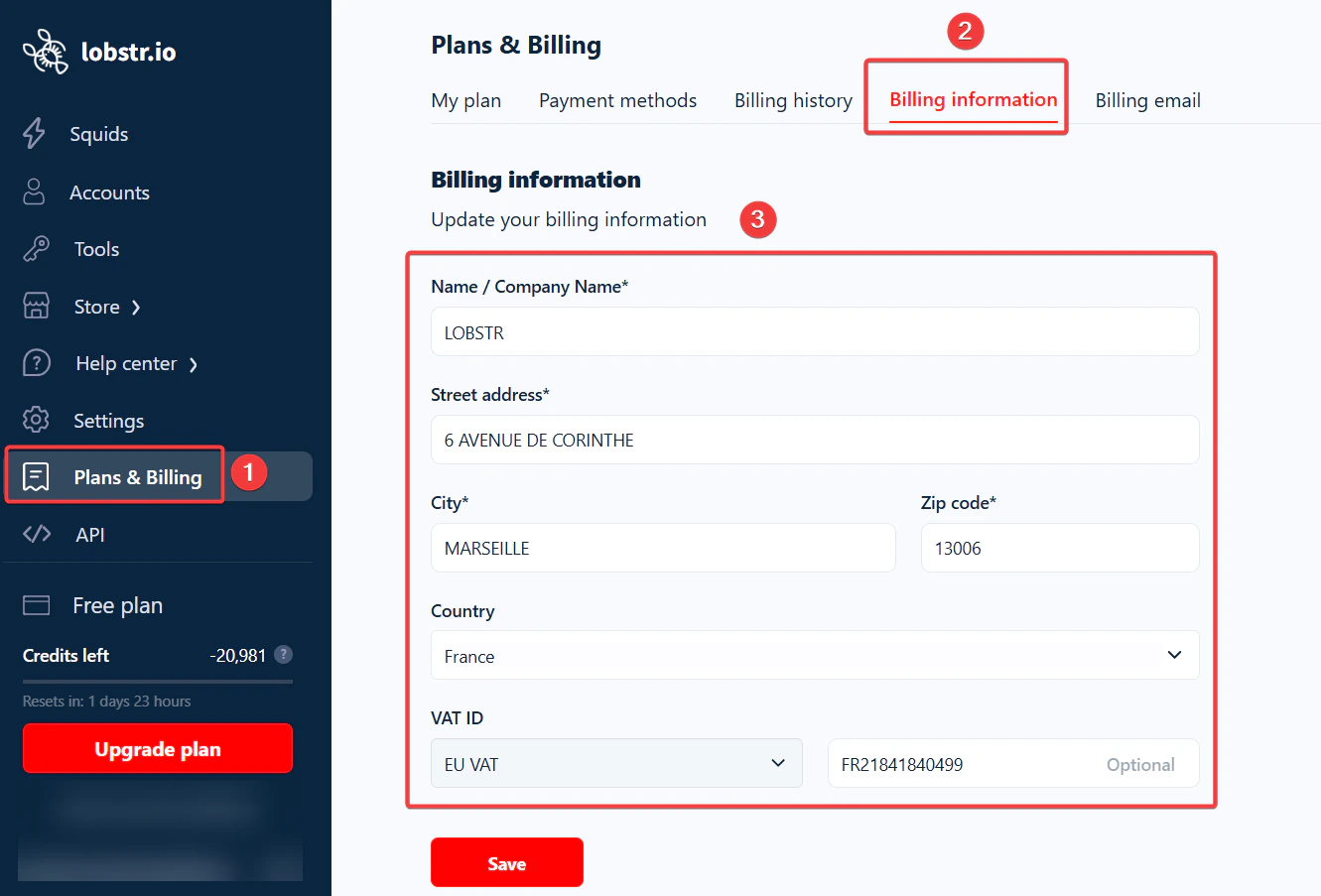 1. Go to **Settings → Plans & Billing → Billing Information**.
2. Update the information you want to change (e.g., name, address, VAT ID).
3. Click **Save** to apply changes.
These updates apply to **future invoices**. Previous invoices remain unchanged.
## Add or remove payment methods
Go to **Settings → Plans & Billing → Payment Methods**.
1. Go to **Settings → Plans & Billing → Billing Information**.
2. Update the information you want to change (e.g., name, address, VAT ID).
3. Click **Save** to apply changes.
These updates apply to **future invoices**. Previous invoices remain unchanged.
## Add or remove payment methods
Go to **Settings → Plans & Billing → Payment Methods**.
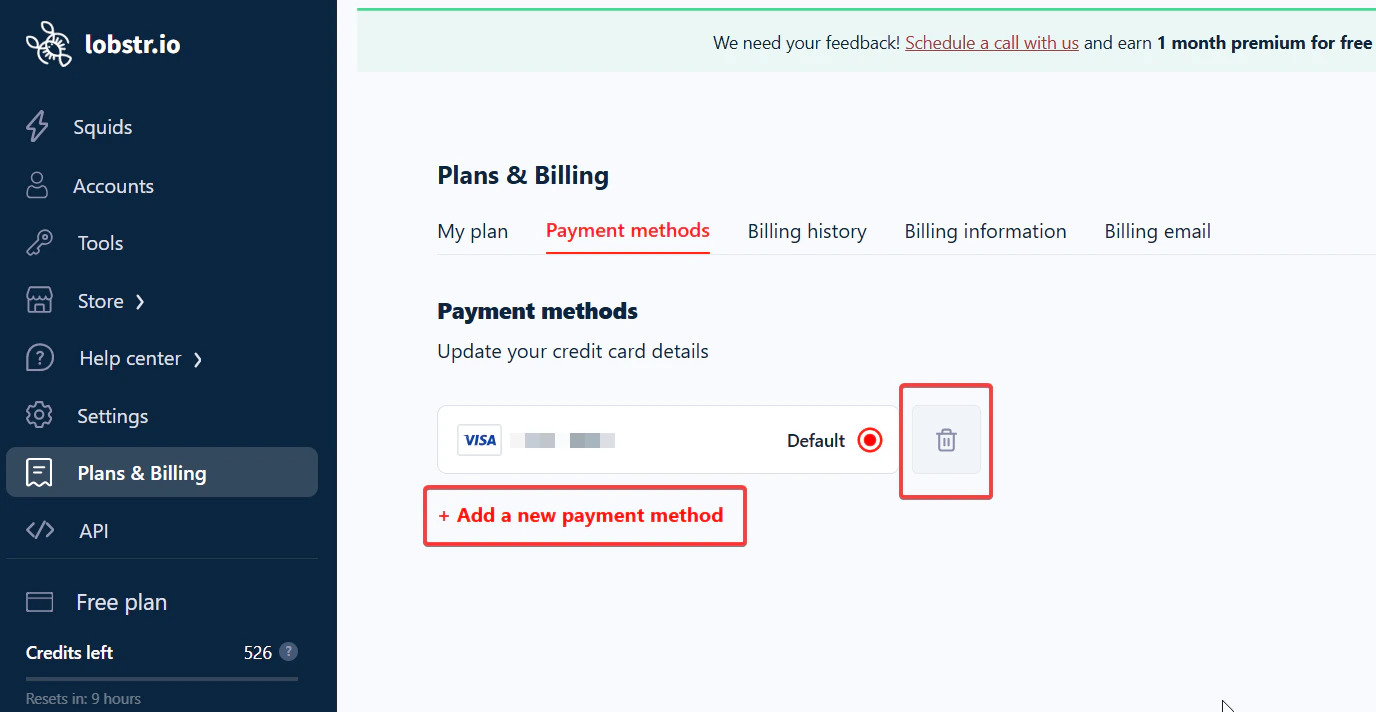 **To add a card:**
1. Click **Add a new payment method**.
2. Enter your card details and save.
**To remove a card:**
* Click the delete icon next to the payment method you want to remove.
You must always have at least one valid payment method on file for your paid subscription to remain active.
## Download invoices
**To add a card:**
1. Click **Add a new payment method**.
2. Enter your card details and save.
**To remove a card:**
* Click the delete icon next to the payment method you want to remove.
You must always have at least one valid payment method on file for your paid subscription to remain active.
## Download invoices
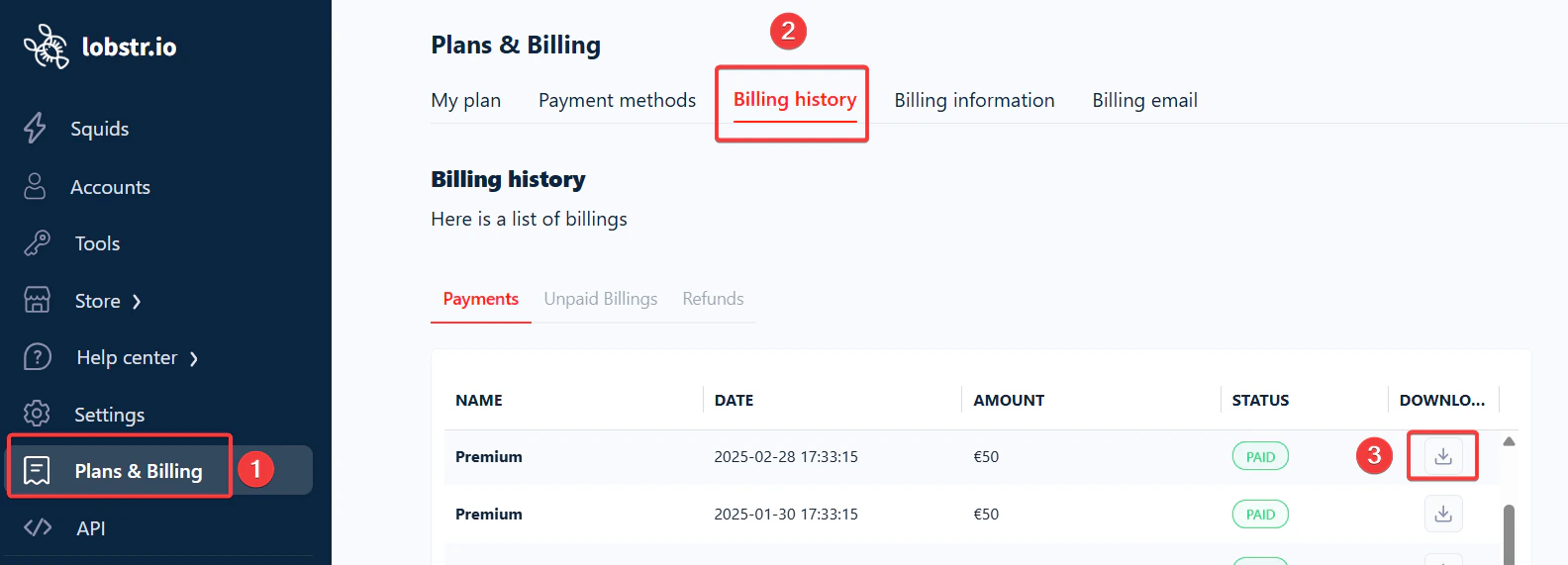 1. Go to **Settings → Plans & Billing → Billing History**.
2. Locate the invoice by issue date.
3. Click the download icon next to the invoice.
Your invoice downloads instantly as a PDF.
## Next: manage your subscription
To upgrade, downgrade, reset, pause, or cancel your plan, see: [How to manage your subscription](/billing/manage-subscription).
1. Go to **Settings → Plans & Billing → Billing History**.
2. Locate the invoice by issue date.
3. Click the download icon next to the invoice.
Your invoice downloads instantly as a PDF.
## Next: manage your subscription
To upgrade, downgrade, reset, pause, or cancel your plan, see: [How to manage your subscription](/billing/manage-subscription).