> ## Documentation Index
> Fetch the complete documentation index at: https://help.lobstr.io/llms.txt
> Use this file to discover all available pages before exploring further.
# How credit allocation affects your billing
> Understand how daily vs monthly credit allocation works with your lobstr.io plan, and what happens when you switch modes mid-cycle.
Your lobstr.io plan includes a monthly credit allowance. How those credits are distributed depends on the allocation mode you choose — **daily** or **monthly**.
Different users have different needs:
* Some scrape data every day and want to avoid burning all their credits at once.
* Others want to run large one-off jobs and prefer all credits available upfront.
For the full concept walkthrough, see [Credits: How Usage Is Measured and Allocated](/core-concepts/credits).
## Daily allocation
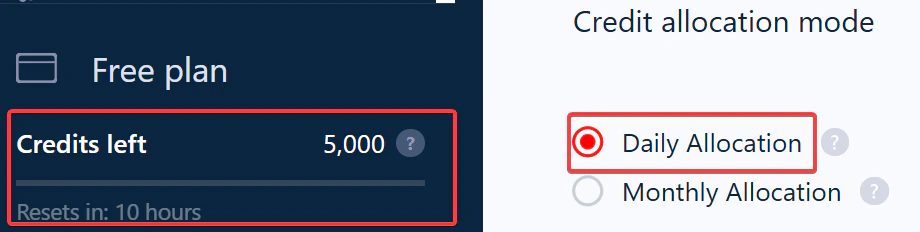 With **Daily Allocation**, your monthly credits are divided by the remaining days in your billing cycle. You get a set amount of credits to use each day, which makes it easy to stick to a steady scraping routine and avoid running out early. Ideal for consistent daily scraping with a clear limit.
## Monthly allocation
With **Daily Allocation**, your monthly credits are divided by the remaining days in your billing cycle. You get a set amount of credits to use each day, which makes it easy to stick to a steady scraping routine and avoid running out early. Ideal for consistent daily scraping with a clear limit.
## Monthly allocation
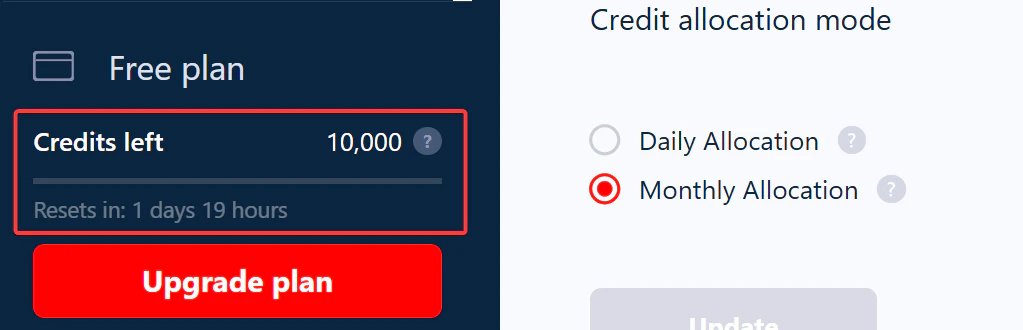 With **Monthly Allocation**, you get all your credits for the month upfront. Use them however and whenever you want within the billing cycle — perfect for big scraping jobs that need lots of credits at once.
## Switching between modes
You can change your allocation mode anytime:
With **Monthly Allocation**, you get all your credits for the month upfront. Use them however and whenever you want within the billing cycle — perfect for big scraping jobs that need lots of credits at once.
## Switching between modes
You can change your allocation mode anytime:
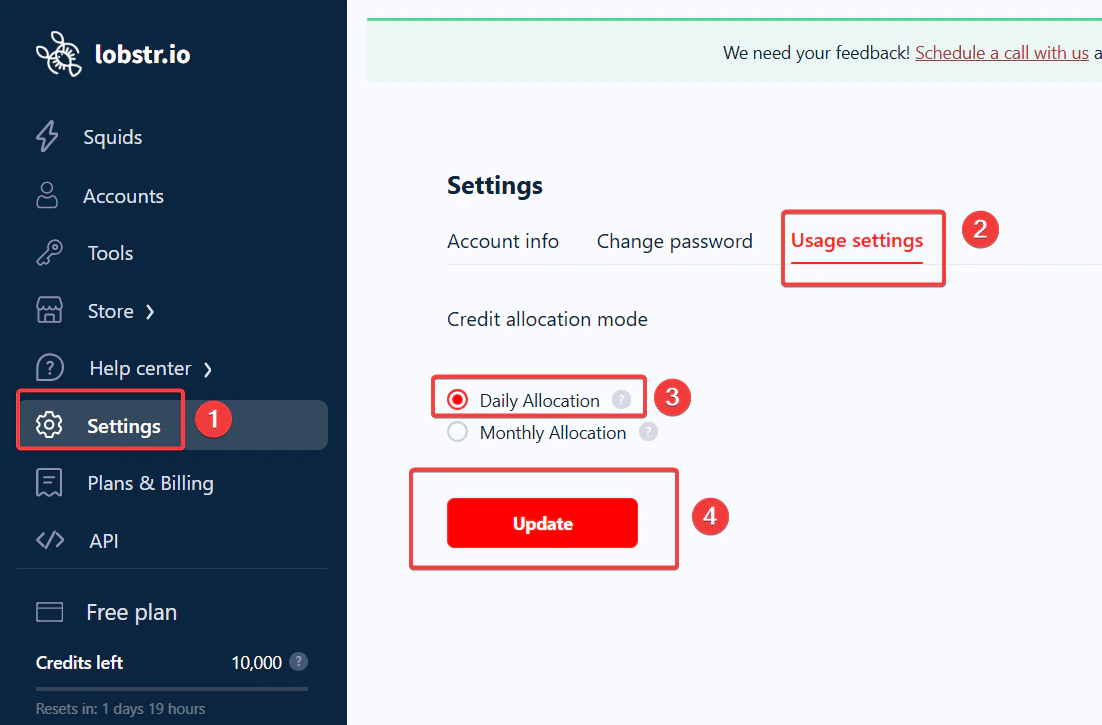 1. Go to **Settings** from the left sidebar of your lobstr.io dashboard.
2. Click **Usage settings**.
3. Under **Credit allocation mode**, choose **Daily** or **Monthly**.
Switching modes does not add or remove credits — it only changes how your existing balance is distributed.
## What if your Squid needs more credits than your daily quota?
If a scraping job needs more credits than you have for the day, you can set up a temporary pause so it resumes the next day.
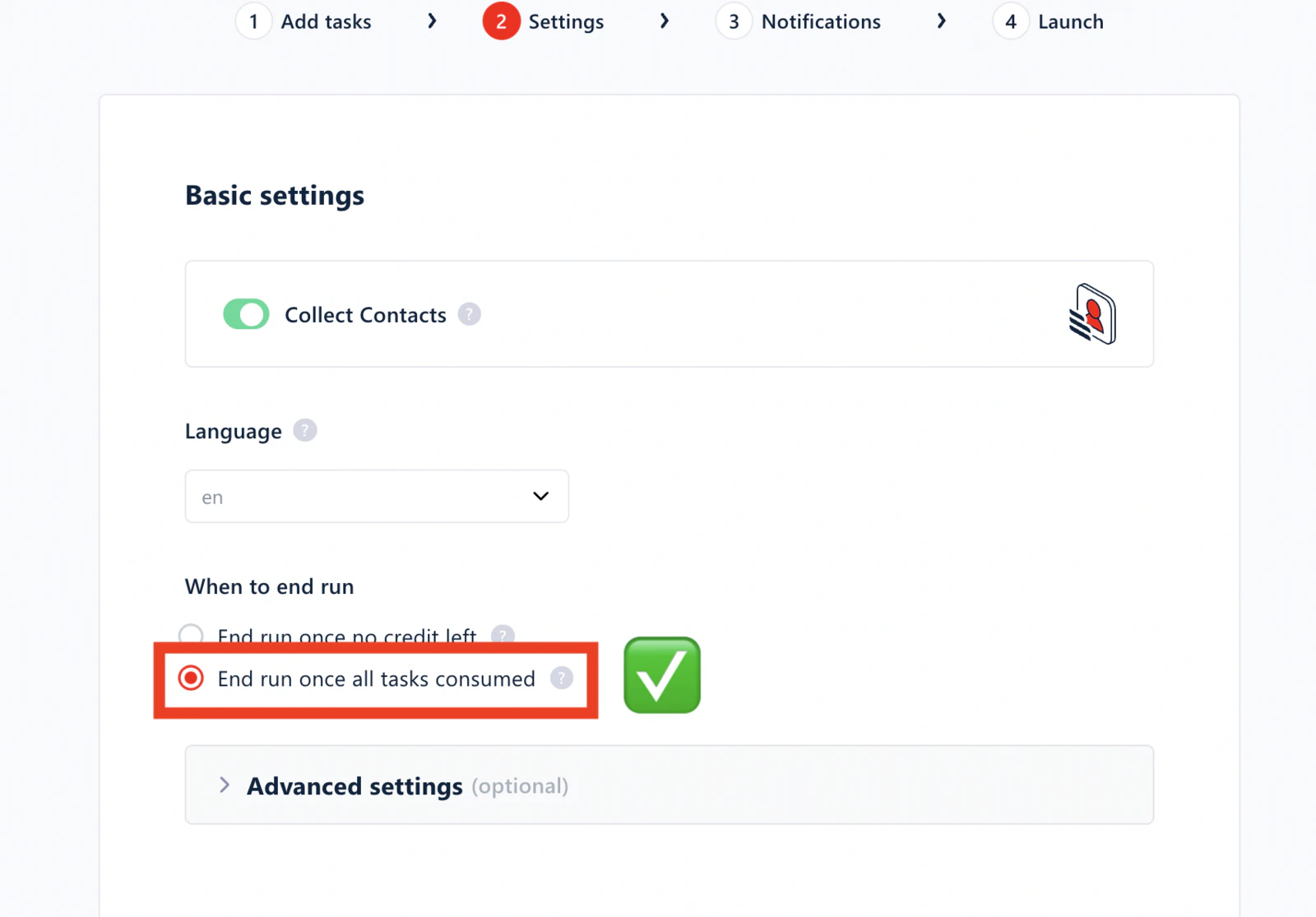
In your Squid settings, go to **When to end run** and turn on **End run once all tasks consumed**.
1. Go to **Settings** from the left sidebar of your lobstr.io dashboard.
2. Click **Usage settings**.
3. Under **Credit allocation mode**, choose **Daily** or **Monthly**.
Switching modes does not add or remove credits — it only changes how your existing balance is distributed.
## What if your Squid needs more credits than your daily quota?
If a scraping job needs more credits than you have for the day, you can set up a temporary pause so it resumes the next day.
In your Squid settings, go to **When to end run** and turn on **End run once all tasks consumed**.
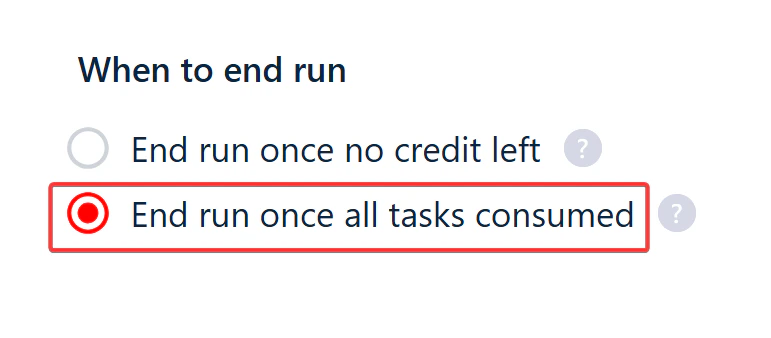 Once you hit your daily limit, the run automatically pauses. The next day, when your daily credits refresh, the run picks up right where it left off — letting you complete larger jobs over multiple days without breaking your daily quota.
### Detailed walkthrough: spreading daily credits
By default, the scraper stops when the day's credits have been used up.
Once you hit your daily limit, the run automatically pauses. The next day, when your daily credits refresh, the run picks up right where it left off — letting you complete larger jobs over multiple days without breaking your daily quota.
### Detailed walkthrough: spreading daily credits
By default, the scraper stops when the day's credits have been used up.
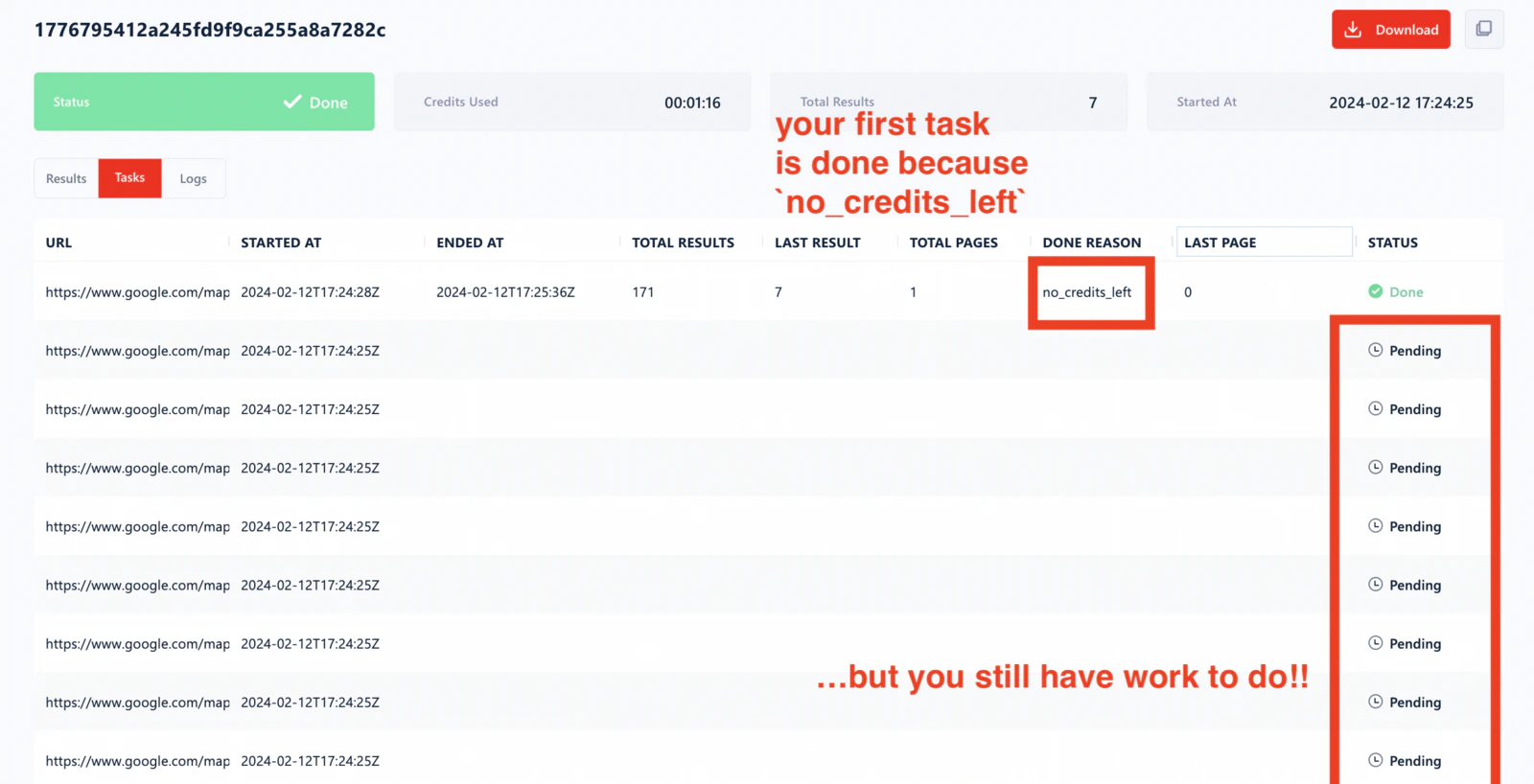 To make it pause instead and resume the next day:
* Go to your Squid settings.
* Open the **Settings** section.
* Select **End run once all tasks consumed**.
To make it pause instead and resume the next day:
* Go to your Squid settings.
* Open the **Settings** section.
* Select **End run once all tasks consumed**.
 Press **Save & Exit**.
Go back to your Squid and restart the collection. The scraper will collect as much data as possible, pause when credits run out, and resume the next day.
Press **Save & Exit**.
Go back to your Squid and restart the collection. The scraper will collect as much data as possible, pause when credits run out, and resume the next day.
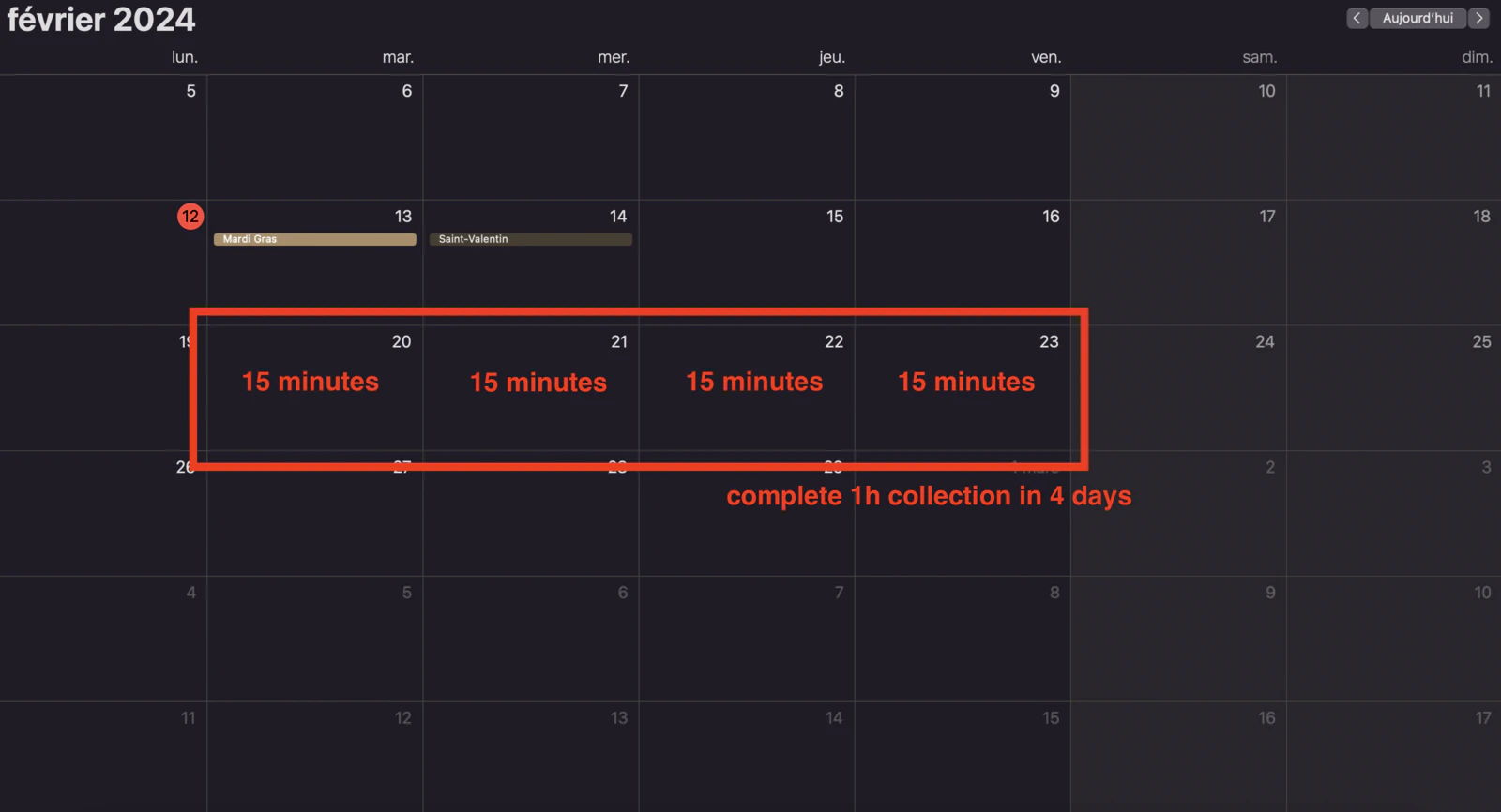
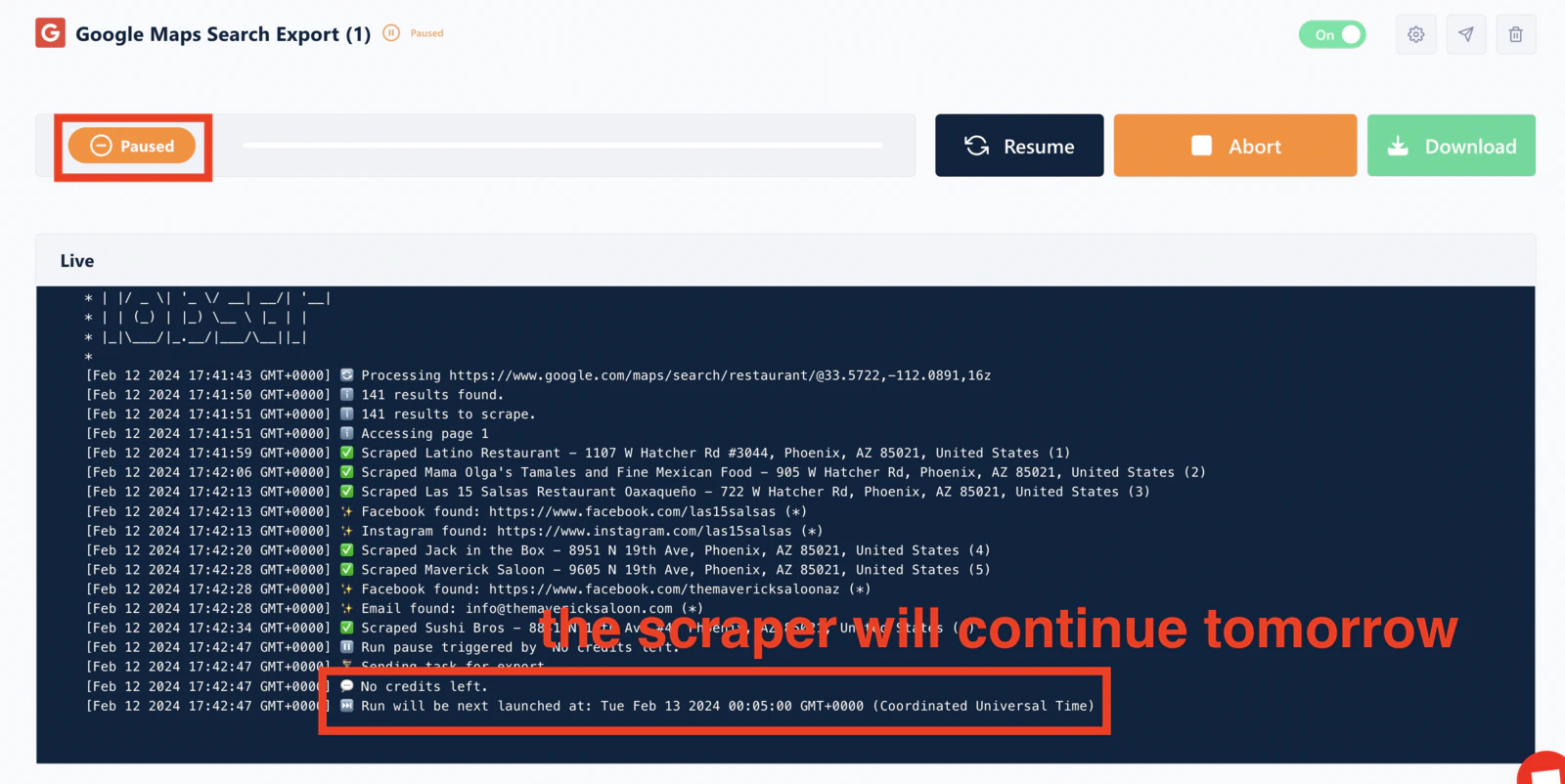 This way, you can spread your daily credits over several days:
 ## Running out of credits
If you exhaust your credits before the billing cycle renews:
* **On daily mode:** wait for tomorrow's refresh, or switch to monthly to access any remaining balance.
* **On monthly mode:** wait for your next billing cycle, or [reset your billing cycle early](/billing/reset-billing-cycle) to get a fresh allocation (this charges your plan amount immediately).
## Related articles
* [Credits: How Usage Is Measured and Allocated](/core-concepts/credits) — full guide to credit modes
* [Reset Your Billing Cycle](/billing/reset-billing-cycle) — get fresh credits before renewal
* [Manage Your Subscription](/billing/manage-subscription) — upgrade for more credits
## Running out of credits
If you exhaust your credits before the billing cycle renews:
* **On daily mode:** wait for tomorrow's refresh, or switch to monthly to access any remaining balance.
* **On monthly mode:** wait for your next billing cycle, or [reset your billing cycle early](/billing/reset-billing-cycle) to get a fresh allocation (this charges your plan amount immediately).
## Related articles
* [Credits: How Usage Is Measured and Allocated](/core-concepts/credits) — full guide to credit modes
* [Reset Your Billing Cycle](/billing/reset-billing-cycle) — get fresh credits before renewal
* [Manage Your Subscription](/billing/manage-subscription) — upgrade for more credits