> ## Documentation Index
> Fetch the complete documentation index at: https://help.lobstr.io/llms.txt
> Use this file to discover all available pages before exploring further.
# lobstr.io credits: how usage is measured and allocated
> Credits are lobstr.io's usage currency. Learn what credits buy, where to find your balance, and how daily vs monthly allocation controls when you can spend them.
Credits are the usage currency in lobstr.io. Every scraper run consumes credits as it collects data, and every plan includes a monthly credit allowance you can spend across your Squids.
## What credits buy
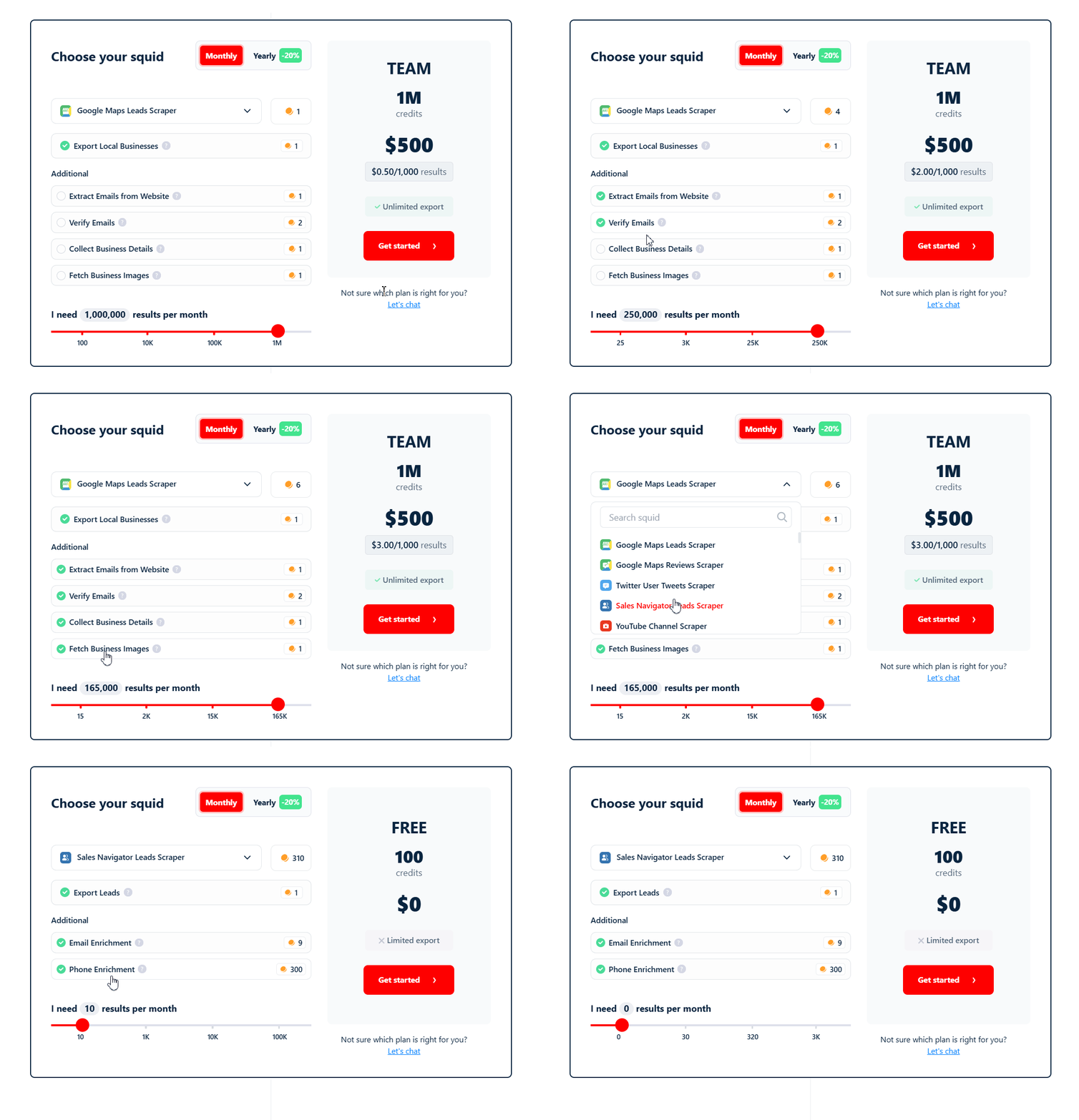 The credit cost of a scraping job depends on the Squid and which features you enable. In general:
* **Scraped rows** — each result a Squid collects consumes credits. This covers both basic data collection and any additional data functions you enable. For example, on a LinkedIn leads scraper, collecting a profile from a search result is one function, and visiting the profile to pull extra details is a separate function — each adds to the row's credit cost. The exact amount varies by scraper and which functions are turned on.
* **Email enrichment** — available on scrapers that don't already return emails in their scraped data. Enrichment costs **9 credits per email found and validated**. Emails that can't be found, or that fail validation, don't cost credits. lobstr.io's enrichment has a bounce rate of **less than 3%** (accuracy above 97%).
* **Email validation** — available on scrapers where emails already appear in the scraped data but aren't pre-verified (e.g. [Google Maps Leads Scraper](/enrichment/emails-google-maps) pulling emails off business websites). Each email that passes validation costs **2 credits**. Emails that fail validation don't cost credits.
* **Phone enrichment** — finds a contact's work phone number from sources outside the scraped page. Costs **300 credits per valid work phone number found**. If a phone number is already part of the scraped data (for example on Google Maps or Leboncoin listings), that isn't enrichment — it's billed as part of the scraped row, not as phone enrichment.
Every product page on [lobstr.io/store](https://www.lobstr.io/store) has a **pricing calculator** showing exactly how many credits your chosen inputs and enrichment options will consume. Use it before launching a large run to estimate your cost. For plan-level pricing, see the [pricing page](https://www.lobstr.io/pricing).
## Viewing your credit balance
Your remaining credits and renewal countdown are always visible at the bottom of the left sidebar in your dashboard.
The credit cost of a scraping job depends on the Squid and which features you enable. In general:
* **Scraped rows** — each result a Squid collects consumes credits. This covers both basic data collection and any additional data functions you enable. For example, on a LinkedIn leads scraper, collecting a profile from a search result is one function, and visiting the profile to pull extra details is a separate function — each adds to the row's credit cost. The exact amount varies by scraper and which functions are turned on.
* **Email enrichment** — available on scrapers that don't already return emails in their scraped data. Enrichment costs **9 credits per email found and validated**. Emails that can't be found, or that fail validation, don't cost credits. lobstr.io's enrichment has a bounce rate of **less than 3%** (accuracy above 97%).
* **Email validation** — available on scrapers where emails already appear in the scraped data but aren't pre-verified (e.g. [Google Maps Leads Scraper](/enrichment/emails-google-maps) pulling emails off business websites). Each email that passes validation costs **2 credits**. Emails that fail validation don't cost credits.
* **Phone enrichment** — finds a contact's work phone number from sources outside the scraped page. Costs **300 credits per valid work phone number found**. If a phone number is already part of the scraped data (for example on Google Maps or Leboncoin listings), that isn't enrichment — it's billed as part of the scraped row, not as phone enrichment.
Every product page on [lobstr.io/store](https://www.lobstr.io/store) has a **pricing calculator** showing exactly how many credits your chosen inputs and enrichment options will consume. Use it before launching a large run to estimate your cost. For plan-level pricing, see the [pricing page](https://www.lobstr.io/pricing).
## Viewing your credit balance
Your remaining credits and renewal countdown are always visible at the bottom of the left sidebar in your dashboard.
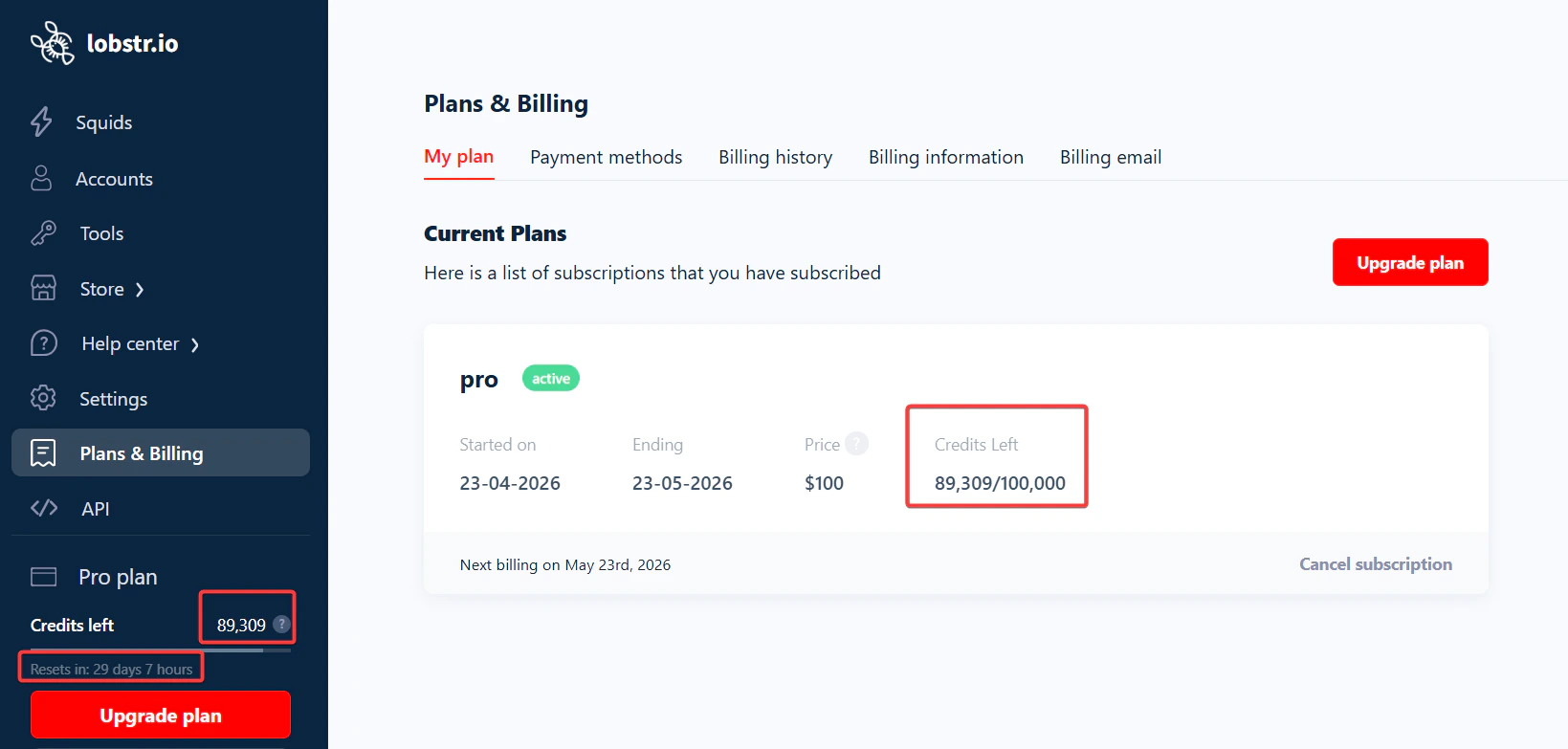 For a more complete view, open **Plans & Billing → My plan**. The card shows your plan name, start and end dates, price, credits left out of your monthly total, and the next billing date.
## Tracking your credit consumption
When you want to know **where your credits actually went** — not just how many are left — lobstr.io gives you two complementary views: an account-wide **Credits Usage** dashboard, and a per-run **Credits** tab. Both share the same **7d / 30d / Monthly** time-range toggle in the top-right.
### Account-wide: the Credits Usage page
Open **Credits Usage** in the left sidebar. The page has three tabs, each answering a different question.
A daily-spend chart with headline KPIs — the **when** of your consumption.
For a more complete view, open **Plans & Billing → My plan**. The card shows your plan name, start and end dates, price, credits left out of your monthly total, and the next billing date.
## Tracking your credit consumption
When you want to know **where your credits actually went** — not just how many are left — lobstr.io gives you two complementary views: an account-wide **Credits Usage** dashboard, and a per-run **Credits** tab. Both share the same **7d / 30d / Monthly** time-range toggle in the top-right.
### Account-wide: the Credits Usage page
Open **Credits Usage** in the left sidebar. The page has three tabs, each answering a different question.
A daily-spend chart with headline KPIs — the **when** of your consumption.
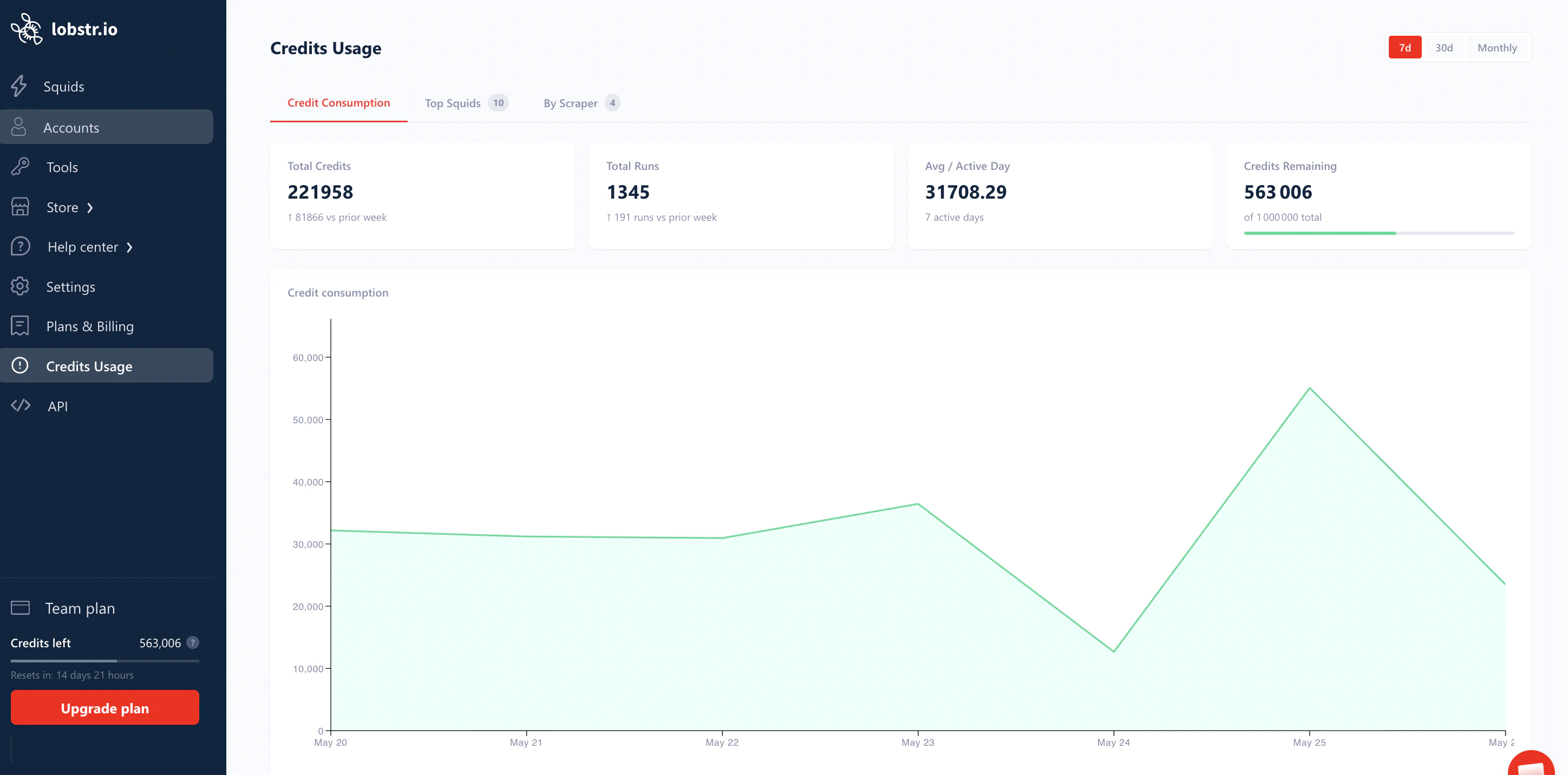 | Card | What it shows |
| --------------------- | ---------------------------------------------------------------------------------------------- |
| **Total Credits** | Credits spent across all your Squids in the selected window, with a delta vs. the prior window |
| **Total Runs** | How many runs produced that spend, with a delta vs. the prior window |
| **Avg / Active Day** | Average daily spend on days you actually ran something |
| **Credits Remaining** | Credits left in your current billing cycle |
The chart below plots daily consumption — quickest way to spot the day a spike happened, then click through to the runs from that day.
A ranked list of your **top 10 Squids by credit usage** in the window — the **which Squid** of your consumption.
| Card | What it shows |
| --------------------- | ---------------------------------------------------------------------------------------------- |
| **Total Credits** | Credits spent across all your Squids in the selected window, with a delta vs. the prior window |
| **Total Runs** | How many runs produced that spend, with a delta vs. the prior window |
| **Avg / Active Day** | Average daily spend on days you actually ran something |
| **Credits Remaining** | Credits left in your current billing cycle |
The chart below plots daily consumption — quickest way to spot the day a spike happened, then click through to the runs from that day.
A ranked list of your **top 10 Squids by credit usage** in the window — the **which Squid** of your consumption.
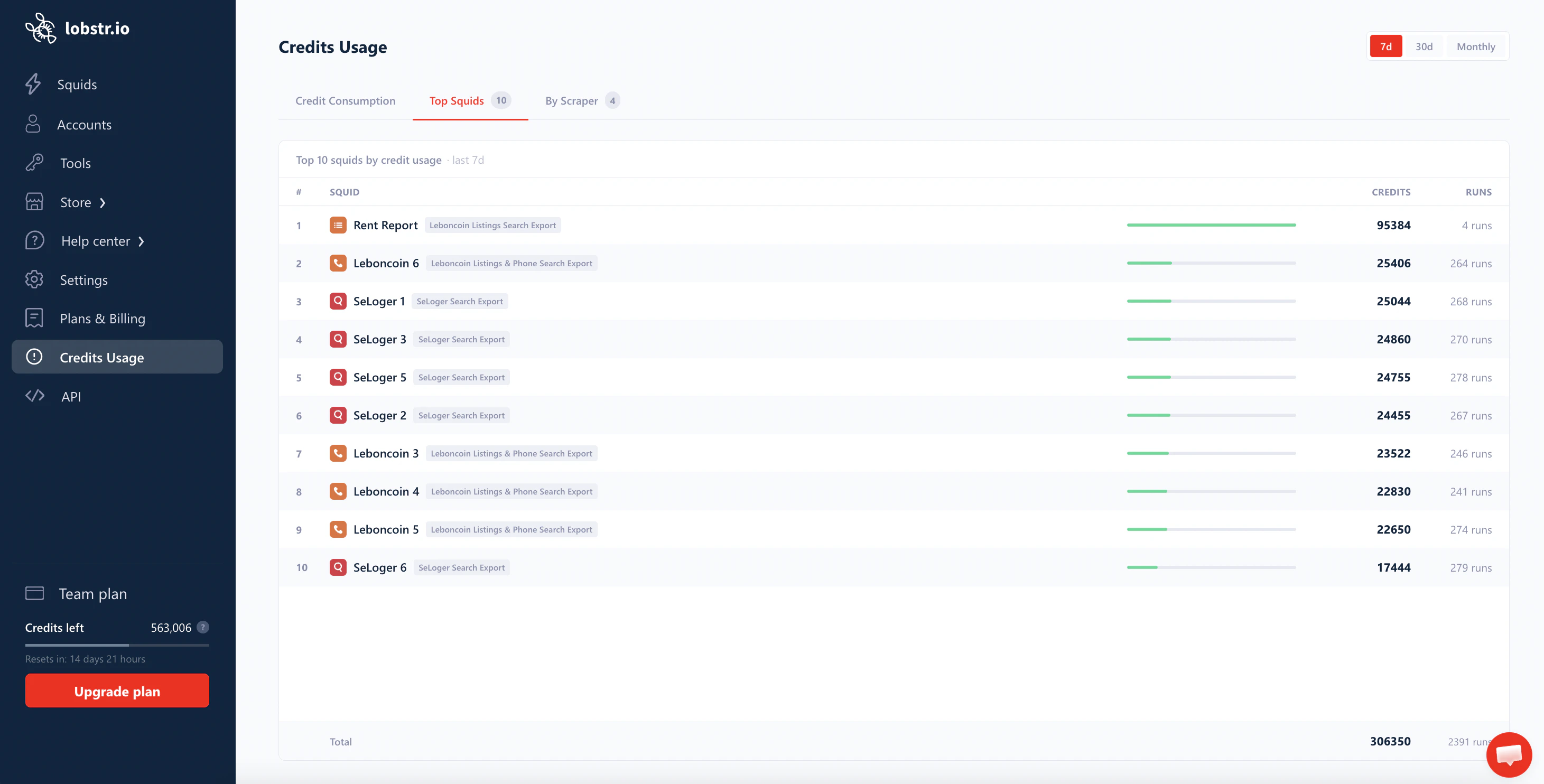 Each row shows the Squid name, its scraper type, credits consumed, and number of runs in the window. A total row at the bottom sums the top 10. Use this when one Squid is eating most of your budget and you want to confirm which one.
Credits grouped by **scraper type** (Google Maps Leads Scraper, Sales Navigator Profile Scraper, etc.) — the **on what data source** of your consumption.
Each row shows the Squid name, its scraper type, credits consumed, and number of runs in the window. A total row at the bottom sums the top 10. Use this when one Squid is eating most of your budget and you want to confirm which one.
Credits grouped by **scraper type** (Google Maps Leads Scraper, Sales Navigator Profile Scraper, etc.) — the **on what data source** of your consumption.
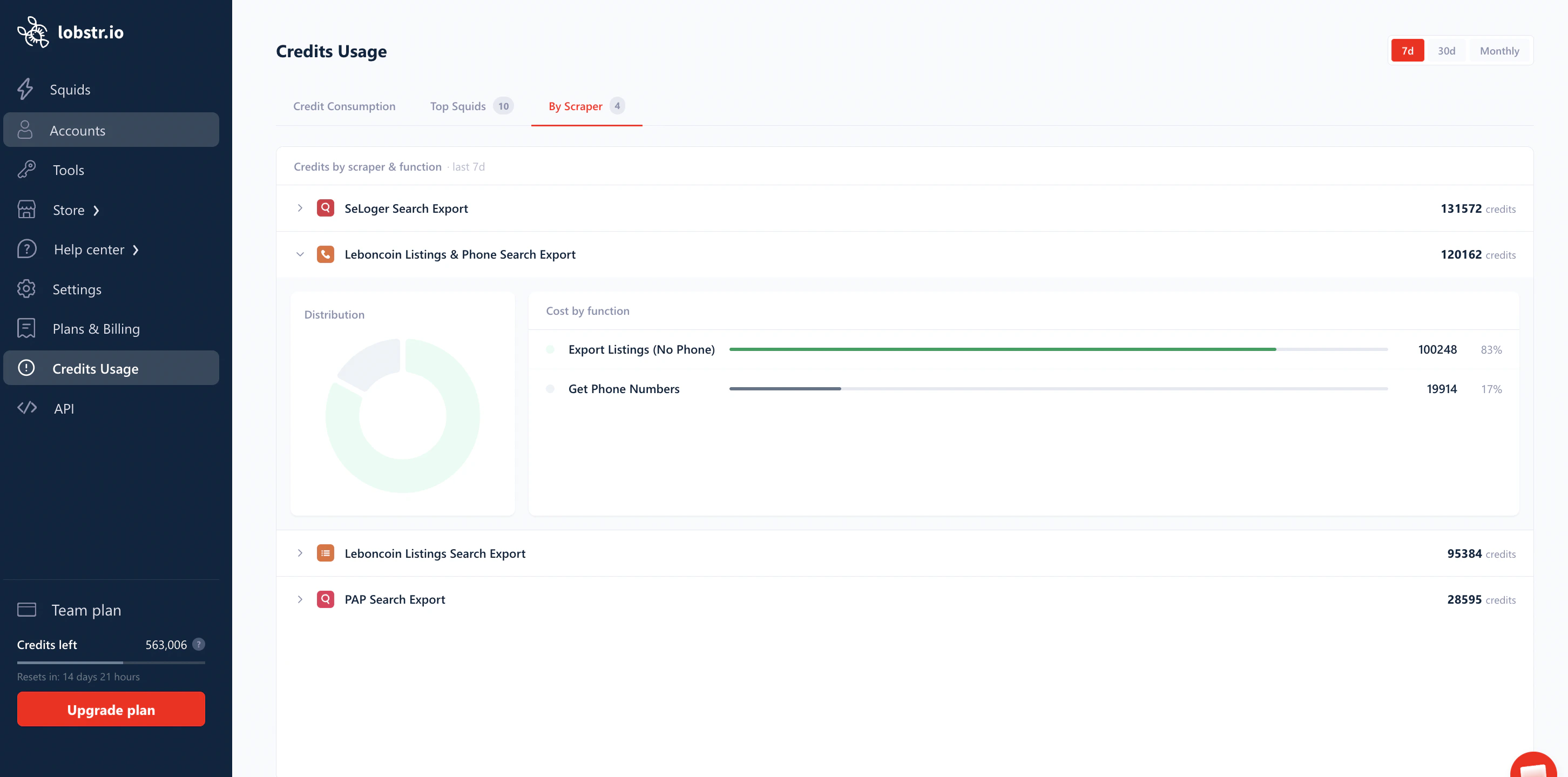 Each scraper is a collapsible row. **Expand a scraper** to see its own **Distribution** donut + **Cost by function** breakdown — i.e. how much that scraper spent on base scraping vs. each enrichment, across every Squid you run on it. Useful when several Squids share a scraper and you want to know whether the spend comes from base scraping or from enrichment.
### Per-run: the Credits tab on a run
Every run detail page has a **Credits** tab that breaks down the cost of that single execution.
Each scraper is a collapsible row. **Expand a scraper** to see its own **Distribution** donut + **Cost by function** breakdown — i.e. how much that scraper spent on base scraping vs. each enrichment, across every Squid you run on it. Useful when several Squids share a scraper and you want to know whether the spend comes from base scraping or from enrichment.
### Per-run: the Credits tab on a run
Every run detail page has a **Credits** tab that breaks down the cost of that single execution.
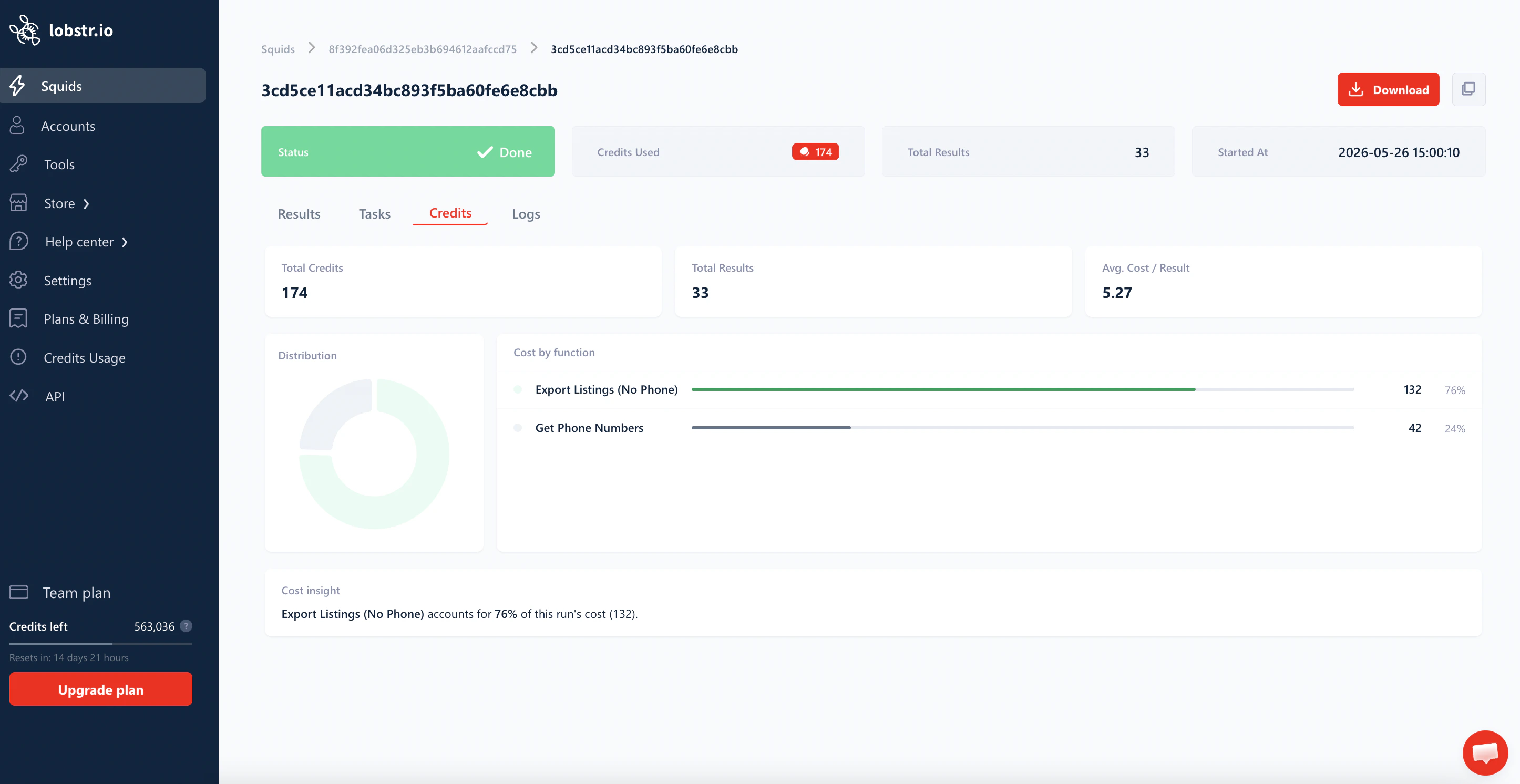 Three summary cards sit at the top:
* **Total Credits** — credits this run consumed.
* **Total Results** — rows the run produced.
* **Avg. Cost / Result** — credits divided by results. This is the number to watch when a run feels expensive.
Below, three cards work together to attribute every credit to a specific function:
* **Distribution** — a donut chart showing the share of the run's total credits taken by each function.
* **Cost by function** — a per-function bar list with the exact credit count and percentage. Functions can be base scraping (e.g. `Export Listings`, `Export Listings (No Phone)`), `Get Phone Numbers`, email enrichment, email validation, etc.
* **Cost insight** — a one-line plain-English summary calling out the dominant function (for example: *"Export Listings (No Phone) accounts for 76% of this run's cost (132)."*).
**Debugging a run that cost more than you expected?** Compare the **Avg. Cost / Result** between the two runs of the same Squid:
* If the **Avg. Cost / Result is the same** but Total Credits is higher → the Squid simply scraped **more rows** this time (more tasks, deeper pagination, a wider input list).
* If the **Avg. Cost / Result jumped** → an **enrichment function got toggled on** between the two runs (or a more expensive setting was added). Open **Cost by function** to see exactly which function is responsible.
## Credit allocation modes
lobstr.io lets you choose how your monthly credits are distributed across the billing cycle.
With **Daily Allocation**, your monthly credits are divided by the remaining days in your billing cycle, giving you a fixed daily budget.
Three summary cards sit at the top:
* **Total Credits** — credits this run consumed.
* **Total Results** — rows the run produced.
* **Avg. Cost / Result** — credits divided by results. This is the number to watch when a run feels expensive.
Below, three cards work together to attribute every credit to a specific function:
* **Distribution** — a donut chart showing the share of the run's total credits taken by each function.
* **Cost by function** — a per-function bar list with the exact credit count and percentage. Functions can be base scraping (e.g. `Export Listings`, `Export Listings (No Phone)`), `Get Phone Numbers`, email enrichment, email validation, etc.
* **Cost insight** — a one-line plain-English summary calling out the dominant function (for example: *"Export Listings (No Phone) accounts for 76% of this run's cost (132)."*).
**Debugging a run that cost more than you expected?** Compare the **Avg. Cost / Result** between the two runs of the same Squid:
* If the **Avg. Cost / Result is the same** but Total Credits is higher → the Squid simply scraped **more rows** this time (more tasks, deeper pagination, a wider input list).
* If the **Avg. Cost / Result jumped** → an **enrichment function got toggled on** between the two runs (or a more expensive setting was added). Open **Cost by function** to see exactly which function is responsible.
## Credit allocation modes
lobstr.io lets you choose how your monthly credits are distributed across the billing cycle.
With **Daily Allocation**, your monthly credits are divided by the remaining days in your billing cycle, giving you a fixed daily budget.
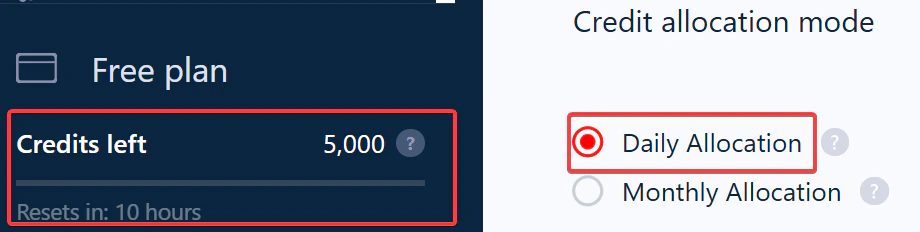 Ideal if you scrape on a consistent daily schedule and want to avoid burning through your budget in one run.
**Example:** 3,000 credits remaining with 10 days left = 300 credits per day.
With **Monthly Allocation**, your full credit balance is available from day one of the cycle. Use it whenever and however you want.
Ideal if you scrape on a consistent daily schedule and want to avoid burning through your budget in one run.
**Example:** 3,000 credits remaining with 10 days left = 300 credits per day.
With **Monthly Allocation**, your full credit balance is available from day one of the cycle. Use it whenever and however you want.
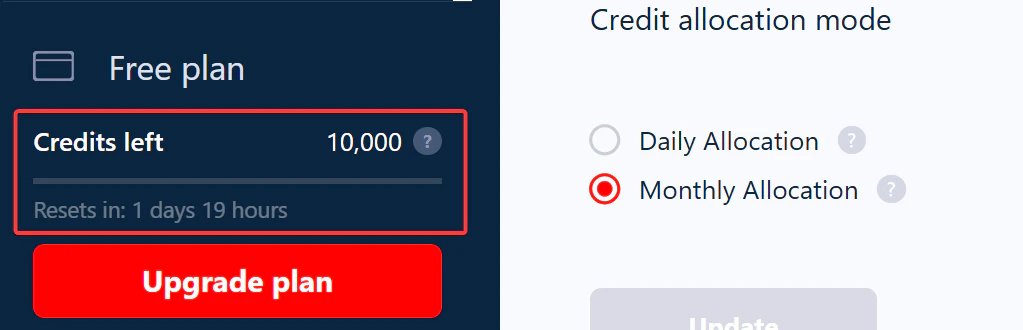 Best for large, one-time scraping jobs that need a lot of credits at once.
**Example:** 30,000 monthly credits to burn on a single bulk scrape — no daily cap in the way.
## How to switch allocation modes
You can change mode at any time from your account settings.
Best for large, one-time scraping jobs that need a lot of credits at once.
**Example:** 30,000 monthly credits to burn on a single bulk scrape — no daily cap in the way.
## How to switch allocation modes
You can change mode at any time from your account settings.
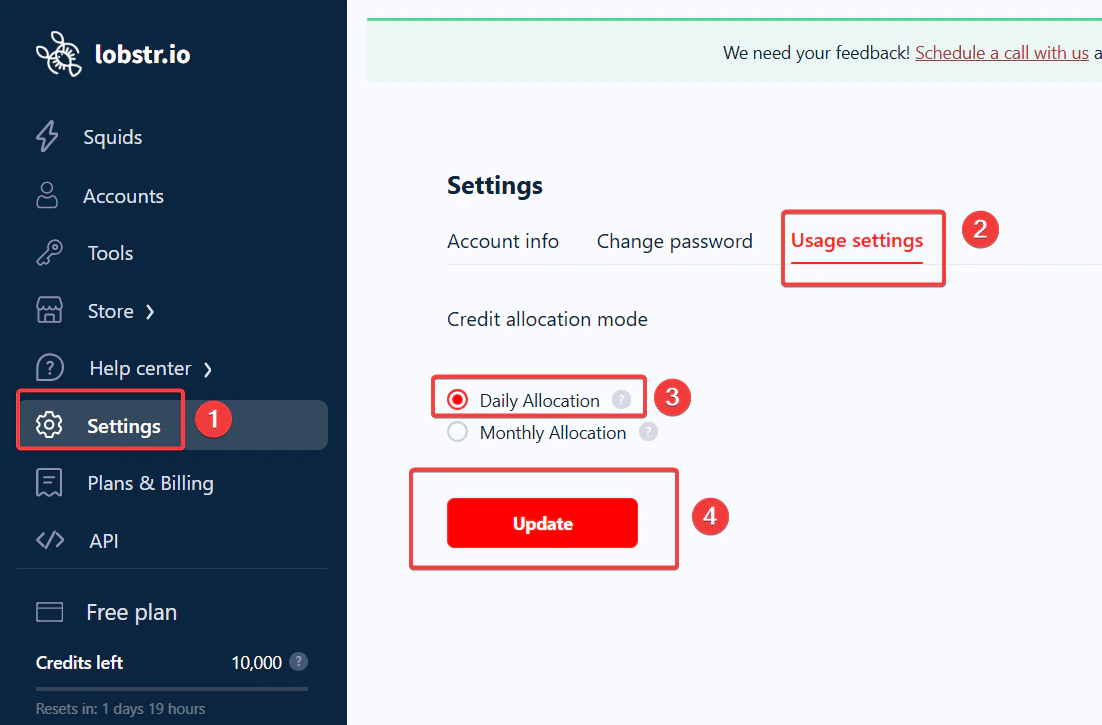 Click **Settings** in the left sidebar of your lobstr.io dashboard.
Select **Usage settings**.
Under **Credit allocation mode**, select either **Daily** or **Monthly**.
Switching modes doesn't add or remove credits — it only changes when you can access them.
## Spreading a large job across multiple days
If you're on daily allocation and a Squid needs more credits than your daily quota, configure it to pause automatically when credits run out and resume the next day.
Navigate to your Squid and click **Settings**.
Find the [**When to end run**](/core-concepts/runs#when-to-end-a-run) section and turn on **End run once all tasks consumed**.
Click **Settings** in the left sidebar of your lobstr.io dashboard.
Select **Usage settings**.
Under **Credit allocation mode**, select either **Daily** or **Monthly**.
Switching modes doesn't add or remove credits — it only changes when you can access them.
## Spreading a large job across multiple days
If you're on daily allocation and a Squid needs more credits than your daily quota, configure it to pause automatically when credits run out and resume the next day.
Navigate to your Squid and click **Settings**.
Find the [**When to end run**](/core-concepts/runs#when-to-end-a-run) section and turn on **End run once all tasks consumed**.
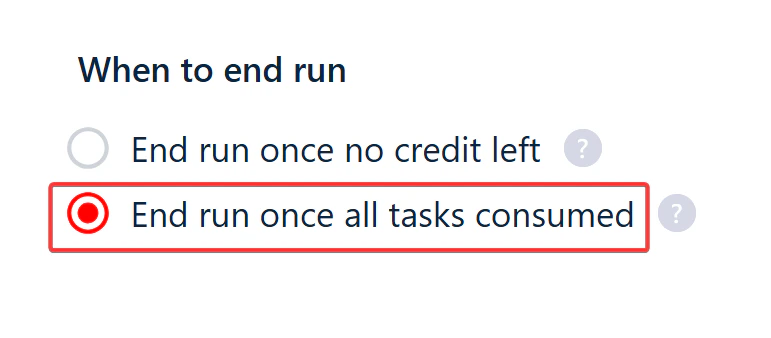 Click **Save & Exit**, then press **Launch**. When today's credits are exhausted the run pauses; tomorrow, when credits refresh, it resumes where it stopped.
For the detailed walkthrough with screenshots of every state transition, see [How Credit Allocation Affects Your Billing](/billing/credit-allocation#what-if-your-squid-needs-more-credits-than-your-daily-quota).
## Related
* [How Credit Allocation Affects Your Billing](/billing/credit-allocation) — billing impact of daily vs monthly
* [Reset Your Billing Cycle](/billing/reset-billing-cycle) — get fresh credits before your renewal date
* [Pricing calculator](https://www.lobstr.io/pricing) — estimate credit and dollar cost per plan
Click **Save & Exit**, then press **Launch**. When today's credits are exhausted the run pauses; tomorrow, when credits refresh, it resumes where it stopped.
For the detailed walkthrough with screenshots of every state transition, see [How Credit Allocation Affects Your Billing](/billing/credit-allocation#what-if-your-squid-needs-more-credits-than-your-daily-quota).
## Related
* [How Credit Allocation Affects Your Billing](/billing/credit-allocation) — billing impact of daily vs monthly
* [Reset Your Billing Cycle](/billing/reset-billing-cycle) — get fresh credits before your renewal date
* [Pricing calculator](https://www.lobstr.io/pricing) — estimate credit and dollar cost per plan