> ## Documentation Index
> Fetch the complete documentation index at: https://help.lobstr.io/llms.txt
> Use this file to discover all available pages before exploring further.
# lobstr.io email notifications: run alerts and account alerts
> lobstr.io emails you when a Squid run finishes (optional, per-Squid) and automatically when a synced account needs attention — for example when its login cookies expire.
lobstr.io sends email notifications to the address tied to your lobstr.io account. There are two kinds:
* **Run notifications** — optional alerts when a Squid run finishes. You turn these on per Squid.
* **Account alerts** — automatic emails when a synced account needs attention, such as when its cookies expire. Always on, nothing to configure.
## Run notifications
Run notifications email you when a Squid run finishes. They apply to **both manual and scheduled runs**. You pick one of three options:
* **None** — no email is sent (default).
* **On success** — email sent when a run completes successfully.
* **On error** — email sent when a run fails or stops because of an error.
You can only pick one option at a time — success or error, not both.
### Enable run notifications
Navigate to your Squid and click **Settings**.
Open the **Notifications** section.
Select **None**, **On success**, or **On error**, then click **Save**.
Run notifications are per-Squid — configure them individually on each Squid you want alerts for.
## Account alerts
Some emails are sent **automatically** — you don't set these up, and there's no toggle. The most common is the **cookies-expired alert**.
When a synced account's login cookies expire, lobstr.io emails you right away so you can fix it before more runs stall. Any scrapers using that account are paused until you re-sync it.
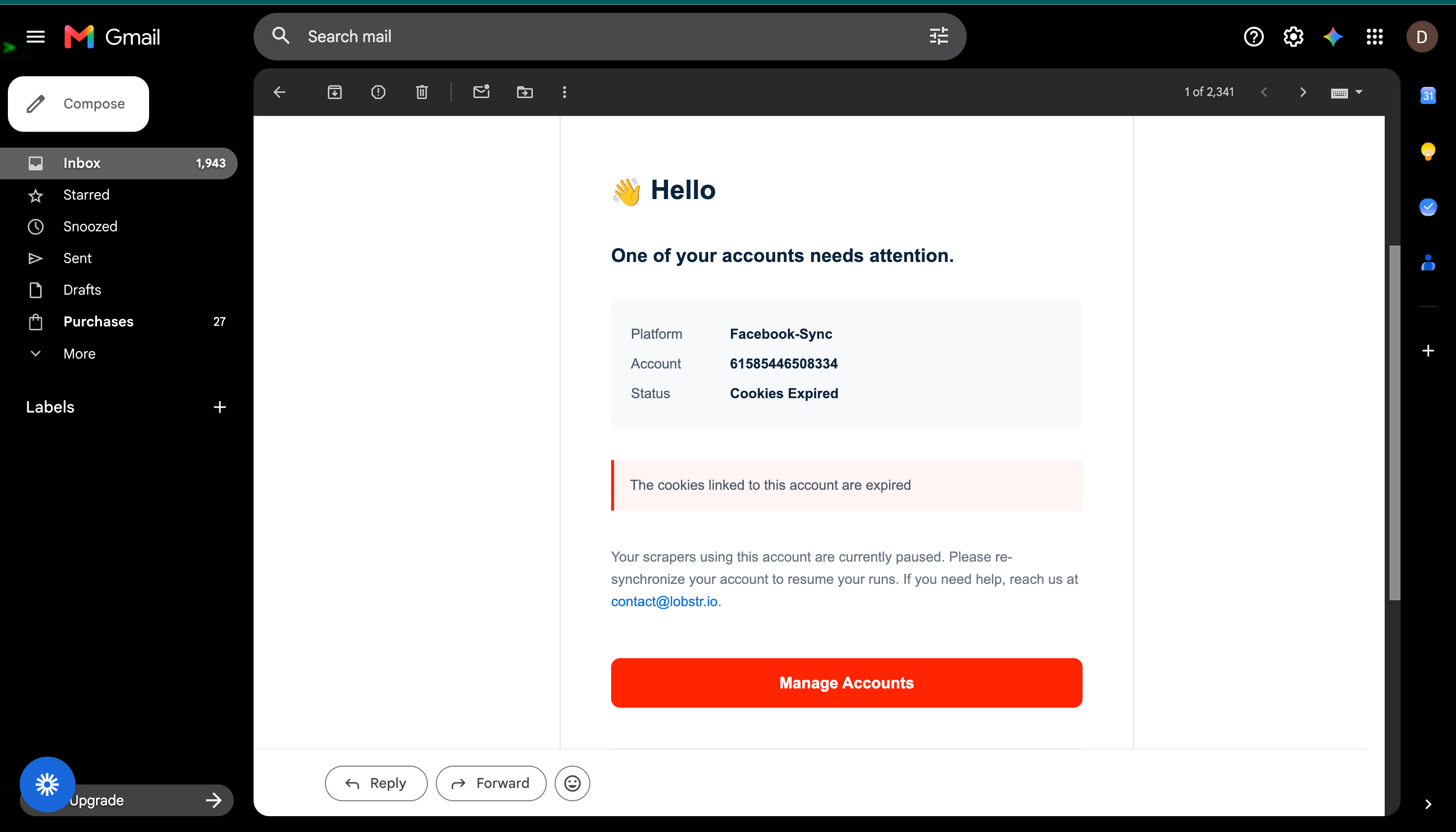 The email tells you exactly which account needs attention:
* **Platform** — the synced platform the account belongs to (e.g. Facebook, Sales Navigator, Leboncoin, X).
* **Account** — the specific account whose cookies expired.
* **Status** — **Cookies Expired**.
* A **Manage Accounts** button that takes you straight to your [Accounts](https://app.lobstr.io/dashboard/accounts) page to re-sync.
To resume your runs, [refresh the expired cookies](/getting-started/account-sync#refresh-expired-cookies) by re-syncing the account. This alert is the email counterpart to the [`cookies_expired`](/core-concepts/run-stop-reasons) run stop reason.
Account alerts are automatic and always on — there's nothing to enable. They go to your lobstr.io account email, the same address used for run notifications.
The email tells you exactly which account needs attention:
* **Platform** — the synced platform the account belongs to (e.g. Facebook, Sales Navigator, Leboncoin, X).
* **Account** — the specific account whose cookies expired.
* **Status** — **Cookies Expired**.
* A **Manage Accounts** button that takes you straight to your [Accounts](https://app.lobstr.io/dashboard/accounts) page to re-sync.
To resume your runs, [refresh the expired cookies](/getting-started/account-sync#refresh-expired-cookies) by re-syncing the account. This alert is the email counterpart to the [`cookies_expired`](/core-concepts/run-stop-reasons) run stop reason.
Account alerts are automatic and always on — there's nothing to enable. They go to your lobstr.io account email, the same address used for run notifications.