> ## Documentation Index
> Fetch the complete documentation index at: https://help.lobstr.io/llms.txt
> Use this file to discover all available pages before exploring further.
# Runs: how a Squid actually executes and produces data
> A run is a single execution of a Squid. Learn how runs are triggered, the lifecycle and statuses, the Runs table, the run detail page, and how concurrency works.
A **run** is a single execution of a [Squid](/core-concepts/squids). Every time a Squid works — whether launched manually, fired on a schedule, or triggered via the API — it creates a new run. Each run has its own ID, duration, results, credits consumed, and status, and is logged in the Squid's history.
In short: a Squid is the **configuration**. A run is the **execution** of that configuration at a point in time.
## How a run is triggered
A run starts in one of three ways:
* **Manually** — you press the **Launch** button on a Squid's page.
* **On a schedule** — if the Squid is set to run [Repeatedly](/core-concepts/scheduling), it fires automatically at every interval.
* **Via the API** — you can trigger runs programmatically using your [API key](/getting-started/api-key).
Once a run starts, everything lobstr.io does — browsing, scraping, enrichment, exporting — happens inside that run.
The **Launch** button is hidden while a run is in progress. Even if you change the Squid's settings during a live run, those changes don't affect the current run — they apply to the **next** run you launch.
## The runs table
Below the live console on every Squid page, the **Runs** tab shows all previous and active runs for that Squid.
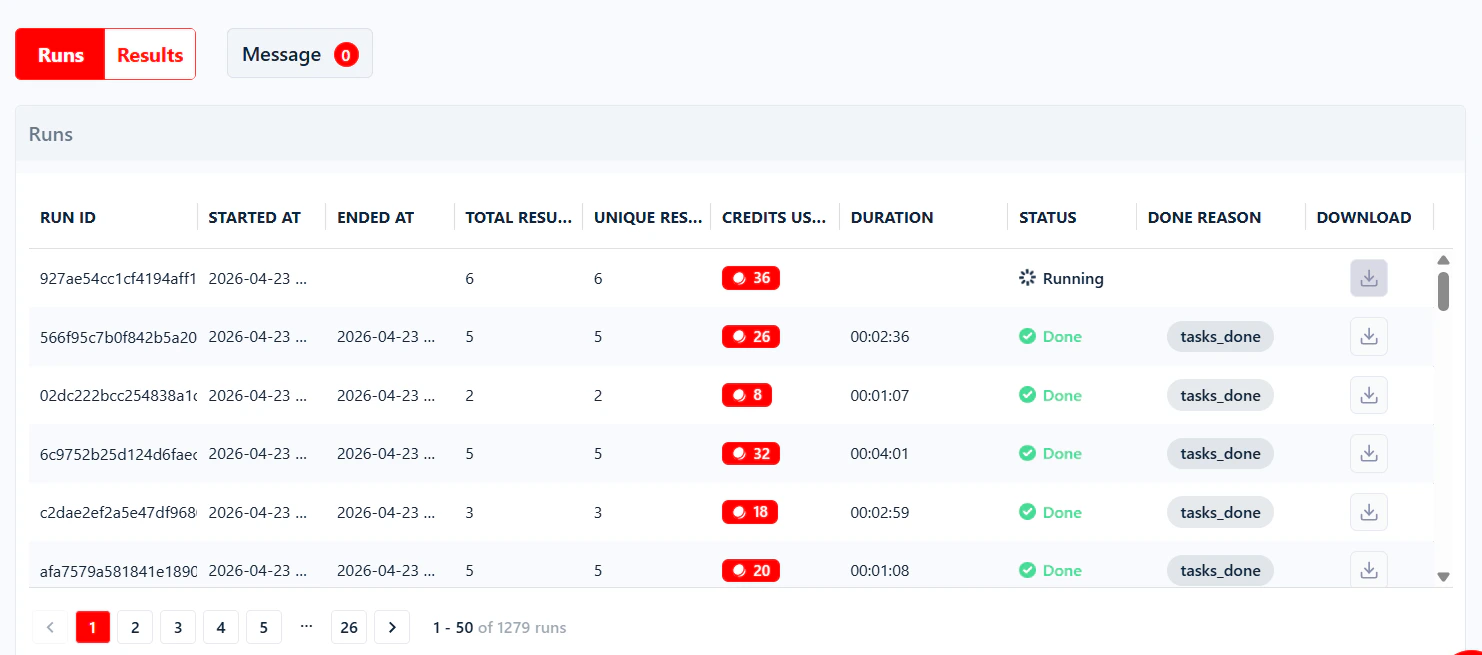 Each row contains:
| Column | What it shows |
| ------------------ | ------------------------------------------------------------------------ |
| **Run ID** | Unique identifier for that execution (click to open the run detail page) |
| **Started At** | When the run kicked off |
| **Ended At** | When the run finished (blank if still running) |
| **Total Results** | Every row the scraper collected during the run |
| **Unique Results** | Rows left after deduplication — usually the number you care about |
| **Credits Used** | How many credits this single run consumed |
| **Duration** | Total run time |
| **Status** | Current state — see below |
| **Done Reason** | Why the run ended (e.g. `tasks_done`, `last_page_reached`, `aborted`) |
| **Download** | Downloads the CSV for just that run |
**Total Results** vs **Unique Results** — the delta is almost always duplicates removed. It can also include rows dropped by filters (for example, [Geo Match or Category Match](/guides/google-maps/filtering) skipping non-matching listings).
## Run statuses
A run moves through one of five states. You can see the current status in the Runs table, at the top of the run detail page, and in the **List of Squids** table on your dashboard (under the **Status** column, showing the current or last run's status for each Squid).
Each row contains:
| Column | What it shows |
| ------------------ | ------------------------------------------------------------------------ |
| **Run ID** | Unique identifier for that execution (click to open the run detail page) |
| **Started At** | When the run kicked off |
| **Ended At** | When the run finished (blank if still running) |
| **Total Results** | Every row the scraper collected during the run |
| **Unique Results** | Rows left after deduplication — usually the number you care about |
| **Credits Used** | How many credits this single run consumed |
| **Duration** | Total run time |
| **Status** | Current state — see below |
| **Done Reason** | Why the run ended (e.g. `tasks_done`, `last_page_reached`, `aborted`) |
| **Download** | Downloads the CSV for just that run |
**Total Results** vs **Unique Results** — the delta is almost always duplicates removed. It can also include rows dropped by filters (for example, [Geo Match or Category Match](/guides/google-maps/filtering) skipping non-matching listings).
## Run statuses
A run moves through one of five states. You can see the current status in the Runs table, at the top of the run detail page, and in the **List of Squids** table on your dashboard (under the **Status** column, showing the current or last run's status for each Squid).
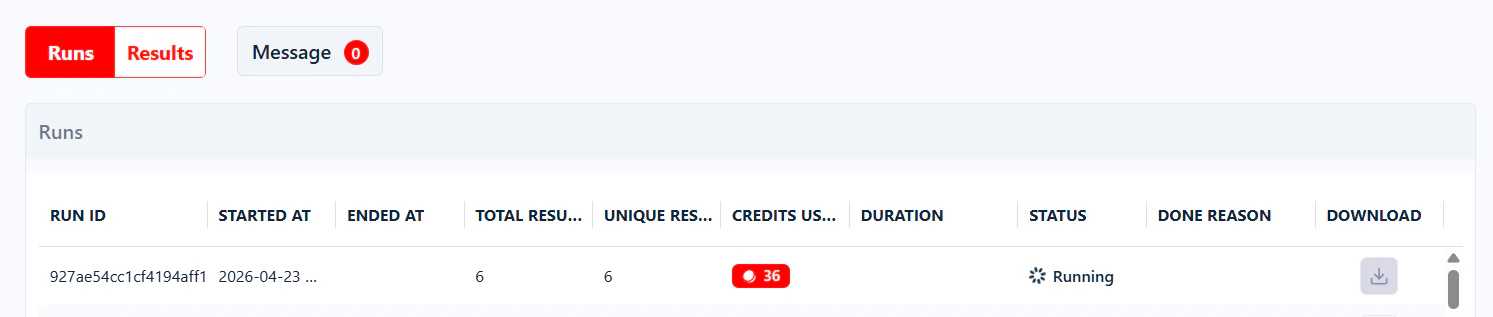
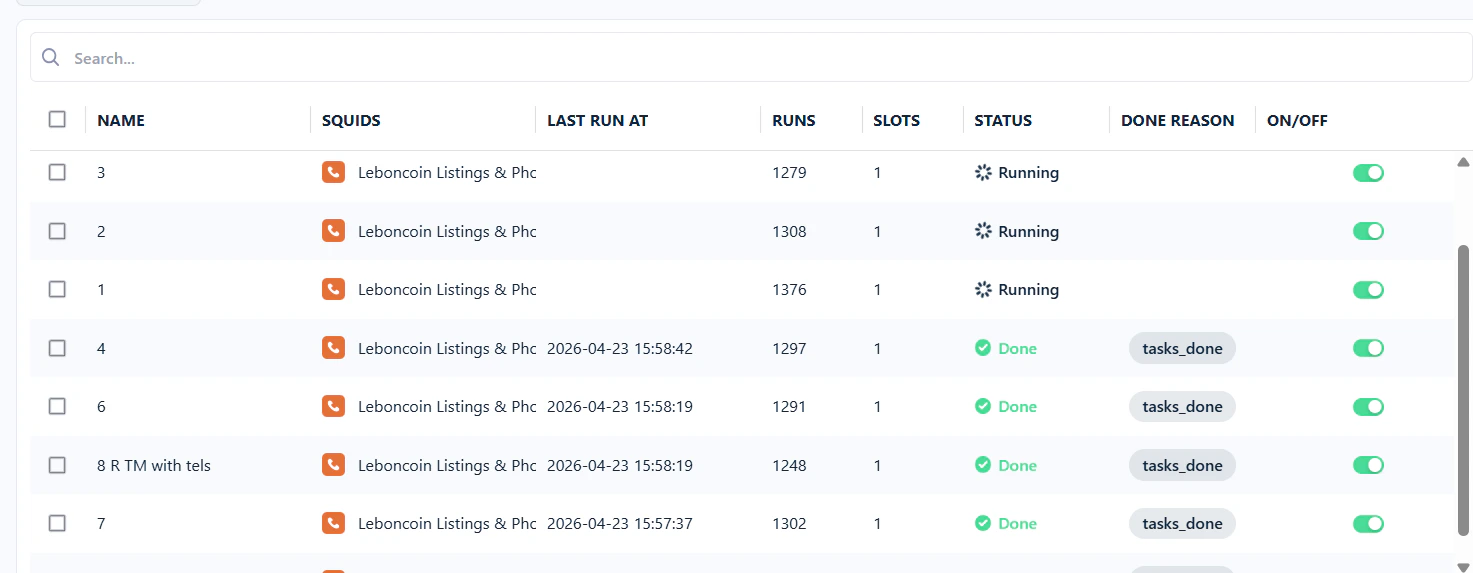 The run is active and collecting data. A progress bar shows how far along it is, and the live console streams logs in real time.
 The run has temporarily stopped but will resume automatically once the blocking condition is resolved.
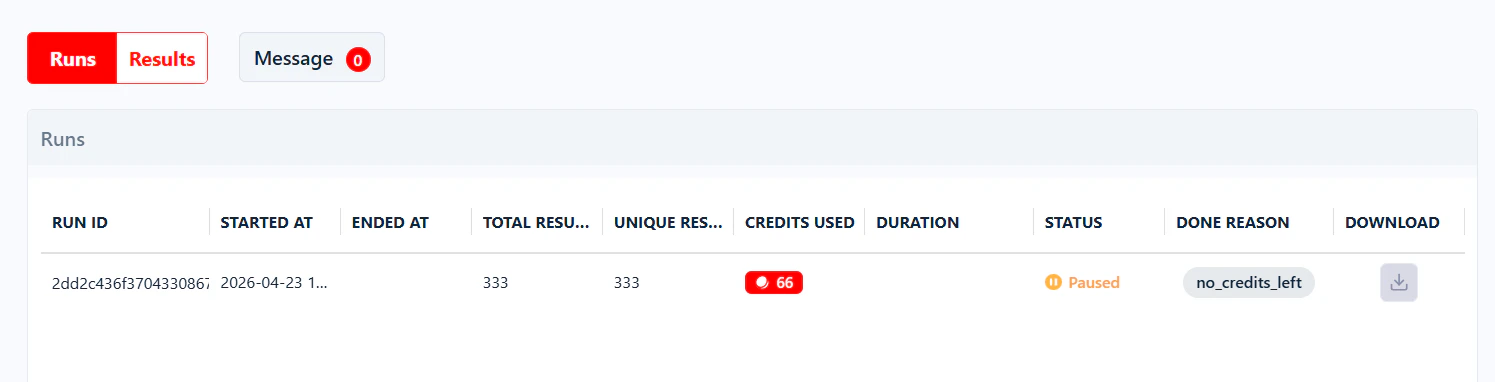 Common causes:
* The synced account hit a daily or batch limit (see [Account Bans & Limits](/safety/account-bans)).
* The account's cookies expired — [refresh them](/getting-started/account-sync#refresh-expired-cookies) to resume.
* Daily credits ran out while **End run once all tasks consumed** is enabled — the run picks up the next day when credits refresh.
* The scraper encountered a transient error.
You **can't download data from a paused run** unless you abort it first.
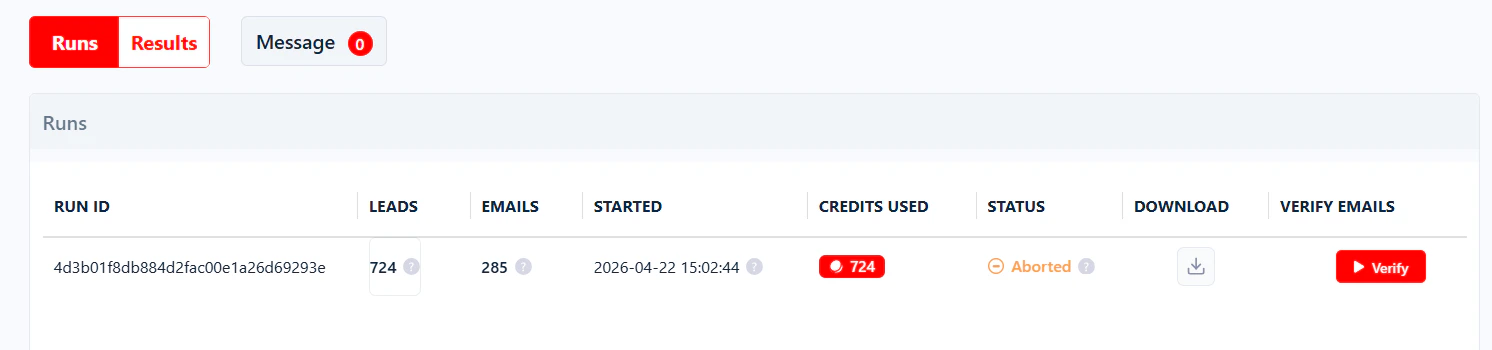
The run was stopped manually by pressing the **Abort** button. Partial data collected before the abort is still available — click the download icon on that row in the Runs table.
Common causes:
* The synced account hit a daily or batch limit (see [Account Bans & Limits](/safety/account-bans)).
* The account's cookies expired — [refresh them](/getting-started/account-sync#refresh-expired-cookies) to resume.
* Daily credits ran out while **End run once all tasks consumed** is enabled — the run picks up the next day when credits refresh.
* The scraper encountered a transient error.
You **can't download data from a paused run** unless you abort it first.
The run was stopped manually by pressing the **Abort** button. Partial data collected before the abort is still available — click the download icon on that row in the Runs table.
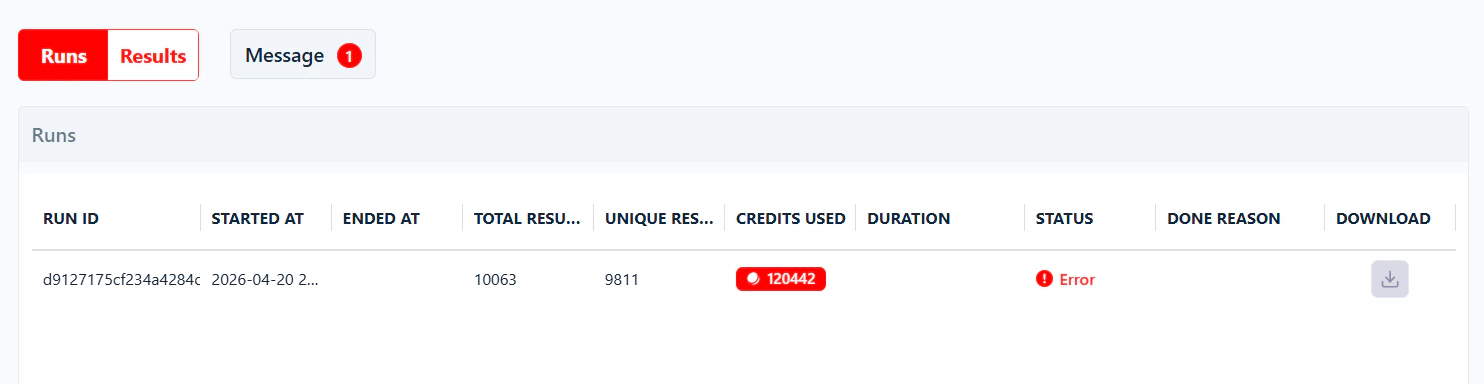
 The scraper crashed because of a technical error on lobstr.io's side.
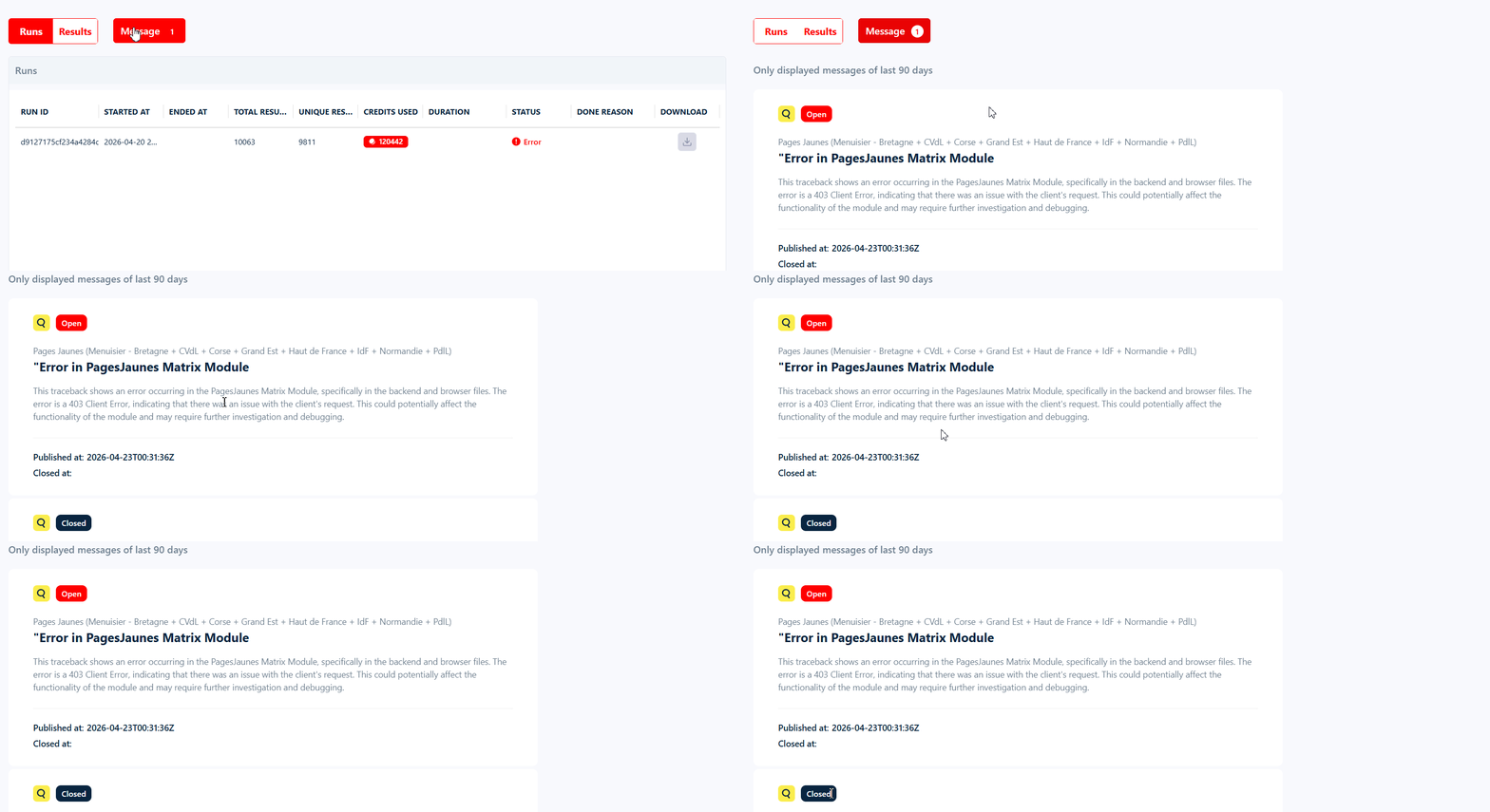
 You can click the **Message** button above the Runs table to see the details.
 You don't need to do anything — once the engineering team resolves the issue, the run automatically resumes.
The run finished successfully. All collected data is available for download in the Runs table, or from the run detail page.
You don't need to do anything — once the engineering team resolves the issue, the run automatically resumes.
The run finished successfully. All collected data is available for download in the Runs table, or from the run detail page.
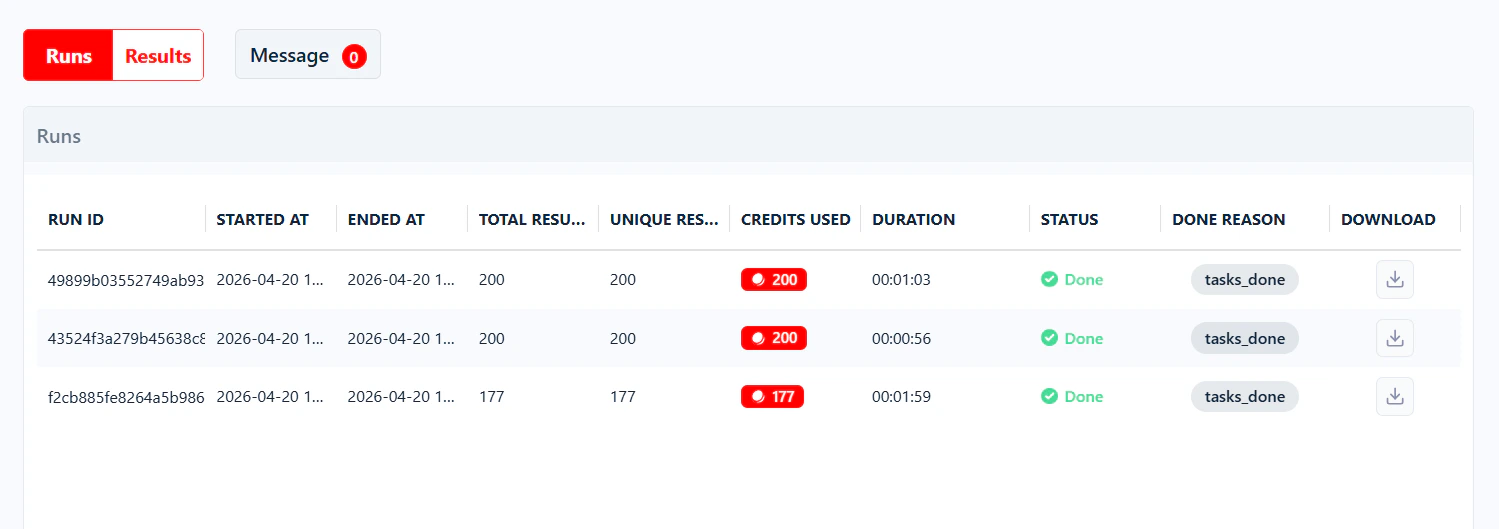 The **Done Reason** column explains exactly *why* a run finished — for example `tasks_done` (all tasks processed), `last_page_reached` (pagination ended), or `aborted` (manual stop). For the full list of values and what each one means, see [Run stop reasons](/core-concepts/run-stop-reasons).
## When to end a run
A Squid's **Settings** have a **When to end run** option that controls what a run does when it runs out of credits — finish and stop, or pause and wait. This decides the [status](#run-statuses) the run ends in.
The **Done Reason** column explains exactly *why* a run finished — for example `tasks_done` (all tasks processed), `last_page_reached` (pagination ended), or `aborted` (manual stop). For the full list of values and what each one means, see [Run stop reasons](/core-concepts/run-stop-reasons).
## When to end a run
A Squid's **Settings** have a **When to end run** option that controls what a run does when it runs out of credits — finish and stop, or pause and wait. This decides the [status](#run-statuses) the run ends in.
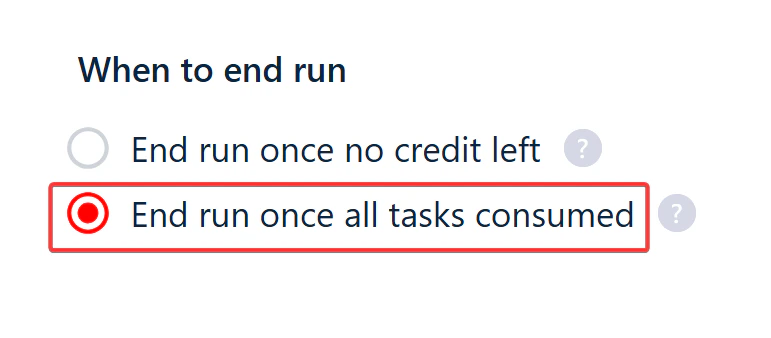 The default. As soon as the credits available to the run run out, the run is marked **Done** and stops immediately. Re-launching the Squid starts a **fresh run from the beginning** — it doesn't pick up where the last one left off.
The run keeps going until every task in the list has been processed. If credits run out before that happens, the run is **Paused** instead of ending. It resumes **automatically once credits refresh** (for example, the next day on [daily allocation](/core-concepts/credits#credit-allocation-modes)) and picks up exactly where it stopped.
Pairing **End run once all tasks consumed** with [daily credit allocation](/core-concepts/credits#credit-allocation-modes) is how you spread one large job across several days automatically — the run pauses each day when the daily budget is spent and resumes when it refreshes. See [Spreading a large job across multiple days](/core-concepts/credits#spreading-a-large-job-across-multiple-days).
## Aborting a run
While a run is **Running**, an **Abort** button appears at the top of the Squid page next to the progress bar.
The default. As soon as the credits available to the run run out, the run is marked **Done** and stops immediately. Re-launching the Squid starts a **fresh run from the beginning** — it doesn't pick up where the last one left off.
The run keeps going until every task in the list has been processed. If credits run out before that happens, the run is **Paused** instead of ending. It resumes **automatically once credits refresh** (for example, the next day on [daily allocation](/core-concepts/credits#credit-allocation-modes)) and picks up exactly where it stopped.
Pairing **End run once all tasks consumed** with [daily credit allocation](/core-concepts/credits#credit-allocation-modes) is how you spread one large job across several days automatically — the run pauses each day when the daily budget is spent and resumes when it refreshes. See [Spreading a large job across multiple days](/core-concepts/credits#spreading-a-large-job-across-multiple-days).
## Aborting a run
While a run is **Running**, an **Abort** button appears at the top of the Squid page next to the progress bar.
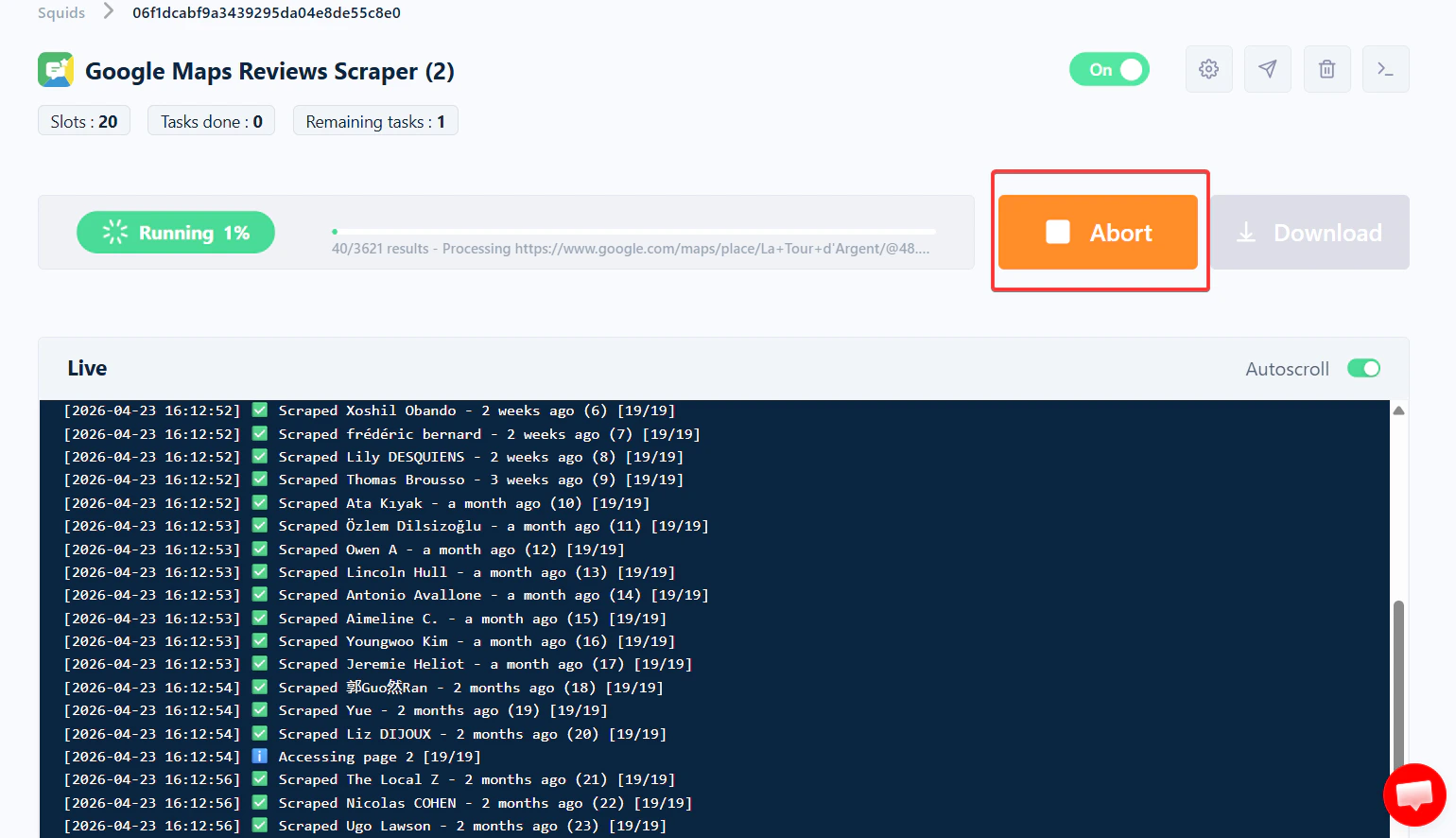 Clicking **Abort** stops the run immediately. Any data the scraper already collected before the abort is preserved and downloadable — the status switches to **Aborted** and the download icon stays active in the Runs table.
## The run detail page
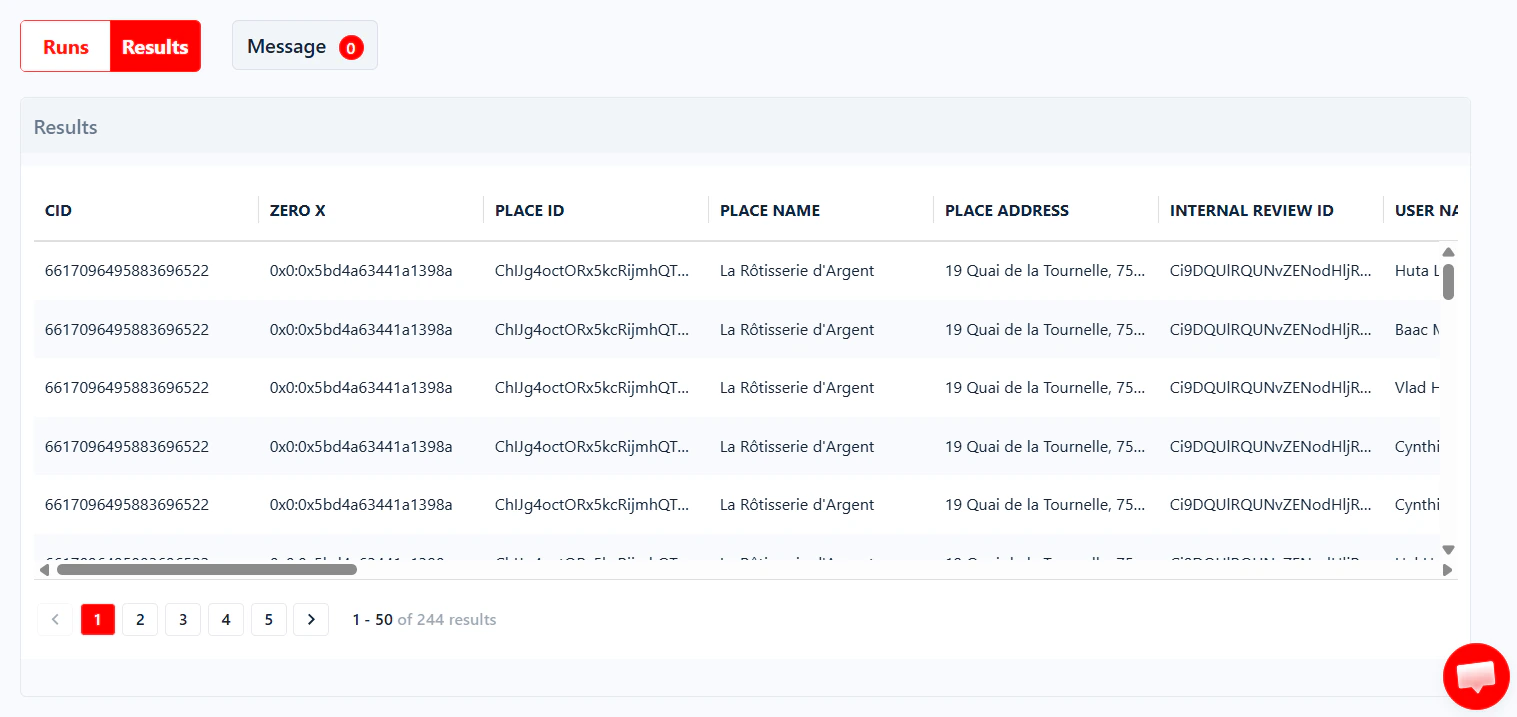
Clicking any row in the Runs table opens the **run detail page** for that specific execution. It shows four summary cards at the top — **Status**, **Credits Used**, **Total Results**, **Started At** — plus four tabs:
### Results
A paginated preview of the scraped data (50 rows per page). Use this to sanity-check output before downloading the full CSV.
Clicking **Abort** stops the run immediately. Any data the scraper already collected before the abort is preserved and downloadable — the status switches to **Aborted** and the download icon stays active in the Runs table.
## The run detail page
Clicking any row in the Runs table opens the **run detail page** for that specific execution. It shows four summary cards at the top — **Status**, **Credits Used**, **Total Results**, **Started At** — plus four tabs:
### Results
A paginated preview of the scraped data (50 rows per page). Use this to sanity-check output before downloading the full CSV.
 ### Tasks
The exact list of tasks this run processed — useful when you need to confirm which inputs were picked up, or to debug why a specific URL or query didn't return data.
### Credits
A breakdown of where the run's credits actually went — **Avg. Cost / Result** on top, then a **Distribution** donut, a **Cost by function** bar list (base scraping vs. each enrichment with credits and %), and a one-line **Cost insight** summary. This is the tab to open when a run cost more than expected. See [Tracking your credit consumption](/core-concepts/credits#tracking-your-credit-consumption) for the full walkthrough.
### Logs
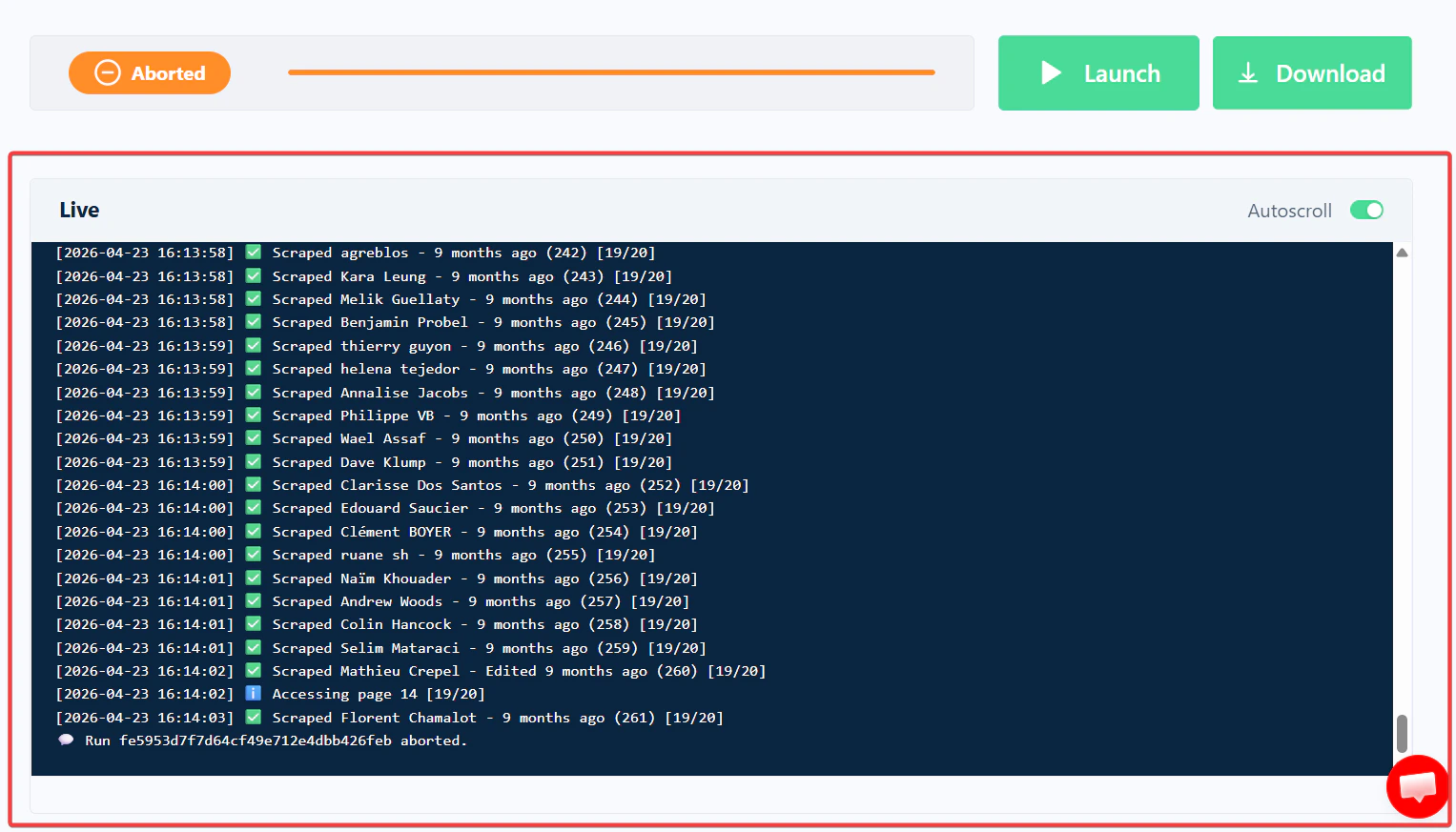
The full live console output for that run — every page processed, every pause, every error.
### Tasks
The exact list of tasks this run processed — useful when you need to confirm which inputs were picked up, or to debug why a specific URL or query didn't return data.
### Credits
A breakdown of where the run's credits actually went — **Avg. Cost / Result** on top, then a **Distribution** donut, a **Cost by function** bar list (base scraping vs. each enrichment with credits and %), and a one-line **Cost insight** summary. This is the tab to open when a run cost more than expected. See [Tracking your credit consumption](/core-concepts/credits#tracking-your-credit-consumption) for the full walkthrough.
### Logs
The full live console output for that run — every page processed, every pause, every error.
 ## Slots and concurrency
A run executes at a given **concurrency** — the number of parallel instances working on your tasks at the same time. You'll see this in the very first line of the live log:
```
* Run 376b5febe09a46cdab885cee74a54430 started (2026-04-21 16:21:26)
* Concurrency: 1
```
**Slots** in lobstr.io serve two purposes:
* They cap how many Squids you can create on your plan.
* They cap how many parallel instances a run can use as its concurrency.
So if your plan gives you 30 slots, you can run a Squid at a concurrency of up to 30 — spreading the work across 30 parallel instances.
**Max concurrency is 20 per run**, regardless of how many slots your plan includes. A plan with 50 slots still caps each individual run at 20 concurrent instances.
For the full slot mechanics, see [Slots](/core-concepts/slots).
## Launching a run again
To re-run a Squid, simply press the **Launch** button on the Squid page — each press creates a new run entry in the Runs table. There's no "re-run this specific past run" button; the Squid's current settings are what get executed.
Because settings only take effect on the **next** launch, you can safely tweak a Squid while an existing run is mid-flight — your changes won't disrupt the run that's already going.
## Data retention
Run data (results, logs, the run itself) is stored for **28 days on paid plans** and **7 days on the free plan**. After that, results are permanently deleted from lobstr.io's servers. Download or export what you need before the window closes — see [Download Results](/data/download-results).
## Slots and concurrency
A run executes at a given **concurrency** — the number of parallel instances working on your tasks at the same time. You'll see this in the very first line of the live log:
```
* Run 376b5febe09a46cdab885cee74a54430 started (2026-04-21 16:21:26)
* Concurrency: 1
```
**Slots** in lobstr.io serve two purposes:
* They cap how many Squids you can create on your plan.
* They cap how many parallel instances a run can use as its concurrency.
So if your plan gives you 30 slots, you can run a Squid at a concurrency of up to 30 — spreading the work across 30 parallel instances.
**Max concurrency is 20 per run**, regardless of how many slots your plan includes. A plan with 50 slots still caps each individual run at 20 concurrent instances.
For the full slot mechanics, see [Slots](/core-concepts/slots).
## Launching a run again
To re-run a Squid, simply press the **Launch** button on the Squid page — each press creates a new run entry in the Runs table. There's no "re-run this specific past run" button; the Squid's current settings are what get executed.
Because settings only take effect on the **next** launch, you can safely tweak a Squid while an existing run is mid-flight — your changes won't disrupt the run that's already going.
## Data retention
Run data (results, logs, the run itself) is stored for **28 days on paid plans** and **7 days on the free plan**. After that, results are permanently deleted from lobstr.io's servers. Download or export what you need before the window closes — see [Download Results](/data/download-results).