> ## Documentation Index
> Fetch the complete documentation index at: https://help.lobstr.io/llms.txt
> Use this file to discover all available pages before exploring further.
# How to schedule a Squid to run automatically
> Schedule lobstr.io Squids to launch automatically by minutes, hours, days, weeks, or specific dates — with per-Squid timezones and error notifications.
Instead of starting each run by hand, you can schedule a Squid to launch automatically — every few minutes, hours, days, weeks, or on specific dates each month.
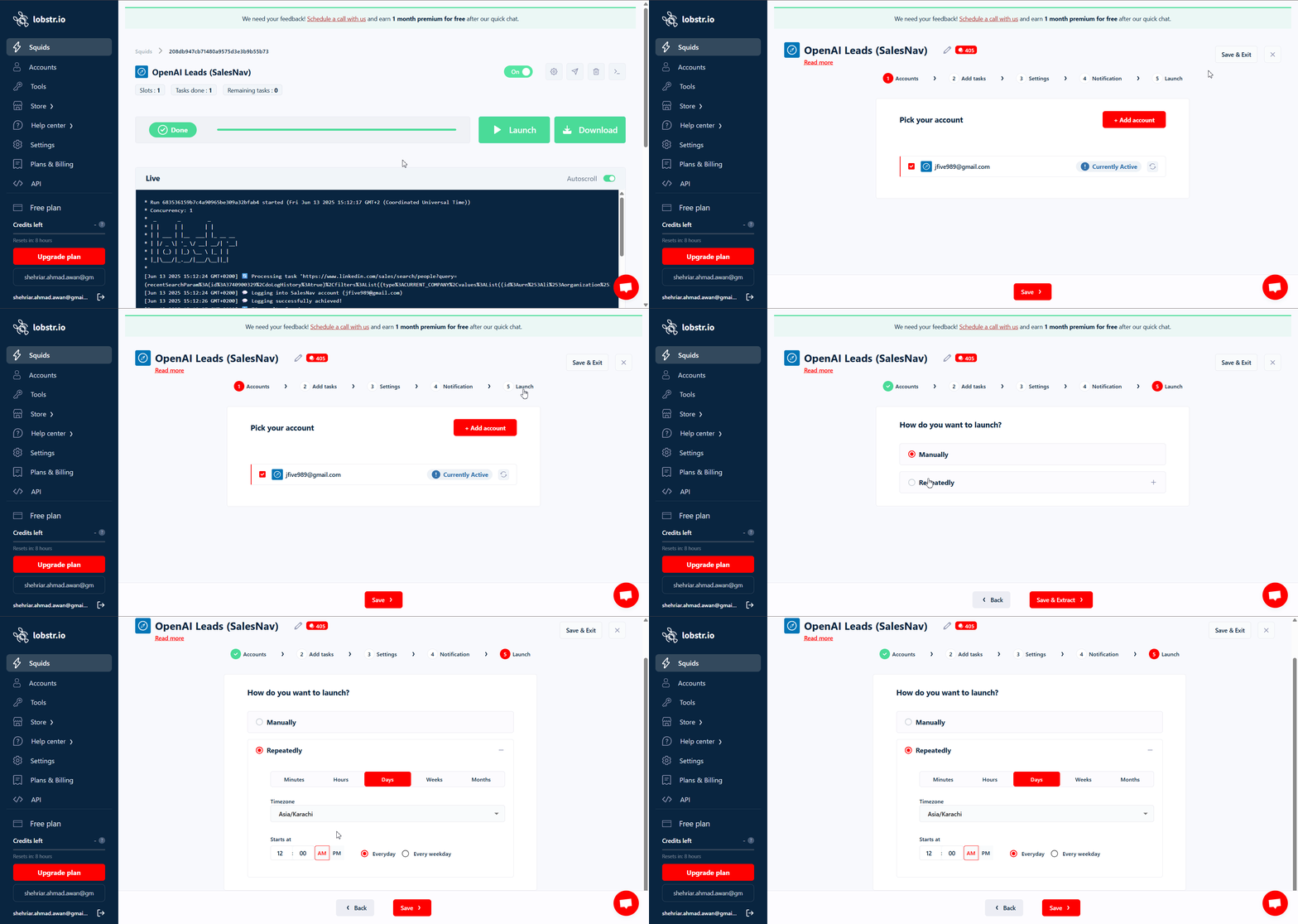 Navigate to your Squid and click **Settings**.
Under the **Launch** section, click **Repeatedly**.
Pick the recurrence that fits your workflow (minutes / hours / days / weeks / months).
Configure your start time and any other options, then click **Save**.
Scheduling is **not available on the free plan**. You need a paid subscription to use the Repeatedly launch mode.
## Schedule types
Runs the Squid every X minutes (min 5, max 30).
Navigate to your Squid and click **Settings**.
Under the **Launch** section, click **Repeatedly**.
Pick the recurrence that fits your workflow (minutes / hours / days / weeks / months).
Configure your start time and any other options, then click **Save**.
Scheduling is **not available on the free plan**. You need a paid subscription to use the Repeatedly launch mode.
## Schedule types
Runs the Squid every X minutes (min 5, max 30).
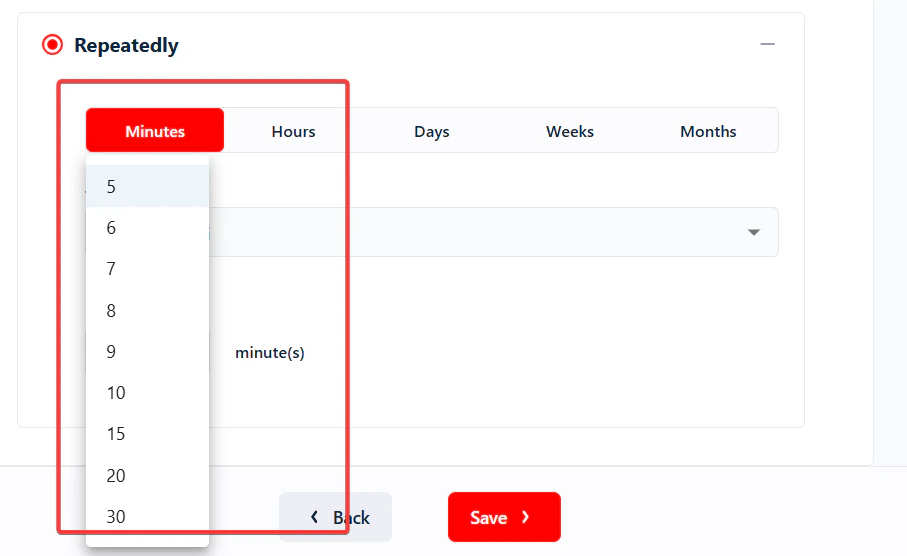 **Example:** Set every 10 minutes and the Squid runs six times per hour, automatically.
Runs every X hours starting at a specific time.
**Example:** Set every 10 minutes and the Squid runs six times per hour, automatically.
Runs every X hours starting at a specific time.
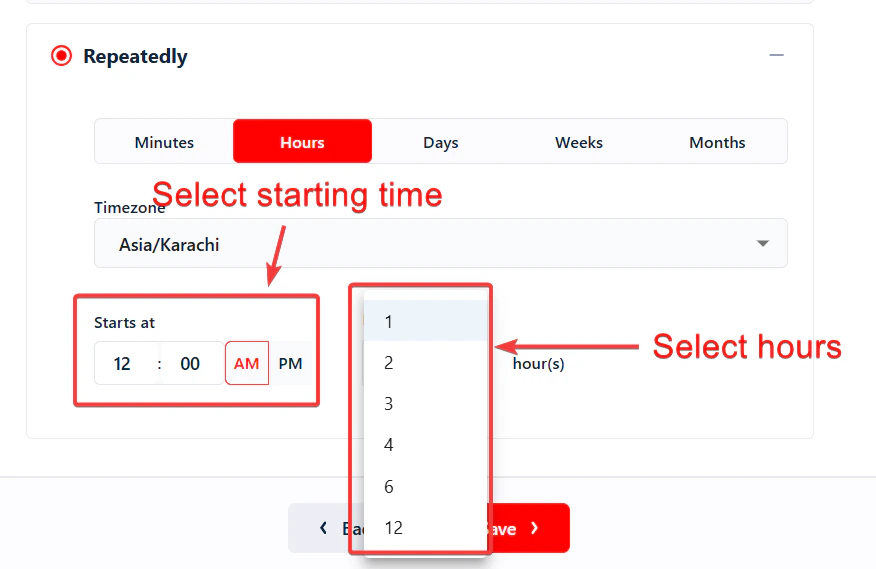 **Example:** Every 3 hours starting at 9:00 AM → runs at 9:00, 12:00, 3:00, 6:00, and so on.
Daily or weekday-only runs at a specific time.
**Example:** Every 3 hours starting at 9:00 AM → runs at 9:00, 12:00, 3:00, 6:00, and so on.
Daily or weekday-only runs at a specific time.
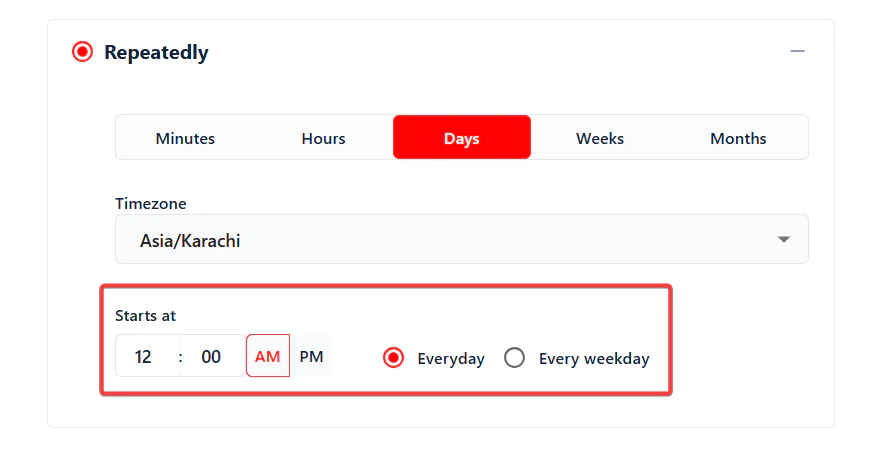 **Example:** Weekdays at 8:30 AM → select "Weekdays" and set start time to 08:30.
Runs on specific days each week at a chosen time.
**Example:** Weekdays at 8:30 AM → select "Weekdays" and set start time to 08:30.
Runs on specific days each week at a chosen time.
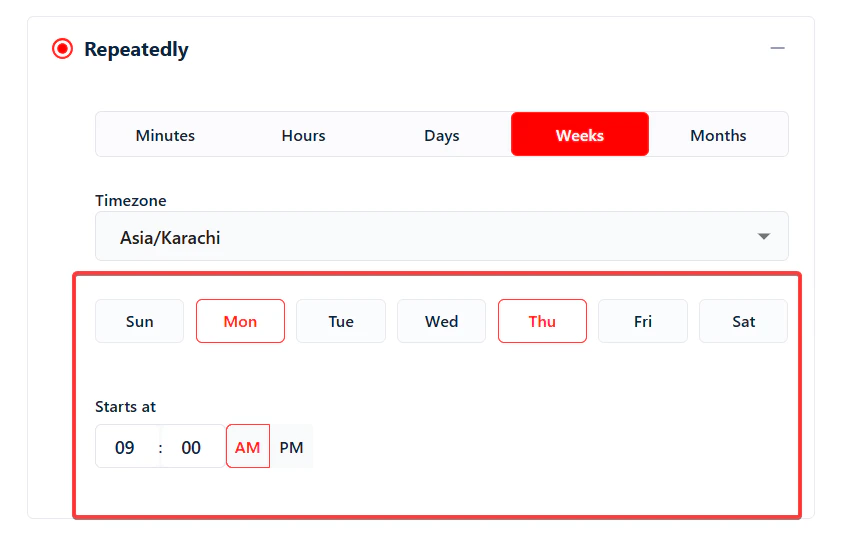 **Example:** Mondays and Thursdays at 10:00 AM.
Runs on a specific date (1–30) each month at a set time.
**Example:** Mondays and Thursdays at 10:00 AM.
Runs on a specific date (1–30) each month at a set time.
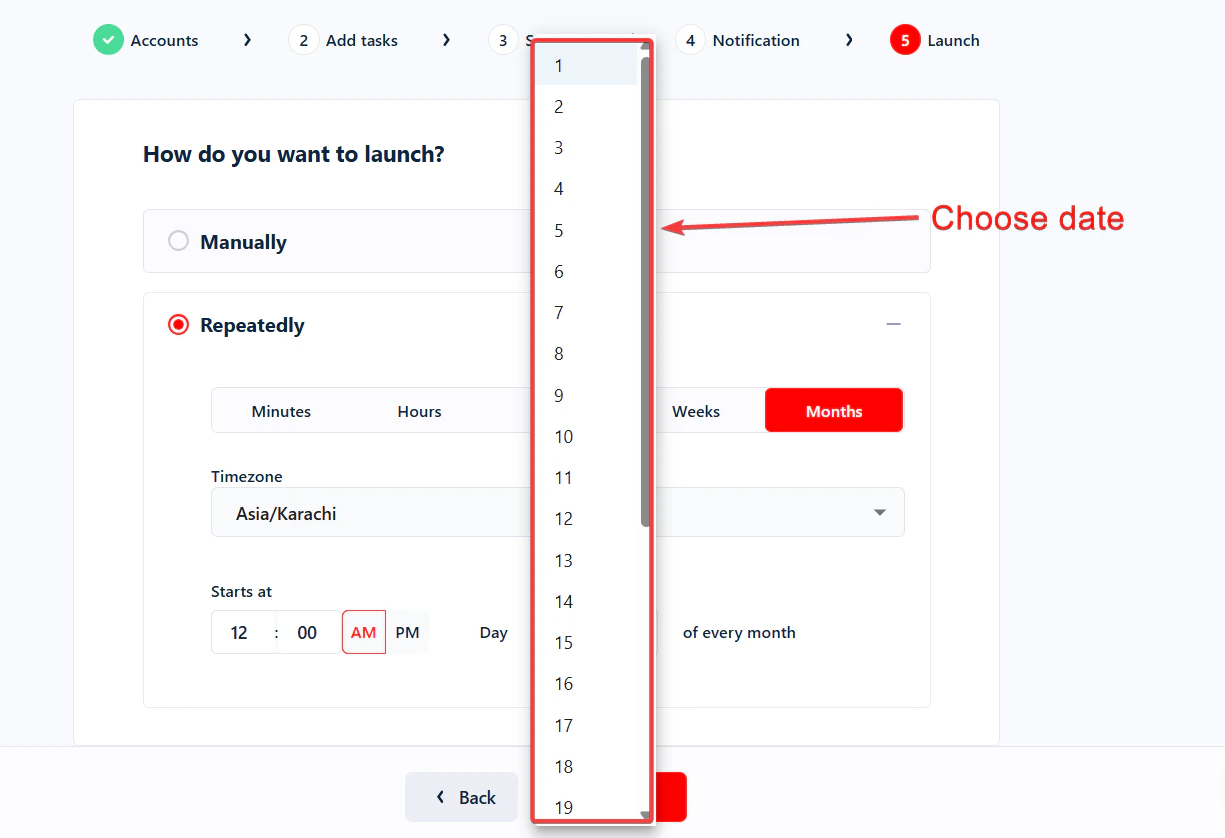 **Example:** The 1st of every month at 9:00 AM for a monthly report kick-off.
## Timezone
By default, the schedule uses your account's timezone. To change it for a specific Squid, open its Settings and select a timezone from the **Timezone** dropdown, then click **Save**.
**Example:** The 1st of every month at 9:00 AM for a monthly report kick-off.
## Timezone
By default, the schedule uses your account's timezone. To change it for a specific Squid, open its Settings and select a timezone from the **Timezone** dropdown, then click **Save**.
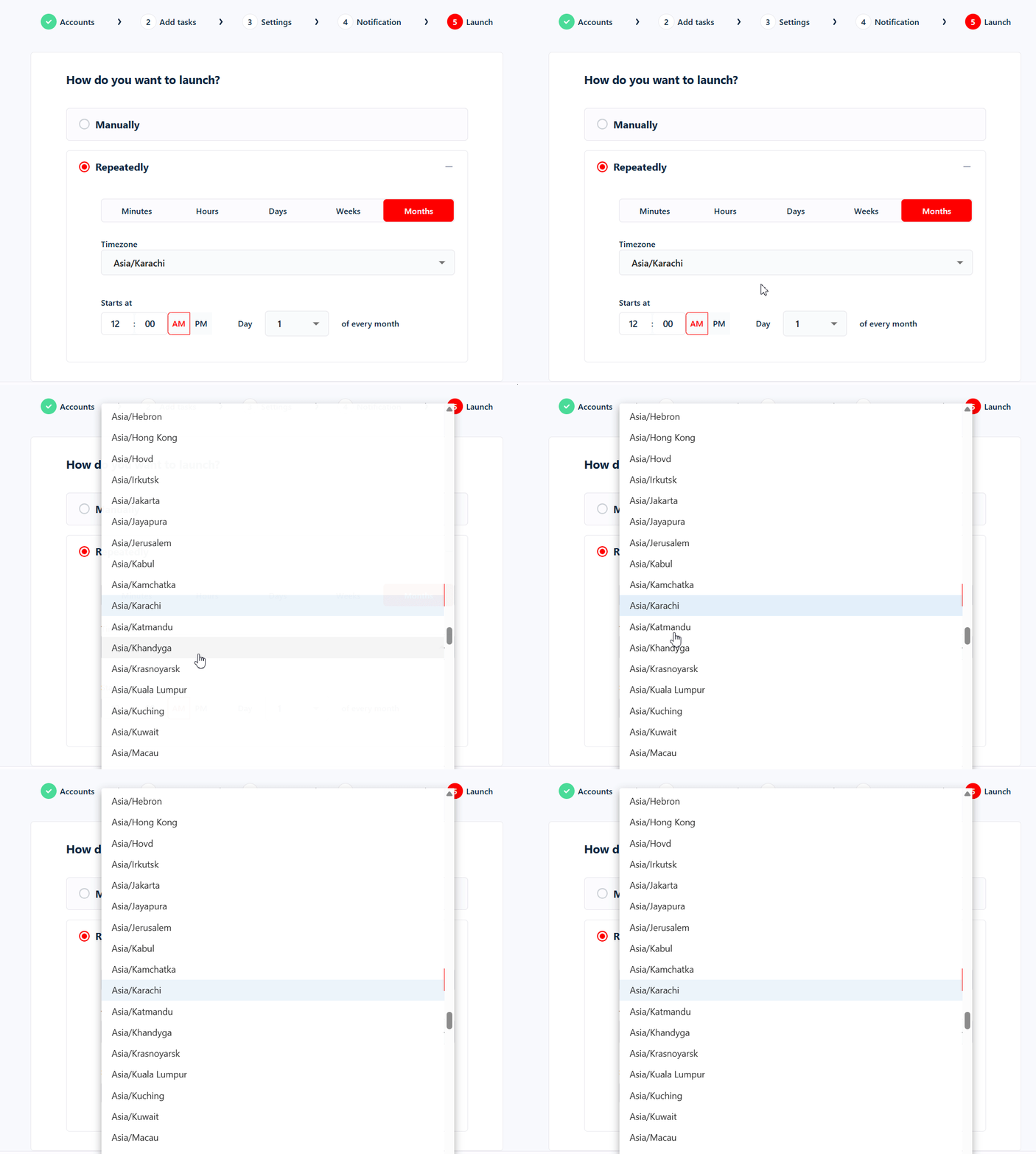 All scheduled runs follow the new timezone going forward.
## Scheduling multiple Squids at the same time
You can schedule as many Squids as you like to run at the same moment. Each Squid launches independently on its own schedule — as long as your account has enough credits and slots available.
## Pausing or disabling a schedule
To temporarily stop a scheduled Squid without deleting its configuration, **deactivate** the Squid. All scheduled runs stop immediately.
All scheduled runs follow the new timezone going forward.
## Scheduling multiple Squids at the same time
You can schedule as many Squids as you like to run at the same moment. Each Squid launches independently on its own schedule — as long as your account has enough credits and slots available.
## Pausing or disabling a schedule
To temporarily stop a scheduled Squid without deleting its configuration, **deactivate** the Squid. All scheduled runs stop immediately.
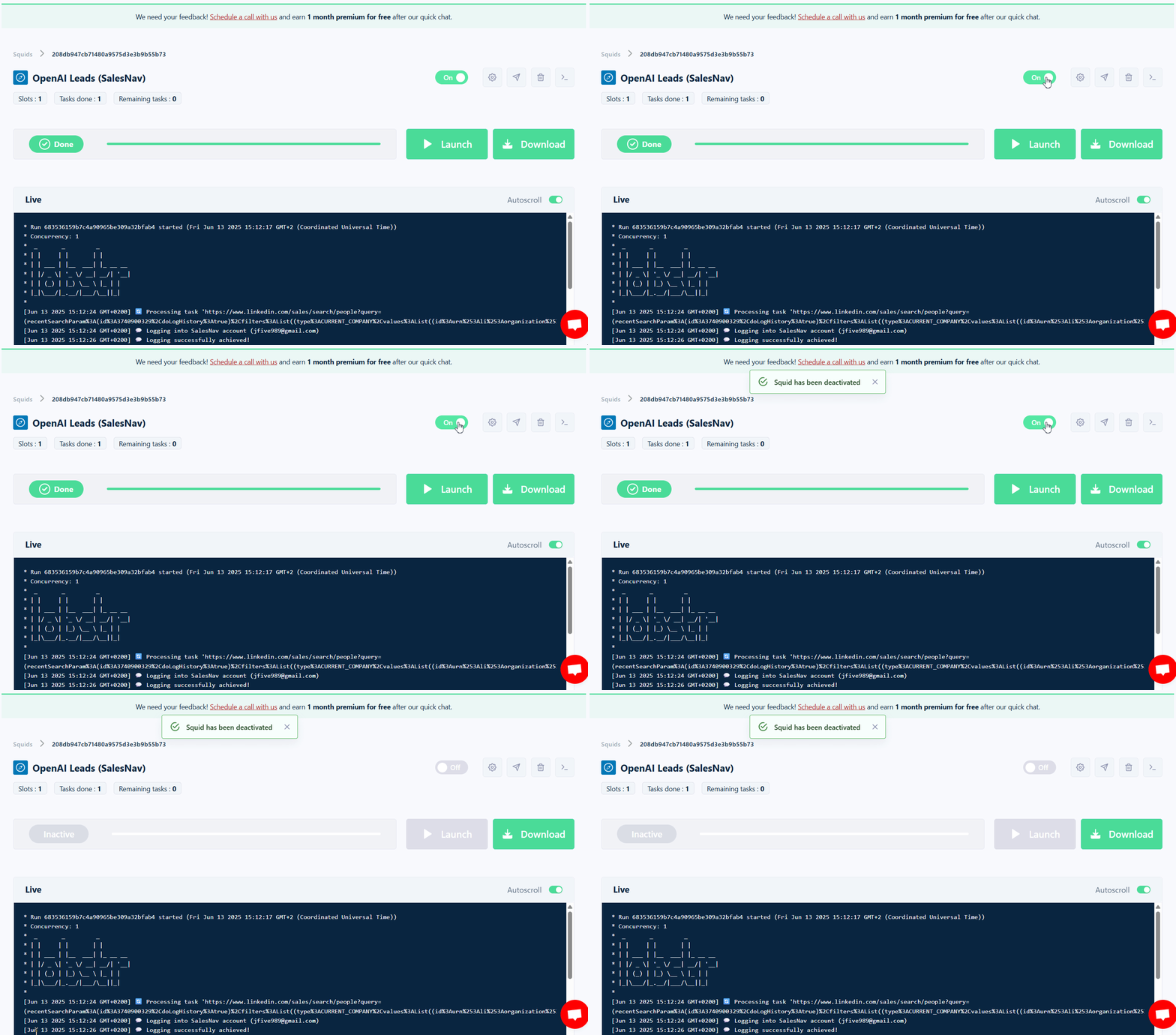 Reactivate it when you're ready — the schedule picks up where it left off.
If you'd rather keep the Squid active but launch it only when needed, switch the launch mode from **Repeatedly** to **Manually**:
Reactivate it when you're ready — the schedule picks up where it left off.
If you'd rather keep the Squid active but launch it only when needed, switch the launch mode from **Repeatedly** to **Manually**:
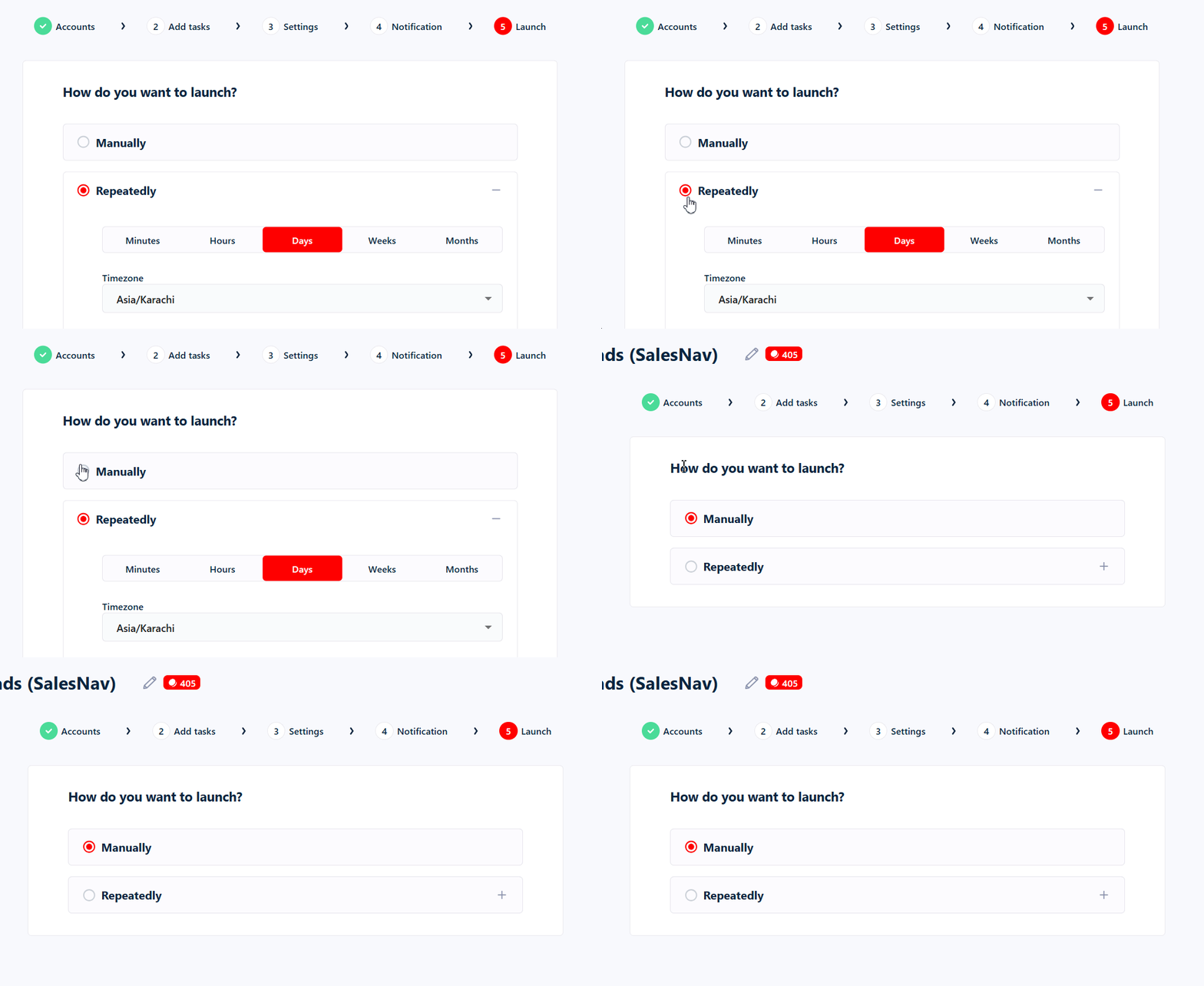 1. Open the Squid's **Settings**.
2. Open the **Launch** section.
3. Change the launch mode from **Repeatedly** to **Manually**.
Your schedule settings are preserved, so you can flip back to automatic at any time.
1. Open the Squid's **Settings**.
2. Open the **Launch** section.
3. Change the launch mode from **Repeatedly** to **Manually**.
Your schedule settings are preserved, so you can flip back to automatic at any time.