> ## Documentation Index
> Fetch the complete documentation index at: https://help.lobstr.io/llms.txt
> Use this file to discover all available pages before exploring further.
# Tasks: the inputs that tell a Squid what to scrape
> Tasks are the inputs for a lobstr.io Squid — URLs, queries, usernames, or structured params. Learn how tasks are added, deduplicated, and re-processed every run.
A **task** is a single unit of input for a [Squid](/core-concepts/squids). It's what you hand the scraper so it knows *what* to scrape — a URL to visit, a query to search, a username to look up, or a set of structured parameters. Each Squid can hold up to **10,000 tasks**, and every run you launch processes all of them.
## What a task looks like
The accepted input type depends on the Squid. Common shapes:
* **URL** — a link to a page, list, or profile (e.g. `https://www.realtor.com/realestateandhomes-search/California/pg-5`).
* **Plain text query** — a search term (e.g. `restaurant`).
* **Username** — a handle or ID (e.g. a Twitter handle or YouTube channel).
* **Structured parameters** — fields like Category, Country, Region, District, City (used by Squids like Google Maps Leads Scraper).
Some Squids only accept one shape. Others — like **Google Maps Leads Scraper** — accept both URLs and structured params. The task input form in the Squid's **Add tasks** step always shows you what that specific Squid expects.
## How to add tasks
From the Squid's **Add tasks** step, you have three ways to load tasks:
### 1. Type or paste a single task
Paste a URL (or query / username) in the input field and click **Add**. The task appears in the list below. You can add many individual tasks this way — good for small, ad-hoc lists.
### 2. Upload a CSV
When you need to run a Squid against many URLs or keywords, adding them one at a time is impractical. Upload a CSV with one task per row instead — ideal when you have 100 or more tasks to process (up to the 10,000-task limit).
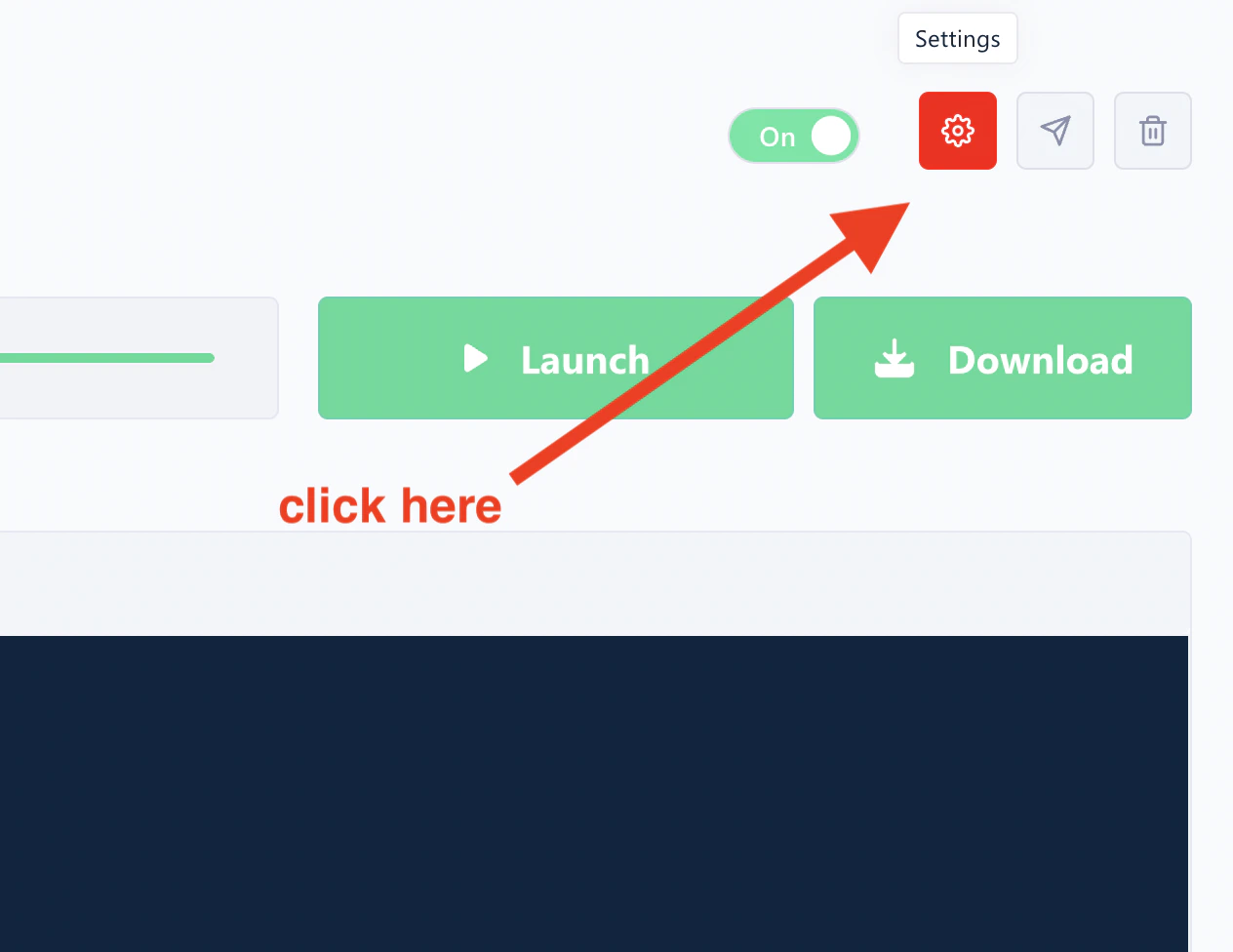
Each Squid expects a specific column header in your CSV file. To find it, open your Squid and click the **settings icon**.
 Then hover over the **Upload file** button — the expected column label is displayed there.
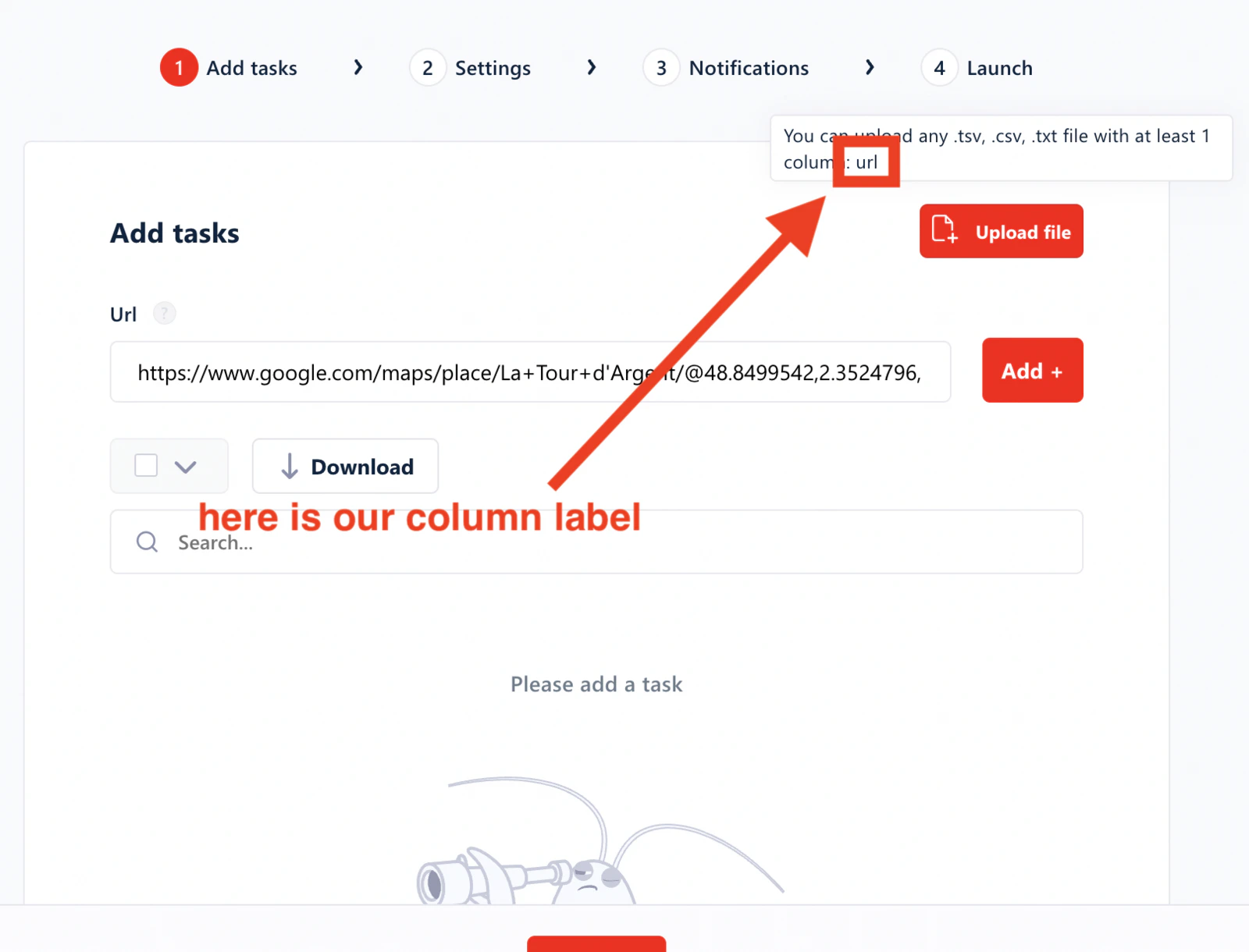 In this example, for [Google Maps Export Reviews](https://www.lobstr.io/store/google-maps-iter-reviews), the label is `url`. Note it down — you'll need it for the next step.
Create a CSV file with:
* The label from Step 1 in the first cell (e.g. `url`).
* One task per row below it.
In this example, for [Google Maps Export Reviews](https://www.lobstr.io/store/google-maps-iter-reviews), the label is `url`. Note it down — you'll need it for the next step.
Create a CSV file with:
* The label from Step 1 in the first cell (e.g. `url`).
* One task per row below it.
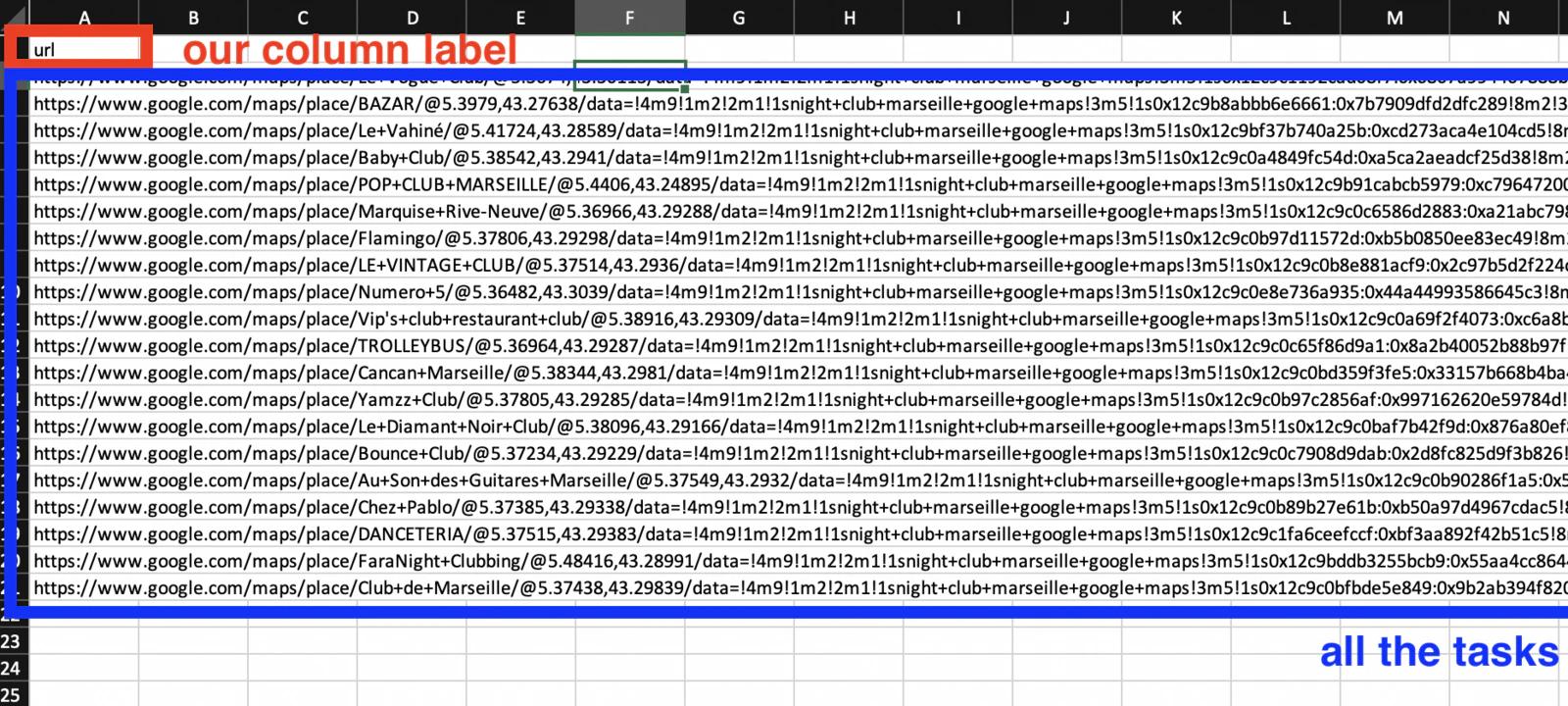 Save the file with a `.csv` extension — for example, `tasksDemo.csv`.
Click **Upload file** on your Squid page and select the file you just created.
Save the file with a `.csv` extension — for example, `tasksDemo.csv`.
Click **Upload file** on your Squid page and select the file you just created.
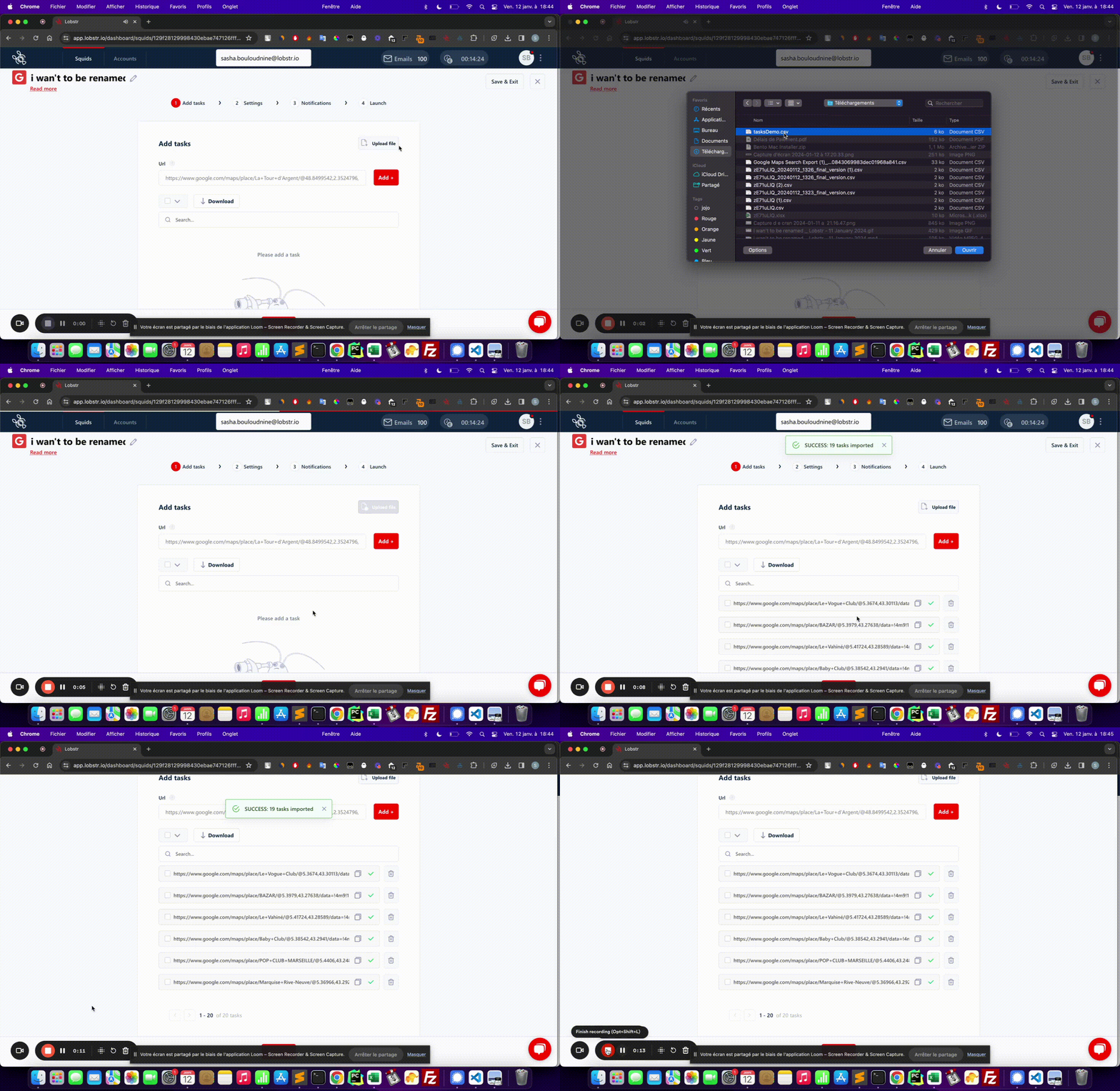 lobstr.io imports your tasks and shows a confirmation — e.g. **"19 tasks imported."** Click **Launch** to start the run.
The column header in your CSV must exactly match what the Squid expects, including capitalization. If the header is wrong, no tasks will be imported — always verify the label in Step 1 before building your file.
### 3. Use params
For Squids that support structured input, toggle **Use params** to fill in fields like Category, Country, Region, District, and City. Every combination you submit becomes one task.
lobstr.io imports your tasks and shows a confirmation — e.g. **"19 tasks imported."** Click **Launch** to start the run.
The column header in your CSV must exactly match what the Squid expects, including capitalization. If the header is wrong, no tasks will be imported — always verify the label in Step 1 before building your file.
### 3. Use params
For Squids that support structured input, toggle **Use params** to fill in fields like Category, Country, Region, District, and City. Every combination you submit becomes one task.
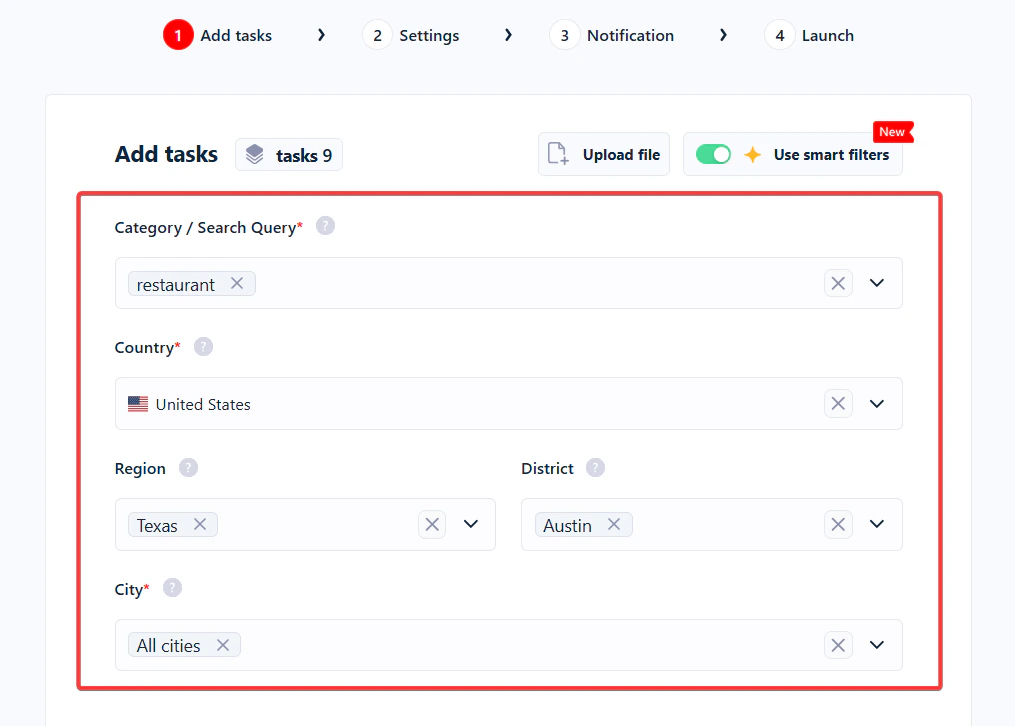 See the [Scrape a country (Google Maps)](/guides/google-maps/scrape-country) guide for a concrete example of the params flow.
## Deduplication and validation
Two things happen automatically when you add tasks:
* **Deduplication** — if the same task is already in the list, it's not added again. This prevents accidental double-processing when you upload overlapping CSVs.
* **Validation** — tasks that don't match the Squid's expected input format are skipped. If you paste a URL into a Squid that expects a username, that task won't be added.
If a CSV upload reports fewer tasks than you expected (e.g. "18 tasks imported" from a 20-row file), the missing ones were either duplicates already in the list or invalid format.
## The task list
Once added, tasks appear in a list with a **task counter badge** showing the current count. From the list toolbar you can:
* **Upload file** — import a CSV of tasks.
* **Download** — export the current task list as a CSV.
* **Search** — find a specific task by keyword.
* **Empty tasks** — wipes **the entire list**.
## Delete tasks or empty the task list
You have two ways to remove tasks:
* **Delete selected tasks** — tick the checkbox next to a task (or multiple tasks) and click **Delete**. Only the selected tasks are removed; the rest of the list stays intact.
* **Empty the entire list** — click **Empty tasks** to clear every task in the Squid in one action.
**Empty tasks** deletes every task in the Squid — both already-processed and unprocessed. There's no undo.
## How tasks work with runs
This is the most important thing to understand about tasks:
**Every run re-processes every task in the list.** There's no queue that drains over time. If your Squid has 500 tasks, each launch scrapes all 500 — not only "new" ones.
This model is intentional — it lets you scrape fresh, up-to-date data on a schedule without manually re-adding tasks. It also means:
* To scrape something **new**, add new tasks to the list before the next launch.
* To **stop** scraping certain tasks, remove them from the list (or click **Empty tasks** and start over).
* If you want every run to pull fresh data for the same inputs (e.g. a weekly Google Maps refresh), just leave the list alone and [schedule the Squid](/core-concepts/scheduling).
The Squid header reflects this with live counters during a run:
* **Tasks done** — how many tasks the current run has finished.
* **Remaining tasks** — how many are still pending in the active run.
Both reset to `0 / total` at the start of the next run.
## Per-task results inside a run
Every run's detail page has a **Tasks** tab showing what happened to each individual task:
See the [Scrape a country (Google Maps)](/guides/google-maps/scrape-country) guide for a concrete example of the params flow.
## Deduplication and validation
Two things happen automatically when you add tasks:
* **Deduplication** — if the same task is already in the list, it's not added again. This prevents accidental double-processing when you upload overlapping CSVs.
* **Validation** — tasks that don't match the Squid's expected input format are skipped. If you paste a URL into a Squid that expects a username, that task won't be added.
If a CSV upload reports fewer tasks than you expected (e.g. "18 tasks imported" from a 20-row file), the missing ones were either duplicates already in the list or invalid format.
## The task list
Once added, tasks appear in a list with a **task counter badge** showing the current count. From the list toolbar you can:
* **Upload file** — import a CSV of tasks.
* **Download** — export the current task list as a CSV.
* **Search** — find a specific task by keyword.
* **Empty tasks** — wipes **the entire list**.
## Delete tasks or empty the task list
You have two ways to remove tasks:
* **Delete selected tasks** — tick the checkbox next to a task (or multiple tasks) and click **Delete**. Only the selected tasks are removed; the rest of the list stays intact.
* **Empty the entire list** — click **Empty tasks** to clear every task in the Squid in one action.
**Empty tasks** deletes every task in the Squid — both already-processed and unprocessed. There's no undo.
## How tasks work with runs
This is the most important thing to understand about tasks:
**Every run re-processes every task in the list.** There's no queue that drains over time. If your Squid has 500 tasks, each launch scrapes all 500 — not only "new" ones.
This model is intentional — it lets you scrape fresh, up-to-date data on a schedule without manually re-adding tasks. It also means:
* To scrape something **new**, add new tasks to the list before the next launch.
* To **stop** scraping certain tasks, remove them from the list (or click **Empty tasks** and start over).
* If you want every run to pull fresh data for the same inputs (e.g. a weekly Google Maps refresh), just leave the list alone and [schedule the Squid](/core-concepts/scheduling).
The Squid header reflects this with live counters during a run:
* **Tasks done** — how many tasks the current run has finished.
* **Remaining tasks** — how many are still pending in the active run.
Both reset to `0 / total` at the start of the next run.
## Per-task results inside a run
Every run's detail page has a **Tasks** tab showing what happened to each individual task:
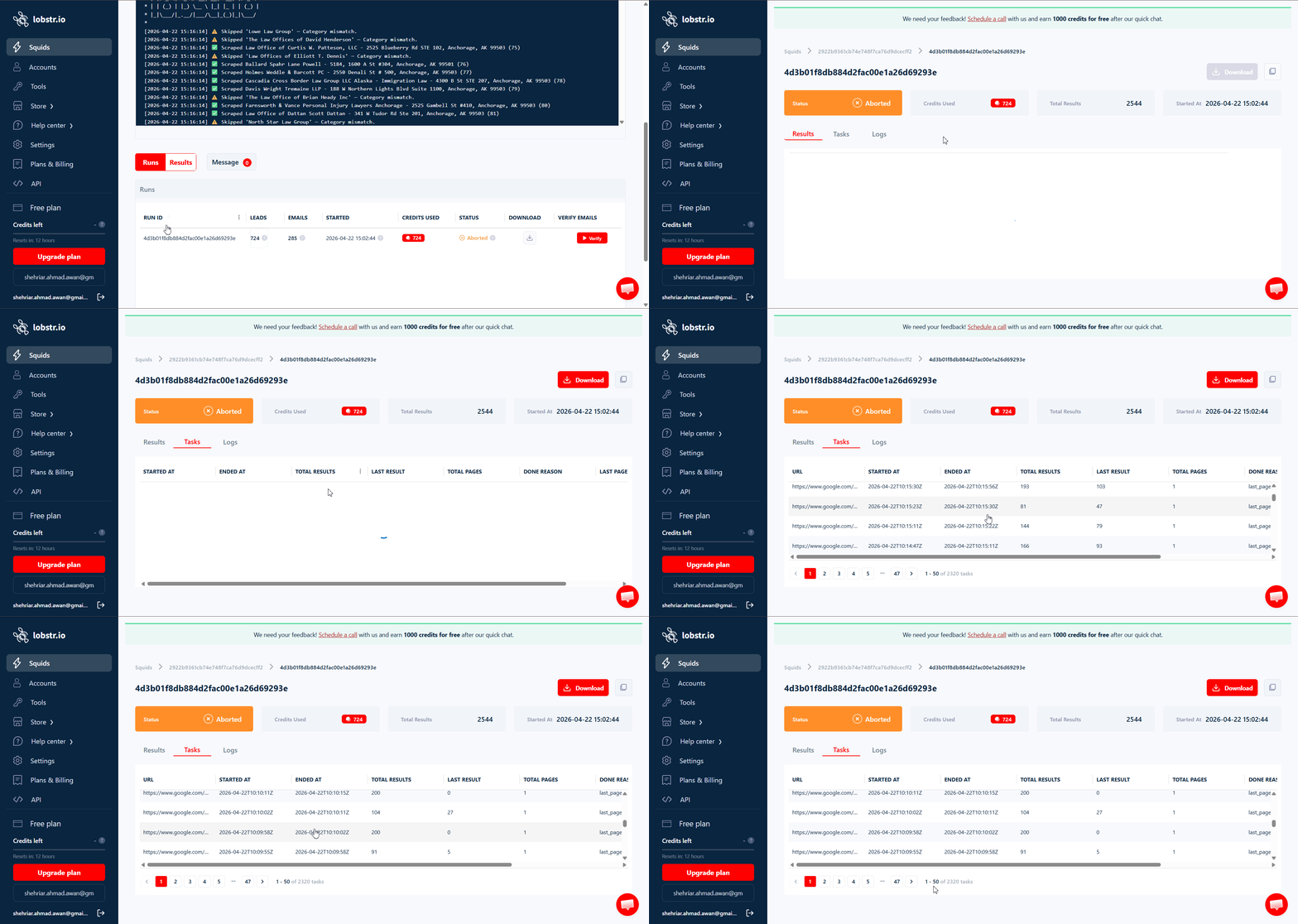 For each task:
* **URL** (or query / username / params) — the task input.
* **Started At** / **Ended At** — when the scraper worked on this specific task.
* **Total Results** — rows collected for this task.
* **Last Result** — final item index written to the output for this task.
* **Total Pages** — how many paginated pages the scraper walked for this task.
* **Done Reason** — why processing of this task ended (e.g. `last_page_reached`).
This tab is useful for diagnosing uneven runs — if one task collected 0 results while others collected hundreds, the Done Reason column usually tells you why.
## Related
* [Runs](/core-concepts/runs) — how a run consumes the task list and produces results
* [Squids](/core-concepts/squids) — the configuration that owns the task list
For each task:
* **URL** (or query / username / params) — the task input.
* **Started At** / **Ended At** — when the scraper worked on this specific task.
* **Total Results** — rows collected for this task.
* **Last Result** — final item index written to the output for this task.
* **Total Pages** — how many paginated pages the scraper walked for this task.
* **Done Reason** — why processing of this task ended (e.g. `last_page_reached`).
This tab is useful for diagnosing uneven runs — if one task collected 0 results while others collected hundreds, the Done Reason column usually tells you why.
## Related
* [Runs](/core-concepts/runs) — how a run consumes the task list and produces results
* [Squids](/core-concepts/squids) — the configuration that owns the task list