> ## Documentation Index
> Fetch the complete documentation index at: https://help.lobstr.io/llms.txt
> Use this file to discover all available pages before exploring further.

# Convert a lobstr.io CSV export into an Excel spreadsheet

> Open lobstr.io CSV exports cleanly in Excel using Google Sheets as an intermediary — three simple steps to get a properly formatted spreadsheet.

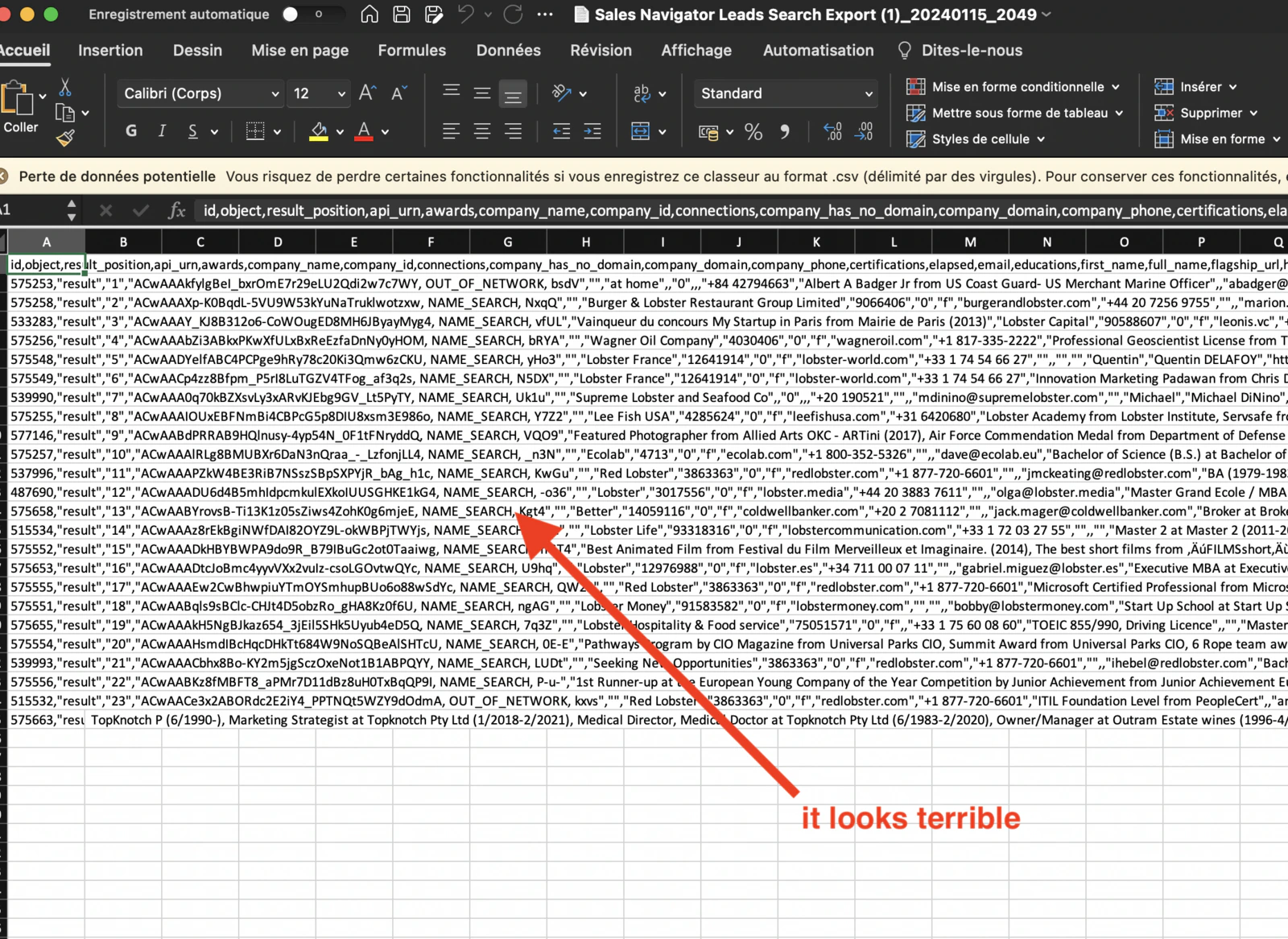
Have you tried opening a CSV file of scraped data in Excel, only to get a bunch of unreadable, cramped data?
<Frame>
  <img src="https://mintcdn.com/lobstrio-8dcae32c/oM3Rw_5SkIYdley8/images/how-to-convert-a-csv-file-to-excel/capture-decran-2024-01-16-a-18_3cj00x.png?fit=max&auto=format&n=oM3Rw_5SkIYdley8&q=85&s=fa3c60e462fe938d1617c7e60f255f1a" alt="A CSV file opened with Excel looking terrible" width="1600" height="1166" data-path="images/how-to-convert-a-csv-file-to-excel/capture-decran-2024-01-16-a-18_3cj00x.png" />
</Frame>

The reliable fix is to route through Google Sheets first, which handles the import correctly and then lets you download a clean `.xlsx` file.

## Step-by-step instructions

<Steps>
  <Step title="Create a Google Spreadsheet">
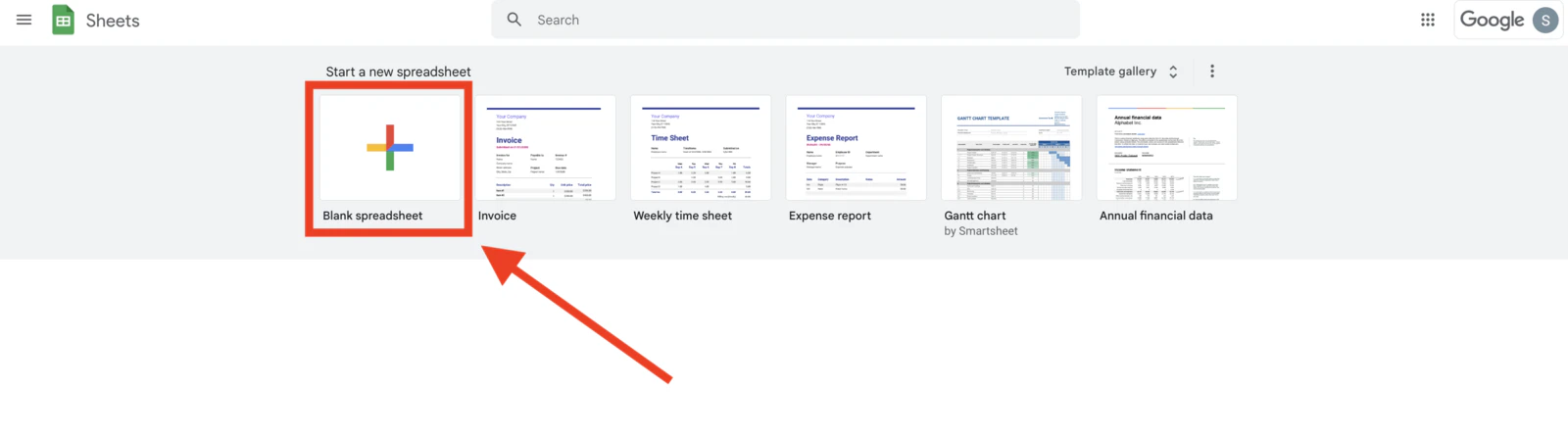
    Open the Sheets home screen at [sheets.google.com](https://sheets.google.com/) and click **+** to create a new blank spreadsheet.
    <Frame>
      <img src="https://mintcdn.com/lobstrio-8dcae32c/oM3Rw_5SkIYdley8/images/how-to-convert-a-csv-file-to-excel/capture-decran-2024-01-16-a-19_h982dl.png?fit=max&auto=format&n=oM3Rw_5SkIYdley8&q=85&s=6d49d409daa71fcbc3f7e5a9fc900a28" alt="Click the + button to create a new spreadsheet" width="1600" height="446" data-path="images/how-to-convert-a-csv-file-to-excel/capture-decran-2024-01-16-a-19_h982dl.png" />
    </Frame>
  </Step>

  <Step title="Upload the CSV">
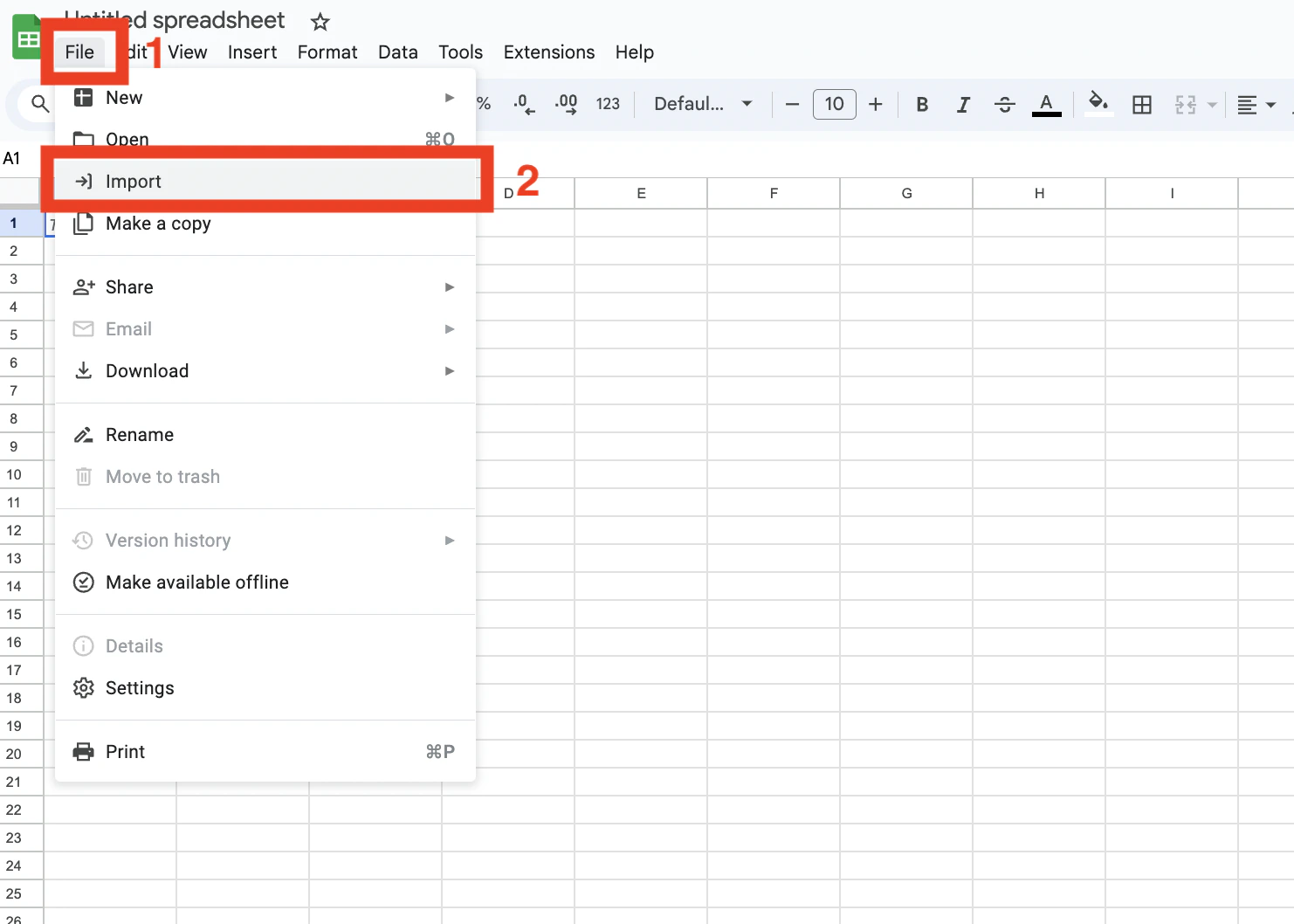
    Click **File**, then **Import**.

    <Frame>
      <img src="https://mintcdn.com/lobstrio-8dcae32c/oM3Rw_5SkIYdley8/images/how-to-convert-a-csv-file-to-excel/capture-decran-2024-01-16-a-19_1yl0dr6.png?fit=max&auto=format&n=oM3Rw_5SkIYdley8&q=85&s=849879aa3fa6c58f4f3df0533a5e17e3" alt="Click File and Import" width="1482" height="1058" data-path="images/how-to-convert-a-csv-file-to-excel/capture-decran-2024-01-16-a-19_1yl0dr6.png" />
    </Frame>

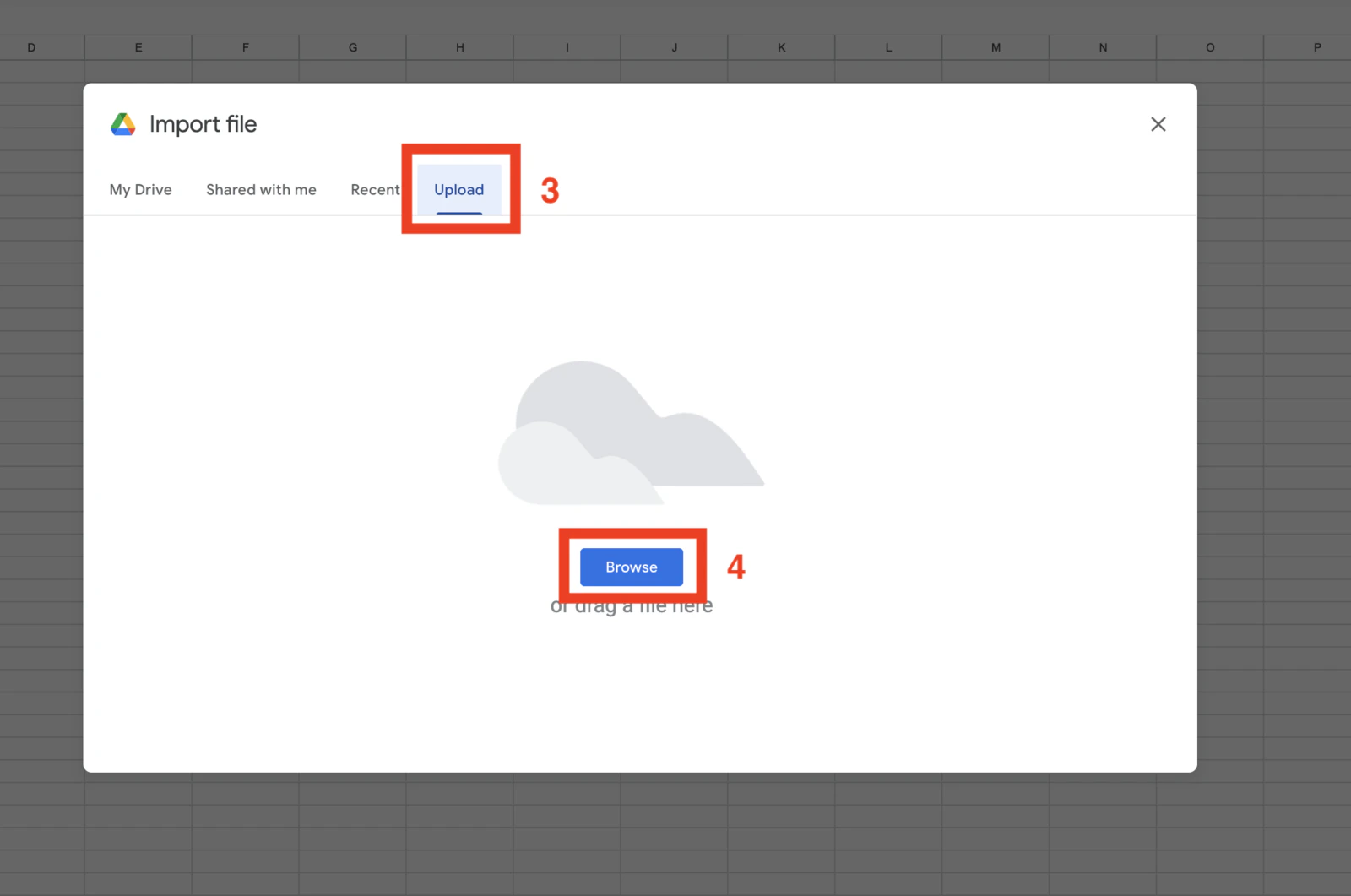
    Click the **Upload** tab, then **Browse** and choose the CSV file you downloaded from lobstr.io.
    <Frame>
      <img src="https://mintcdn.com/lobstrio-8dcae32c/oM3Rw_5SkIYdley8/images/how-to-convert-a-csv-file-to-excel/capture-decran-2024-01-16-a-19_1kheikm.png?fit=max&auto=format&n=oM3Rw_5SkIYdley8&q=85&s=ec2ce94230ba499b861a73178850d3b3" alt="Click Upload and Browse" width="1600" height="1061" data-path="images/how-to-convert-a-csv-file-to-excel/capture-decran-2024-01-16-a-19_1kheikm.png" />
    </Frame>

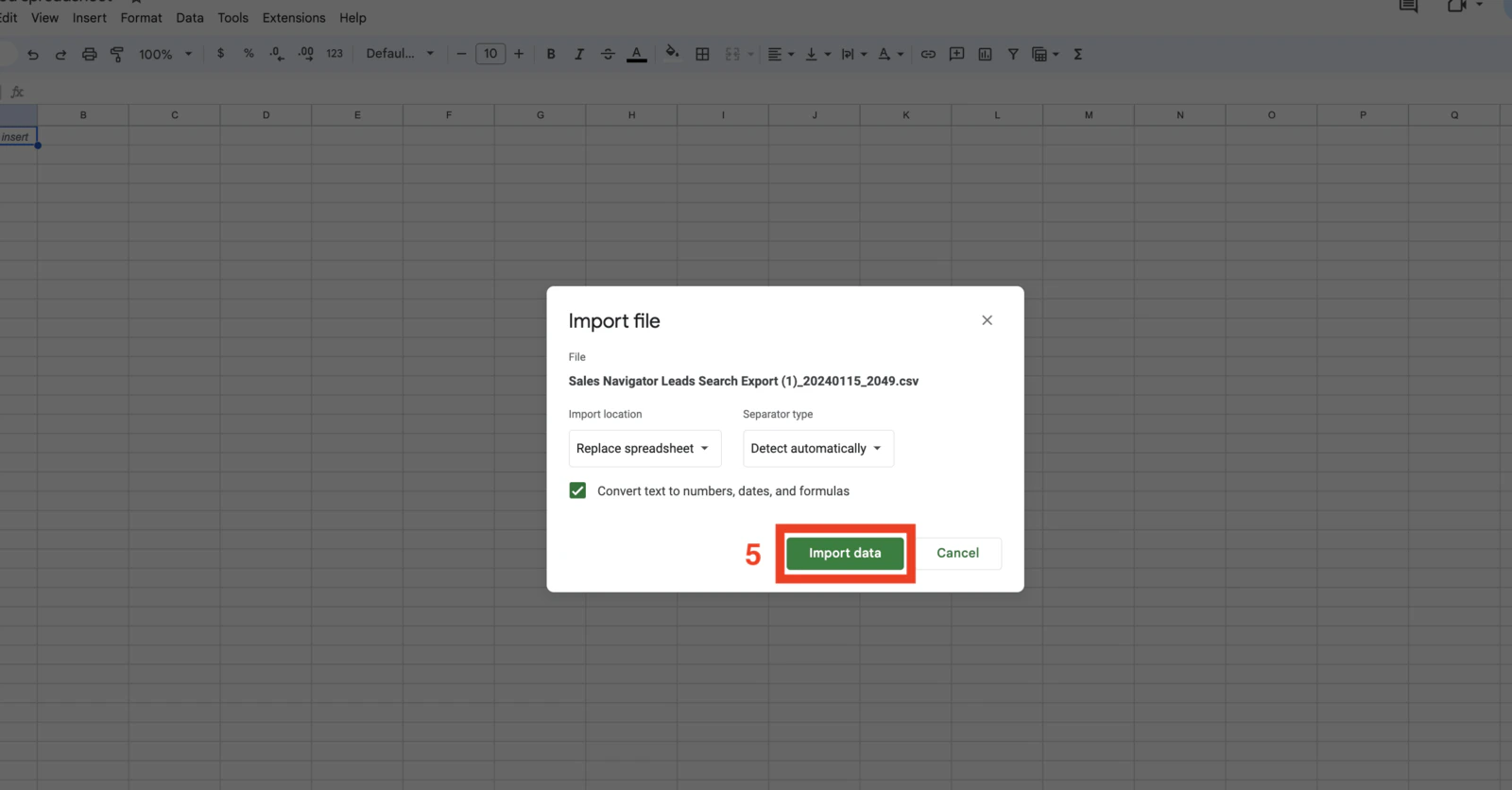
    Click **Import data**. Google Sheets creates a new file with each column properly separated.
    <Frame>
      <img src="https://mintcdn.com/lobstrio-8dcae32c/oM3Rw_5SkIYdley8/images/how-to-convert-a-csv-file-to-excel/capture-decran-2024-01-16-a-19_1x7i733.png?fit=max&auto=format&n=oM3Rw_5SkIYdley8&q=85&s=19a001daa40597cbe7826ce81c18c108" alt="Click Import data" width="1600" height="836" data-path="images/how-to-convert-a-csv-file-to-excel/capture-decran-2024-01-16-a-19_1x7i733.png" />
    </Frame>
  </Step>

  <Step title="Export to Excel format">
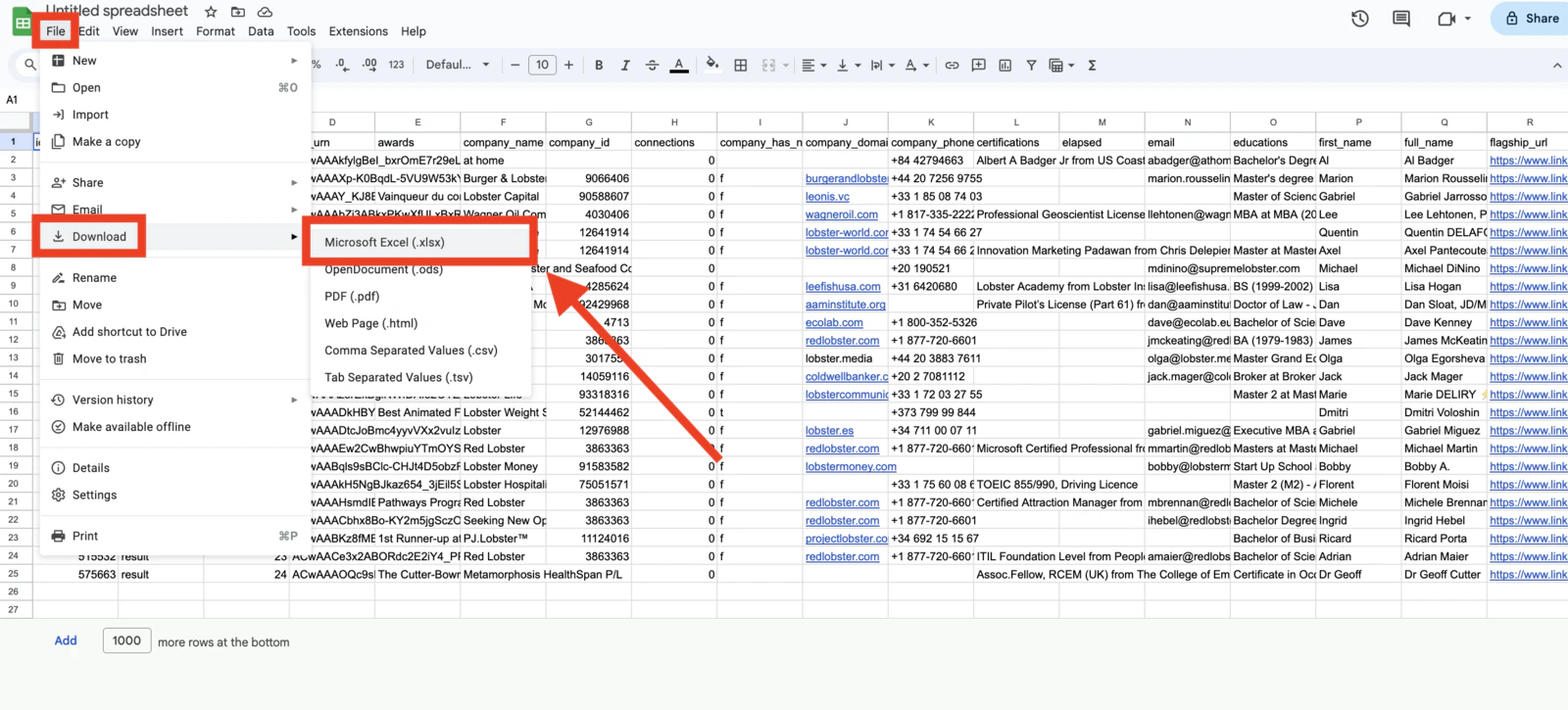
    Click **File → Download → Microsoft Excel (.xlsx)**.
    <Frame>
      <img src="https://mintcdn.com/lobstrio-8dcae32c/oM3Rw_5SkIYdley8/images/how-to-convert-a-csv-file-to-excel/capture-decran-2024-01-16-a-19_sd5o4m.png?fit=max&auto=format&n=oM3Rw_5SkIYdley8&q=85&s=1e0cf3eaac796485aba3b3fa1e0740c6" alt="Click File > Download > Microsoft Excel" data-og-width="1600" width="1600" data-og-height="725" height="725" data-path="images/how-to-convert-a-csv-file-to-excel/capture-decran-2024-01-16-a-19_sd5o4m.png" data-optimize="true" data-opv="3" srcset="https://mintcdn.com/lobstrio-8dcae32c/oM3Rw_5SkIYdley8/images/how-to-convert-a-csv-file-to-excel/capture-decran-2024-01-16-a-19_sd5o4m.png?w=280&fit=max&auto=format&n=oM3Rw_5SkIYdley8&q=85&s=71aa4f9c05ccfdc3294de7bc4d6b8aca 280w, https://mintcdn.com/lobstrio-8dcae32c/oM3Rw_5SkIYdley8/images/how-to-convert-a-csv-file-to-excel/capture-decran-2024-01-16-a-19_sd5o4m.png?w=560&fit=max&auto=format&n=oM3Rw_5SkIYdley8&q=85&s=844f86b38ff8af5df624128c51806aba 560w, https://mintcdn.com/lobstrio-8dcae32c/oM3Rw_5SkIYdley8/images/how-to-convert-a-csv-file-to-excel/capture-decran-2024-01-16-a-19_sd5o4m.png?w=840&fit=max&auto=format&n=oM3Rw_5SkIYdley8&q=85&s=7396d7098fd965237da5d8b2a9be64fc 840w, https://mintcdn.com/lobstrio-8dcae32c/oM3Rw_5SkIYdley8/images/how-to-convert-a-csv-file-to-excel/capture-decran-2024-01-16-a-19_sd5o4m.png?w=1100&fit=max&auto=format&n=oM3Rw_5SkIYdley8&q=85&s=5c17fb059351bee3859e423e2b6f1854 1100w, https://mintcdn.com/lobstrio-8dcae32c/oM3Rw_5SkIYdley8/images/how-to-convert-a-csv-file-to-excel/capture-decran-2024-01-16-a-19_sd5o4m.png?w=1650&fit=max&auto=format&n=oM3Rw_5SkIYdley8&q=85&s=96e83d259d1e23ce25c9de72eda8580e 1650w, https://mintcdn.com/lobstrio-8dcae32c/oM3Rw_5SkIYdley8/images/how-to-convert-a-csv-file-to-excel/capture-decran-2024-01-16-a-19_sd5o4m.png?w=2500&fit=max&auto=format&n=oM3Rw_5SkIYdley8&q=85&s=2f45f397514df344fa8b72d739f89c56 2500w" />
    </Frame>

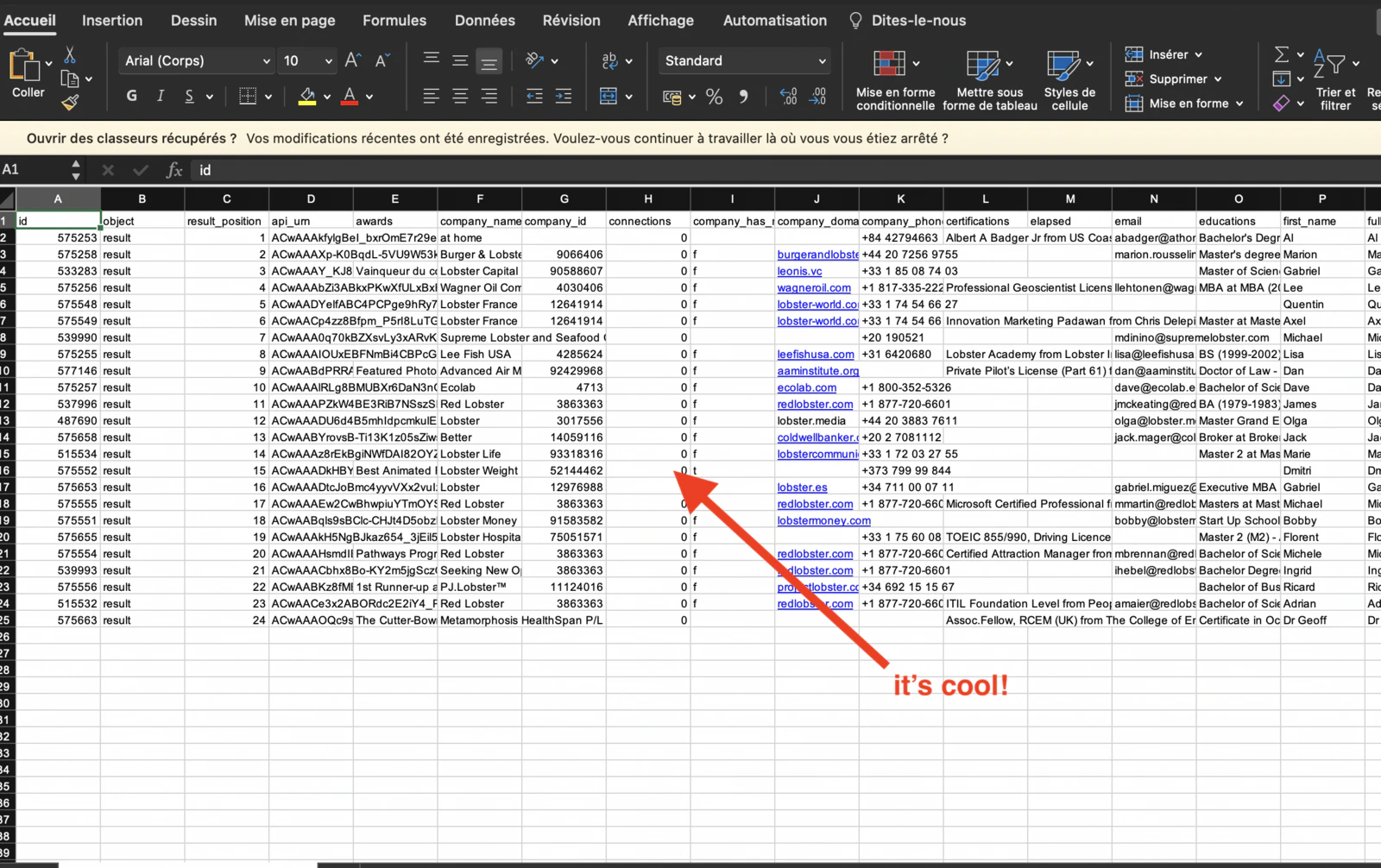
    An Excel file downloads to your computer. Double-click to open it — you now have a clean, structured, reliable Excel file.
    <Frame>
      <img src="https://mintcdn.com/lobstrio-8dcae32c/oM3Rw_5SkIYdley8/images/how-to-convert-a-csv-file-to-excel/capture-decran-2024-01-16-a-19_14cww9x.png?fit=max&auto=format&n=oM3Rw_5SkIYdley8&q=85&s=e335886cf881bd3c88d89cd1f356032f" alt="Excel file looking way better" width="1600" height="1006" data-path="images/how-to-convert-a-csv-file-to-excel/capture-decran-2024-01-16-a-19_14cww9x.png" />
    </Frame>
  </Step>
</Steps>

<Tip>
  If you regularly need your data in Excel, set up the [Google Sheets export](/data/export-to-google-sheets) integration. Results are pushed to your spreadsheet automatically after every run, and you can always download the sheet as Excel from there.
</Tip>