> ## Documentation Index
> Fetch the complete documentation index at: https://help.lobstr.io/llms.txt
> Use this file to discover all available pages before exploring further.
# Export scraped data automatically to Google Sheets
> Connect lobstr.io to Google Sheets and automatically push scraped results into a collaborative spreadsheet after every Squid run — no manual uploads needed.
Instead of downloading a CSV after every run and re-uploading it manually, you can connect your Squid to a Google Sheet so results are pushed there automatically. This keeps your data in one place, makes it easy to share with teammates, and saves you the repetitive download-and-upload cycle.
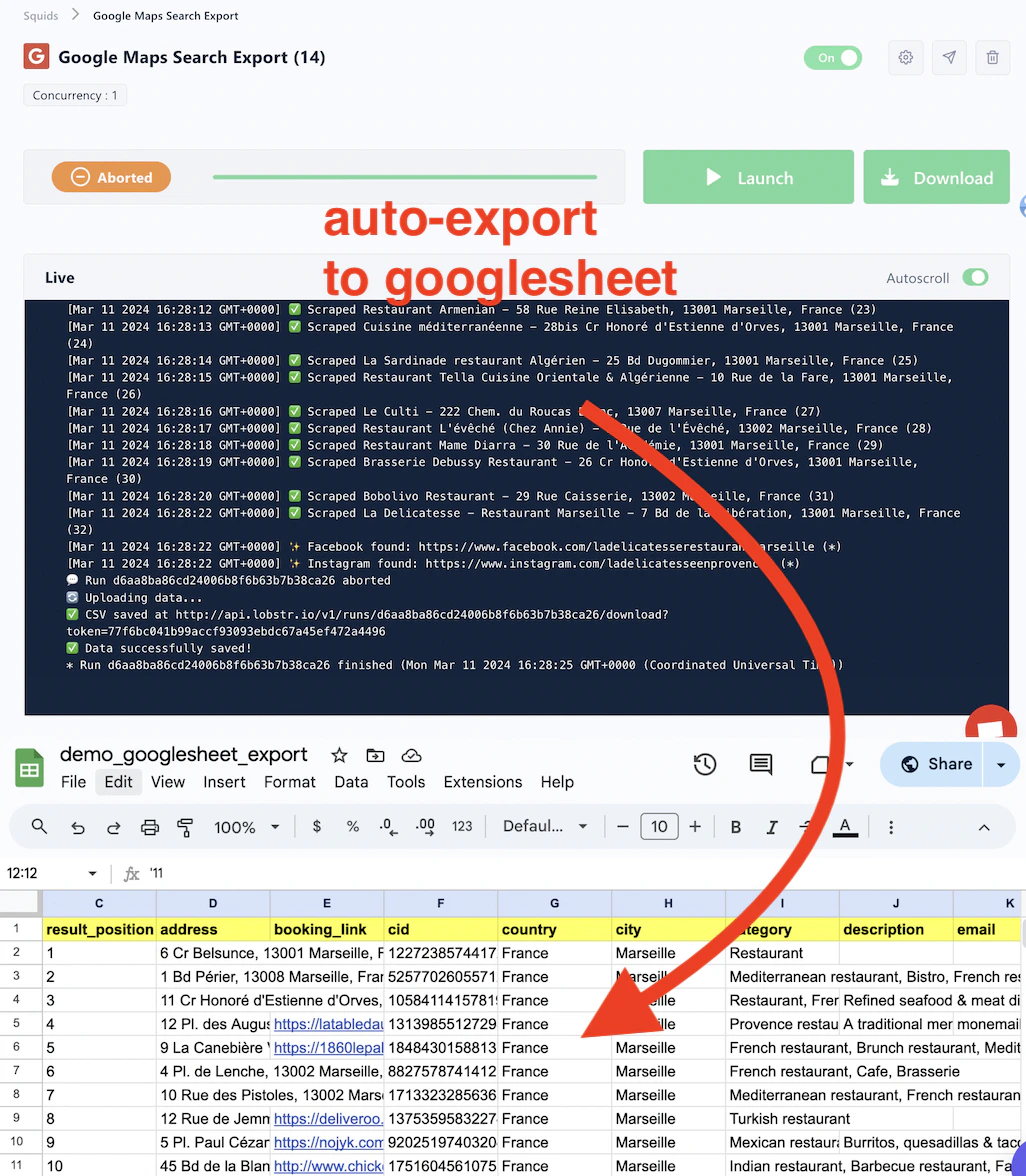 ## Watch the full walkthrough
## Step-by-step instructions
Go to [Google Sheets](https://docs.google.com/spreadsheets/u/0/) and create a new spreadsheet.
## Watch the full walkthrough
## Step-by-step instructions
Go to [Google Sheets](https://docs.google.com/spreadsheets/u/0/) and create a new spreadsheet.
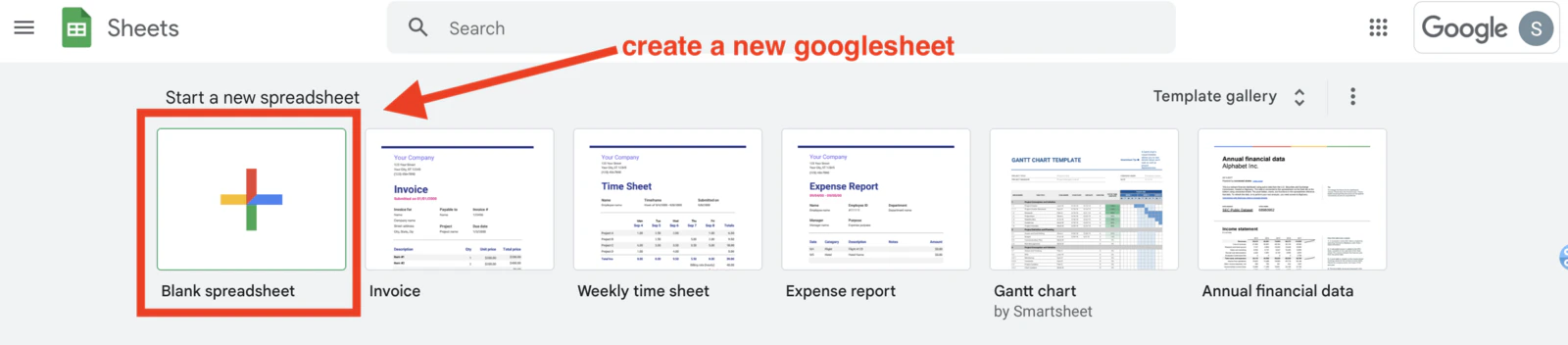 Next, make the sheet accessible to lobstr.io so its scrapers can write to it.
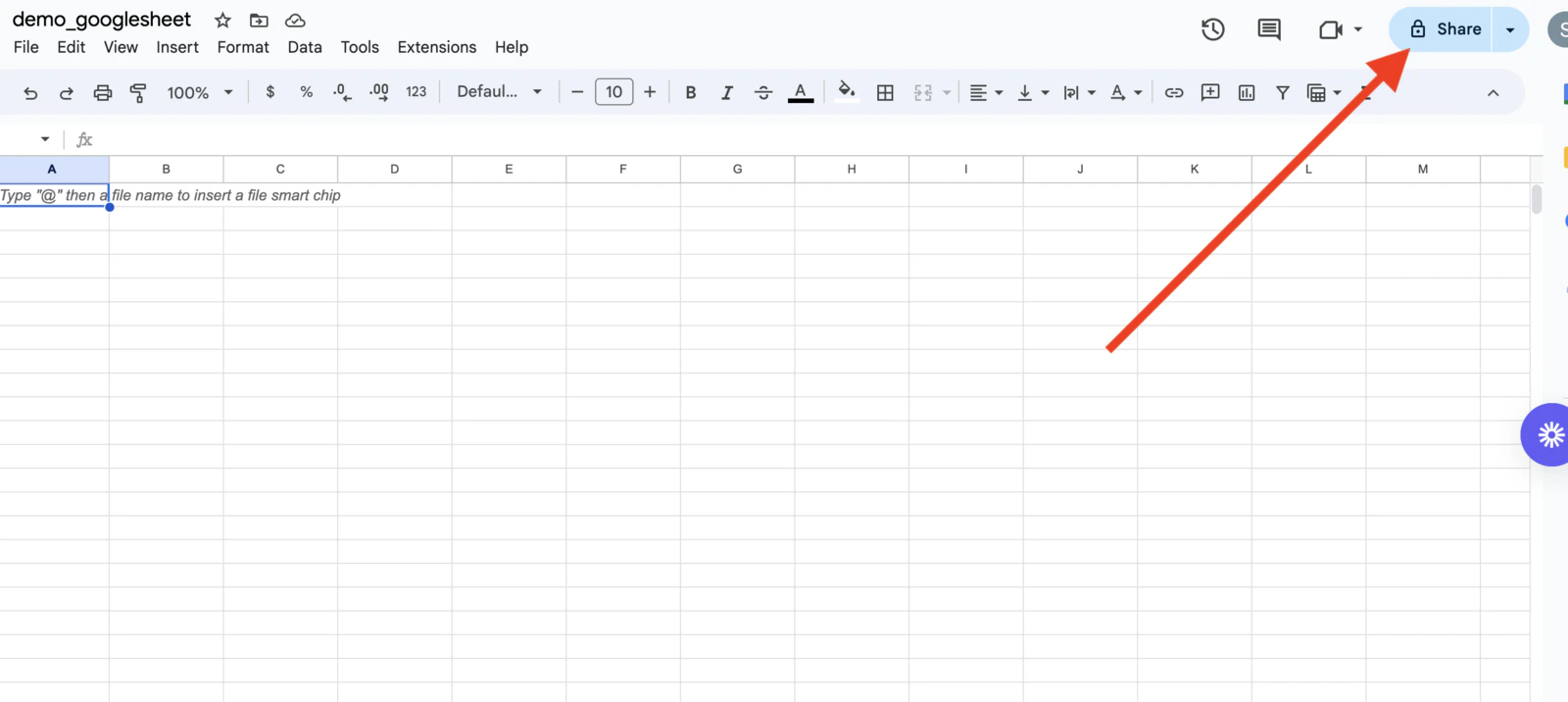
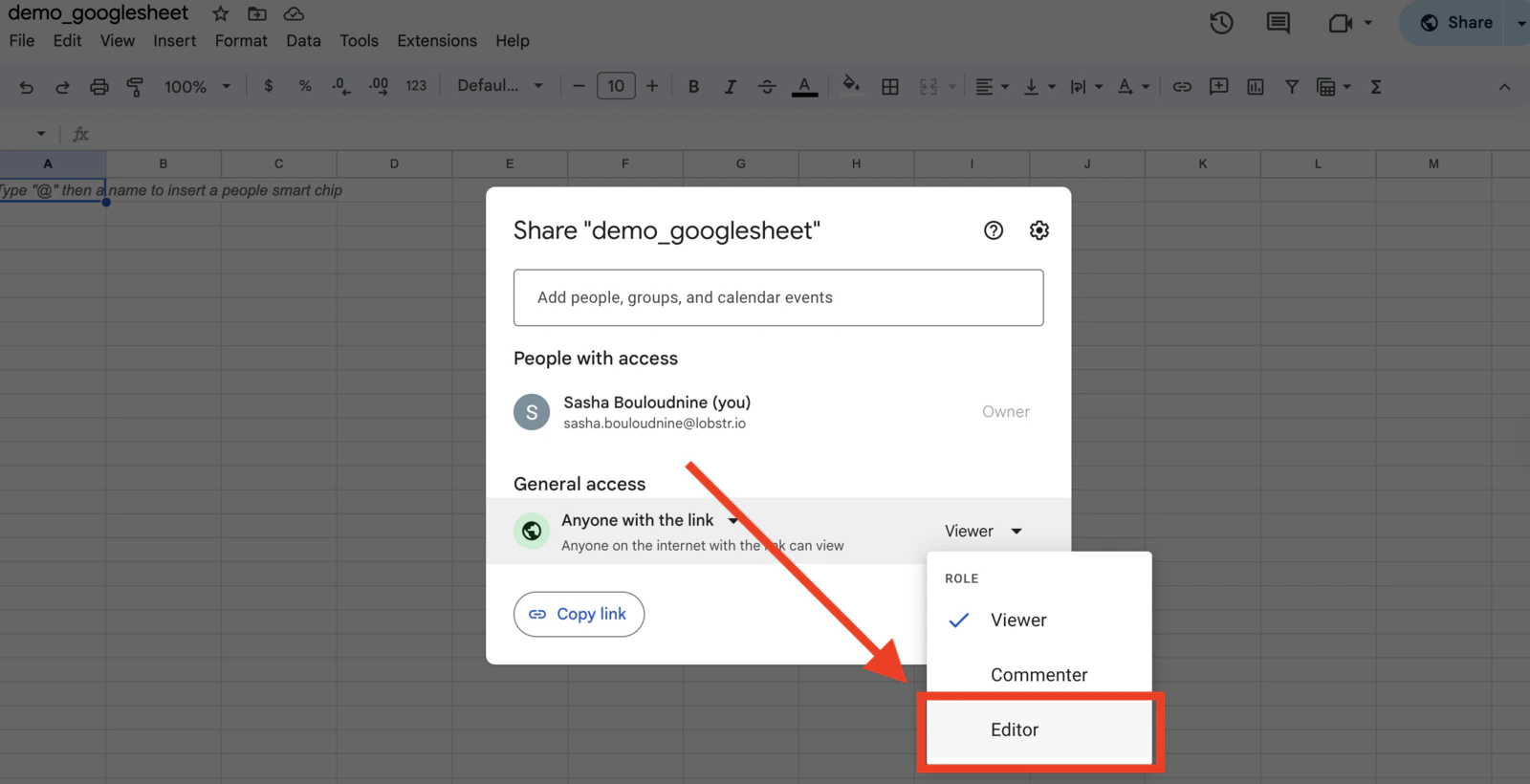
Click **Share**.
Next, make the sheet accessible to lobstr.io so its scrapers can write to it.
Click **Share**.
 Under **General access**, select **Anyone with the link**.
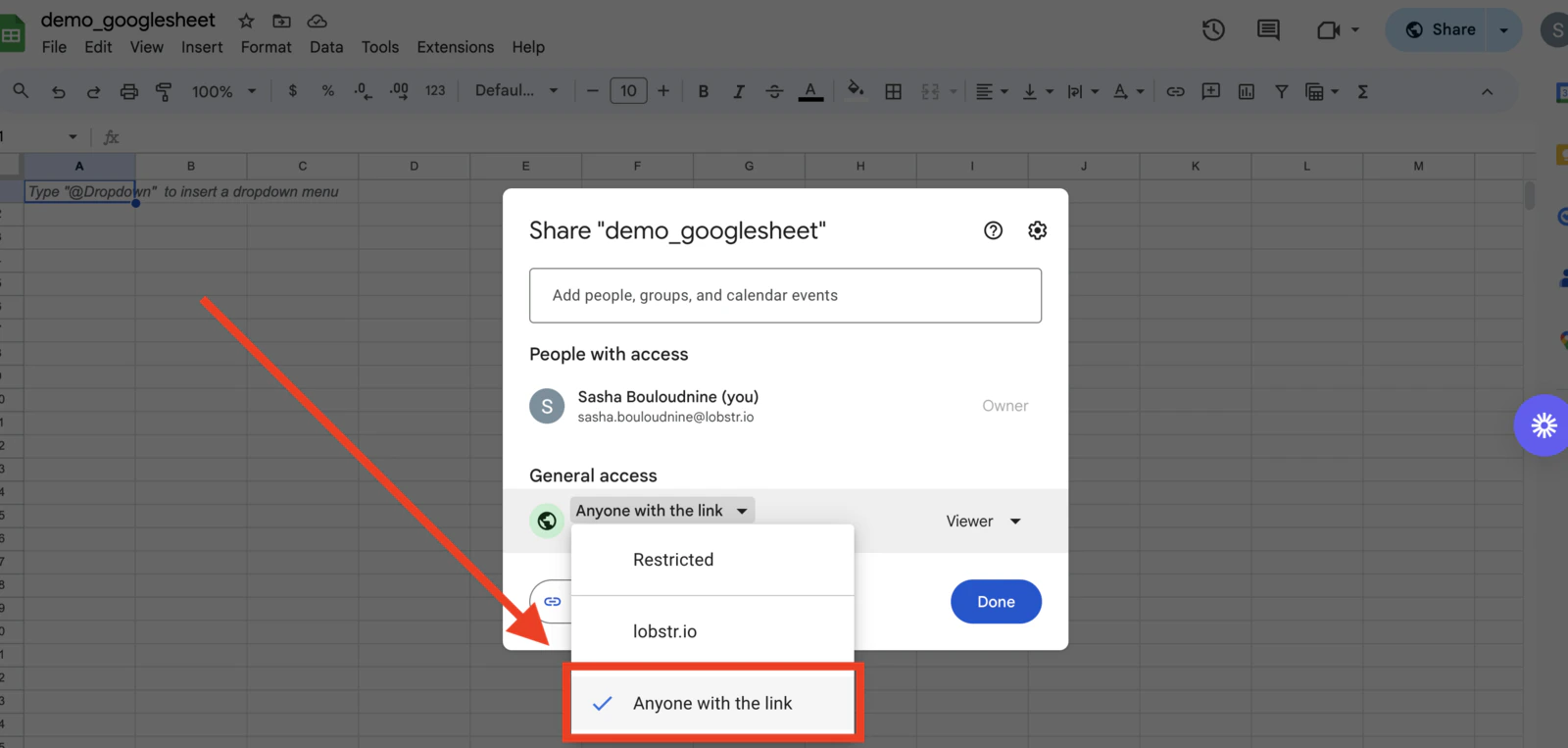 Then change the role to **Editor**.
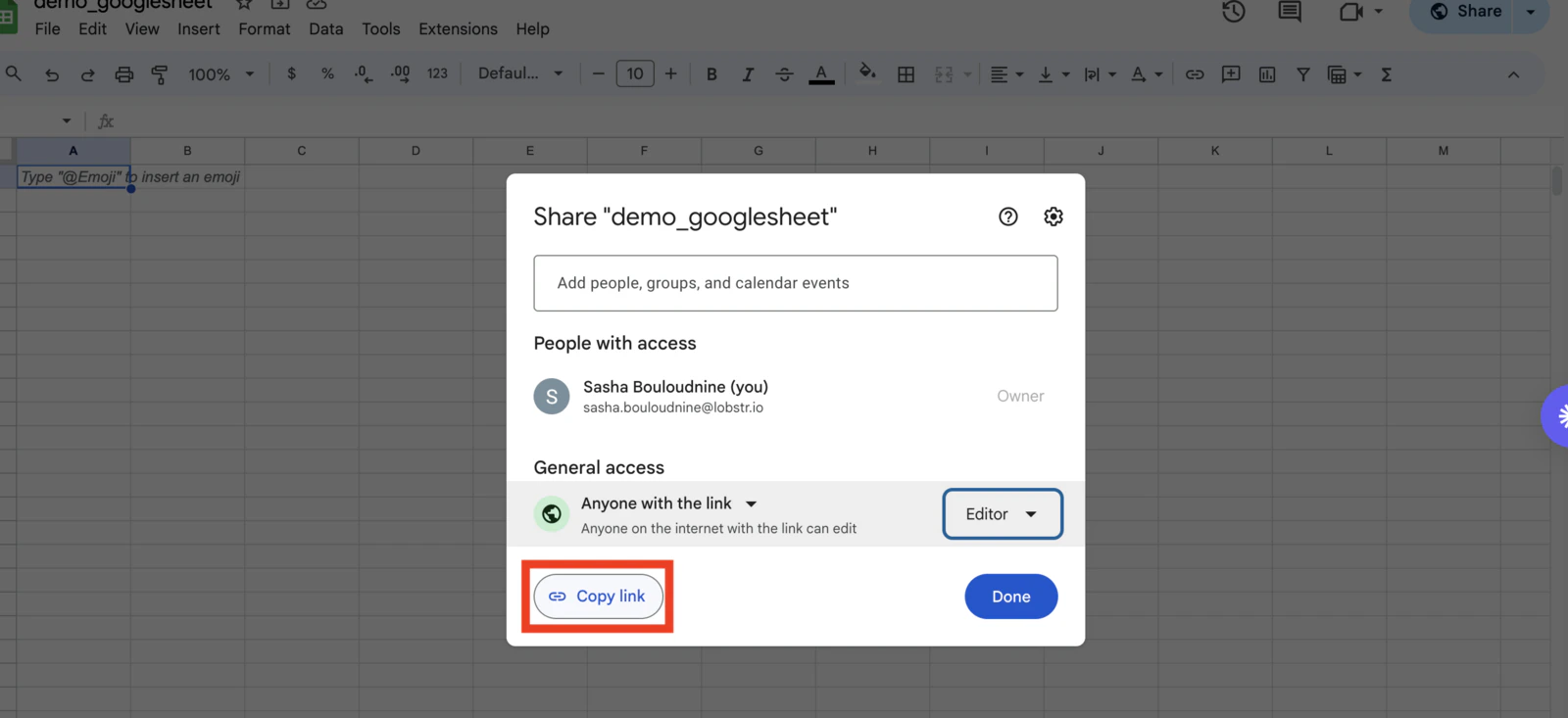
 Finally, click **Copy link** — you'll need this URL in the next step.
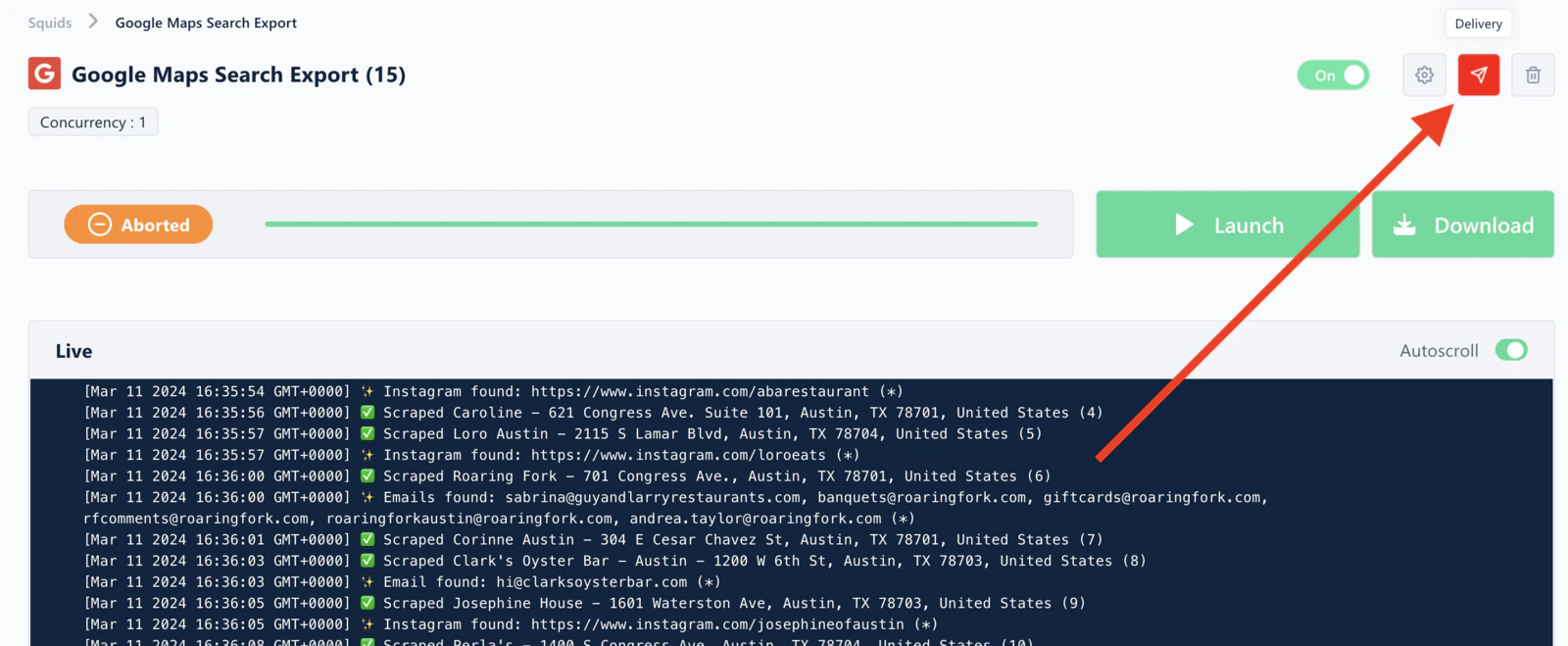
 Go back to your Squid page in lobstr.io.
Click the **Delivery** icon in the top-right of the Squid page.
Go back to your Squid page in lobstr.io.
Click the **Delivery** icon in the top-right of the Squid page.
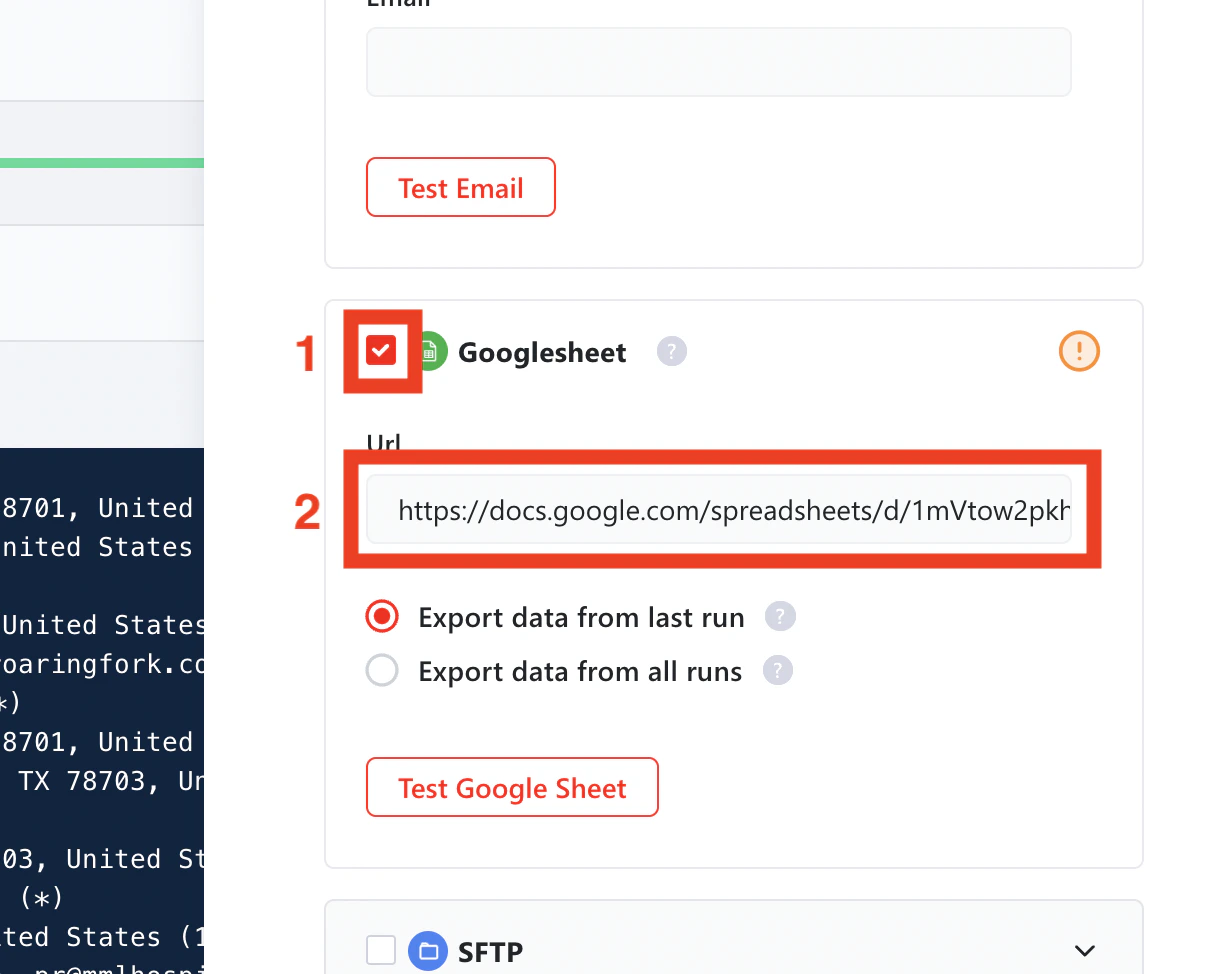
 Then:
1. Tick the **Google Sheet** checkbox.
2. Paste the Google Sheet URL in the field.
Then:
1. Tick the **Google Sheet** checkbox.
2. Paste the Google Sheet URL in the field.
 You can click **Test Google Sheet** to confirm the sheet is correctly configured and attached to the Squid before saving.
There are two radio buttons:
* **Export data from last run** — only the latest run's data is written to the sheet. Each new run overwrites the previous export. Use this when you only need the freshest dataset.
* **Export data from all runs** — every time a new run completes, its results are appended below the previous rows. Use this to build one continuously growing, consolidated dataset.
You can click **Test Google Sheet** to confirm the sheet is correctly configured and attached to the Squid before saving.
There are two radio buttons:
* **Export data from last run** — only the latest run's data is written to the sheet. Each new run overwrites the previous export. Use this when you only need the freshest dataset.
* **Export data from all runs** — every time a new run completes, its results are appended below the previous rows. Use this to build one continuously growing, consolidated dataset.
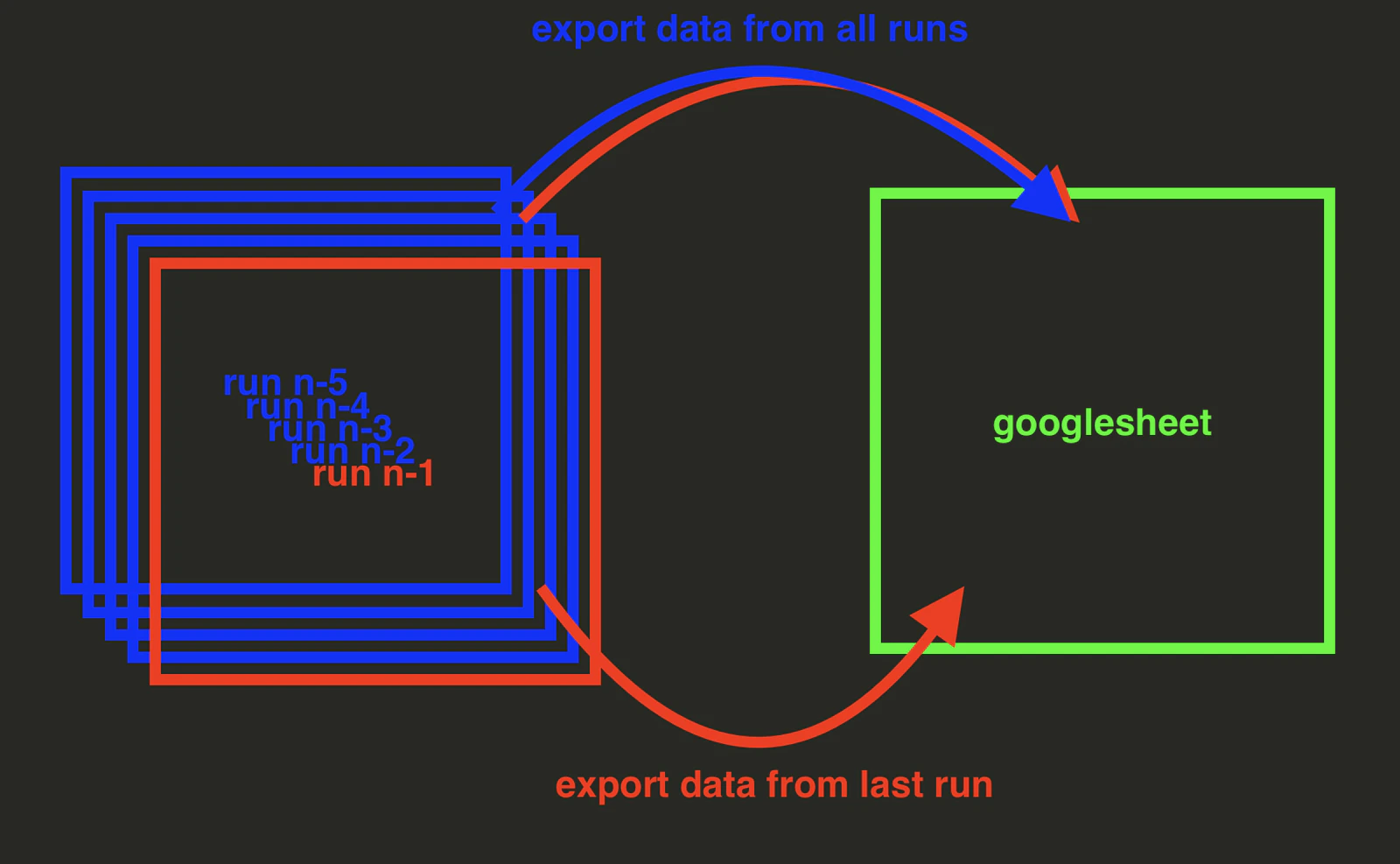 If you select **Export data from last run**, each new run overwrites the data from the previous one. Choose **Export data from all runs** if you want to preserve history.
Click **Save**.
If you select **Export data from last run**, each new run overwrites the data from the previous one. Choose **Export data from all runs** if you want to preserve history.
Click **Save**.
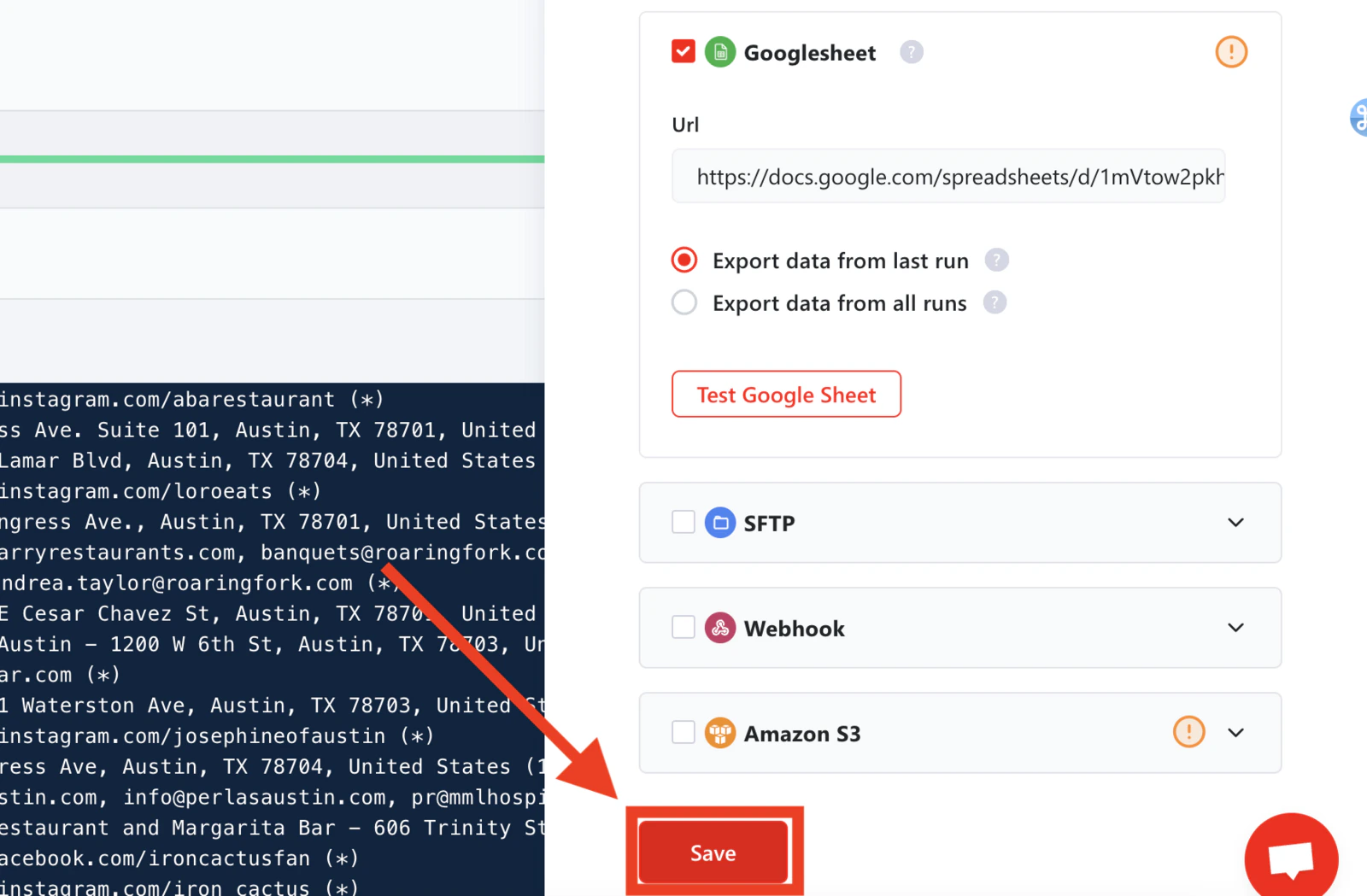 Click **Launch** to start a run. Once it completes, lobstr.io automatically pushes the results to your Google Sheet.
From this point on, every future run triggers an automatic export — no manual steps required.
Google Sheets export applies to **future runs only**. Data from runs that completed before you set up the integration will not be exported retroactively. To get historical data into your sheet, download the combined CSV with the green **Download** button and import it manually.
Click **Launch** to start a run. Once it completes, lobstr.io automatically pushes the results to your Google Sheet.
From this point on, every future run triggers an automatic export — no manual steps required.
Google Sheets export applies to **future runs only**. Data from runs that completed before you set up the integration will not be exported retroactively. To get historical data into your sheet, download the combined CSV with the green **Download** button and import it manually.