> ## Documentation Index
> Fetch the complete documentation index at: https://help.lobstr.io/llms.txt
> Use this file to discover all available pages before exploring further.
# How Sales Navigator filtering and data cleansing work
> The Sales Navigator Leads Scraper verifies every lead against your industry, company size, and seniority filters, and automatically cleans up messy profile names.
LinkedIn Sales Navigator lets you filter by industry, company size, and seniority — but the leads it returns don't always honor those filters, and profile names are often cluttered with emojis and credentials. The **Sales Navigator Leads Scraper** handles both: it verifies every lead against your filters and cleans up names automatically, at the crawling level.
Filtering happens automatically. You don't need to clean your data manually after a run — lobstr.io handles it during the scrape itself.
## Why LinkedIn results can be inaccurate
LinkedIn Sales Navigator lets you filter by industry, company size, and seniority level. However, the leads it returns don't always honor those filters precisely.
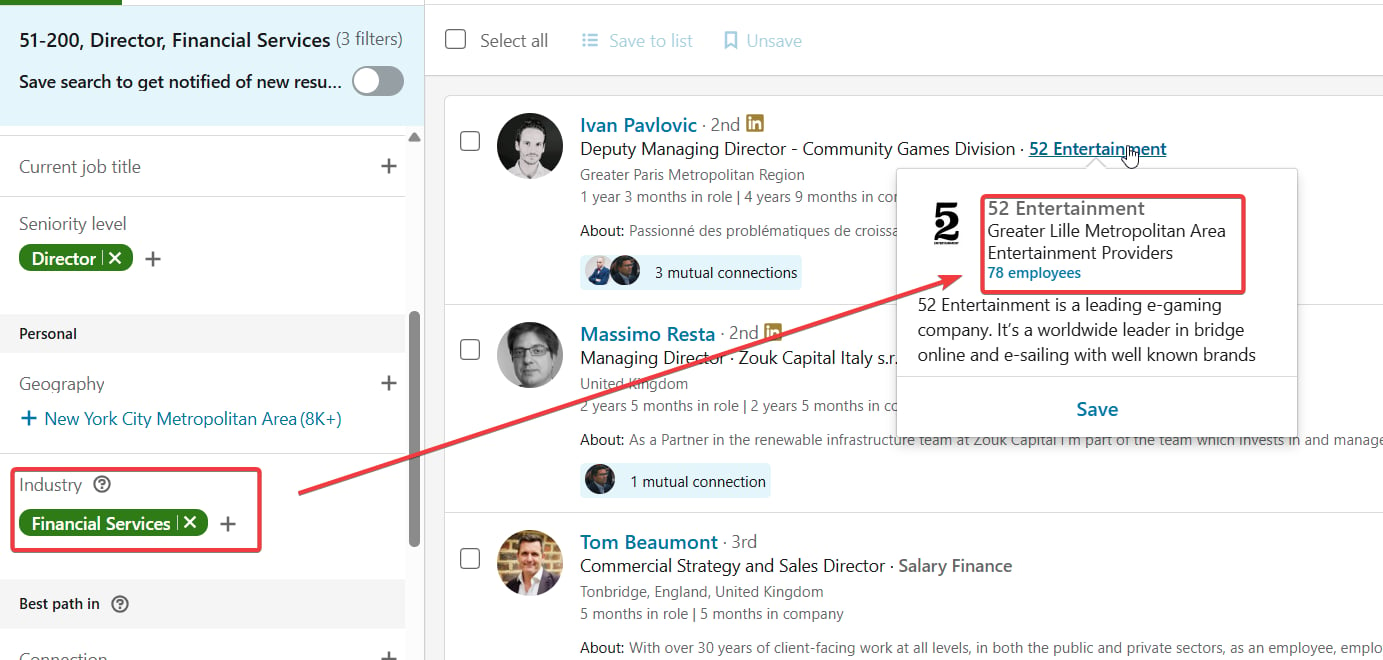 For example:
* You search the "Software" industry but get someone from "Construction".
* You select company size 51–200 but see leads from companies with only 10 employees.
* You pick seniority "Manager and above" but get someone with an entry-level role.
For example:
* You search the "Software" industry but get someone from "Construction".
* You select company size 51–200 but see leads from companies with only 10 employees.
* You pick seniority "Manager and above" but get someone with an entry-level role.
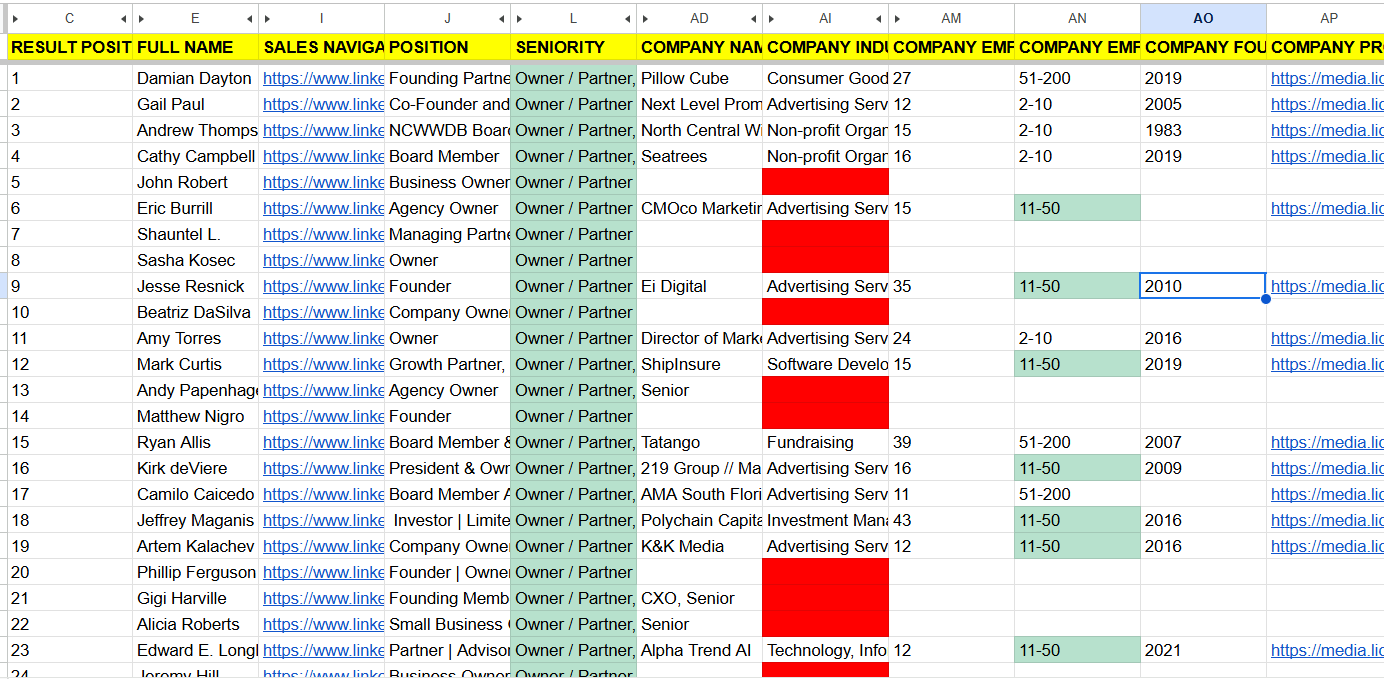 ## How lobstr.io filters Sales Navigator results
 The Sales Navigator Leads Scraper **verifies** each lead against the filters you applied, including:
* **Industry**
* **Company size (employee headcount)**
* **Seniority level**
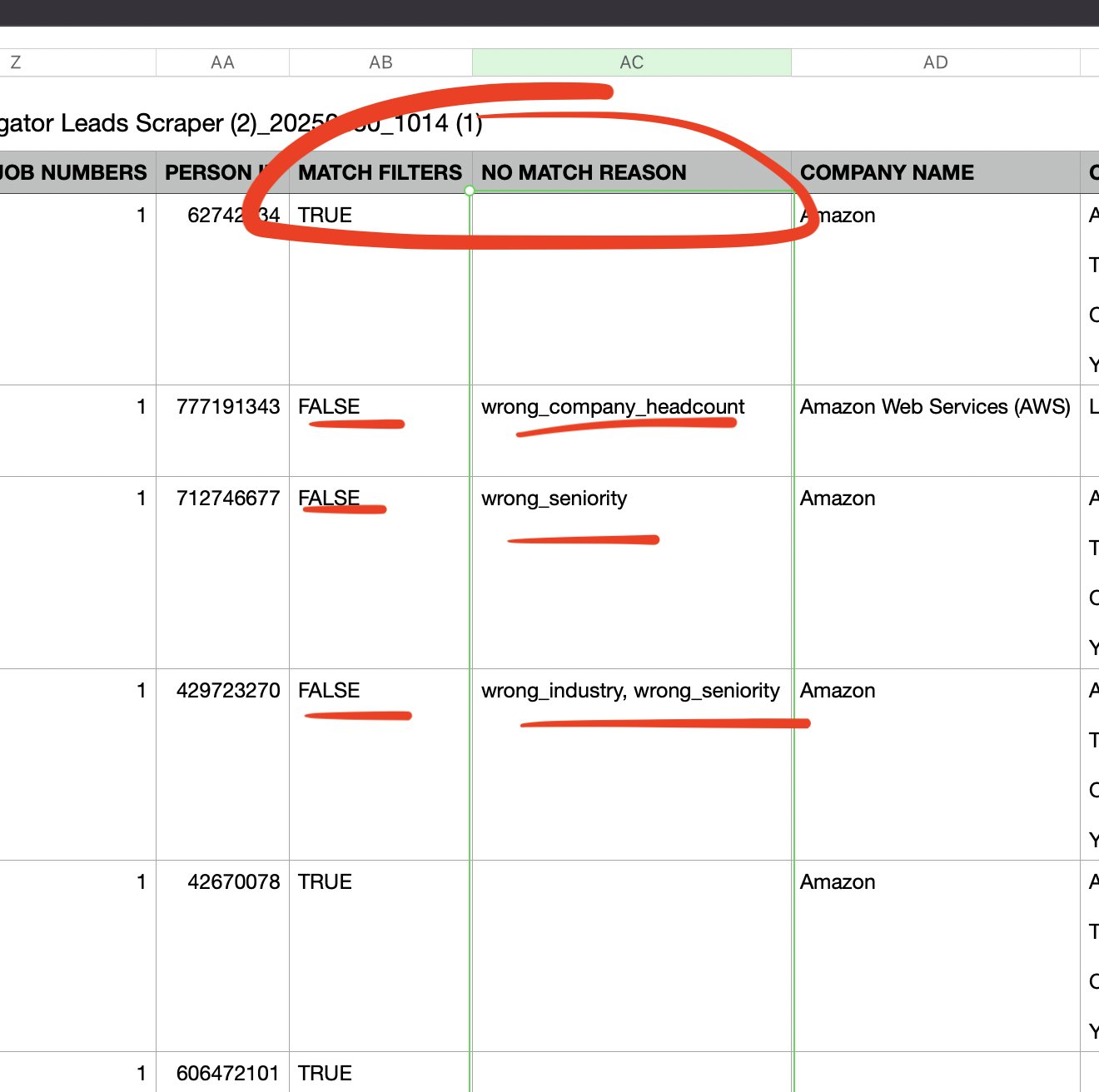
lobstr.io adds two extra columns to your export file:
| Column | What it contains |
| ----------------- | ------------------------------------------------------------------------------------------------------------ |
| `MATCH FILTERS` | `true` if the lead matches all your filters; `false` if one or more don't match |
| `NO MATCH REASON` | The specific reason for a mismatch — e.g. `no_industry_match`, `no_company_size_match`, `no_seniority_match` |
If you didn't use a particular filter in your search, that filter is skipped during the check.
lobstr.io does **not** remove non-matching leads — it only flags them, so you keep full control of your data.
### Saved searches
Filtering works the same way with saved searches. If your Sales Navigator account is connected, leads scraped from a saved search are also checked against your selected filters.
### How to use the filter columns in Excel or Google Sheets
1. Open your export in Excel or Google Sheets.
2. Click the `MATCH FILTERS` column header and apply a filter.
3. Select `true` to see only fully matched leads, or `false` to review mismatches.
4. Filter the `NO MATCH REASON` column to view specific mismatch types.
### Improving Sales Navigator search accuracy
The Sales Navigator Leads Scraper **verifies** each lead against the filters you applied, including:
* **Industry**
* **Company size (employee headcount)**
* **Seniority level**
lobstr.io adds two extra columns to your export file:
| Column | What it contains |
| ----------------- | ------------------------------------------------------------------------------------------------------------ |
| `MATCH FILTERS` | `true` if the lead matches all your filters; `false` if one or more don't match |
| `NO MATCH REASON` | The specific reason for a mismatch — e.g. `no_industry_match`, `no_company_size_match`, `no_seniority_match` |
If you didn't use a particular filter in your search, that filter is skipped during the check.
lobstr.io does **not** remove non-matching leads — it only flags them, so you keep full control of your data.
### Saved searches
Filtering works the same way with saved searches. If your Sales Navigator account is connected, leads scraped from a saved search are also checked against your selected filters.
### How to use the filter columns in Excel or Google Sheets
1. Open your export in Excel or Google Sheets.
2. Click the `MATCH FILTERS` column header and apply a filter.
3. Select `true` to see only fully matched leads, or `false` to review mismatches.
4. Filter the `NO MATCH REASON` column to view specific mismatch types.
### Improving Sales Navigator search accuracy
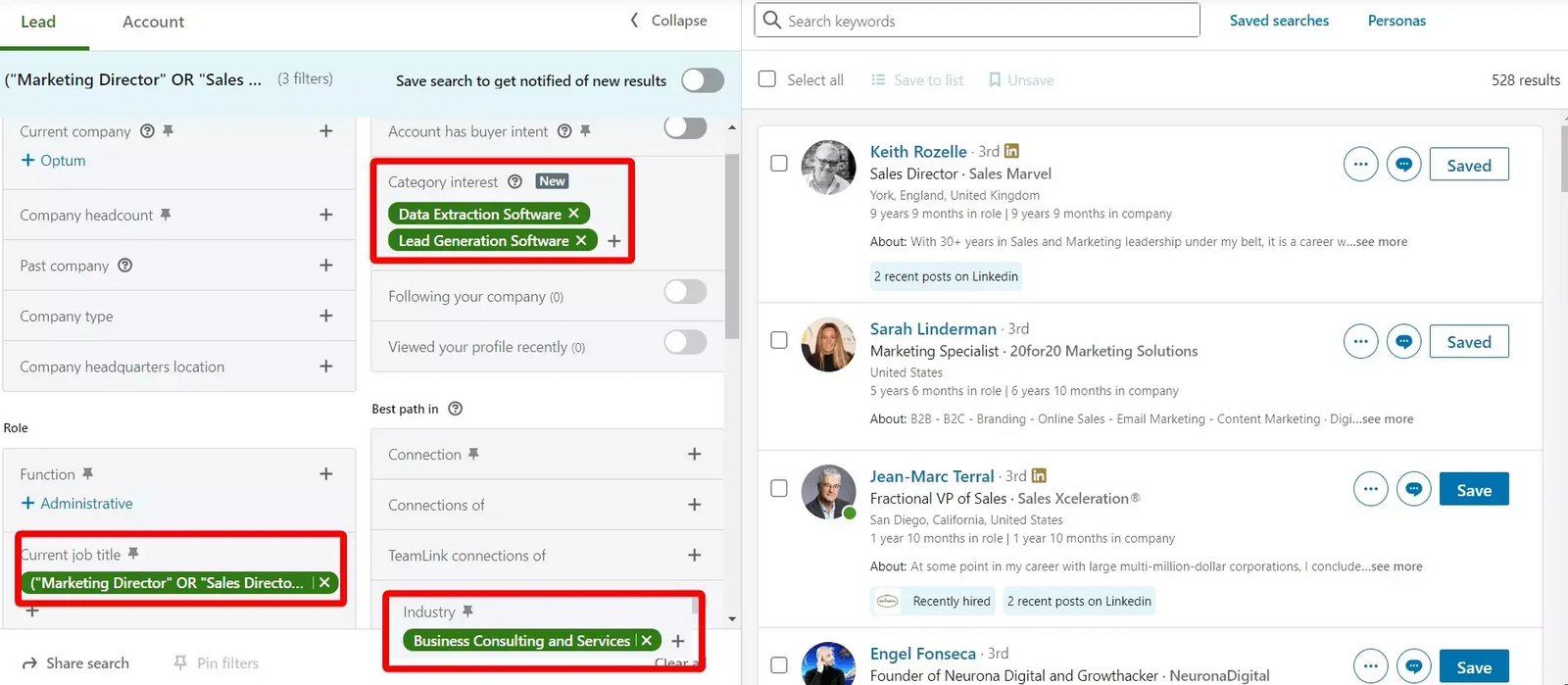 You can reduce mismatched results by using **Boolean filters** instead of dropdown filters. Boolean filters let you type exactly what you want, which gives more precise results in your Sales Navigator search — better input means better data in your export.
👉 Read: [How to use LinkedIn Sales Navigator](https://www.lobstr.io/blog/how-to-use-linkedin-sales-navigator)
## Data Cleansing
Many LinkedIn profiles include emojis, special characters, credentials, and extra punctuation in the name field.
You can reduce mismatched results by using **Boolean filters** instead of dropdown filters. Boolean filters let you type exactly what you want, which gives more precise results in your Sales Navigator search — better input means better data in your export.
👉 Read: [How to use LinkedIn Sales Navigator](https://www.lobstr.io/blog/how-to-use-linkedin-sales-navigator)
## Data Cleansing
Many LinkedIn profiles include emojis, special characters, credentials, and extra punctuation in the name field.
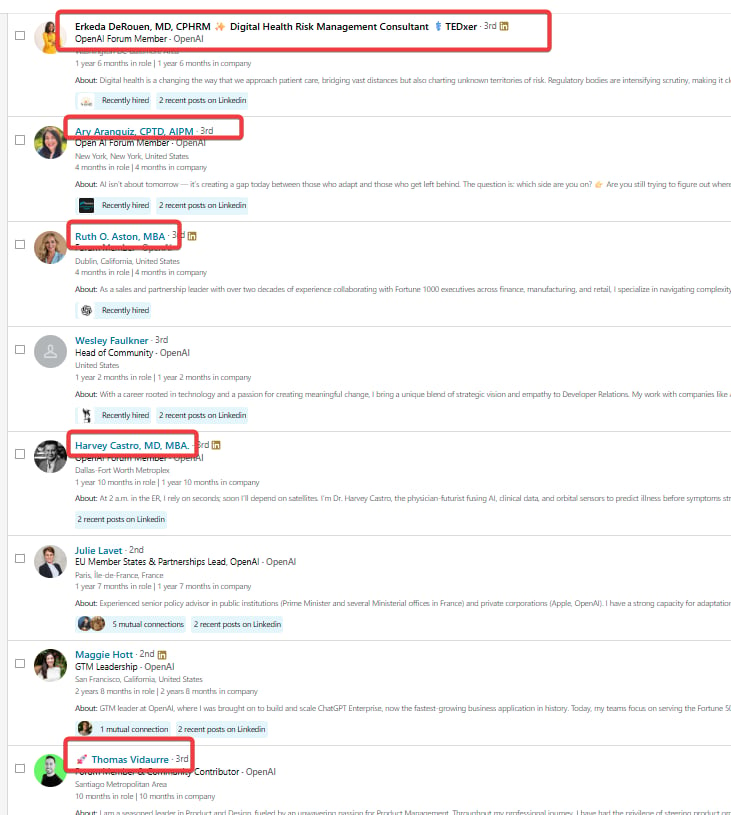 For example:
* "🚀 Thomas Vidaurre"
* "Harvey Castro, MD, MBA"
* "Erkeda DeRouen, MD, CPHRM ✨"
These look normal on LinkedIn but cause problems in CRMs, enrichment tools, and spreadsheet formulas. The Sales Navigator Leads Scraper automatically removes everything that isn't part of a person's real name — emojis, decorative symbols, Unicode characters, extra punctuation, and professional suffixes.
For example:
* "🚀 Thomas Vidaurre"
* "Harvey Castro, MD, MBA"
* "Erkeda DeRouen, MD, CPHRM ✨"
These look normal on LinkedIn but cause problems in CRMs, enrichment tools, and spreadsheet formulas. The Sales Navigator Leads Scraper automatically removes everything that isn't part of a person's real name — emojis, decorative symbols, Unicode characters, extra punctuation, and professional suffixes.
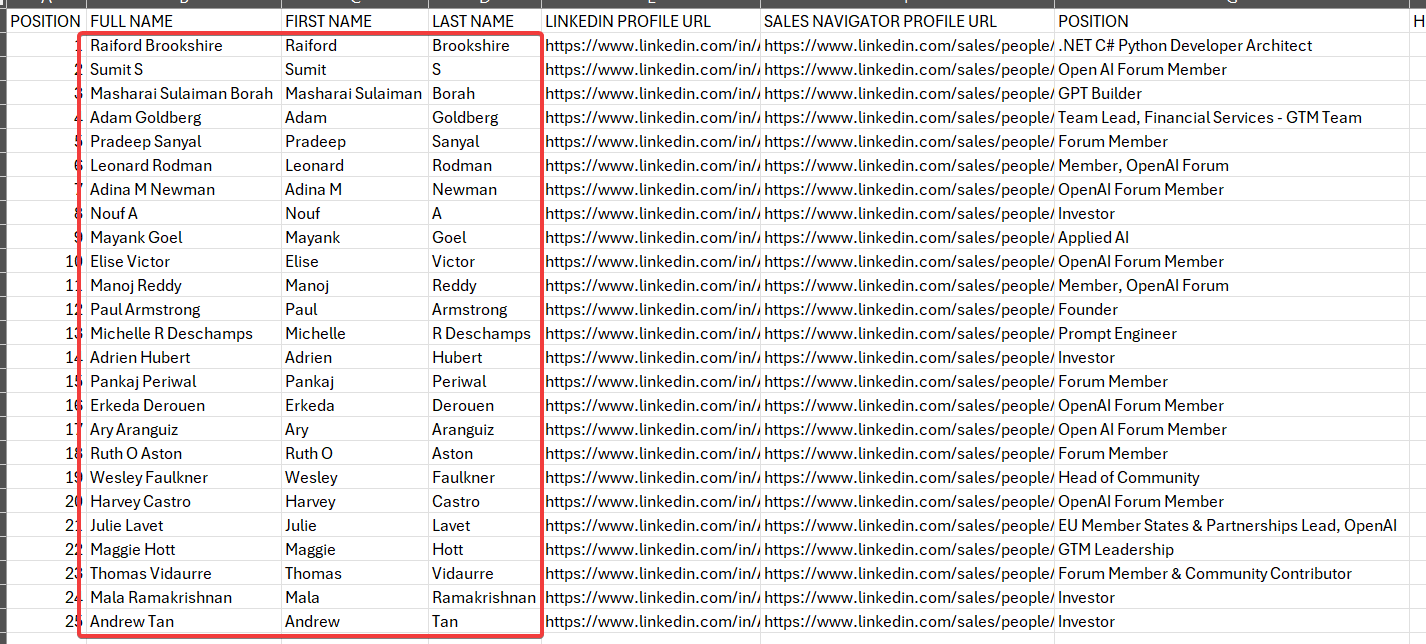
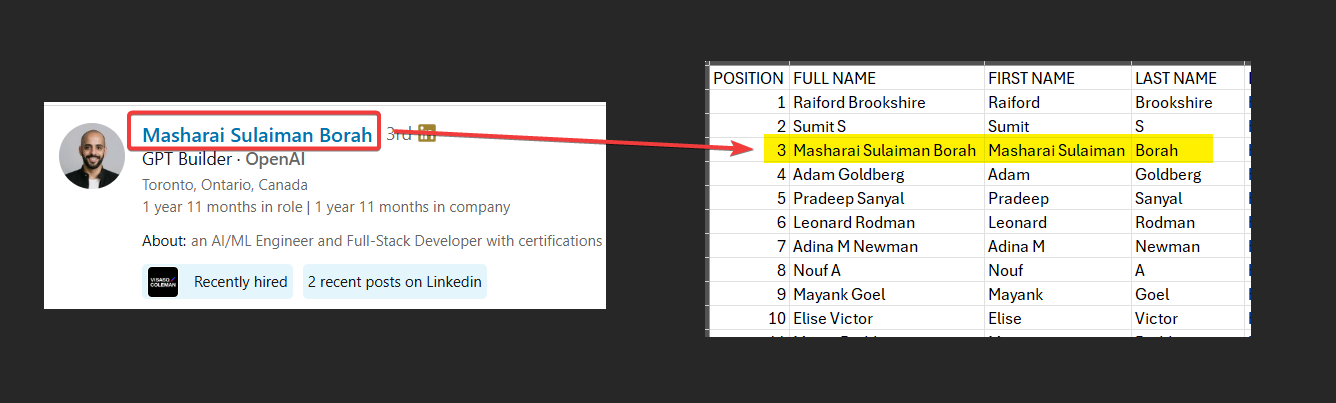
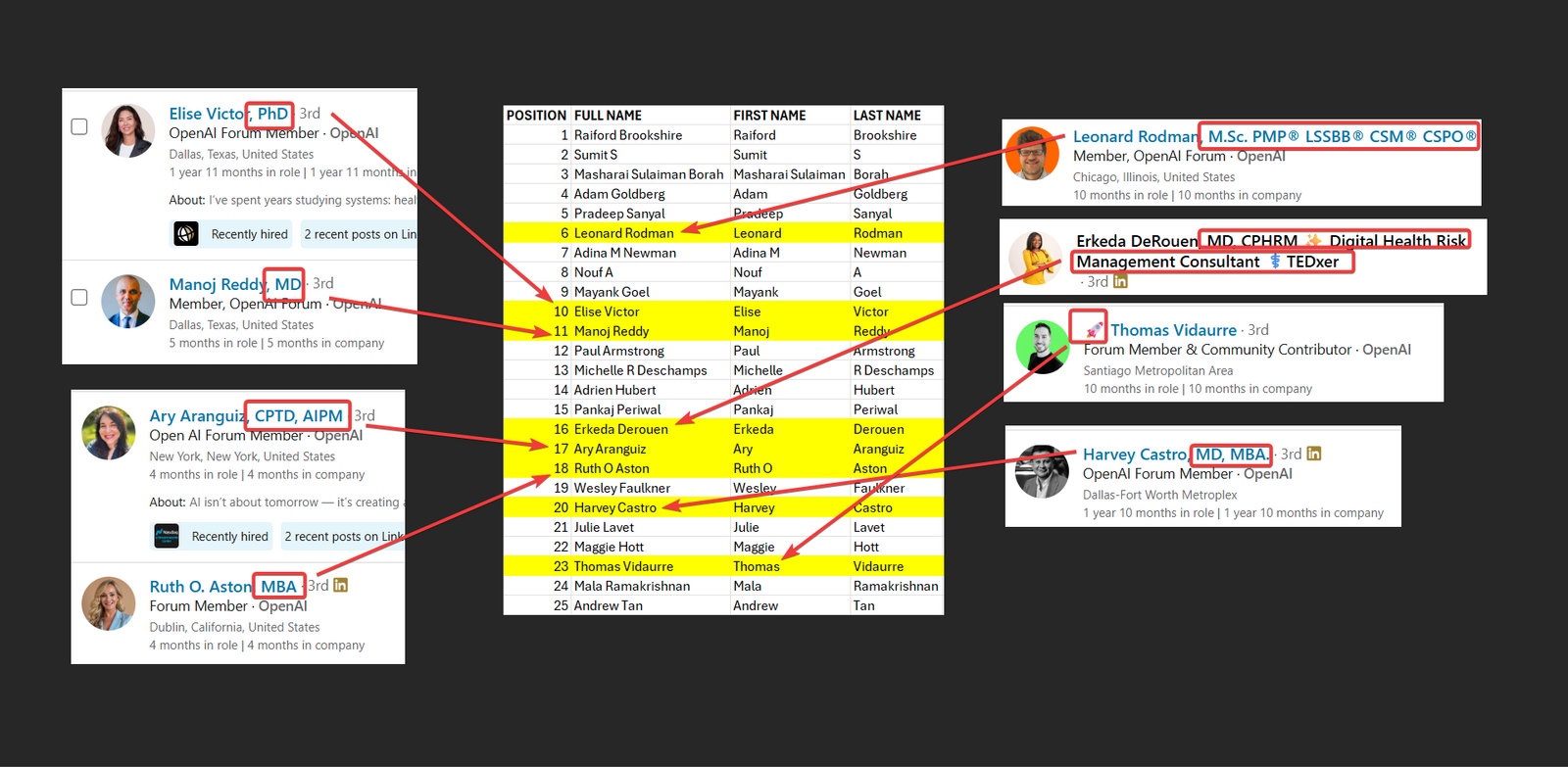 The result is a clean **Full Name**, which lobstr.io splits into a clean **First Name** and **Last Name**.
 ### Do I need to enable it?
No. Data Cleansing is always active for every Sales Navigator lead — no toggle, no setting, nothing to configure.
### Does it cost credits?
No. Data Cleansing does not use any additional credits. You only pay for the leads you collect and for any email or phone enrichment you enable.
### Does it remove middle names?
No. Middle names stay exactly as they are.
### Do I need to enable it?
No. Data Cleansing is always active for every Sales Navigator lead — no toggle, no setting, nothing to configure.
### Does it cost credits?
No. Data Cleansing does not use any additional credits. You only pay for the leads you collect and for any email or phone enrichment you enable.
### Does it remove middle names?
No. Middle names stay exactly as they are.
 ### What about ALL CAPS names?
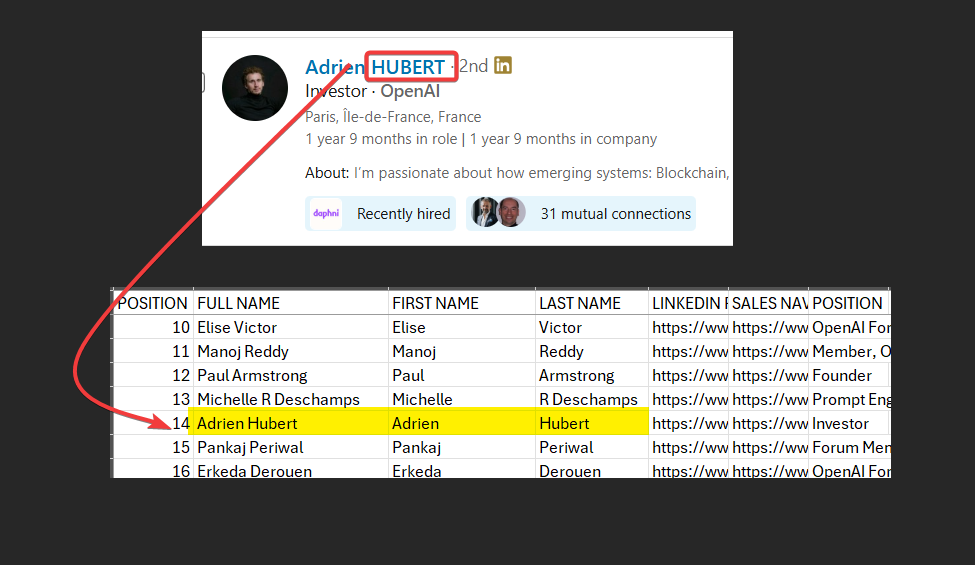
If a profile name is written in uppercase, Data Cleansing automatically fixes the casing.
### What about ALL CAPS names?
If a profile name is written in uppercase, Data Cleansing automatically fixes the casing.