> ## Documentation Index
> Fetch the complete documentation index at: https://help.lobstr.io/llms.txt
> Use this file to discover all available pages before exploring further.
# Get an email when your scraped data is ready
> Add an email address to your Squid's Delivery settings and lobstr.io emails you a download link every time a run finishes — to any address you like, not just your account email.
Add an email address to your Squid and lobstr.io sends your scraped data there every time a run completes successfully. No checking the dashboard, no manual download.
It's the simplest delivery option — one field, no credentials, nothing to set up on the other side, and it works with any address you like.
This is not the same as [run notifications](/core-concepts/notifications). Those go to the email you signed up with, and only tell you whether a run succeeded or failed — no data. Email **delivery** goes to any address you name and sends the results themselves.
Email sends the data to a person's inbox. If you'd rather it landed in a system your tools already read from, use [Google Sheets](/integrations/google-sheets) or [Amazon S3](/integrations/amazon-s3) — or turn on several at once, since delivery channels work side by side.
## Set up email delivery
Go to your Squid and click the **Delivery** icon in the top-right of the page. **Email** is the first section in the panel.
Type the address you want notifications sent to.
This doesn't have to be the email you signed up with. Use a shared team inbox, an alias, a distribution list, or a dedicated address that feeds another tool — whatever suits how you work.
Click **Test Email**. A confirmation appears at the top of the page reading **Email test is successful**, and a test message arrives in the inbox.
Do this before saving — it's the quickest way to catch a typo in the address.
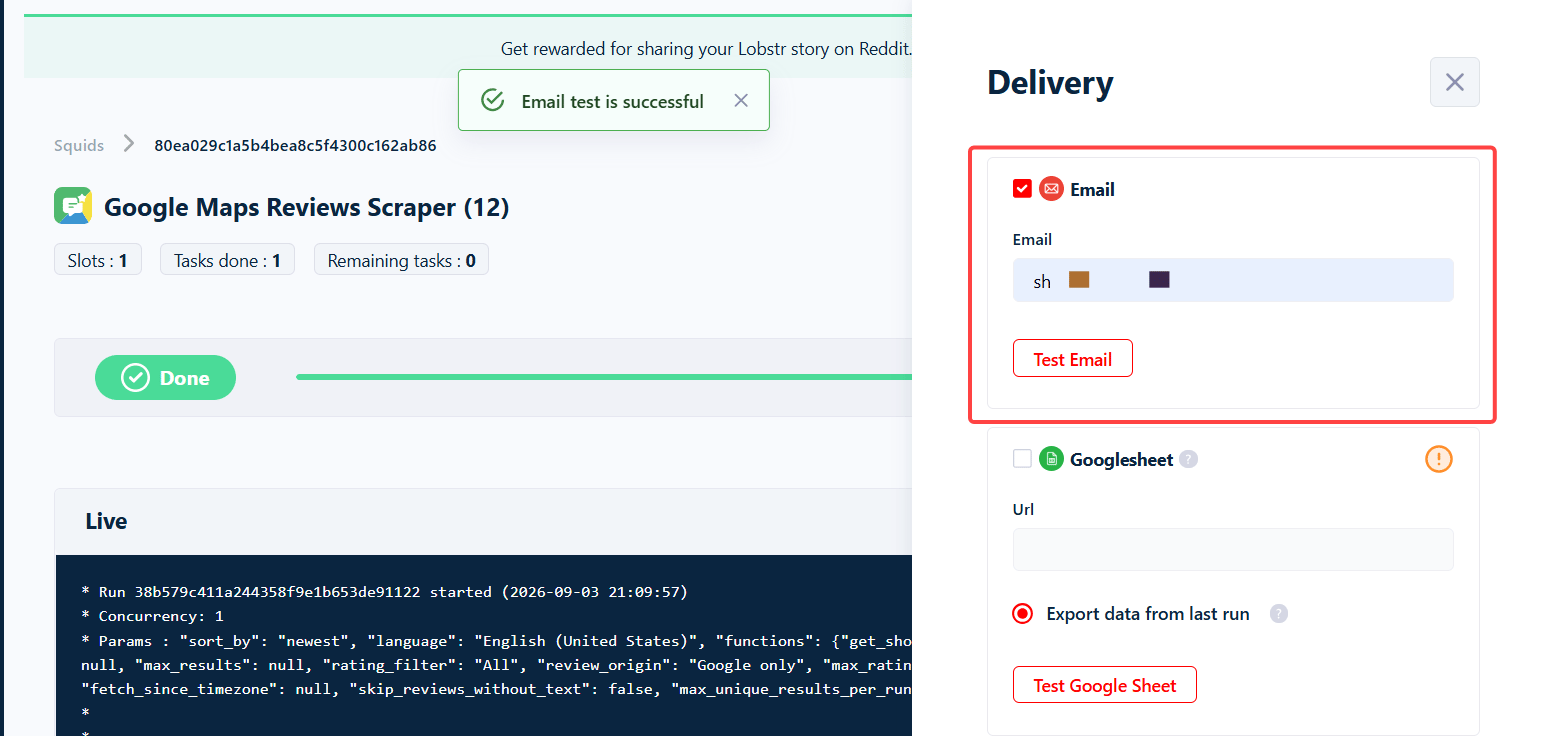 Tick the checkbox beside **Email** to activate it, then click **Save**.
An address typed in with the box left unticked won't send anything. The field and the checkbox are separate — you need both.
From here on, every successful run sends an email, including scheduled ones.
## What the email looks like
The message confirms your extraction is available and lists:
| Field | What it means |
| ---------------- | ------------------------------------------------------------ |
| **Started at** | When the run began |
| **Crawler type** | The scraper the Squid uses, e.g. Google Maps Reviews Scraper |
| **Cluster name** | The name of your Squid |
Below that is a red **Download your data** button that gets you the CSV.
Tick the checkbox beside **Email** to activate it, then click **Save**.
An address typed in with the box left unticked won't send anything. The field and the checkbox are separate — you need both.
From here on, every successful run sends an email, including scheduled ones.
## What the email looks like
The message confirms your extraction is available and lists:
| Field | What it means |
| ---------------- | ------------------------------------------------------------ |
| **Started at** | When the run began |
| **Crawler type** | The scraper the Squid uses, e.g. Google Maps Reviews Scraper |
| **Cluster name** | The name of your Squid |
Below that is a red **Download your data** button that gets you the CSV.
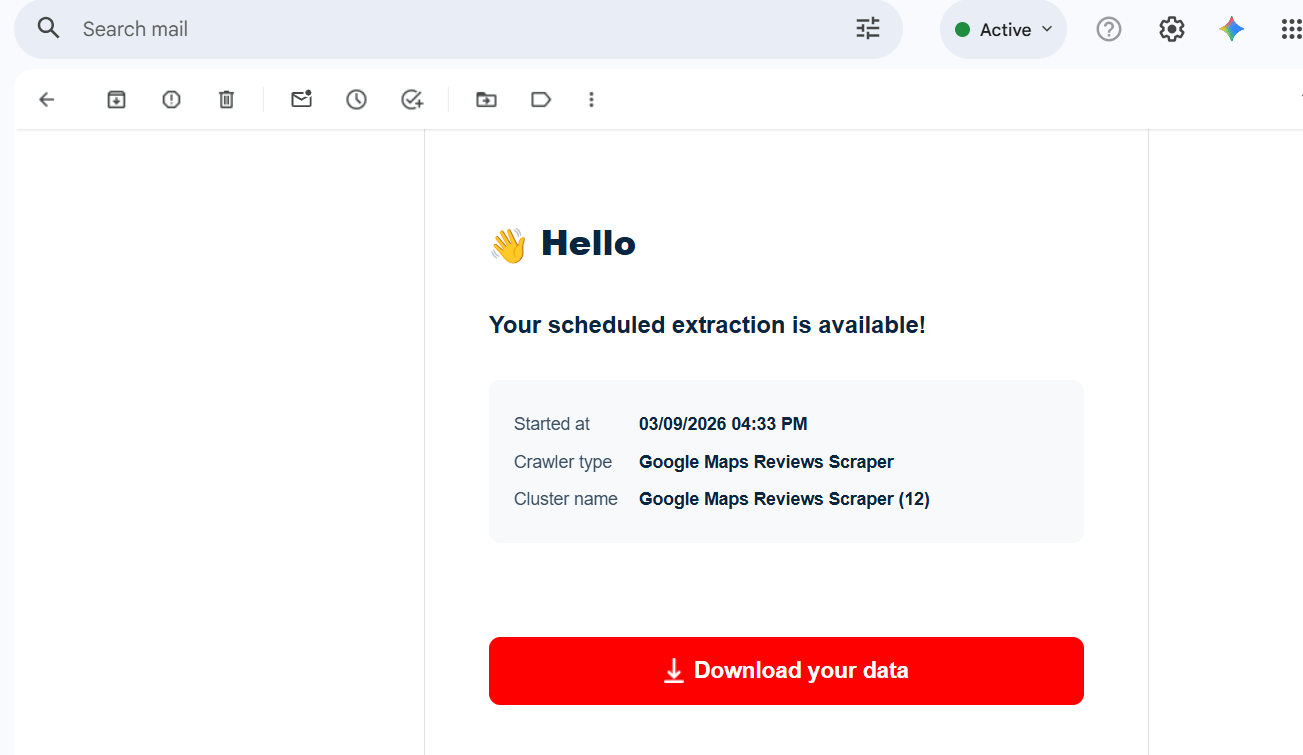 "Cluster name" is the Squid's name — the email uses older wording for the same thing.
## Things to know
* **One address per Squid.** The field takes a single email. To reach several people, point it at a shared inbox or a distribution list.
* **Email delivery is per Squid.** Set it up separately on each Squid you want notifications from.
* **Data retention still applies.** Results are stored for 28 days on paid plans and 7 days on the free plan. After that the email stays in your inbox but the download no longer works, so save anything you need to keep.
* **You can combine delivery channels.** Email, [Google Sheets](/integrations/google-sheets), SFTP, webhooks, and [Amazon S3](/integrations/amazon-s3) each have their own checkbox in the Delivery panel and can all be active at once — so you can be notified by email *and* have the data pushed to a sheet or a bucket.
* **Only successful runs send email.** A run that errors out won't. If you want to hear about failures too, turn on [run notifications](/core-concepts/notifications) as well — the two work independently.
* **Nothing is sent retroactively.** Runs that finished before you enabled email delivery don't trigger a message.
"Cluster name" is the Squid's name — the email uses older wording for the same thing.
## Things to know
* **One address per Squid.** The field takes a single email. To reach several people, point it at a shared inbox or a distribution list.
* **Email delivery is per Squid.** Set it up separately on each Squid you want notifications from.
* **Data retention still applies.** Results are stored for 28 days on paid plans and 7 days on the free plan. After that the email stays in your inbox but the download no longer works, so save anything you need to keep.
* **You can combine delivery channels.** Email, [Google Sheets](/integrations/google-sheets), SFTP, webhooks, and [Amazon S3](/integrations/amazon-s3) each have their own checkbox in the Delivery panel and can all be active at once — so you can be notified by email *and* have the data pushed to a sheet or a bucket.
* **Only successful runs send email.** A run that errors out won't. If you want to hear about failures too, turn on [run notifications](/core-concepts/notifications) as well — the two work independently.
* **Nothing is sent retroactively.** Runs that finished before you enabled email delivery don't trigger a message.