> ## Documentation Index
> Fetch the complete documentation index at: https://help.lobstr.io/llms.txt
> Use this file to discover all available pages before exploring further.
# Connect lobstr.io to Grok Bot and run scrapers from a conversation
> Add the lobstr.io MCP server to Grok Bot so it can create Squids, launch runs, chain scrapers together, and read the results back in the chat.
Grok Bot can operate your lobstr.io account directly through the lobstr.io **MCP server**. You tell the Bot what data you want, and it picks the right scraper, creates the Squid, launches the run, and reads the results back to you. It can also chain scrapers together, feeding the output of one run into the next.
**Endpoint:** `https://mcp.lobstr.io/mcp`
This is the **operational** server. It acts in your account and spends credits. A separate public server at `https://docs.lobstr.io/mcp` only answers questions about the lobstr.io API and can't touch your account.
## Before you start
* A [lobstr.io account](https://app.lobstr.io) with credits. Launching a run spends credits from your balance.
* Access to Grok Bot, through a Cursor subscription or a SuperGrok plan on Grok.
You don't need your API key. The connection uses OAuth: you approve it on lobstr.io's own site, so **no password ever reaches Grok**.
## Connect Grok Bot to lobstr.io
In Grok Bot you don't fill in a settings form. You ask a Bot to add the server, and it handles the rest in the chat.
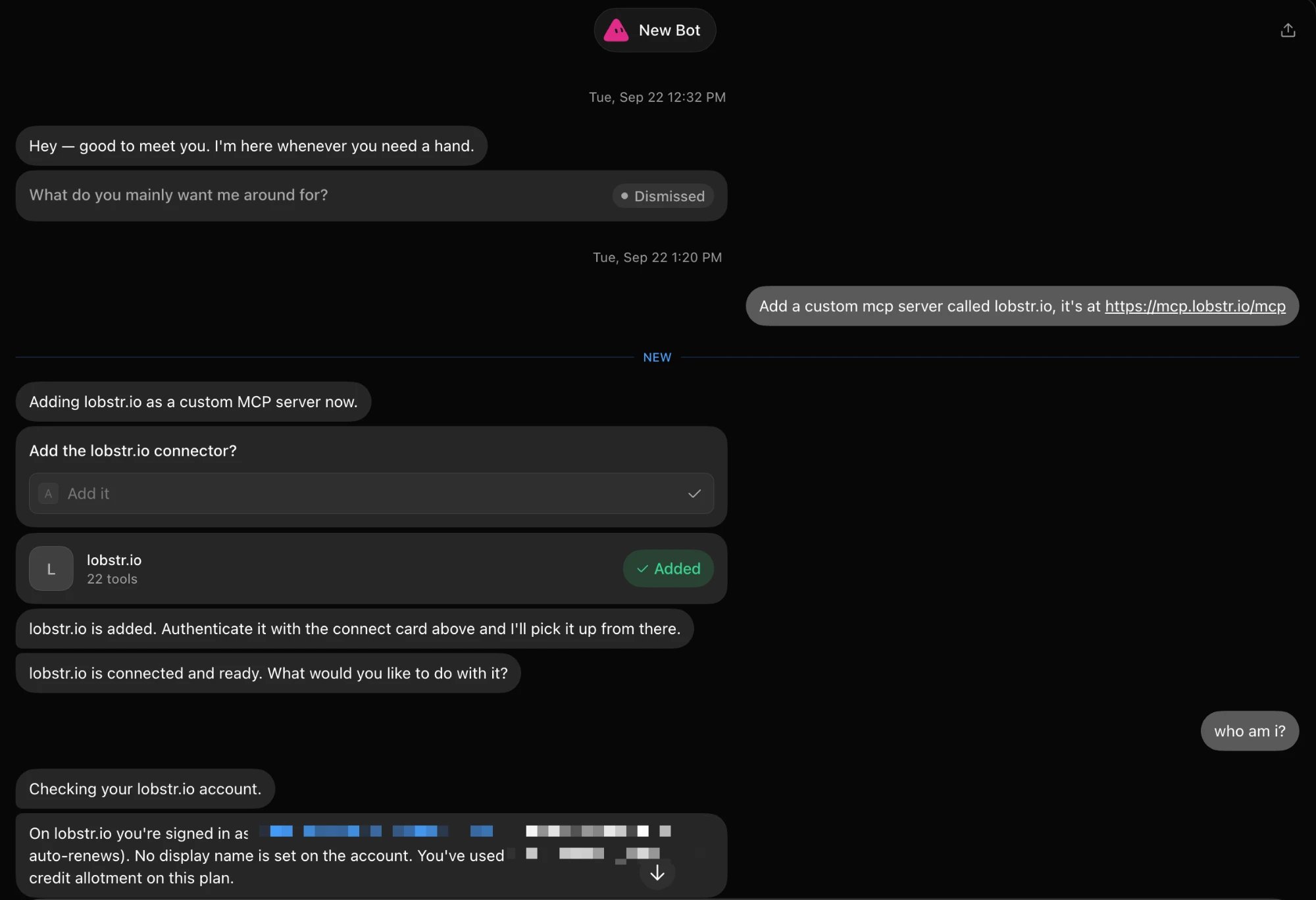
Open any Bot and send:
```
Add a custom mcp server called lobstr.io, it's at https://mcp.lobstr.io/mcp
```
Include the trailing `/mcp`. A URL without it won't connect.
The Bot asks **Add the lobstr.io connector?** Pick **Add it**. A lobstr.io card appears showing the tools it found, marked **Added**.
Use the connect card the Bot posts to authorize. It opens the lobstr.io consent page. You're already signed in, so review the permissions and click **Allow**.
Once the Bot says lobstr.io is connected, ask *"Who am I?"*. It replies with the lobstr.io account you're signed in as, your plan, and how much of your credit allotment you've used.
 A server you add is available to every Bot on your account. You can see it under **Settings** → **Plugins** → **Yours** in Grok.
## What you're approving
The consent page lists the permissions Grok Bot is asking for, and you choose which ones to allow. You can revoke access at any time from your lobstr.io account.
| Permission | What it grants |
| - | - |
| `crawlers:read` | Discover scrapers and read their settings |
| `runs:read` | Check the status of your runs |
| `results:read` | Read your scraped results |
| `profile:read` | View your profile (name, email, plan) and credit balance |
| `account:read` | View your synced platform accounts (LinkedIn, Facebook, etc.) and their status |
| `runs:execute` | Run scrapers on your behalf (spends credits). Together with `account:read`, it also lets Grok Bot attach a synced account to a Squid |
## What Grok Bot can do
| Capability | Spends credits |
| - | - |
| Search the store for the right scraper | No |
| Read a scraper's inputs, output fields, and pricing | No |
| List and inspect your saved Squids | No |
| Create a Squid, add tasks, and change its settings without running it | No |
| Estimate a run's credits, result count, and duration | No |
| Launch a run | **Yes** |
| Check a run's status, wait for it to finish, or list a Squid's recent runs | No |
| Abort a run (results collected so far are kept) | No |
| Read a page of results, or get a download link (CSV, Excel, JSON, or JSONL) | No |
| Empty a Squid's tasks, or deactivate it to free its slots | No |
| Check your credit balance, slots, and plan | No |
| List your synced accounts and attach one to a Squid | No |
New scrapers work automatically. Grok Bot reads each scraper's live input schema, so nothing needs updating when lobstr.io adds one to the store.
## Scrapers that need a synced account
Some scrapers log in to a platform on your behalf, such as the LinkedIn and Sales Navigator scrapers. They need a synced account first, set up with [Account sync](/getting-started/account-sync).
* **One matching account:** if exactly one healthy synced account of the right type exists, Grok Bot attaches it for you.
* **Several or none:** Grok Bot asks you which account to use, or tells you which platform to sync.
* **The type must match.** A LinkedIn account can't run a Sales Navigator scraper, and the reverse.
* **Attaching only adds.** An account already on a Squid is never swapped out.
## Example: chain two scrapers together
The Bot can use the results of one run as the input for another. Here it's asked to find MrBeast's most recent Instagram post (skipping pinned posts), then collect the comments on it.
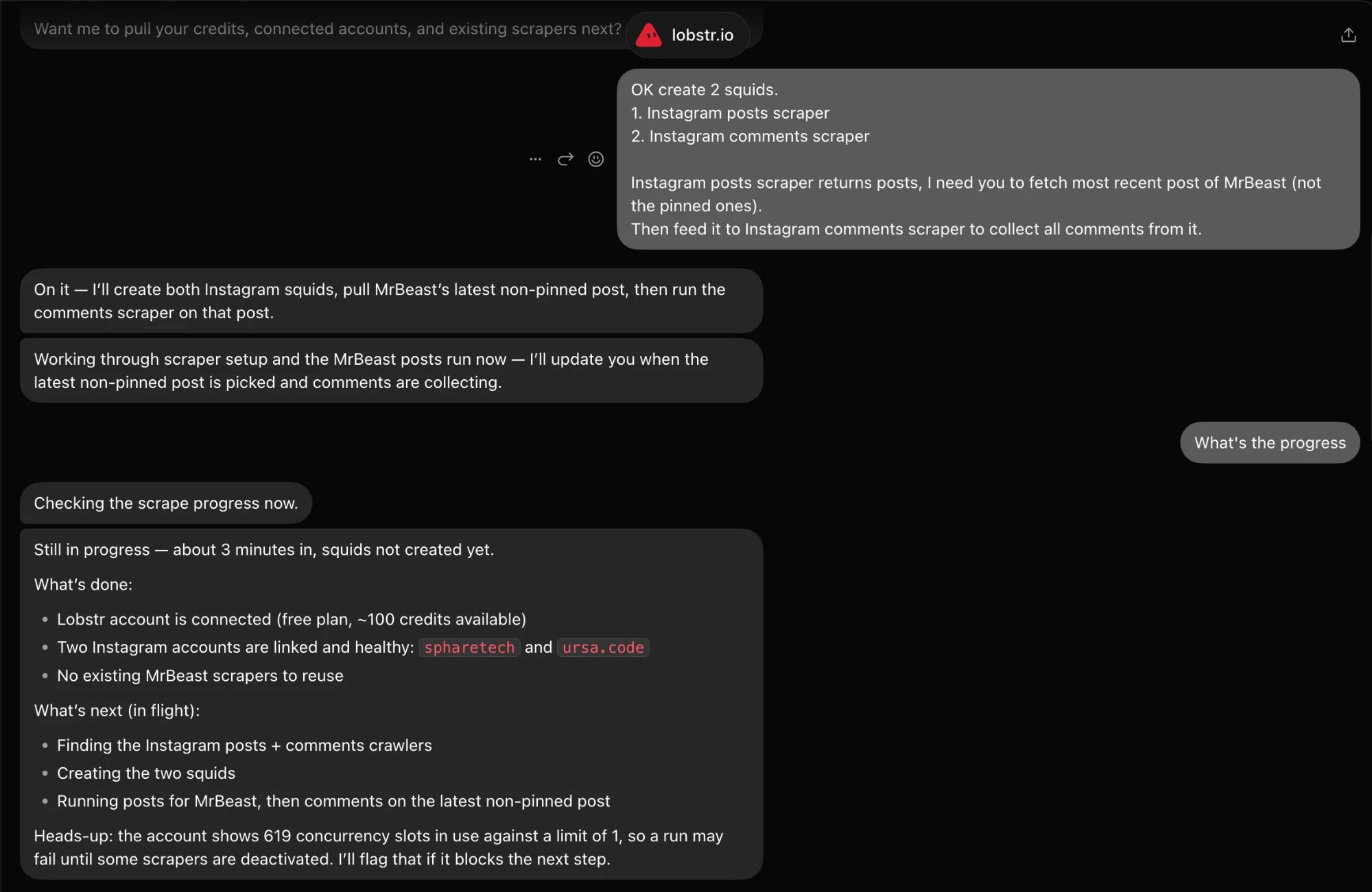
*"Create 2 Squids: Instagram posts scraper and Instagram comments scraper. Fetch the most recent post of MrBeast (not the pinned ones), then feed it to the comments scraper to collect all comments from it."*
The Bot checks your credits and synced Instagram accounts, finds both scrapers, and creates the two Squids.
A server you add is available to every Bot on your account. You can see it under **Settings** → **Plugins** → **Yours** in Grok.
## What you're approving
The consent page lists the permissions Grok Bot is asking for, and you choose which ones to allow. You can revoke access at any time from your lobstr.io account.
| Permission | What it grants |
| - | - |
| `crawlers:read` | Discover scrapers and read their settings |
| `runs:read` | Check the status of your runs |
| `results:read` | Read your scraped results |
| `profile:read` | View your profile (name, email, plan) and credit balance |
| `account:read` | View your synced platform accounts (LinkedIn, Facebook, etc.) and their status |
| `runs:execute` | Run scrapers on your behalf (spends credits). Together with `account:read`, it also lets Grok Bot attach a synced account to a Squid |
## What Grok Bot can do
| Capability | Spends credits |
| - | - |
| Search the store for the right scraper | No |
| Read a scraper's inputs, output fields, and pricing | No |
| List and inspect your saved Squids | No |
| Create a Squid, add tasks, and change its settings without running it | No |
| Estimate a run's credits, result count, and duration | No |
| Launch a run | **Yes** |
| Check a run's status, wait for it to finish, or list a Squid's recent runs | No |
| Abort a run (results collected so far are kept) | No |
| Read a page of results, or get a download link (CSV, Excel, JSON, or JSONL) | No |
| Empty a Squid's tasks, or deactivate it to free its slots | No |
| Check your credit balance, slots, and plan | No |
| List your synced accounts and attach one to a Squid | No |
New scrapers work automatically. Grok Bot reads each scraper's live input schema, so nothing needs updating when lobstr.io adds one to the store.
## Scrapers that need a synced account
Some scrapers log in to a platform on your behalf, such as the LinkedIn and Sales Navigator scrapers. They need a synced account first, set up with [Account sync](/getting-started/account-sync).
* **One matching account:** if exactly one healthy synced account of the right type exists, Grok Bot attaches it for you.
* **Several or none:** Grok Bot asks you which account to use, or tells you which platform to sync.
* **The type must match.** A LinkedIn account can't run a Sales Navigator scraper, and the reverse.
* **Attaching only adds.** An account already on a Squid is never swapped out.
## Example: chain two scrapers together
The Bot can use the results of one run as the input for another. Here it's asked to find MrBeast's most recent Instagram post (skipping pinned posts), then collect the comments on it.
*"Create 2 Squids: Instagram posts scraper and Instagram comments scraper. Fetch the most recent post of MrBeast (not the pinned ones), then feed it to the comments scraper to collect all comments from it."*
The Bot checks your credits and synced Instagram accounts, finds both scrapers, and creates the two Squids.
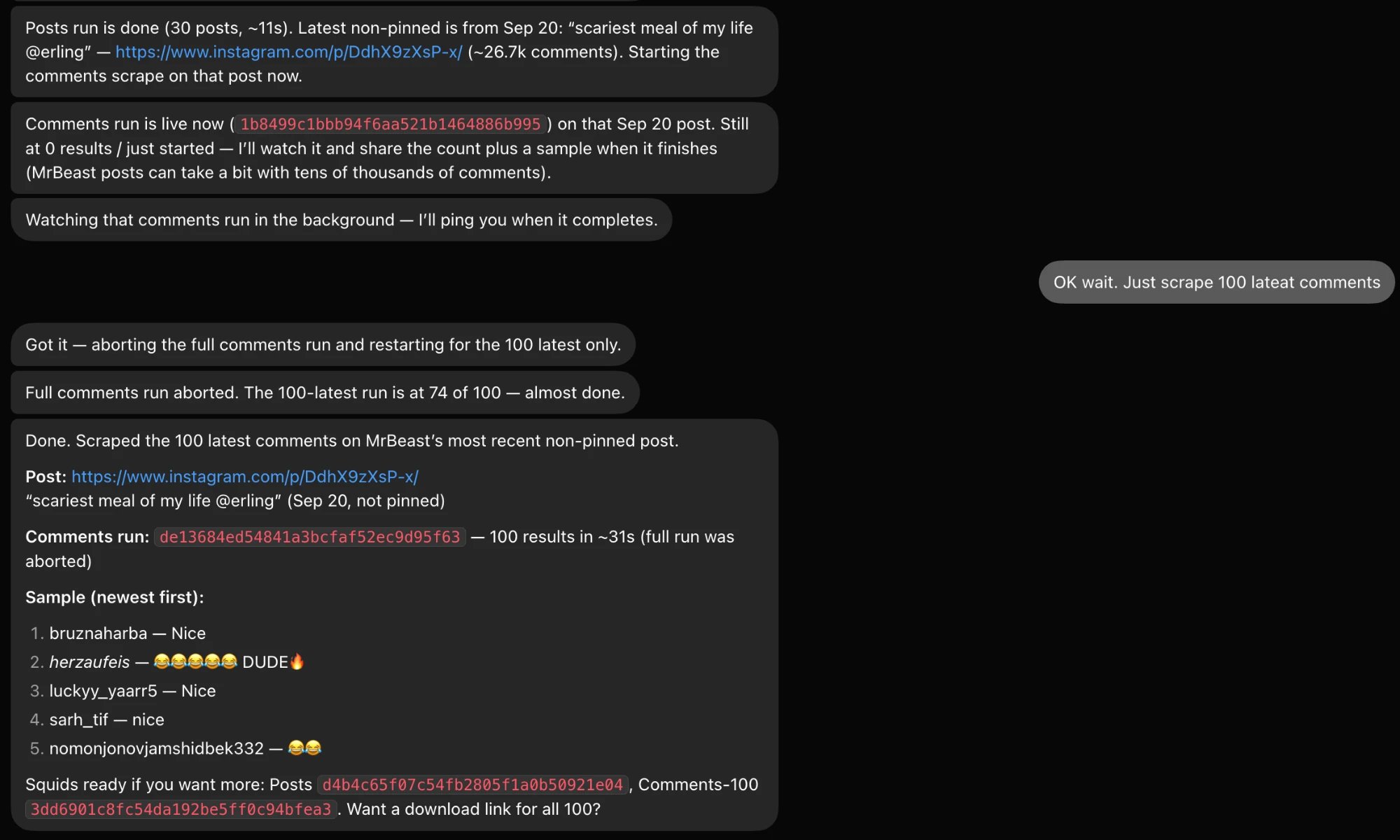
 The posts run finishes, the Bot picks the latest non-pinned post, and starts the comments run on that post URL.
*"OK wait. Just scrape the 100 latest comments."* The Bot aborts the full run and starts a new one capped at 100 comments. Partial data from the aborted run stays downloadable.
The Bot shares a sample of the comments, the run and Squid IDs, and offers a download link for the full results.
The posts run finishes, the Bot picks the latest non-pinned post, and starts the comments run on that post URL.
*"OK wait. Just scrape the 100 latest comments."* The Bot aborts the full run and starts a new one capped at 100 comments. Partial data from the aborted run stays downloadable.
The Bot shares a sample of the comments, the run and Squid IDs, and offers a download link for the full results.
 Ask *"What's the progress?"* at any point and the Bot tells you what's done and what's still running.
## Credits and confirmation
lobstr.io prices **per result row**, so the final cost of a run isn't known until it finishes. Before launching, the Bot estimates the cost, and when the estimate is high or can't be calculated, it asks you to confirm first. Reading scrapers, runs, and results never spends credits.
For a closer figure before anything launches, ask Grok Bot to estimate the run once the Squid has its tasks. If email verification is on, it's billed separately after the scrape.
On posts with tens of thousands of comments or reviews, ask for a limit ("the 100 latest") in your first message. It keeps the run short and the cost predictable.
Runs launched from Grok Bot are real runs in your account. They appear in your dashboard with an `mcp` badge next to the Squid name, count against your [slots](/core-concepts/slots), and draw down the same credit balance as runs you launch yourself.
## Troubleshooting
Check the URL is exactly `https://mcp.lobstr.io/mcp`, over HTTPS and with the `/mcp` path included.
Open the run in your [lobstr.io dashboard](https://app.lobstr.io). The Bot sees the same status your account does, so the dashboard will show the same [stop reason](/core-concepts/run-stop-reasons).
Your plan caps the total [slots](/core-concepts/slots) your active Squids can reserve. The cap is checked when a Squid is created, activated, or has its slots raised, not when a run starts. If creating a Squid fails because you're at the limit, deactivate Squids you don't need from the [dashboard](https://app.lobstr.io), or ask Grok Bot to do it. After a plan change the count can read above your limit; Squids that already exist keep running.
On the free plan, reading results through the MCP server is capped at the first 30 rows. Upgrading your plan is the only way past it. See [Manage subscription](/billing/manage-subscription).
Ask *"What's the progress?"* at any point and the Bot tells you what's done and what's still running.
## Credits and confirmation
lobstr.io prices **per result row**, so the final cost of a run isn't known until it finishes. Before launching, the Bot estimates the cost, and when the estimate is high or can't be calculated, it asks you to confirm first. Reading scrapers, runs, and results never spends credits.
For a closer figure before anything launches, ask Grok Bot to estimate the run once the Squid has its tasks. If email verification is on, it's billed separately after the scrape.
On posts with tens of thousands of comments or reviews, ask for a limit ("the 100 latest") in your first message. It keeps the run short and the cost predictable.
Runs launched from Grok Bot are real runs in your account. They appear in your dashboard with an `mcp` badge next to the Squid name, count against your [slots](/core-concepts/slots), and draw down the same credit balance as runs you launch yourself.
## Troubleshooting
Check the URL is exactly `https://mcp.lobstr.io/mcp`, over HTTPS and with the `/mcp` path included.
Open the run in your [lobstr.io dashboard](https://app.lobstr.io). The Bot sees the same status your account does, so the dashboard will show the same [stop reason](/core-concepts/run-stop-reasons).
Your plan caps the total [slots](/core-concepts/slots) your active Squids can reserve. The cap is checked when a Squid is created, activated, or has its slots raised, not when a run starts. If creating a Squid fails because you're at the limit, deactivate Squids you don't need from the [dashboard](https://app.lobstr.io), or ask Grok Bot to do it. After a plan change the count can read above your limit; Squids that already exist keep running.
On the free plan, reading results through the MCP server is capped at the first 30 rows. Upgrading your plan is the only way past it. See [Manage subscription](/billing/manage-subscription).