> ## Documentation Index
> Fetch the complete documentation index at: https://help.lobstr.io/llms.txt
> Use this file to discover all available pages before exploring further.
# Connect lobstr.io to Make and automate your scraping workflows
> Use the official lobstr.io app in Make to launch runs, watch for completed runs, and push scraped results into any of the thousands of apps Make connects to.
lobstr.io has an **official app in Make**. Once connected, you can launch runs from a Make scenario, wait for a run to finish, and pipe the results straight into a CRM, a spreadsheet, a database, Slack, or anything else Make supports — without writing code.
## Before you start
* A [lobstr.io account](https://app.lobstr.io) with credits.
* A Make account.
* Your lobstr.io **API key**, which is what the connection authenticates with.
Your API key lives in the dashboard under the **API** menu — click **Copy** to grab it.
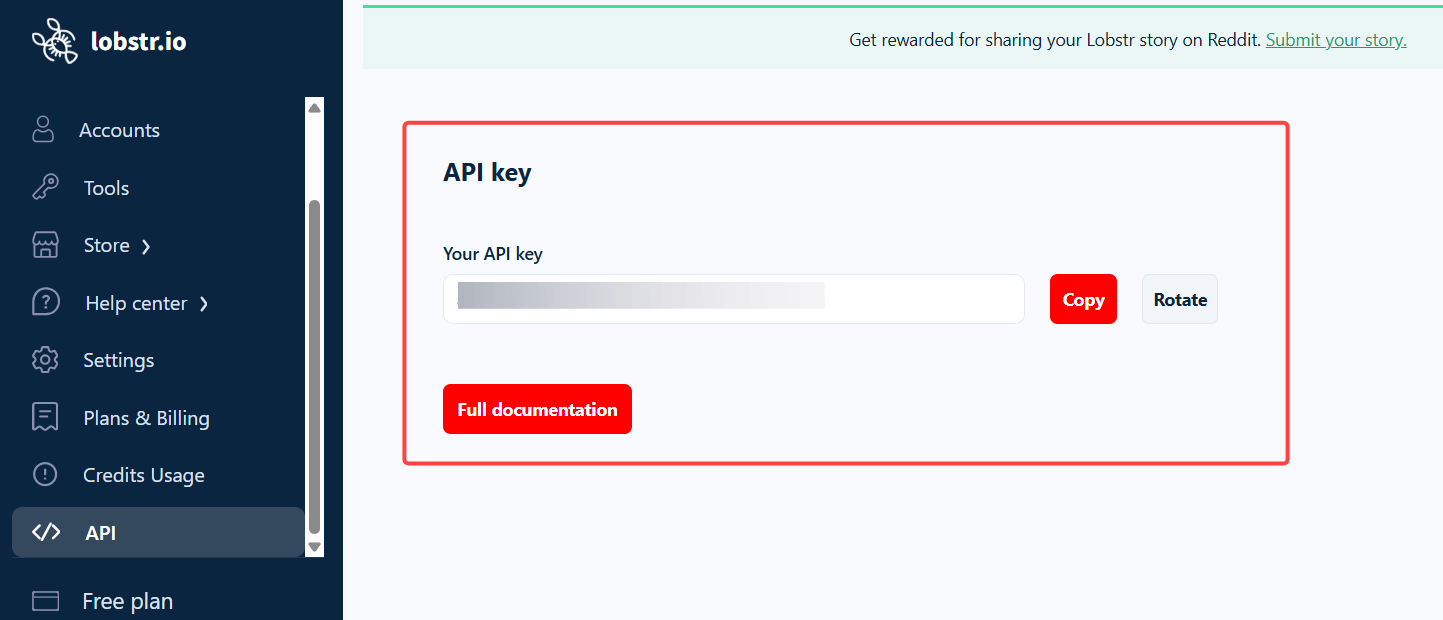 See [how to find your API key](/getting-started/api-key) for more detail, including how to rotate it.
## Create the connection
In your Make scenario, click the **+** button and search for **lobstr.io**. The app appears as **LOBSTR.IO** in Make's interface. Pick any module — the connection is shared across all of them.
In the module settings, click **Add** next to the **Connection** field.
Give the connection a name, paste your lobstr.io API key into the **API Key** field, and click **Save**.
See [how to find your API key](/getting-started/api-key) for more detail, including how to rotate it.
## Create the connection
In your Make scenario, click the **+** button and search for **lobstr.io**. The app appears as **LOBSTR.IO** in Make's interface. Pick any module — the connection is shared across all of them.
In the module settings, click **Add** next to the **Connection** field.
Give the connection a name, paste your lobstr.io API key into the **API Key** field, and click **Save**.
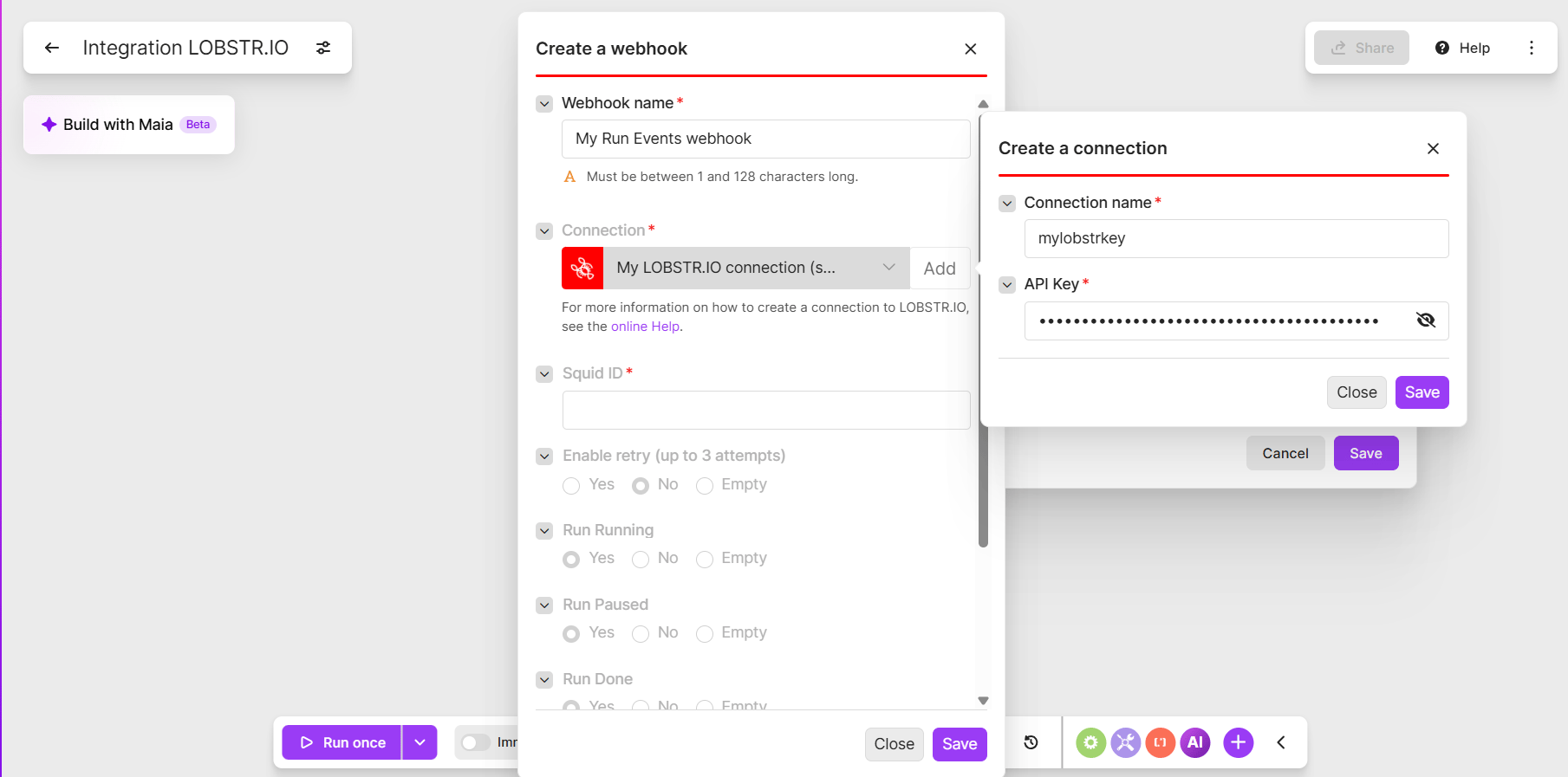 Make verifies the key immediately. Once saved, every lobstr.io module in your account can reuse the same connection.
Your API key grants full access to your lobstr.io account. Treat it like a password — never paste it into a shared scenario description or a public template.
## What the lobstr.io app can do
| Module | Type | What it does |
| -------------------- | ------- | --------------------------------------------------------------------------------------------- |
| **Watch Runs** | Trigger | Triggers when a run is finished, failed, or has changed status |
| **Launch a Run** | Action | Launches a new run for a selected Squid |
| **Get a Squid** | Search | Retrieves details of a specific Squid, including its name, crawler, and parameters |
| **List Squids** | Search | Lists your saved Squids, with pagination |
| **List Runs** | Search | Lists all runs for a specific Squid |
| **List Results** | Search | Returns structured results from a run or a Squid, with pagination and optional task filtering |
| **Make an API call** | Other | Performs a custom API request — you specify the method, path, and optional JSON body |
**Make an API call** is the escape hatch. If you need something the dedicated modules don't cover — adding tasks, aborting a run, changing Squid settings — use it with the endpoint path and a JSON body.
## Two scenarios worth building
### Push results somewhere the moment a run finishes
This is the most common setup, and it replaces the download-and-import loop entirely. Here's the whole loop end to end:
Start the scenario with **Watch Runs**. Click **Add** to create a webhook: name it, pick your connection, and enter the **Squid ID** of the Squid you want to watch.
Then toggle the events you care about — **Run Done** on its own is what most scenarios want. You can also enable **retry**, which reattempts failed deliveries up to 3 times.
The Squid ID is typed in, not picked from a list. It's the hash in the Squid's dashboard URL.
Once saved, the module shows a **Webhook URL** that starts with `https://hook.` — click the copy button beside it.
Make verifies the key immediately. Once saved, every lobstr.io module in your account can reuse the same connection.
Your API key grants full access to your lobstr.io account. Treat it like a password — never paste it into a shared scenario description or a public template.
## What the lobstr.io app can do
| Module | Type | What it does |
| -------------------- | ------- | --------------------------------------------------------------------------------------------- |
| **Watch Runs** | Trigger | Triggers when a run is finished, failed, or has changed status |
| **Launch a Run** | Action | Launches a new run for a selected Squid |
| **Get a Squid** | Search | Retrieves details of a specific Squid, including its name, crawler, and parameters |
| **List Squids** | Search | Lists your saved Squids, with pagination |
| **List Runs** | Search | Lists all runs for a specific Squid |
| **List Results** | Search | Returns structured results from a run or a Squid, with pagination and optional task filtering |
| **Make an API call** | Other | Performs a custom API request — you specify the method, path, and optional JSON body |
**Make an API call** is the escape hatch. If you need something the dedicated modules don't cover — adding tasks, aborting a run, changing Squid settings — use it with the endpoint path and a JSON body.
## Two scenarios worth building
### Push results somewhere the moment a run finishes
This is the most common setup, and it replaces the download-and-import loop entirely. Here's the whole loop end to end:
Start the scenario with **Watch Runs**. Click **Add** to create a webhook: name it, pick your connection, and enter the **Squid ID** of the Squid you want to watch.
Then toggle the events you care about — **Run Done** on its own is what most scenarios want. You can also enable **retry**, which reattempts failed deliveries up to 3 times.
The Squid ID is typed in, not picked from a list. It's the hash in the Squid's dashboard URL.
Once saved, the module shows a **Webhook URL** that starts with `https://hook.` — click the copy button beside it.
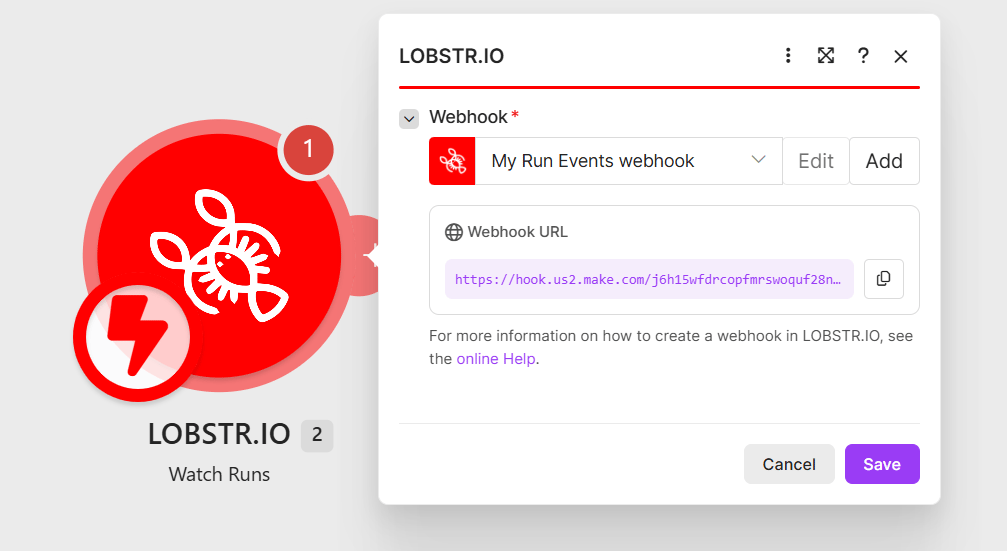 Go to your Squid in lobstr.io, open the **Delivery** panel, expand the **Webhook** section, and paste the URL in. Tick the checkbox to activate it and click **Save**.
This step is manual and easy to miss. Creating the webhook in Make does **not** configure delivery on your Squid — until you paste that URL into the Delivery panel and save, the scenario will never fire.
Add **List Results** and map the run ID from the trigger into it. This returns the rows from that run only.
Add whatever destination you need — a CRM record, a Google Sheets row, an Airtable record, a Slack message. Map the lobstr.io fields onto the destination's fields.
If all you want is the data in a spreadsheet, you don't need Make at all — lobstr.io can [export to Google Sheets](/integrations/google-sheets) or [Amazon S3](/integrations/amazon-s3) by itself. Reach for Make when the data needs shaping, filtering, or routing to more than one place.
### Launch a scrape when something happens elsewhere
Start with any Make trigger — a new row in a sheet, a new form submission, a webhook, a schedule.
Add **Launch a Run** and pick the Squid to start.
**Launch a Run** spends credits, and a Make scenario can fire far more often than you'd click Launch by hand. Put a filter before the module, or use a Squid whose task list is small, so a runaway trigger doesn't drain your balance.
## Things to know
* **Runs launched from Make are ordinary runs.** They show up in your dashboard, count against your [slots](/core-concepts/slots), and draw down the same [credit](/core-concepts/credits) balance.
* **Every run re-processes every task** in the Squid's list. Make doesn't change that — if you want a run to scrape only new inputs, empty the task list and add fresh [tasks](/core-concepts/tasks) before launching.
* **Results are paginated.** For a large run, let Make iterate through the pages rather than expecting one bundle.
* **Results expire.** Run results are stored for 28 days on paid plans and 7 days on the free plan, so fetch them before that.
Go to your Squid in lobstr.io, open the **Delivery** panel, expand the **Webhook** section, and paste the URL in. Tick the checkbox to activate it and click **Save**.
This step is manual and easy to miss. Creating the webhook in Make does **not** configure delivery on your Squid — until you paste that URL into the Delivery panel and save, the scenario will never fire.
Add **List Results** and map the run ID from the trigger into it. This returns the rows from that run only.
Add whatever destination you need — a CRM record, a Google Sheets row, an Airtable record, a Slack message. Map the lobstr.io fields onto the destination's fields.
If all you want is the data in a spreadsheet, you don't need Make at all — lobstr.io can [export to Google Sheets](/integrations/google-sheets) or [Amazon S3](/integrations/amazon-s3) by itself. Reach for Make when the data needs shaping, filtering, or routing to more than one place.
### Launch a scrape when something happens elsewhere
Start with any Make trigger — a new row in a sheet, a new form submission, a webhook, a schedule.
Add **Launch a Run** and pick the Squid to start.
**Launch a Run** spends credits, and a Make scenario can fire far more often than you'd click Launch by hand. Put a filter before the module, or use a Squid whose task list is small, so a runaway trigger doesn't drain your balance.
## Things to know
* **Runs launched from Make are ordinary runs.** They show up in your dashboard, count against your [slots](/core-concepts/slots), and draw down the same [credit](/core-concepts/credits) balance.
* **Every run re-processes every task** in the Squid's list. Make doesn't change that — if you want a run to scrape only new inputs, empty the task list and add fresh [tasks](/core-concepts/tasks) before launching.
* **Results are paginated.** For a large run, let Make iterate through the pages rather than expecting one bundle.
* **Results expire.** Run results are stored for 28 days on paid plans and 7 days on the free plan, so fetch them before that.