
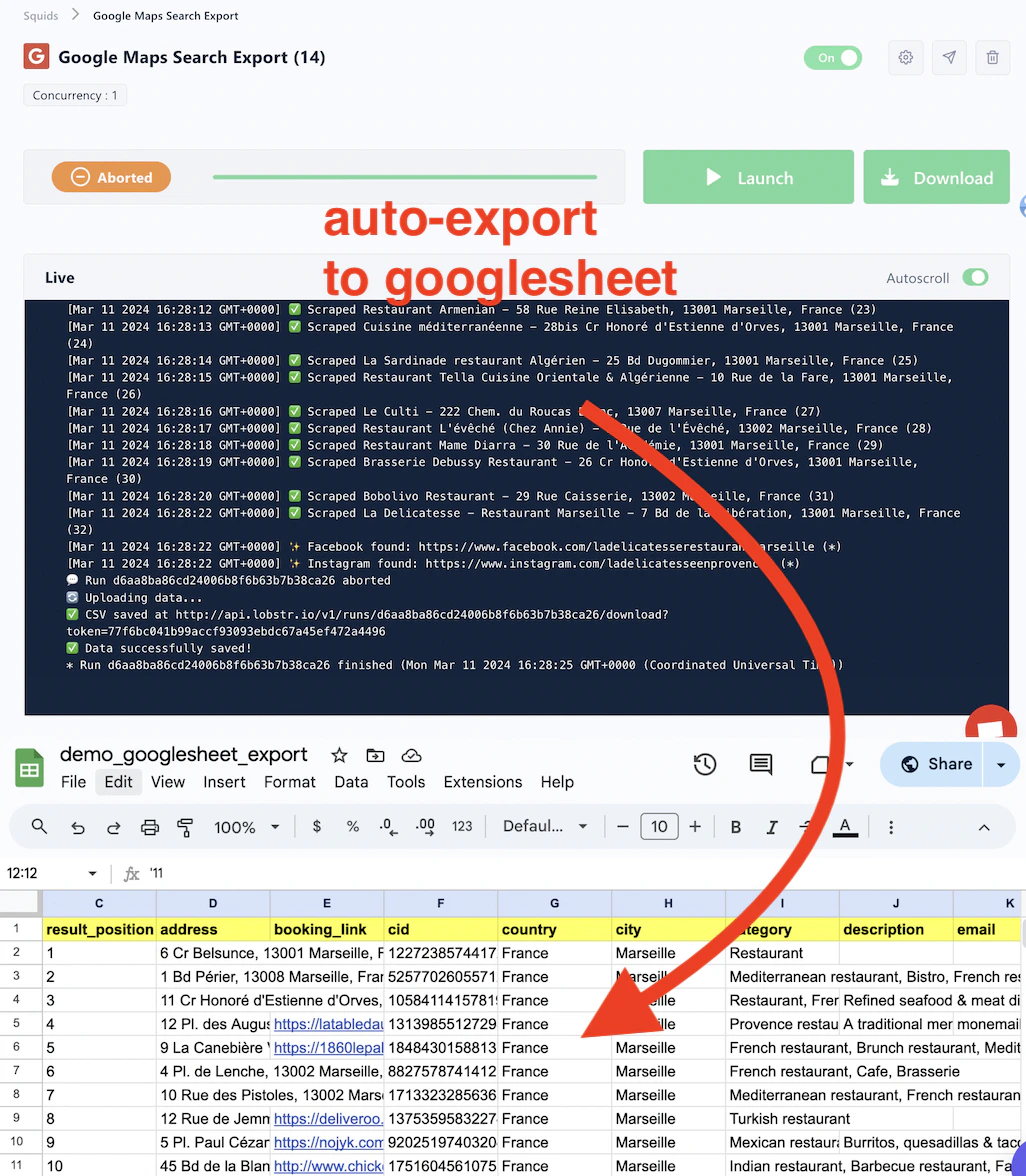
Watch the full walkthrough
Step-by-step instructions
1
Create and configure your Google Sheet
Go to Google Sheets and create a new spreadsheet.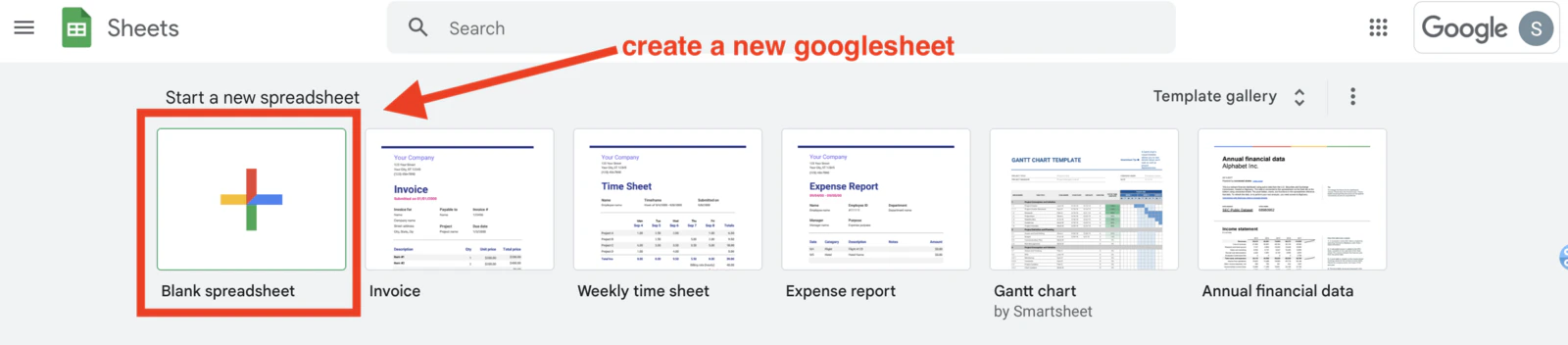
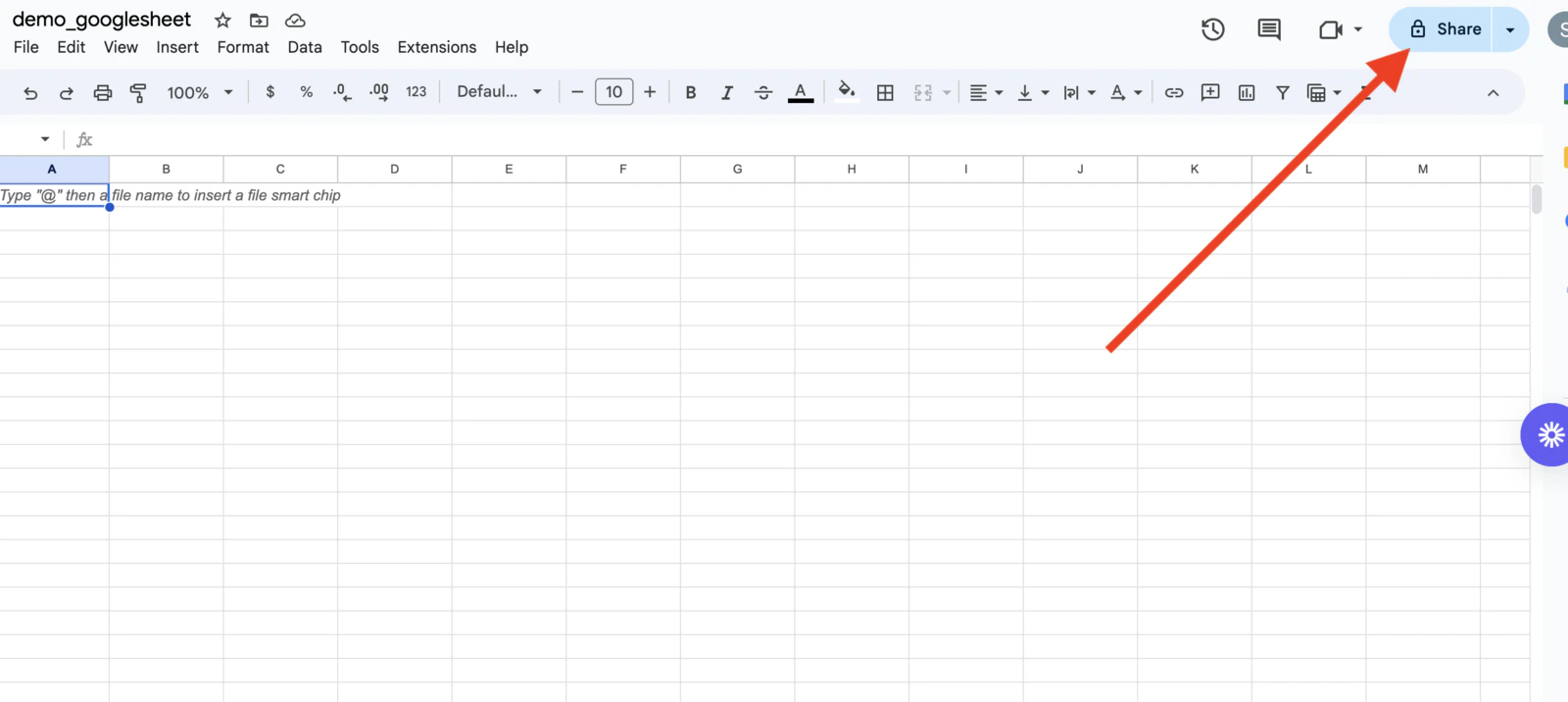
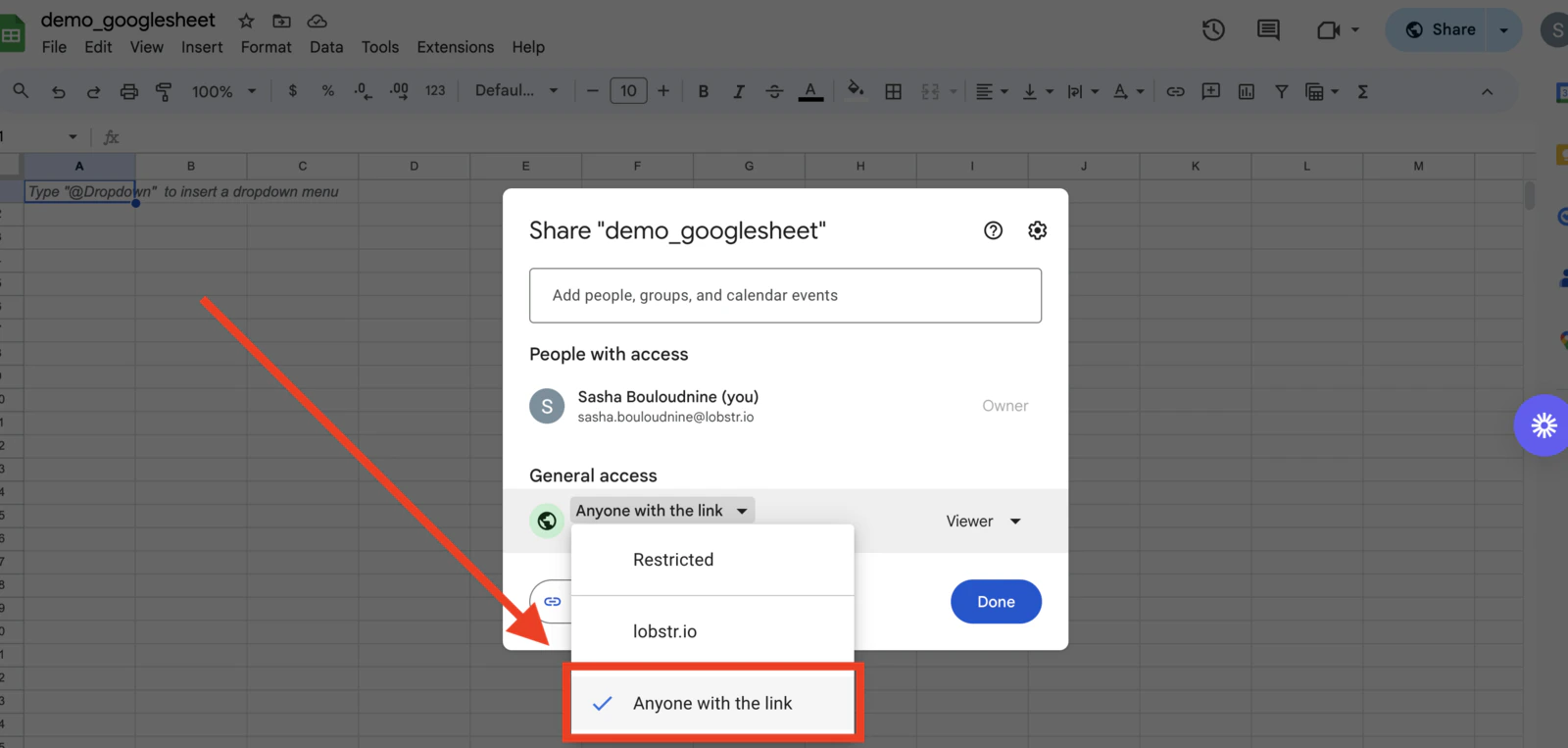
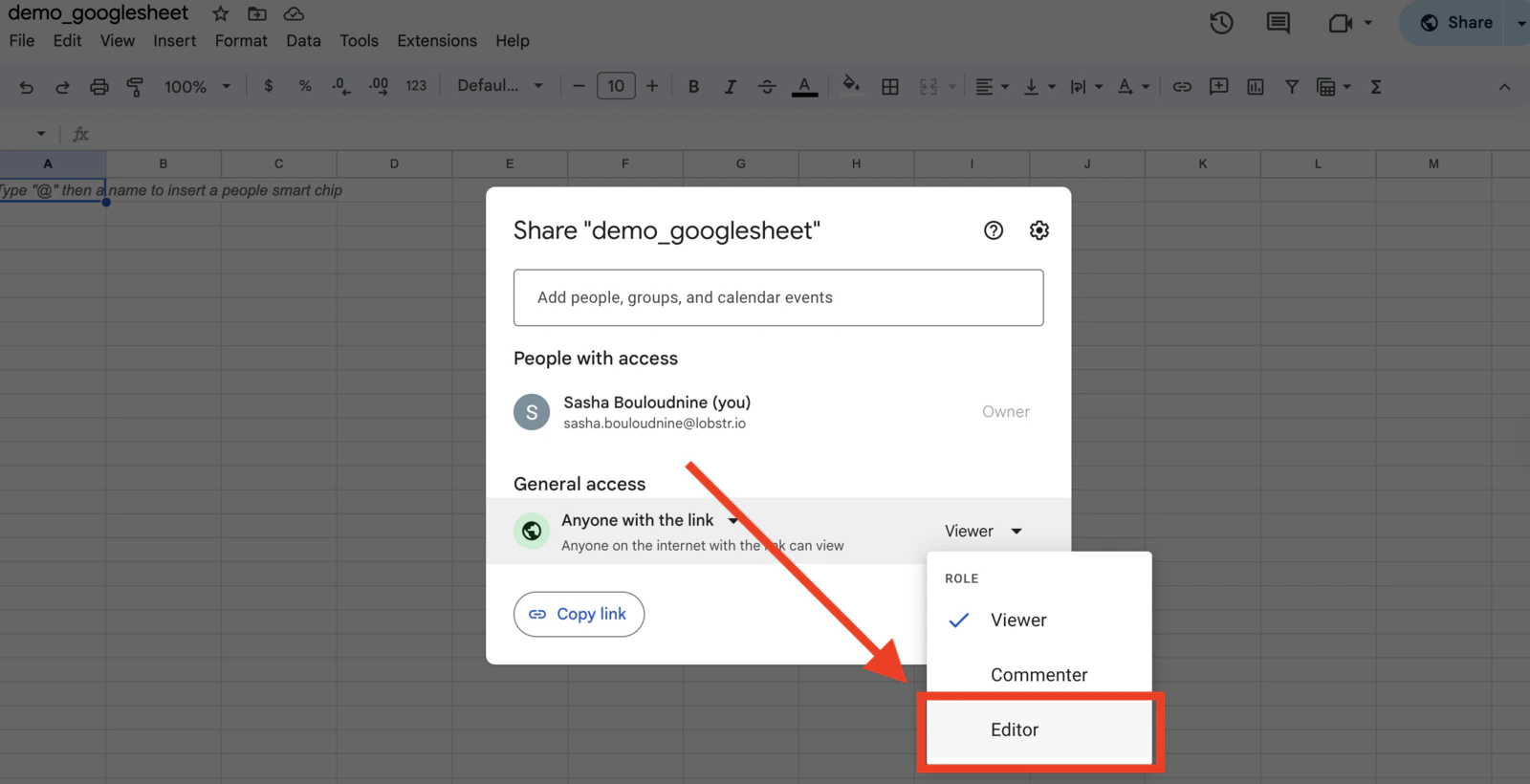
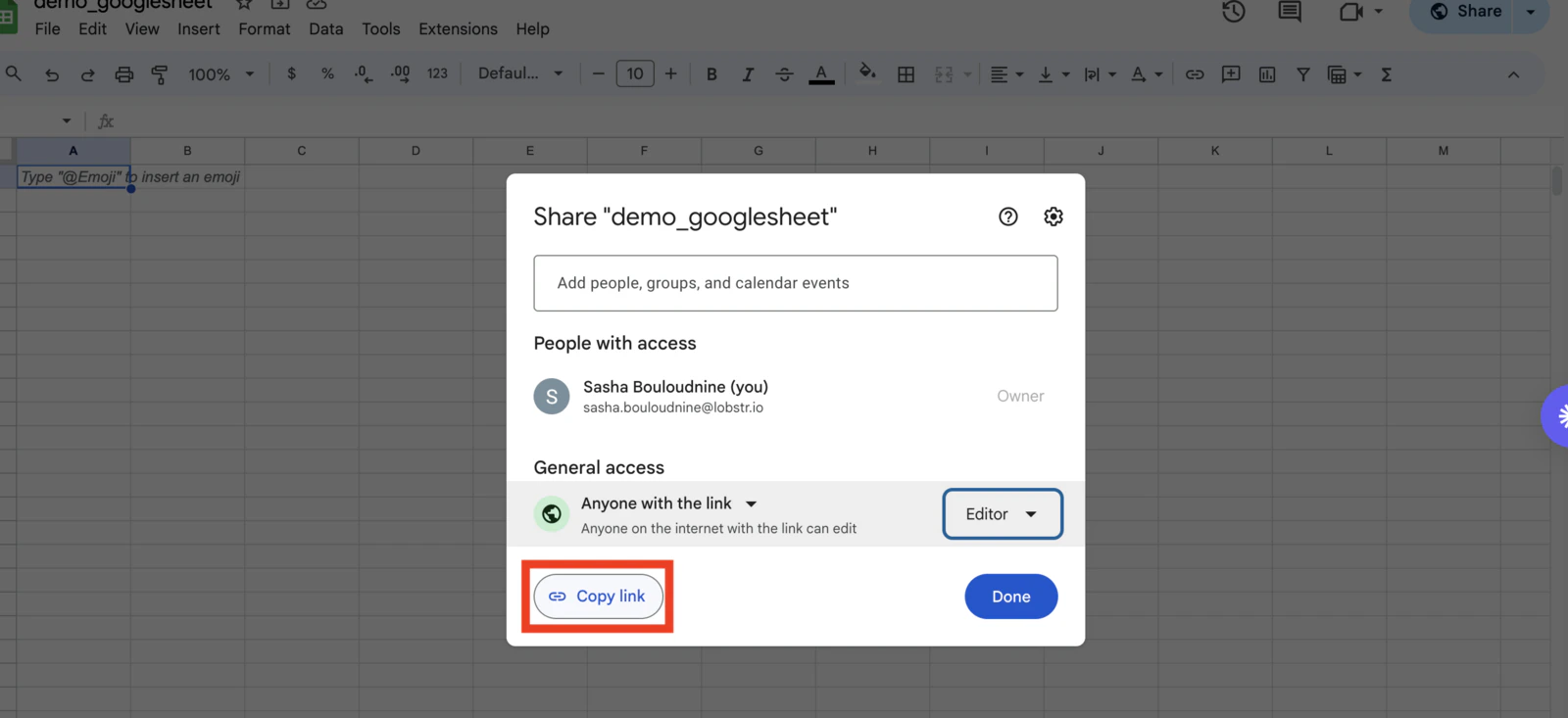
2
Attach the Google Sheet to your Squid
Go back to your Squid page in lobstr.io.Click the Delivery icon in the top-right of the Squid page.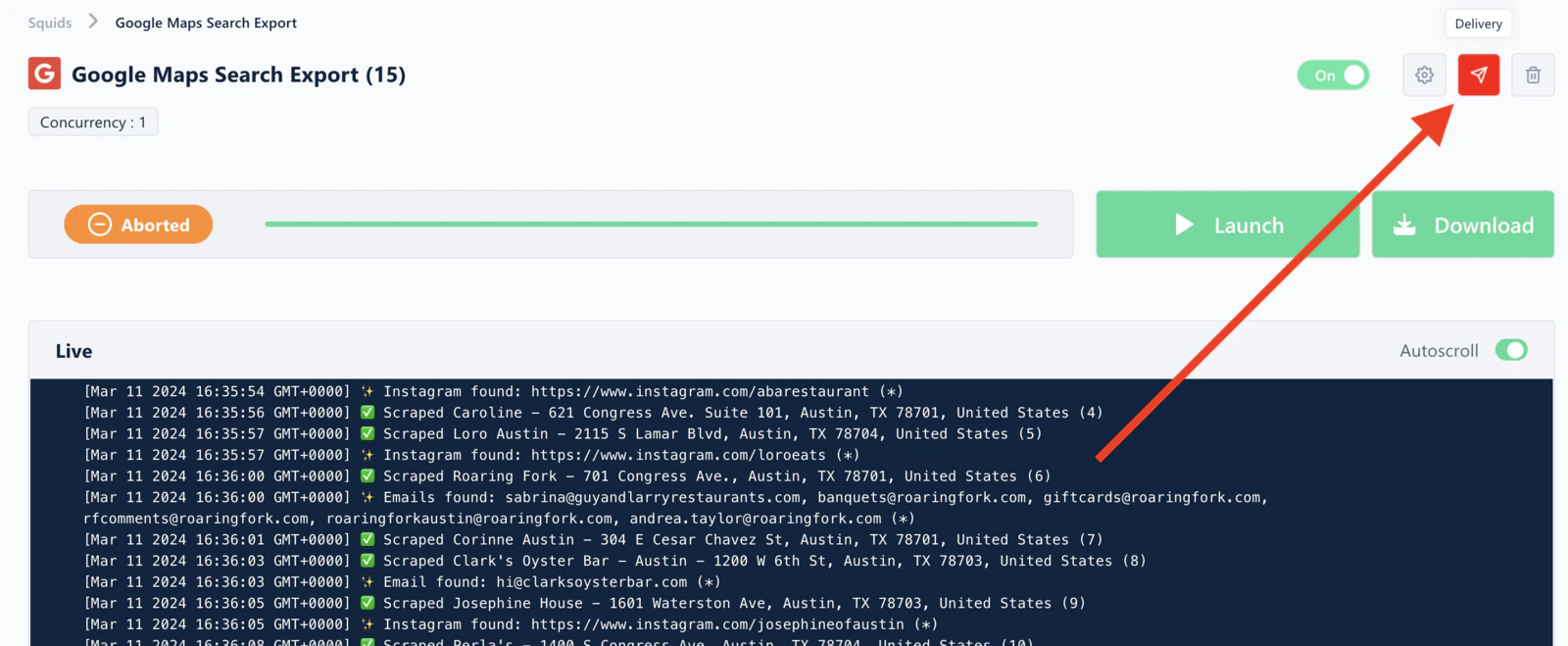
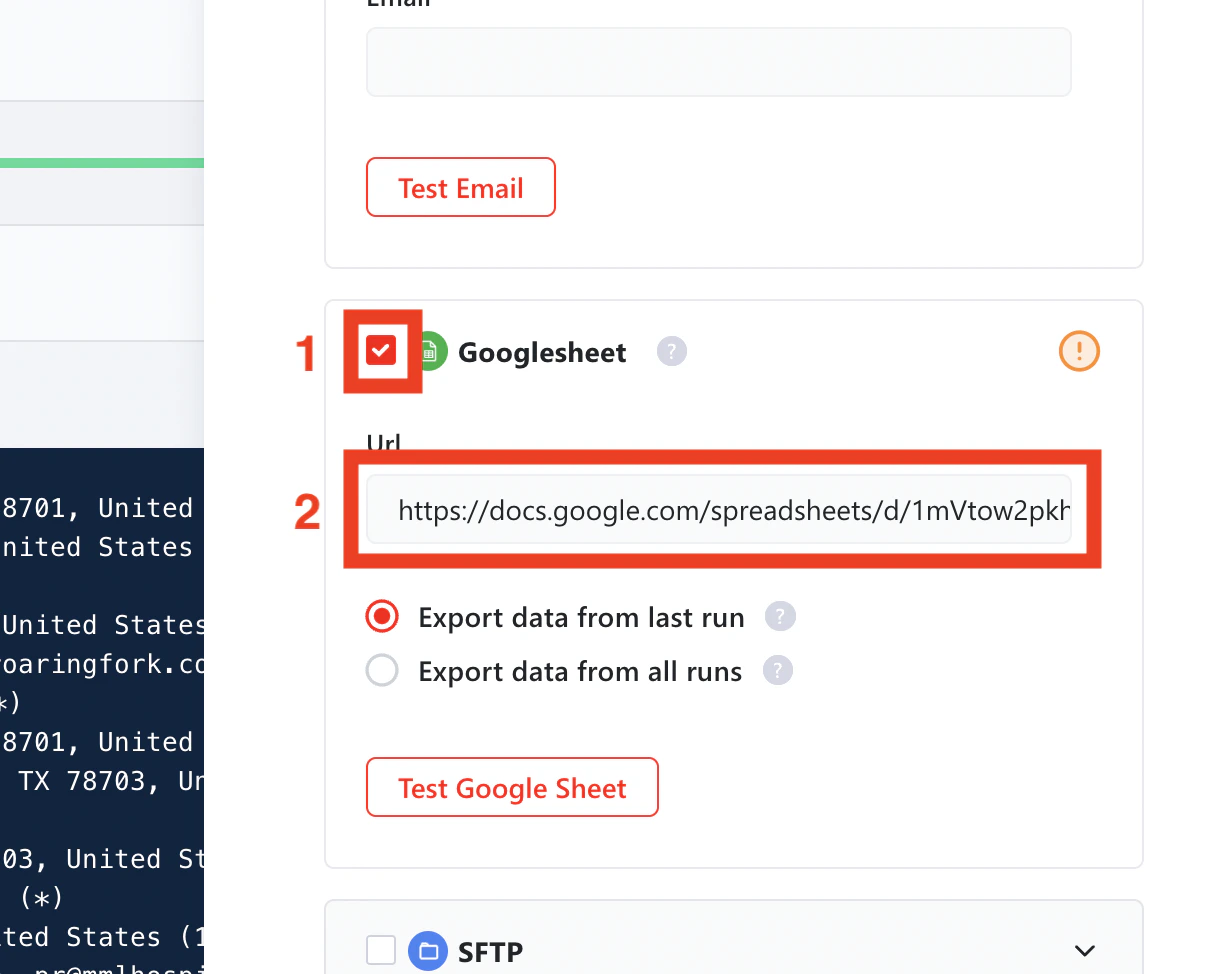
- Tick the Google Sheet checkbox.
- Paste the Google Sheet URL in the field.
3
Confirm the export scope
The export scope is Export data from last run: each time a run ends, lobstr.io writes that run’s results to the sheet, overwriting the previous export.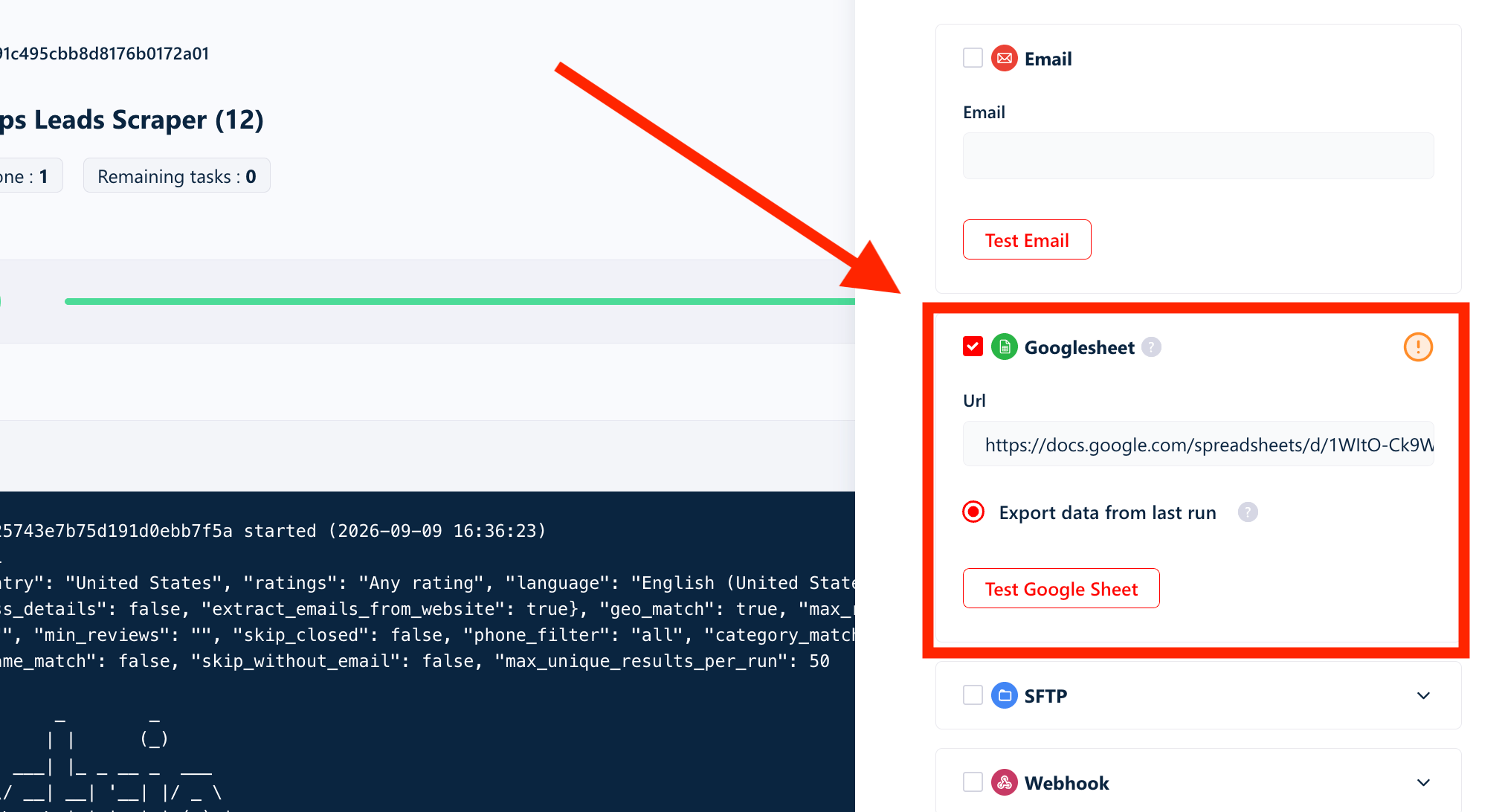
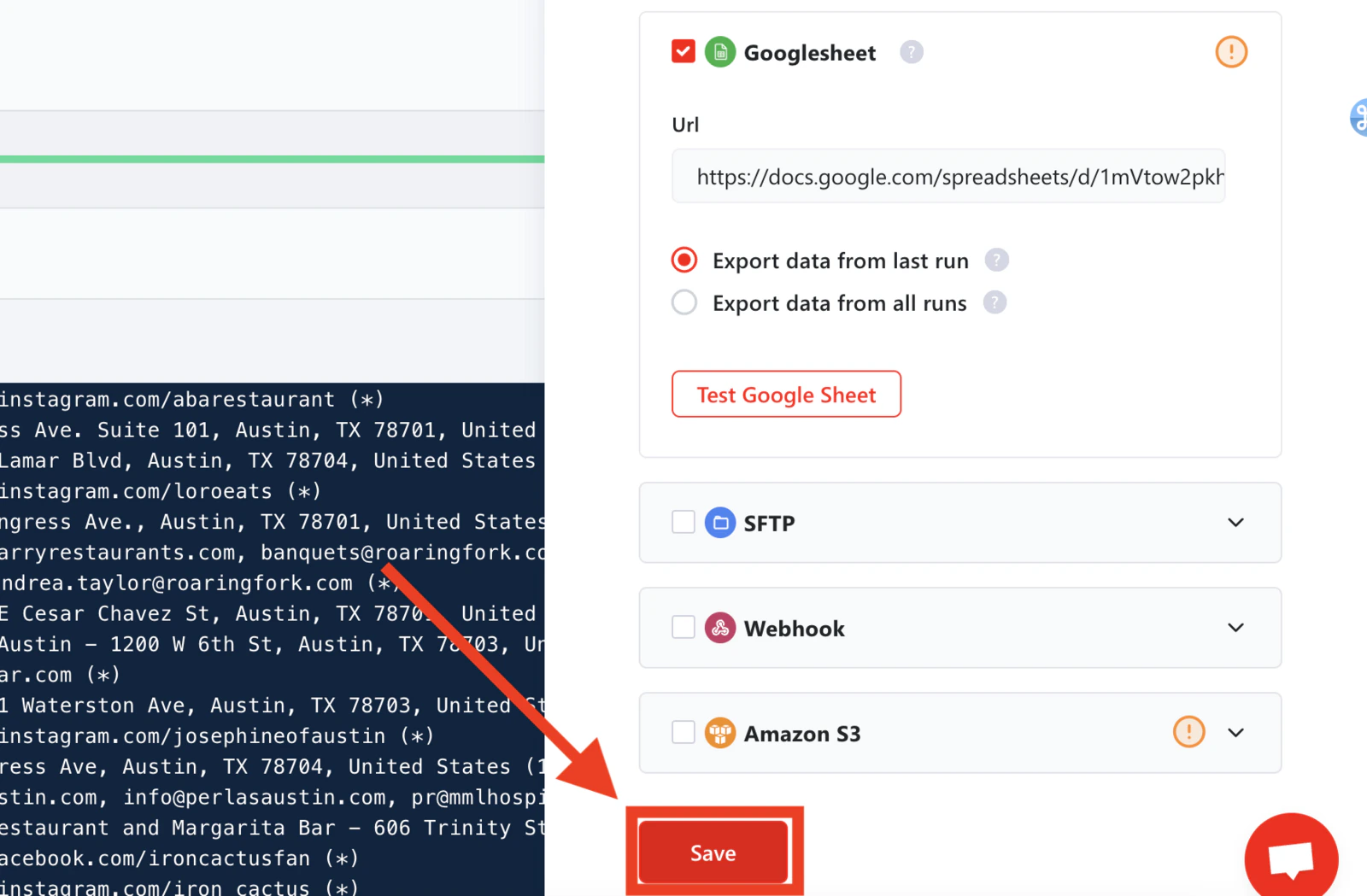
4
Launch your Squid
Click Launch to start a run. Once it completes, lobstr.io automatically pushes the results to your Google Sheet.From this point on, every future run triggers an automatic export — no manual steps required.
Google Sheets export applies to future runs only. Data from runs that completed before you set up the integration will not be exported retroactively. To get historical data into your sheet, download past runs one by one from the Runs table and import them manually.