
lobstr.io never stores your username or password. The browser extension captures only your login cookies, which are used to maintain your session. Your credentials stay private.
Watch the full walkthrough
Sync your first account
1
Install the lobstr.io Chrome extension
Install the lobstr.io Account Sync extension from the Chrome Web Store:Install extensionThe extension is what captures your login cookies and makes them available to lobstr.io.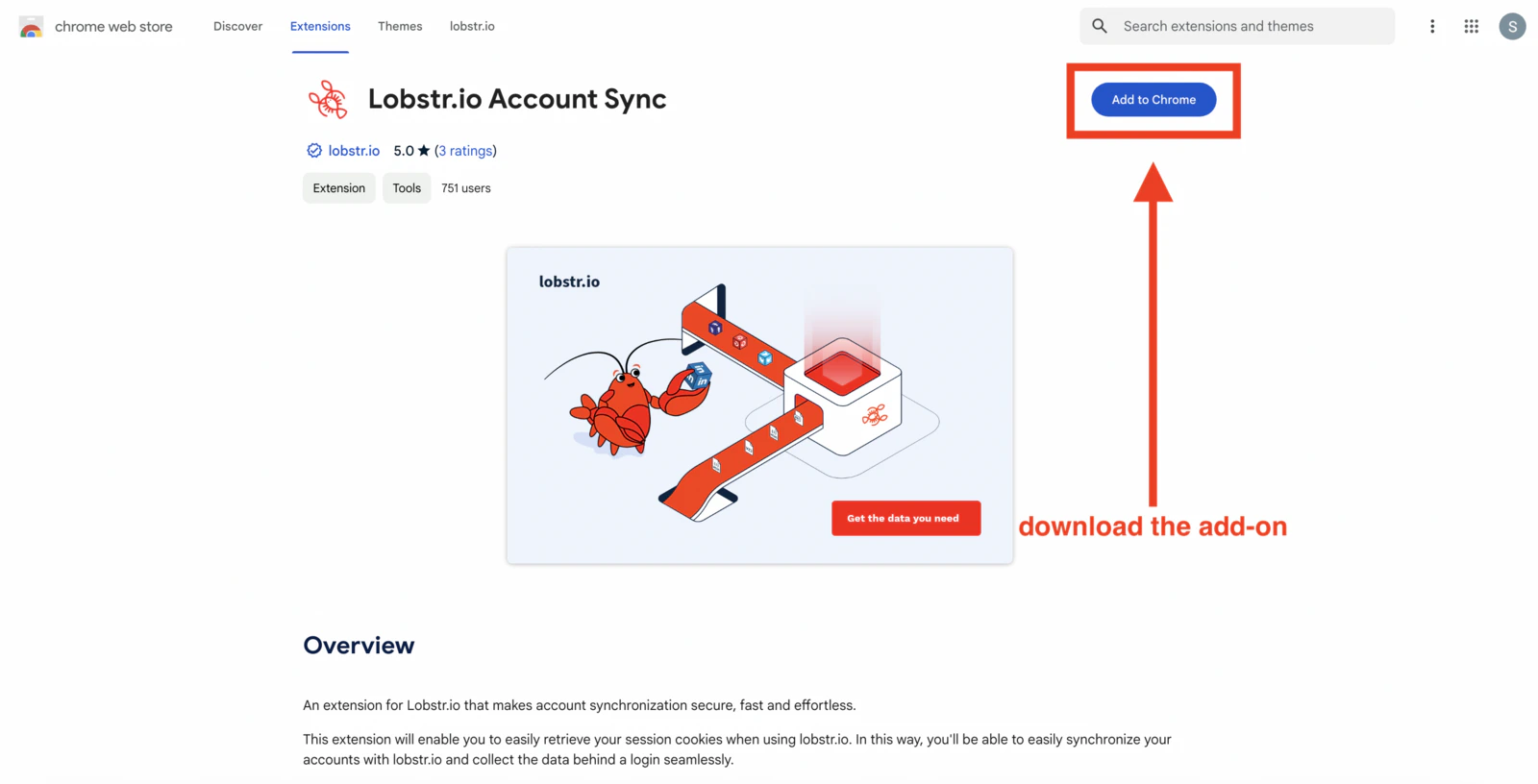
2
Log in to the third-party site
In Chrome, go to the website you want to connect — for example, twitter.com or linkedin.com — and log in to your account normally.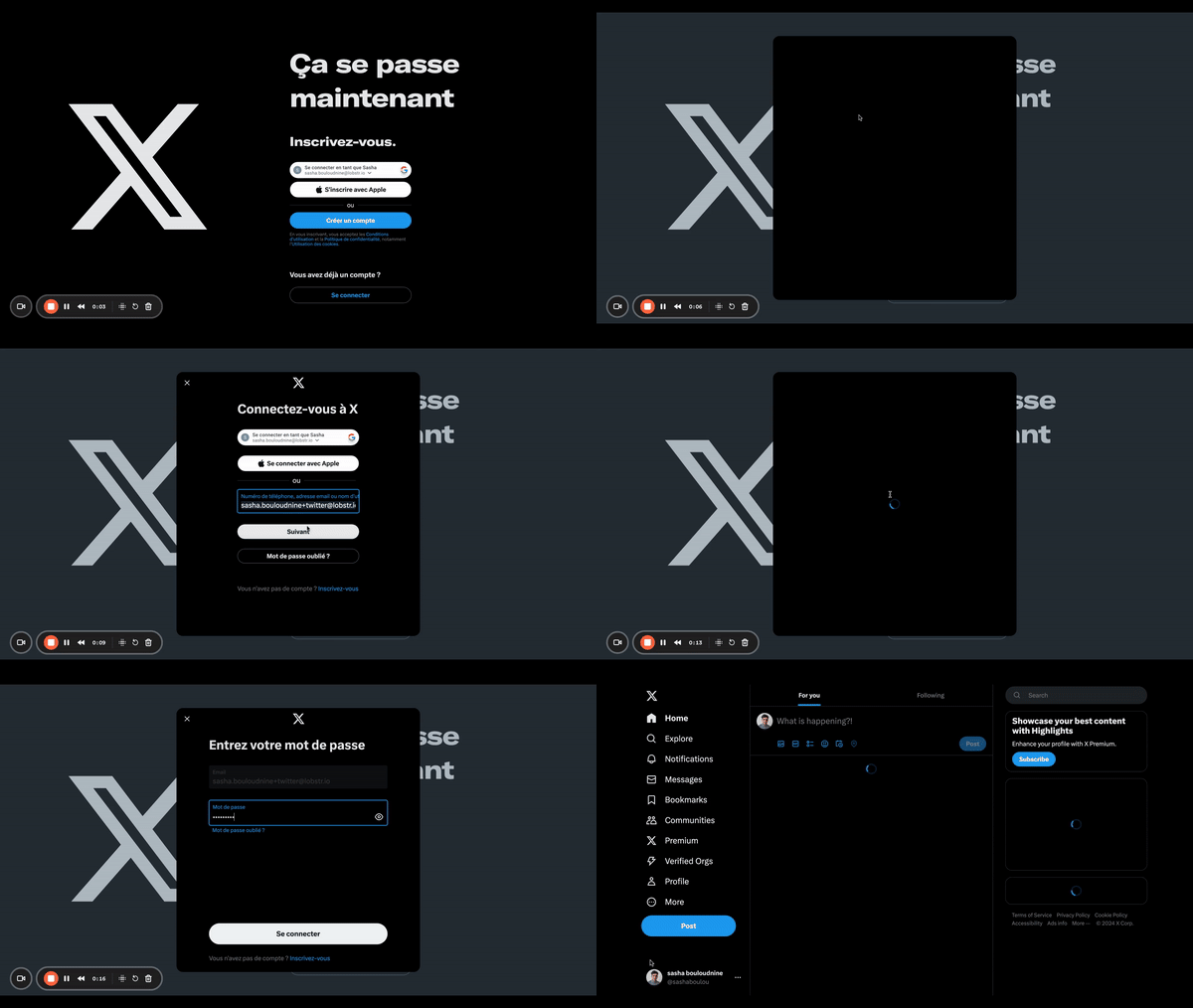
3
Sync the account from your lobstr.io dashboard
With the extension installed and you logged in to the third-party site: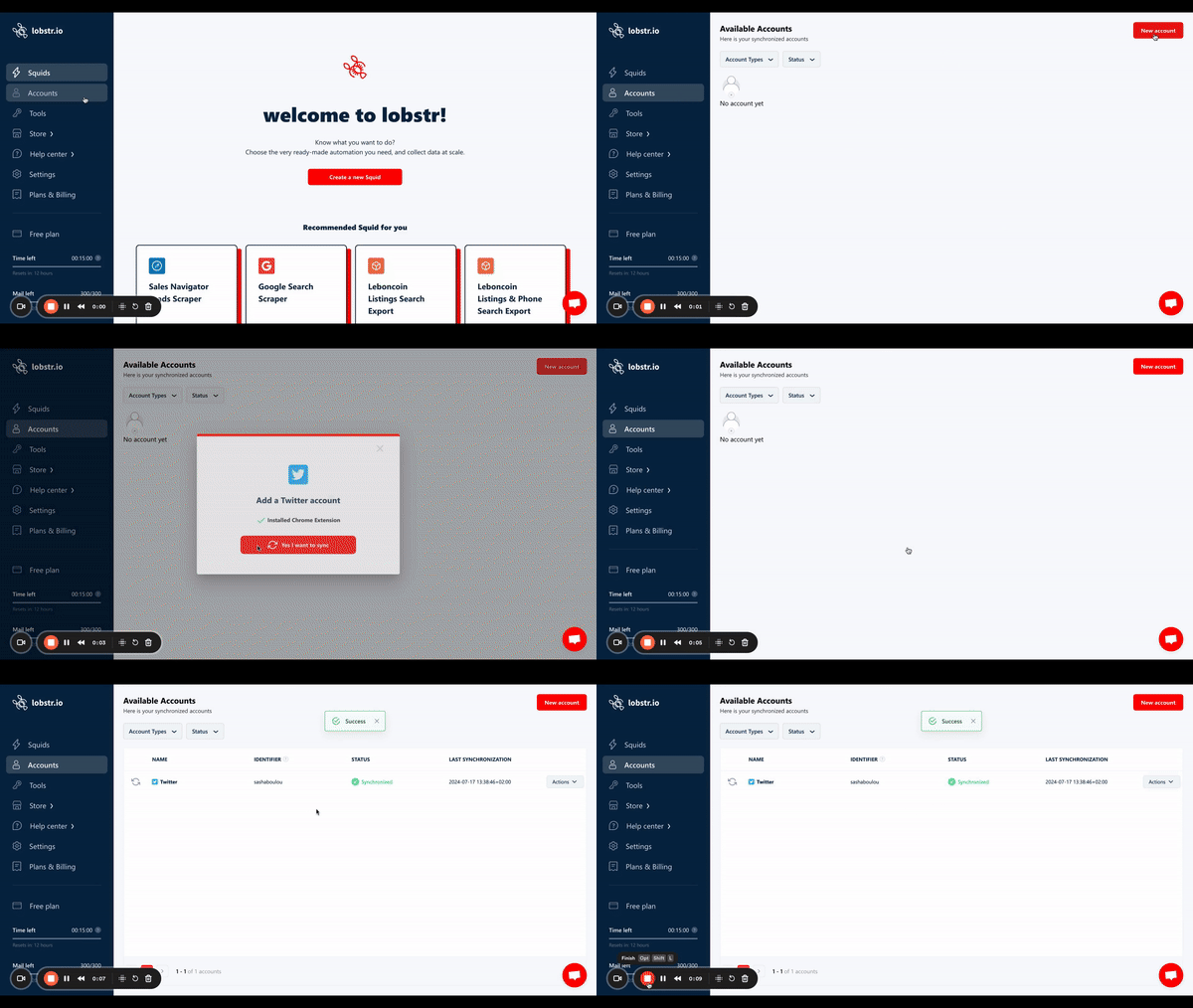
- Go to your lobstr.io dashboard and log in.
- Click Accounts in the left sidebar.
- Select the account type you want to sync (e.g., LinkedIn, Twitter).
- Click Yes, I want to sync.
Sync multiple accounts
You can connect more than one account of the same type — for example, two LinkedIn accounts — to increase scraping throughput.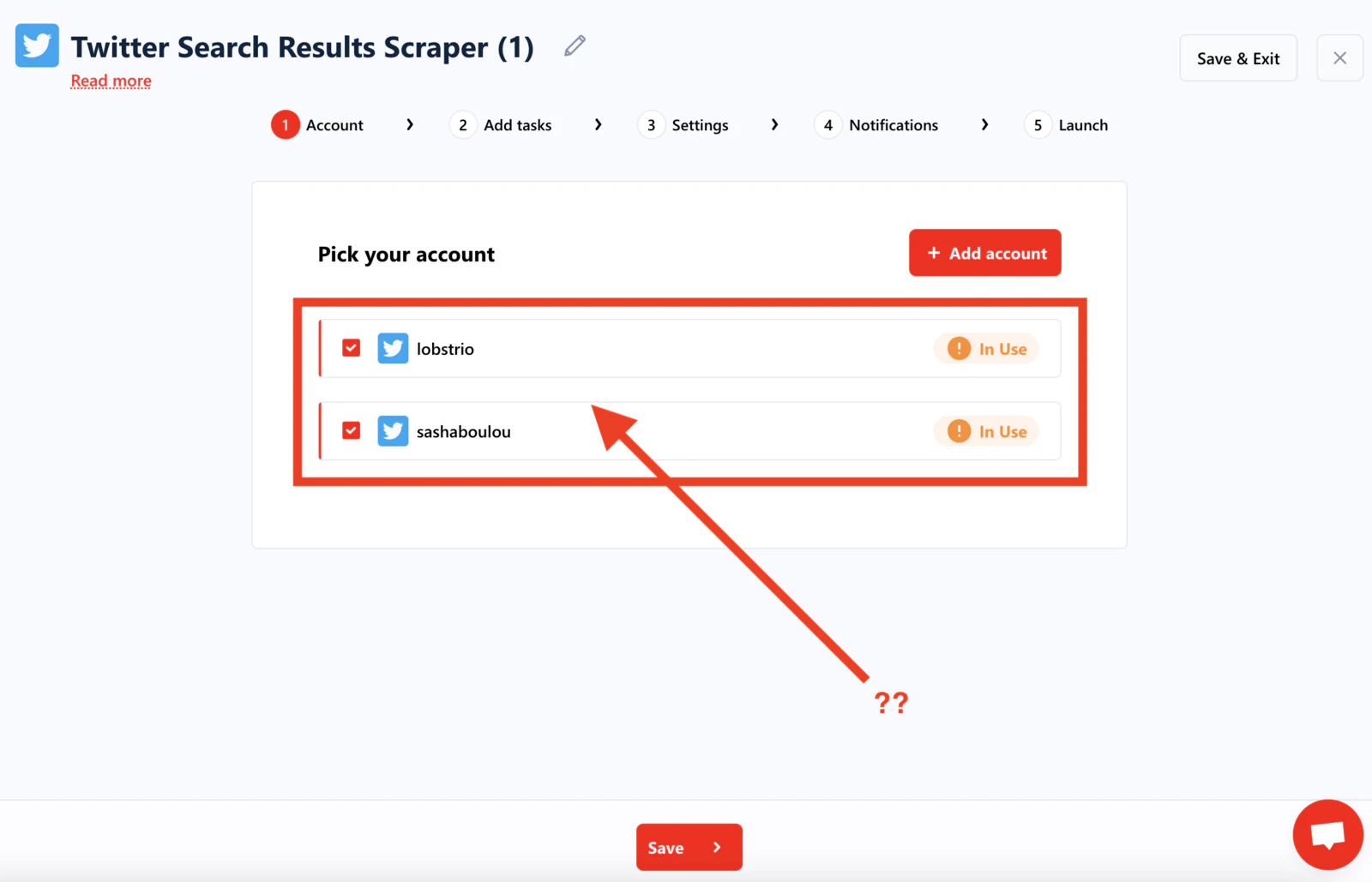
Standard accounts (Twitter, Facebook, etc.)
For most platforms, repeat the sync process for each account:- Log in to account 1 → sync → log out from account 1.
- Log in to account 2 → sync → log out from account 2.
- Repeat for additional accounts.
LinkedIn and Leboncoin accounts
To switch between LinkedIn or Leboncoin accounts without breaking cookies:- Log in to account 1 and sync it.
- Navigate to
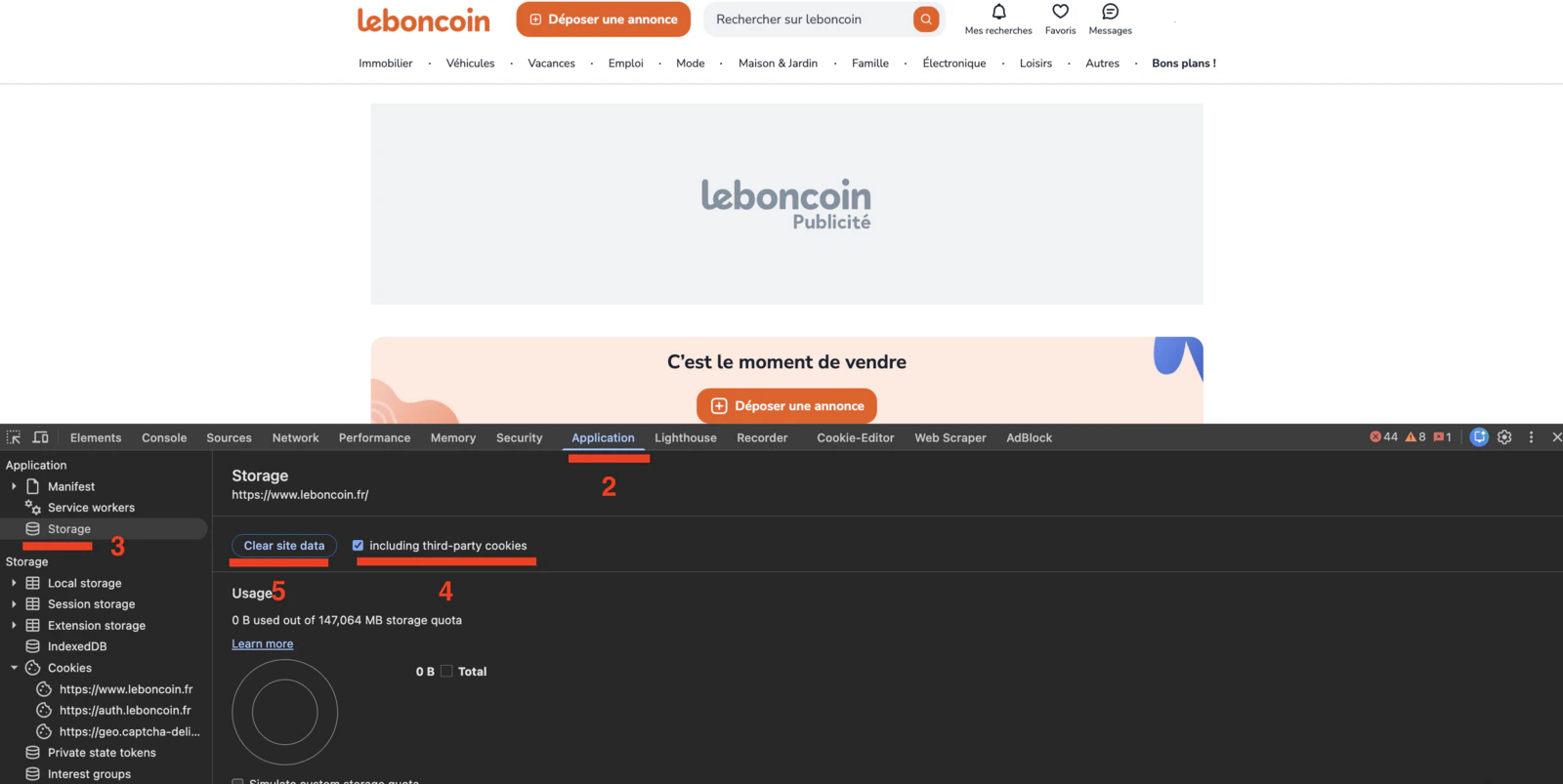
www.linkedin.com(orleboncoin.fr). - Open Chrome DevTools (press
F12or right-click → Inspect). - Go to the Application tab.
- Click Storage in the left panel.
- Check “including third-party cookies”.
- Click Clear site data.
- Log in to account 2 and sync it.
- Repeat for any additional accounts.
Refresh expired cookies
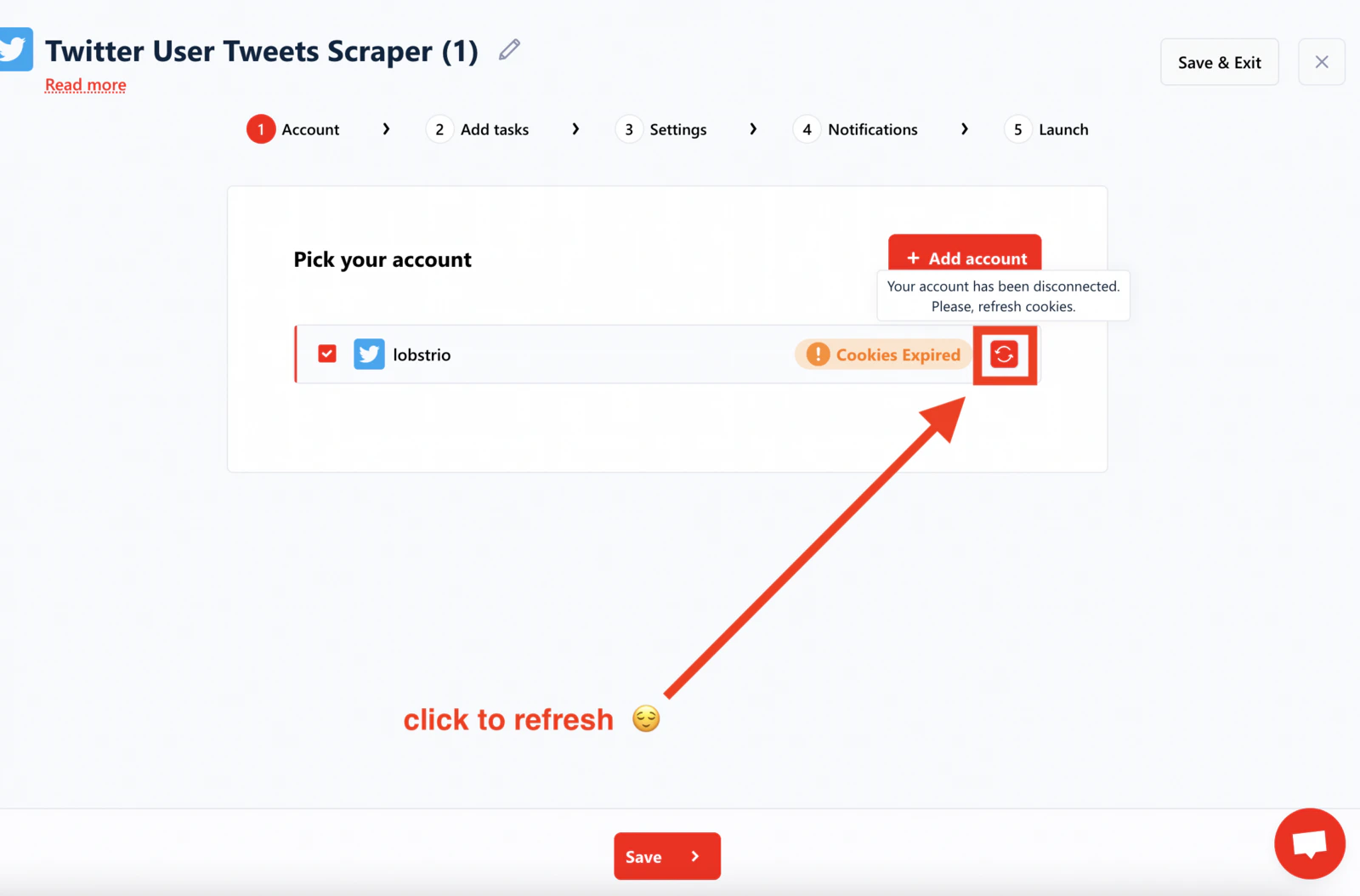
Login cookies don’t last forever. When they expire, lobstr.io displays a warning: “this account needs to be updated”. You’ll need to provide fresh cookies by re-syncing your account.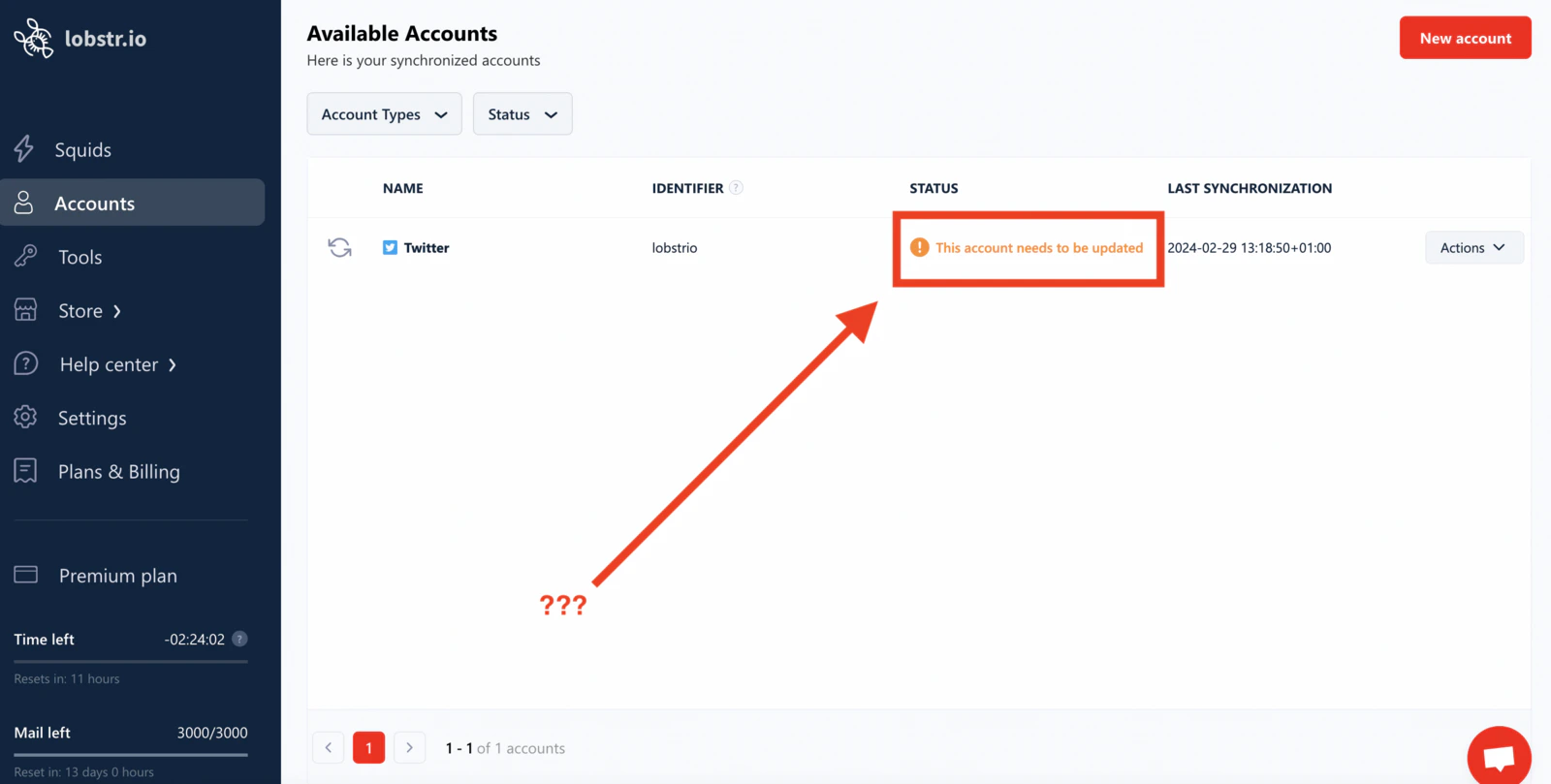
A synced session is dropped when the platform invalidates it — most often because the same account signed in somewhere else. If one account expires again and again within hours of every re-sync, someone else is very likely logging in to it. For Leboncoin, see Why your Leboncoin account keeps expiring.
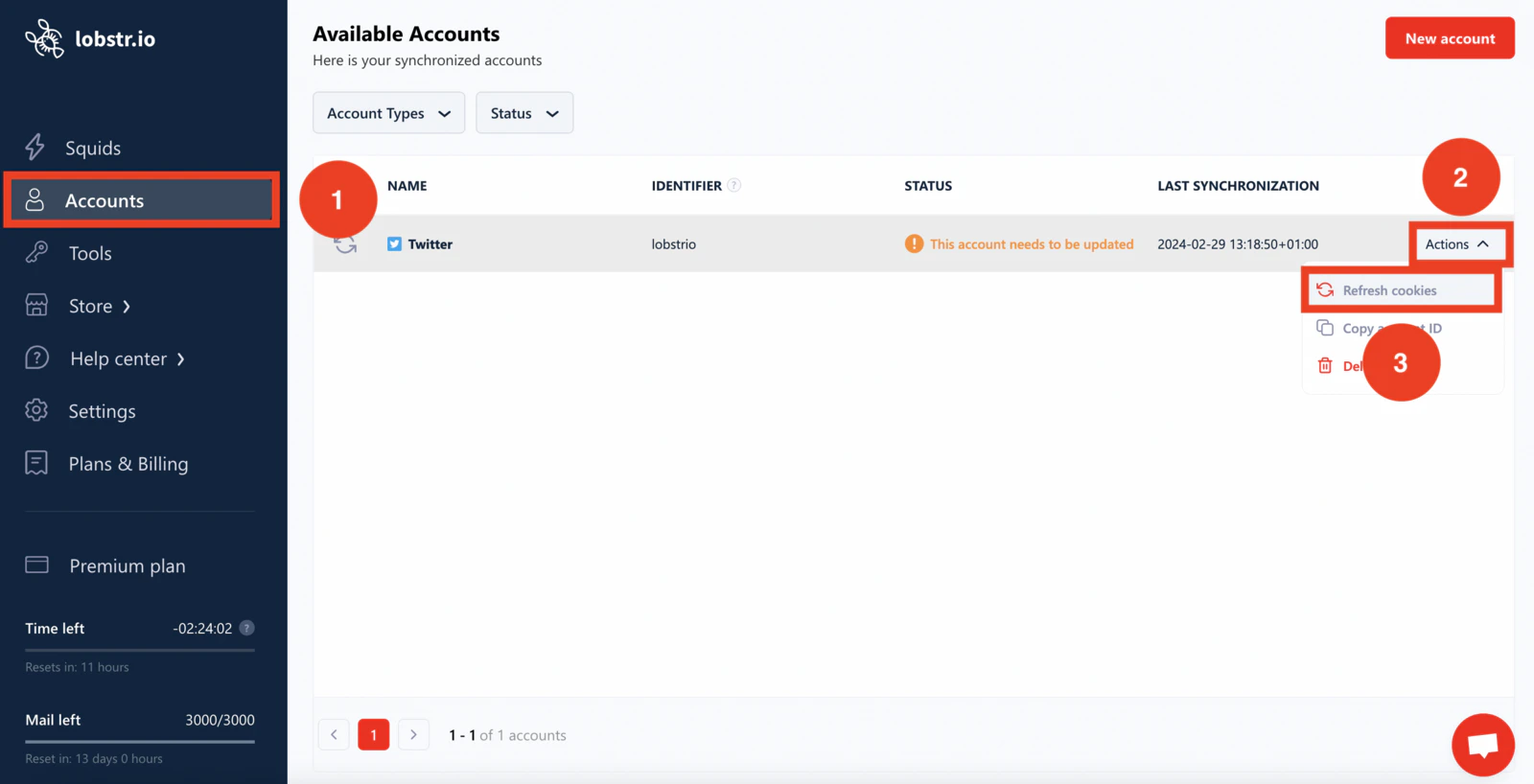
From the accounts section
- Log in to lobstr.io.
- Go to the Accounts section.
- Click Actions next to the account you want to refresh.
- Select Refresh cookies.
From a Squid’s settings
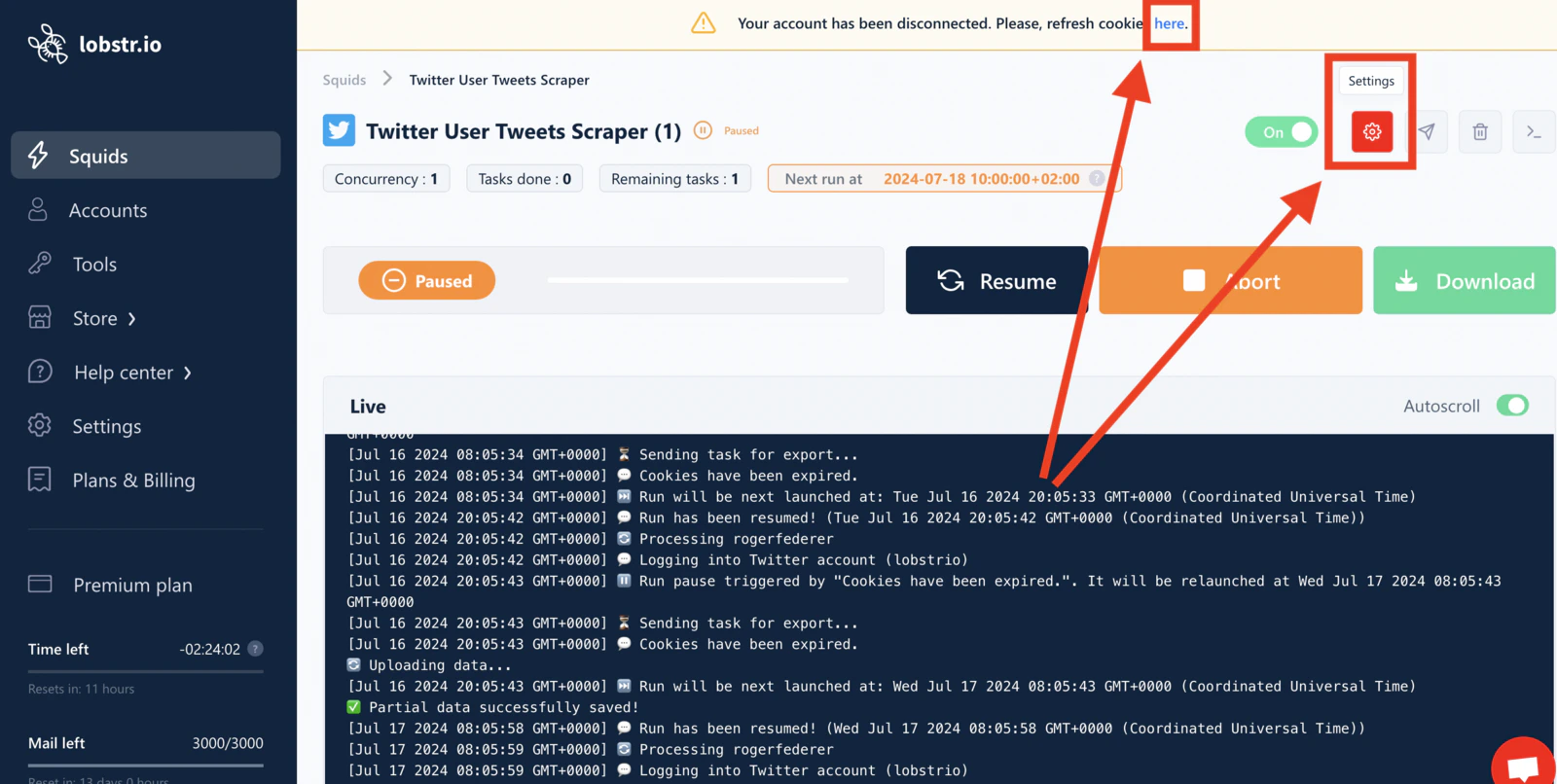
- Open a Squid that uses the account you need to refresh.
-
Click the here link in the banner, or click the Settings icon.
-
Click the refresh icon next to your account name.
Related articles
- Scraping Limits to Protect Your Accounts from Bans — platform-specific rate limits for synced accounts
- Account Slots — how concurrent scraping capacity works with multiple synced accounts
- Why your Leboncoin account keeps expiring — what to do when one account needs re-syncing every day