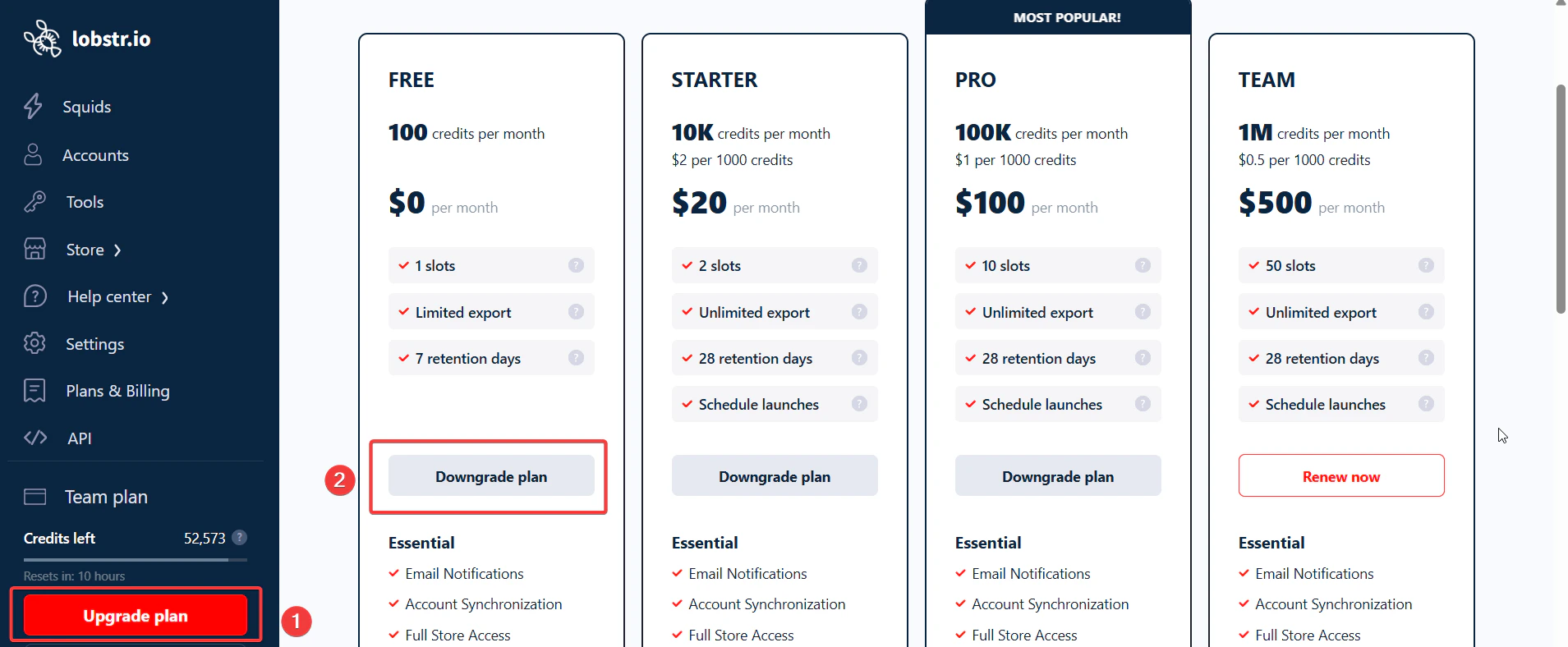
Upgrade or downgrade your plan
1
Log in to your dashboard
Sign in at app.lobstr.io.
2
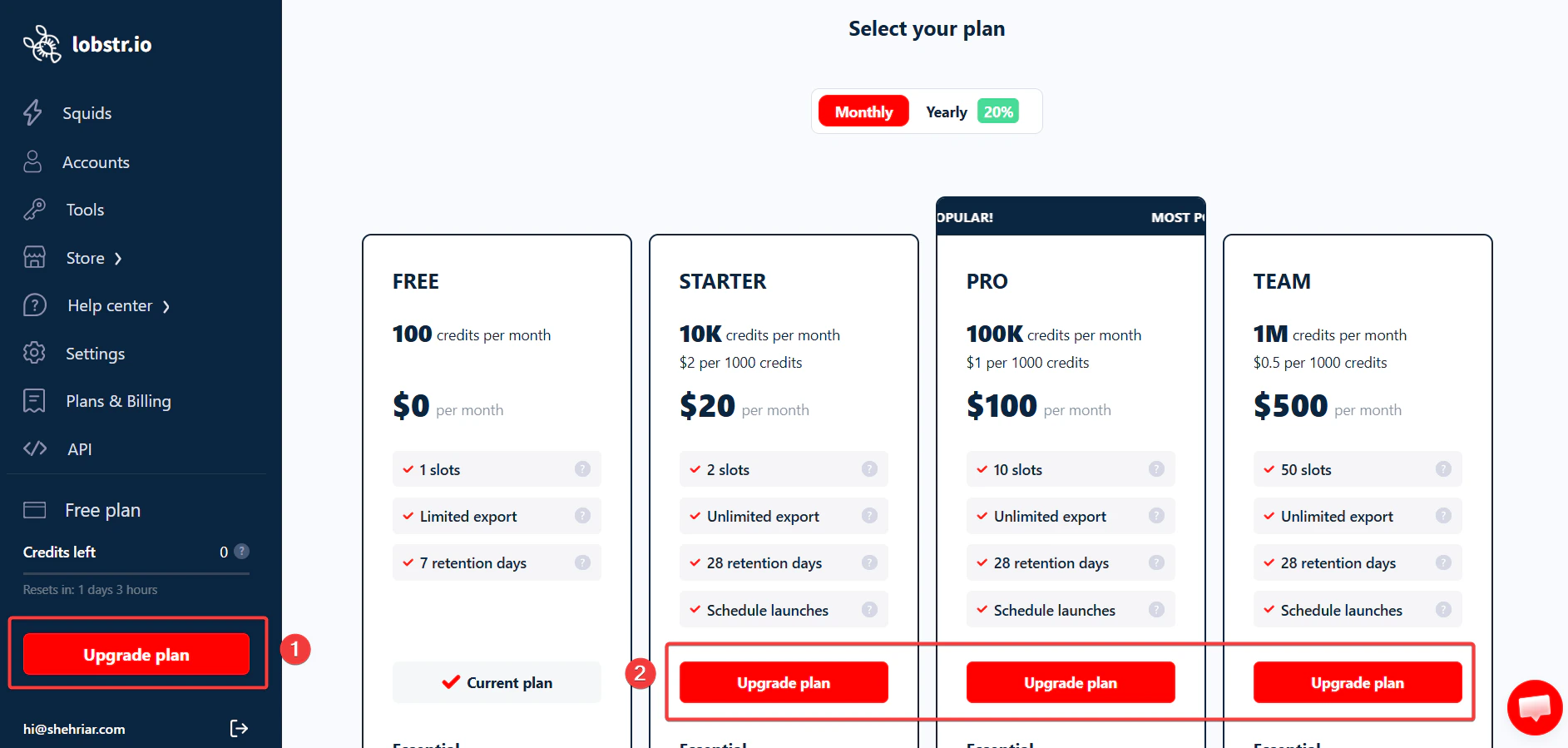
Open Upgrade plan
In the left-hand menu, scroll down and click Upgrade plan, located just below your credit usage counter.
3
Select a plan
Choose the plan you’d like to switch to.
4
Confirm
Confirm your choice — your subscription updates instantly.
What happens to my billing when I upgrade?
When you upgrade, the change takes effect right away — you don’t have to wait for your current billing cycle to end. You’re refunded the unused portion of your current plan, and a new billing cycle begins with your new plan. Example: You’re on a €50 plan that started January 1st, and you upgrade to a €250 plan on January 15th.- You get a refund of the unused time on the €50 plan — about €25.
- Your new billing cycle for the €250 plan runs from January 15th to February 15th.
Plans and scraper access
Not every scraper is available on every plan. Some are paid-plan only, and the store marks which ones. If you launch a paid-only scraper while on the free plan, the run doesn’t collect anything — it ends with thepremium_plan_needed stop reason, and the Squid is switched to inactive.
Scheduling is also paid-plan only. On the free plan you can launch runs manually, but you can’t set a Squid to run on a recurring basis.
Cancel your subscription
1
Log in
Sign in to your lobstr.io account.
2
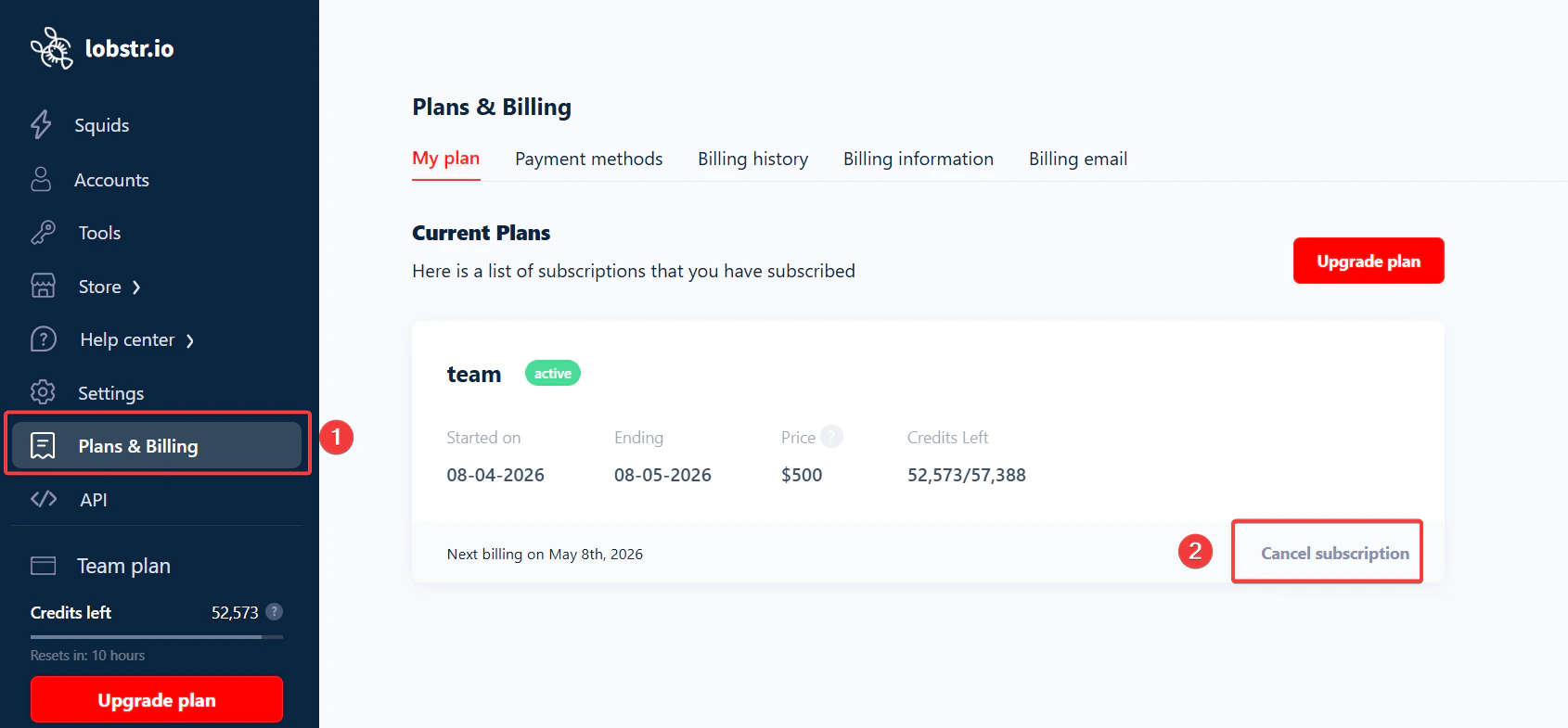
Go to Plans & Billing
In the left-hand menu, click Plans & Billing.
3
Click Cancel subscription
Under your current plan details, click Cancel subscription.
4
Enter a reason
Share a reason (it helps lobstr.io improve) and confirm.
What happens if I cancel mid-month?
You can cancel anytime — you won’t lose access right away. You’ve already paid for the full billing cycle, so you keep all your credits and features until the end of that cycle.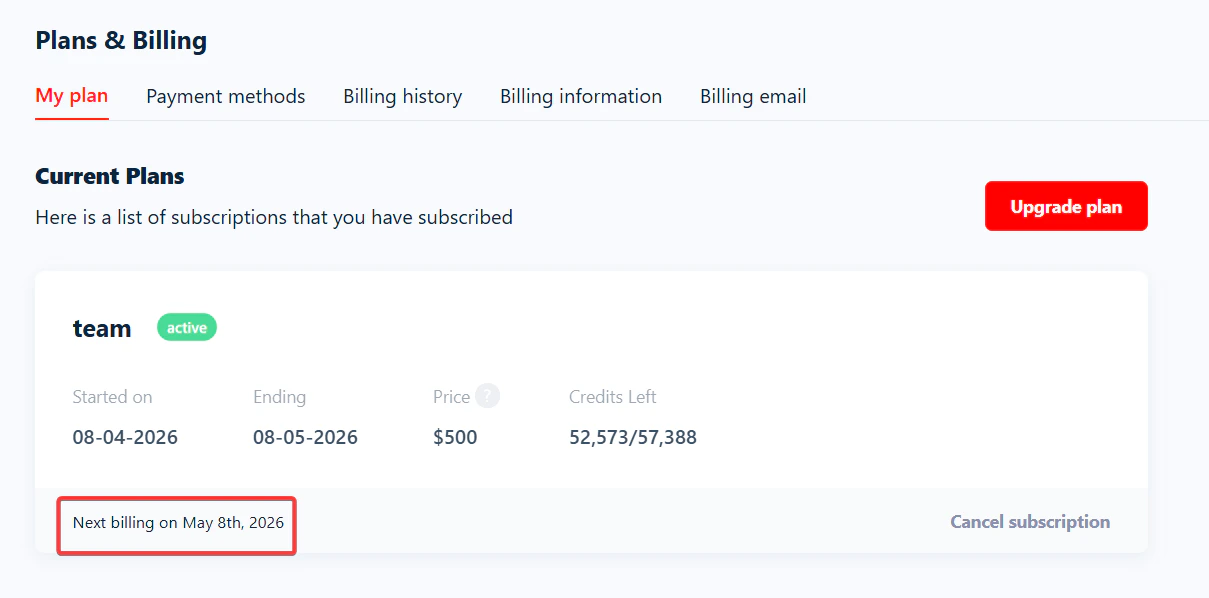
Pause your account
There’s no actual “pause” button on lobstr.io — but you can still take a break whenever you need. To do that, just downgrade to the free plan from the Plans & Billing section. You can keep using the free version of lobstr.io in the meantime.