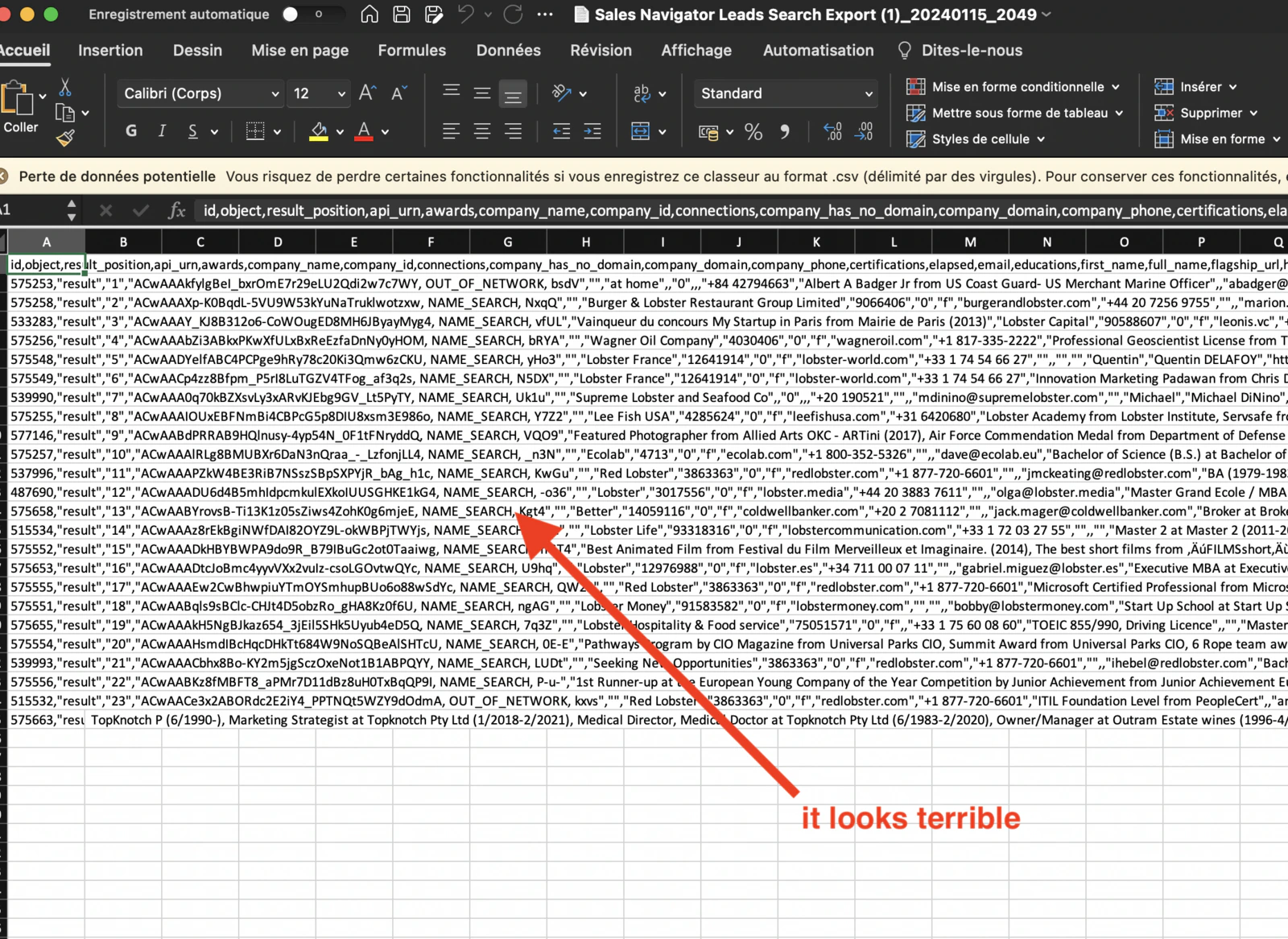
lobstr.io exports all scraped data as CSV files. While CSV is a universal format, opening one directly in Microsoft Excel often produces garbled, unformatted data — everything crammed into a single column with incorrect character encoding. The reliable fix is to route through Google Sheets first, which handles the import correctly and then lets you download a clean .xlsx file.
Opening a CSV by double-clicking it in Excel is a common cause of formatting issues. Always use the import method described below to avoid this problem.
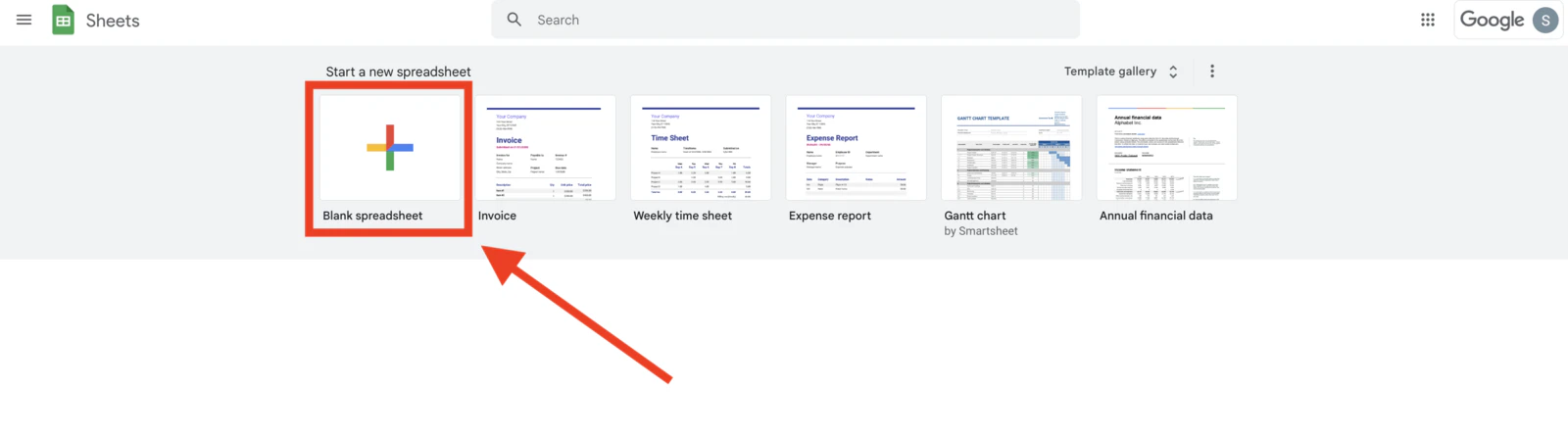
Create a new Google Spreadsheet
Import your CSV file
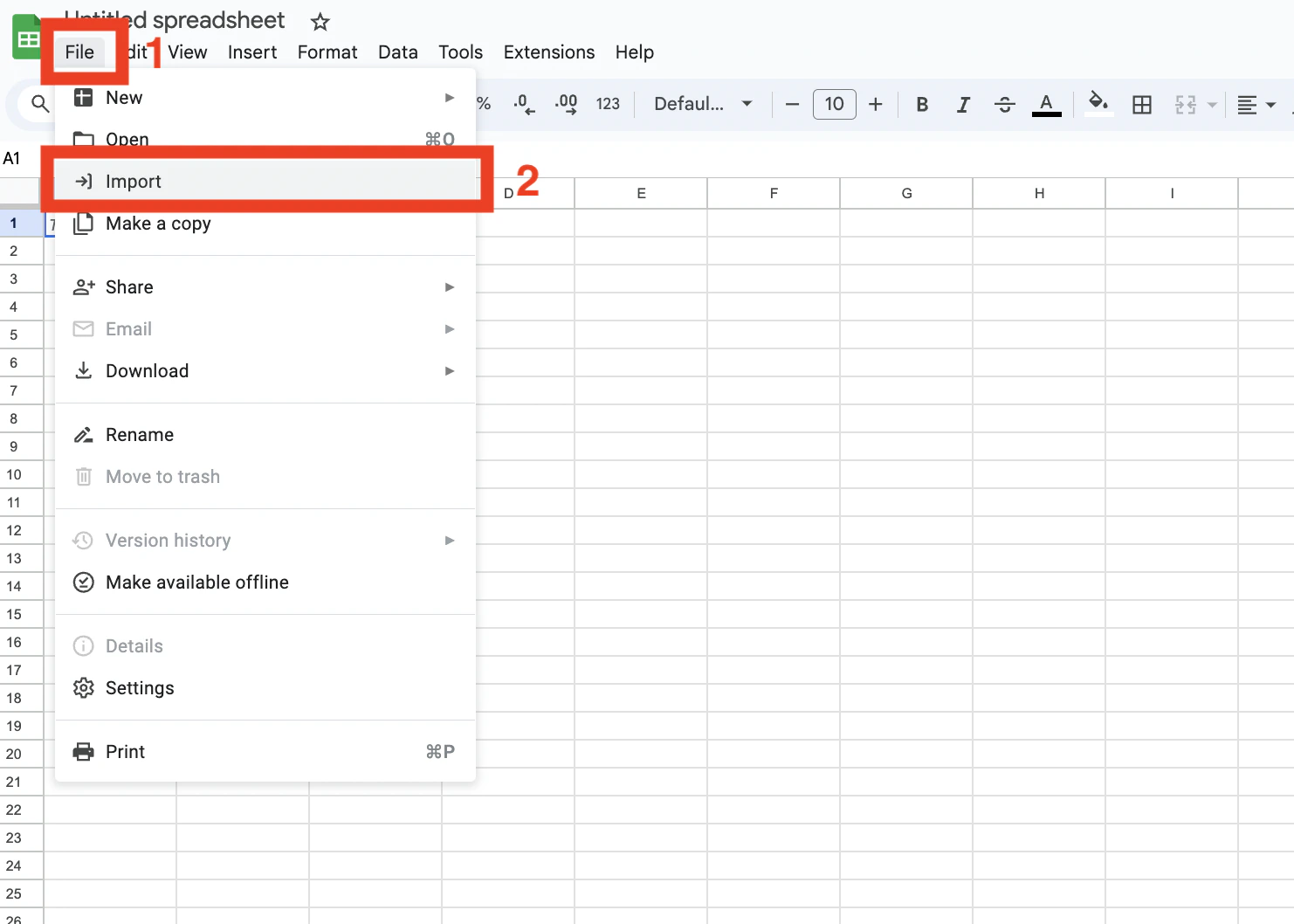
- In the new spreadsheet, click File in the menu bar.
- Select Import.
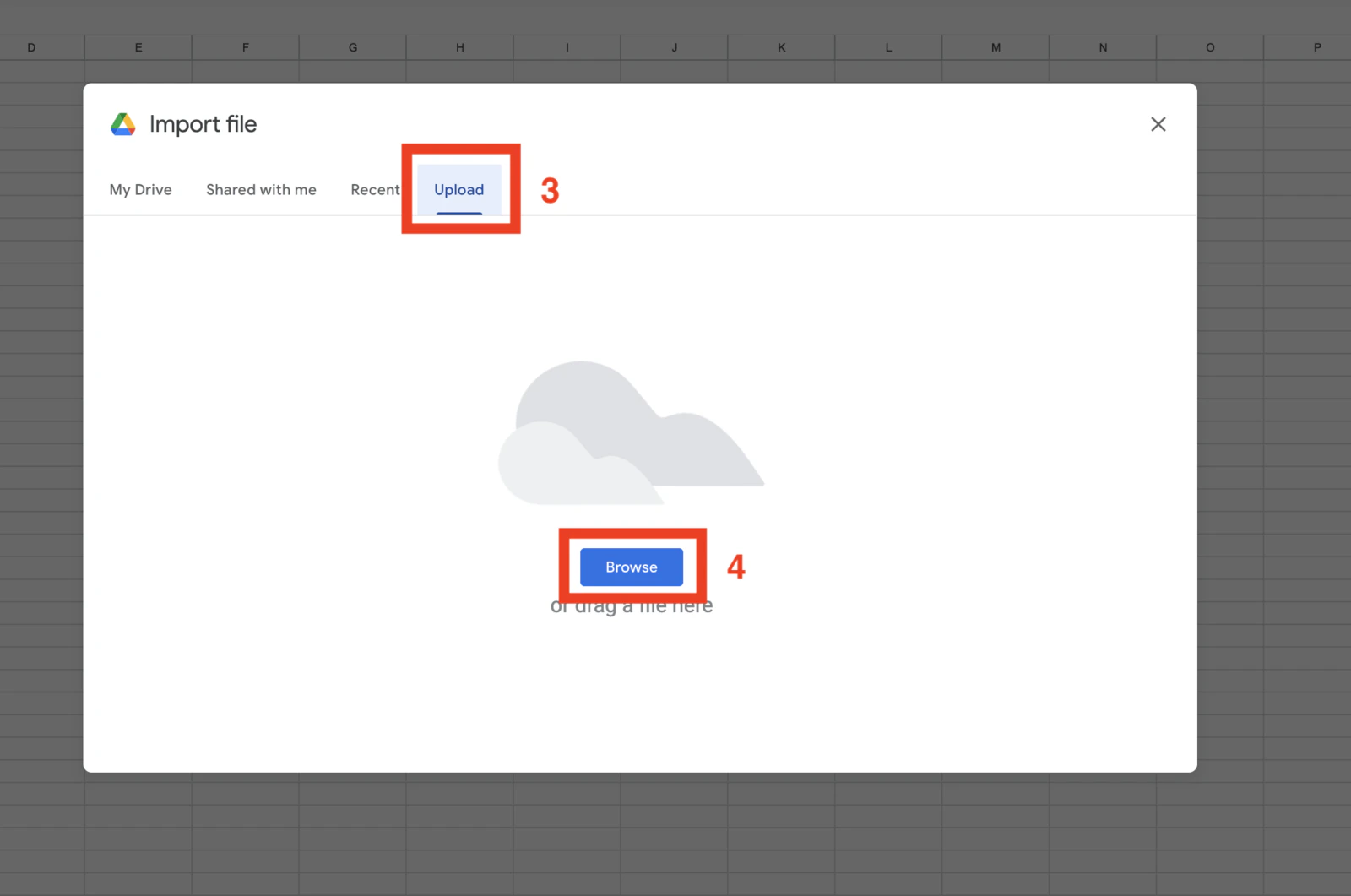
- Click the Upload tab.
- Click Browse and select the CSV file you downloaded from lobstr.io.
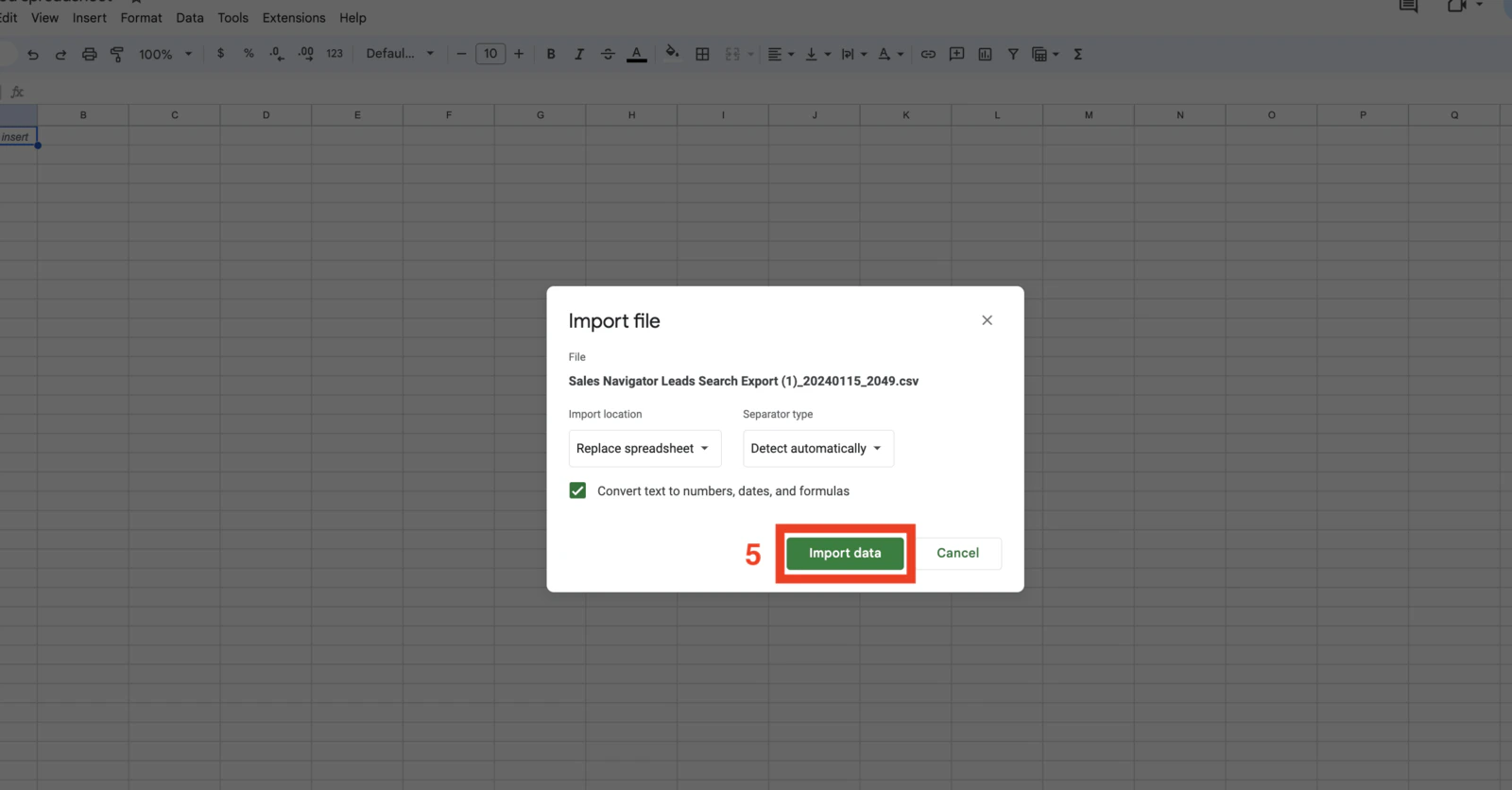
- Click Import data.
Google Sheets reads the CSV correctly and places each column of data in its own cell. Your data is now clean and properly structured.Download as Excel
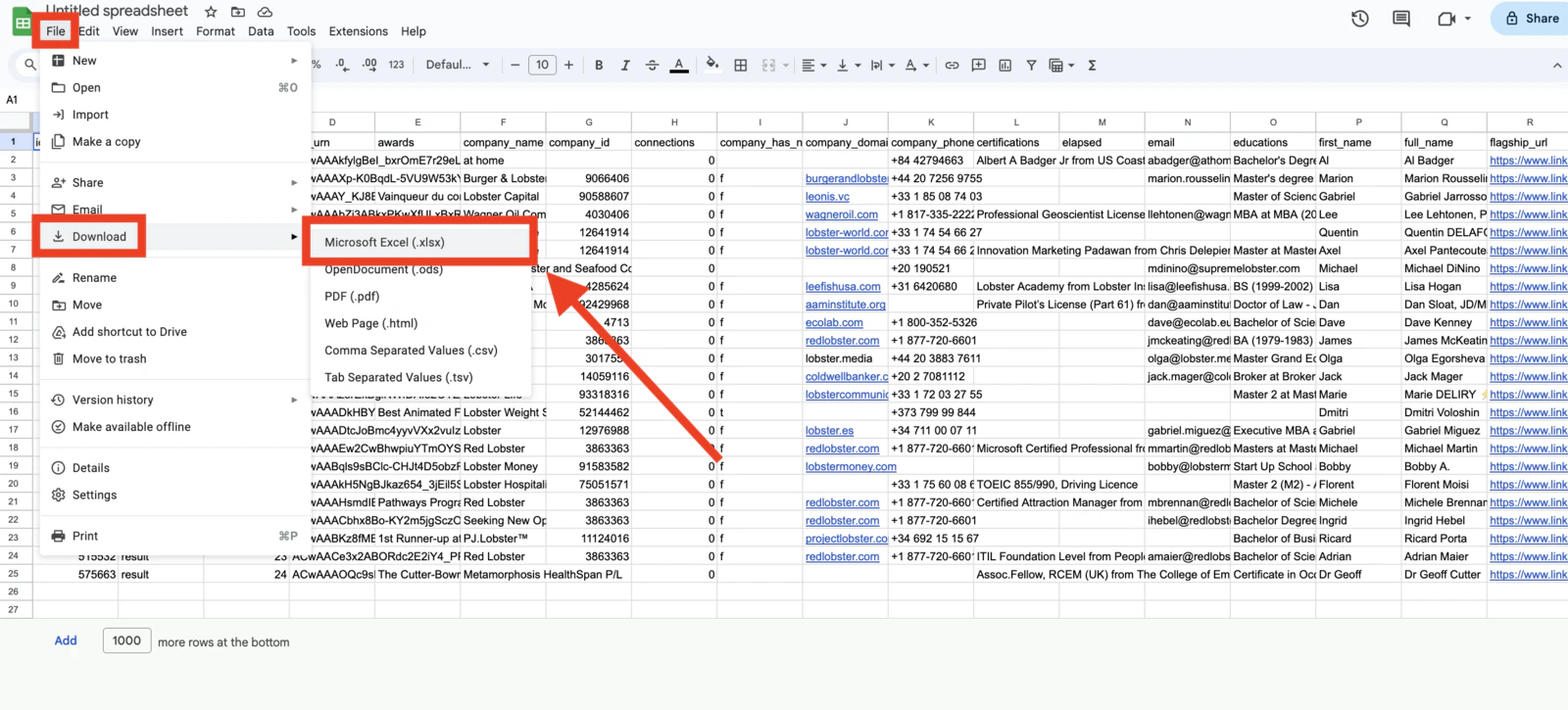
- Click File in the menu bar.
- Select Download.
- Choose Microsoft Excel (.xlsx).
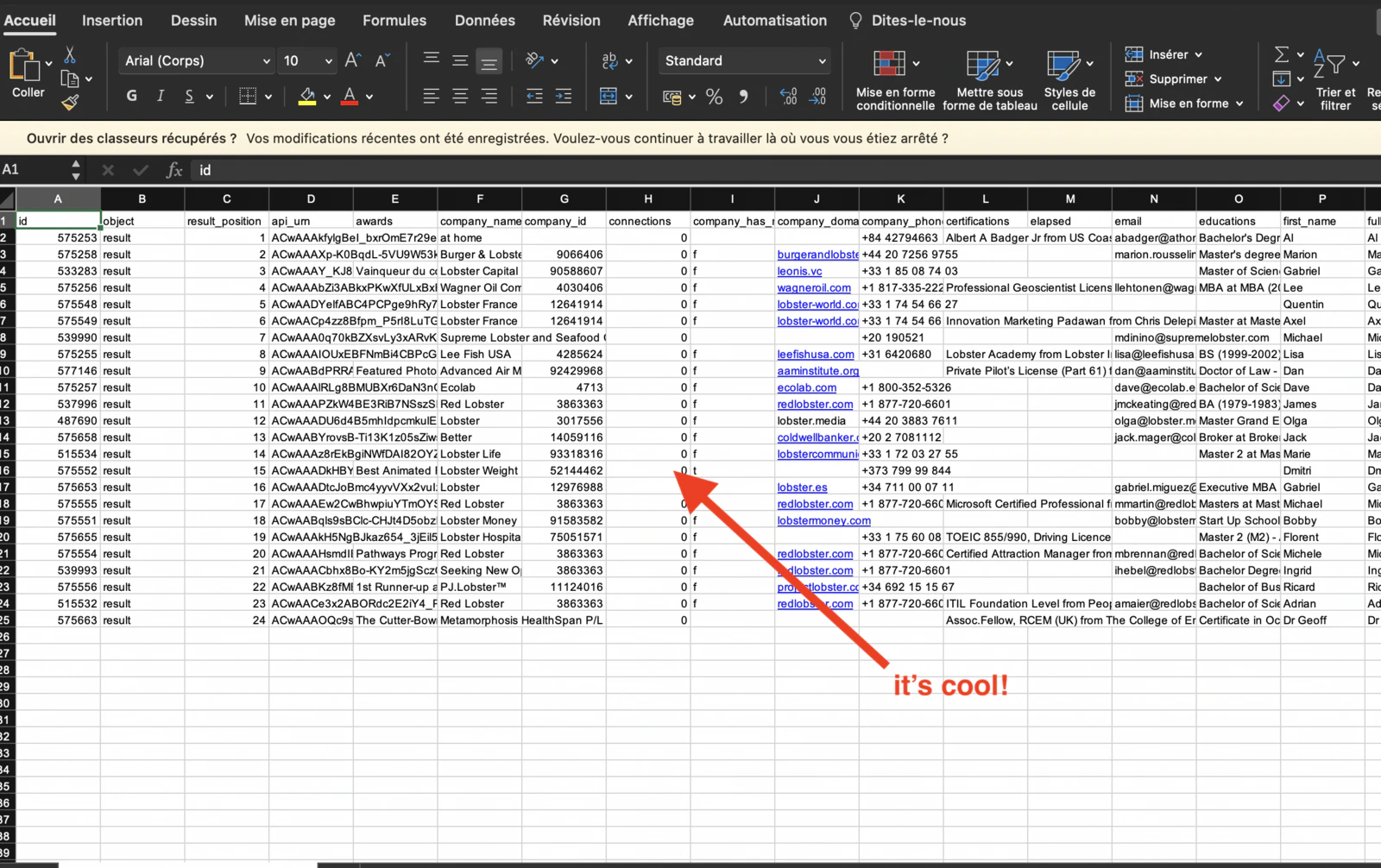
An .xlsx file downloads to your computer. Open it in Excel — your data will be fully formatted and readable.
If you regularly need your data in Excel, consider setting up the Google Sheets export integration instead. Results are pushed to your spreadsheet automatically after every run, so you skip the download step entirely — and you can always download the sheet as Excel from there.