
How a run is triggered
A run starts in one of three ways:
- Manually — you press the Launch button on a Squid’s page.
- On a schedule — if the Squid is set to run Repeatedly, it fires automatically at every interval.
- Via the API — you can trigger runs programmatically using your API key.
The Launch button is hidden while a run is in progress. Even if you change the Squid’s settings during a live run, those changes don’t affect the current run — they apply to the next run you launch.
The runs table
Below the live console on every Squid page, the Runs tab shows all previous and active runs for that Squid.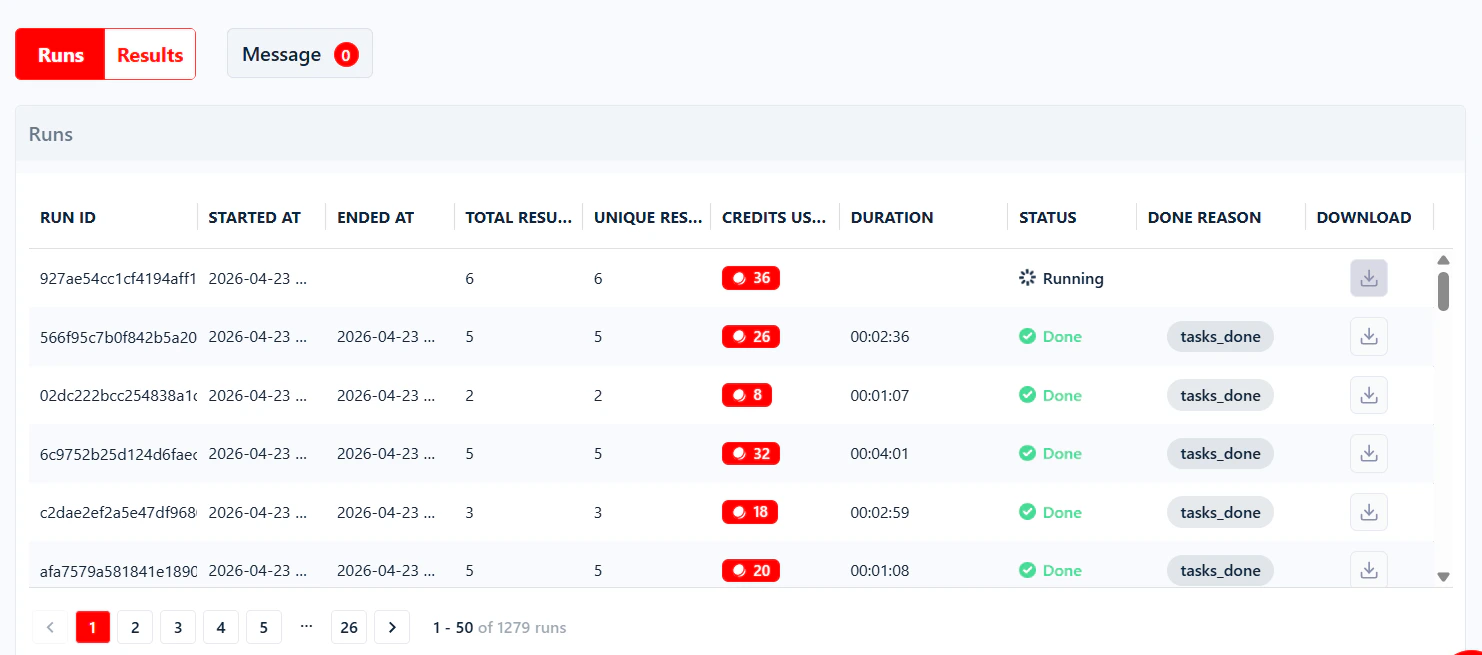
Run statuses
A run moves through one of five states. You can see the current status in the Runs table, at the top of the run detail page, and in the List of Squids table on your dashboard (under the Status column, showing the current or last run’s status for each Squid).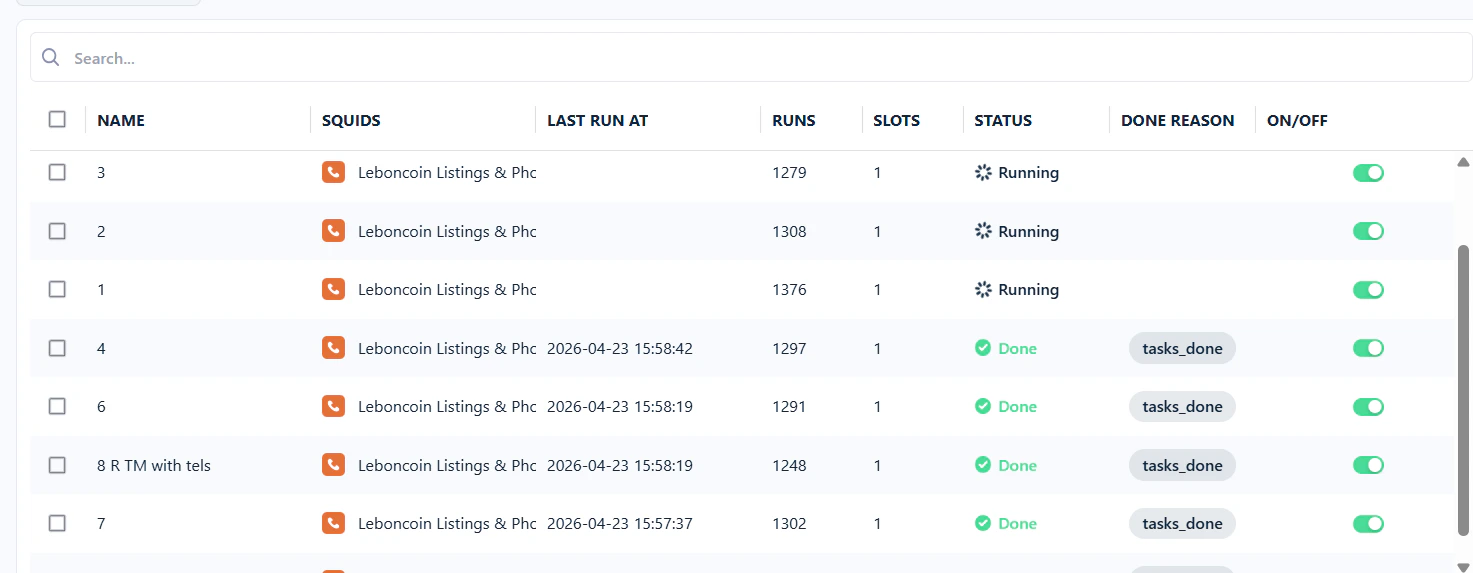
Running
Running
The run is active and collecting data. A progress bar shows how far along it is, and the live console streams logs in real time.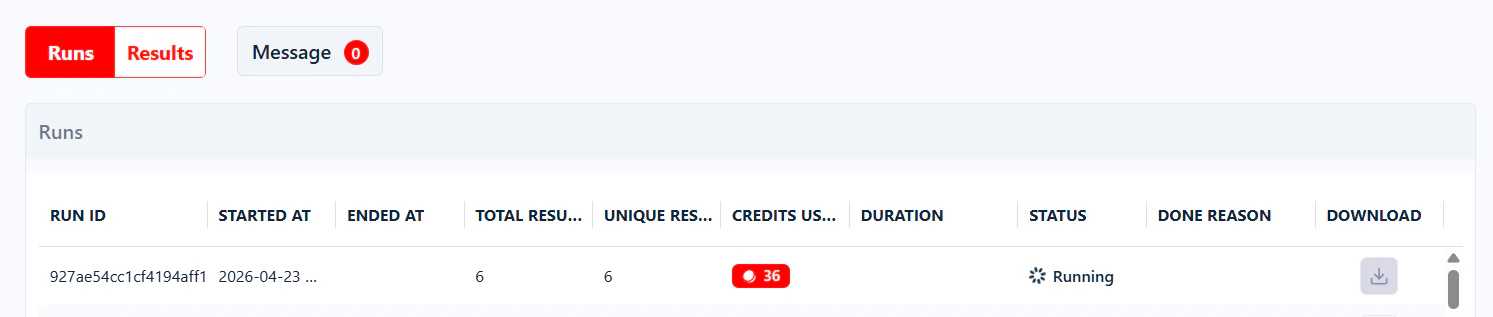
Paused
Paused
The run has temporarily stopped but will resume automatically once the blocking condition is resolved.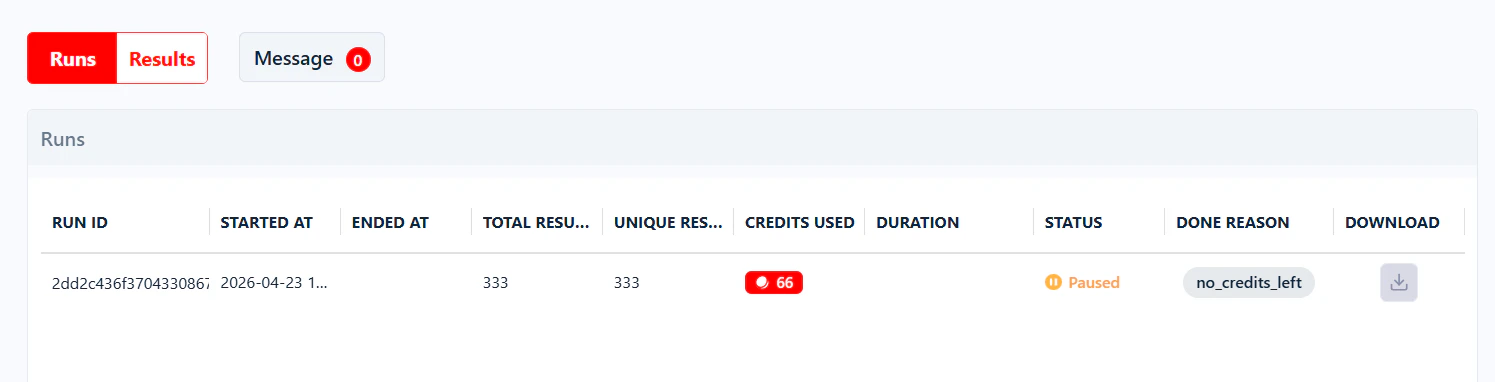
- The synced account hit a daily or batch limit (see Account Bans & Limits).
- The account’s cookies expired — refresh them to resume.
- Daily credits ran out while End run once all tasks consumed is enabled — the run picks up the next day when credits refresh.
- The scraper encountered a transient error.
Aborted
Aborted
The run was stopped manually by pressing the Abort button. Partial data collected before the abort is still available — click the download icon on that row in the Runs table.An aborted run can be resurrected — it picks up from the tasks that were never processed, instead of starting over from the first task.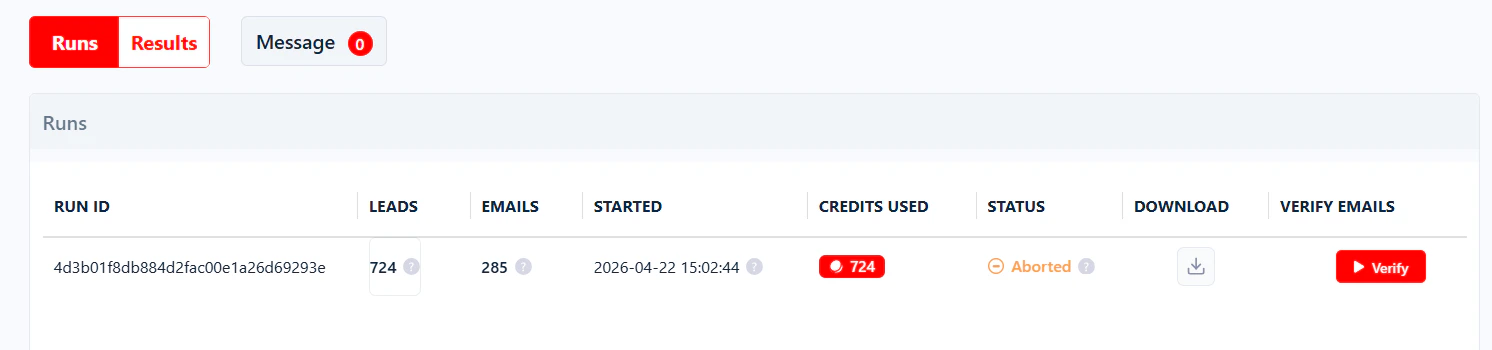
Error
Error
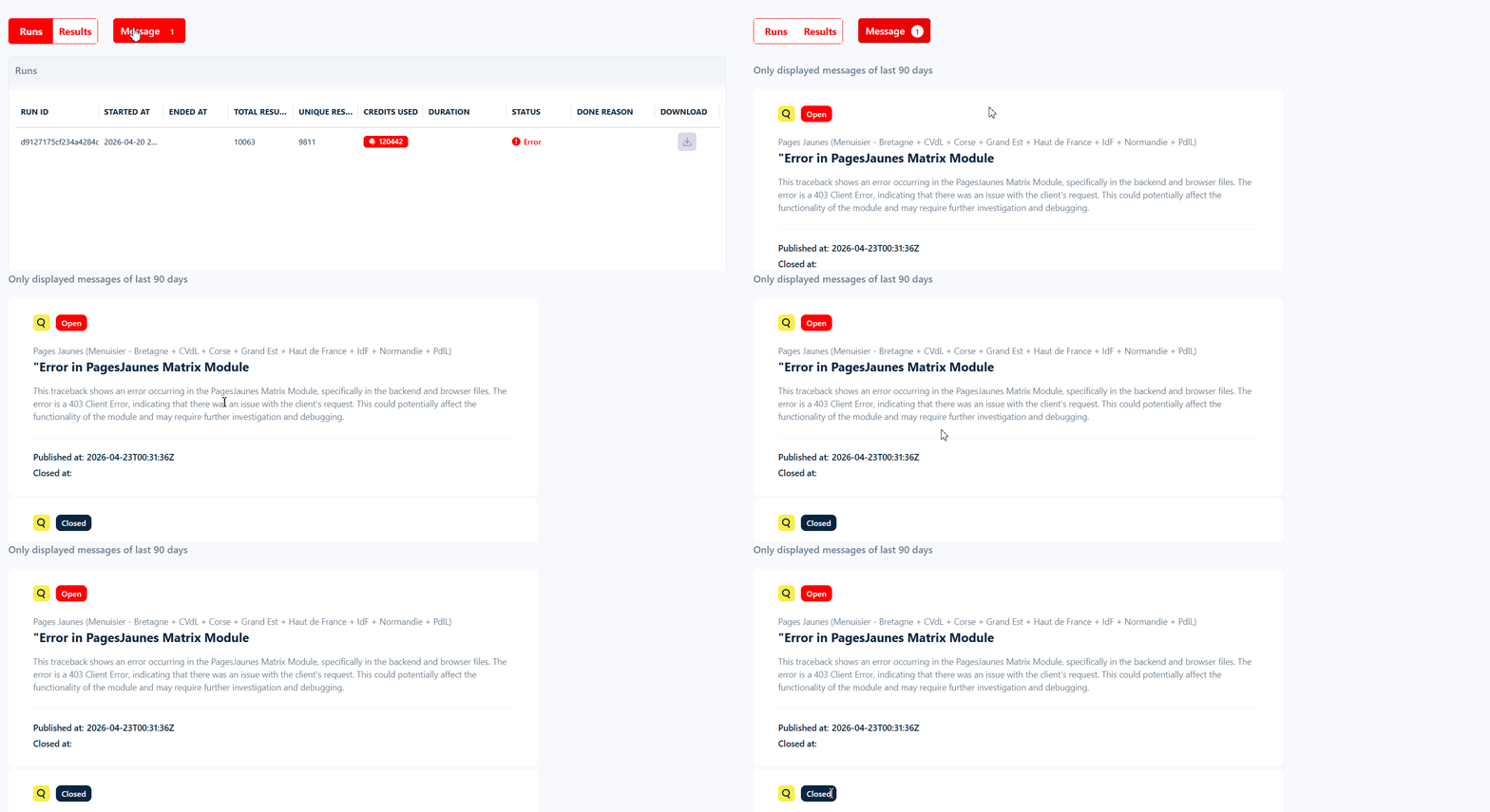
The scraper crashed because of a technical error on lobstr.io’s side.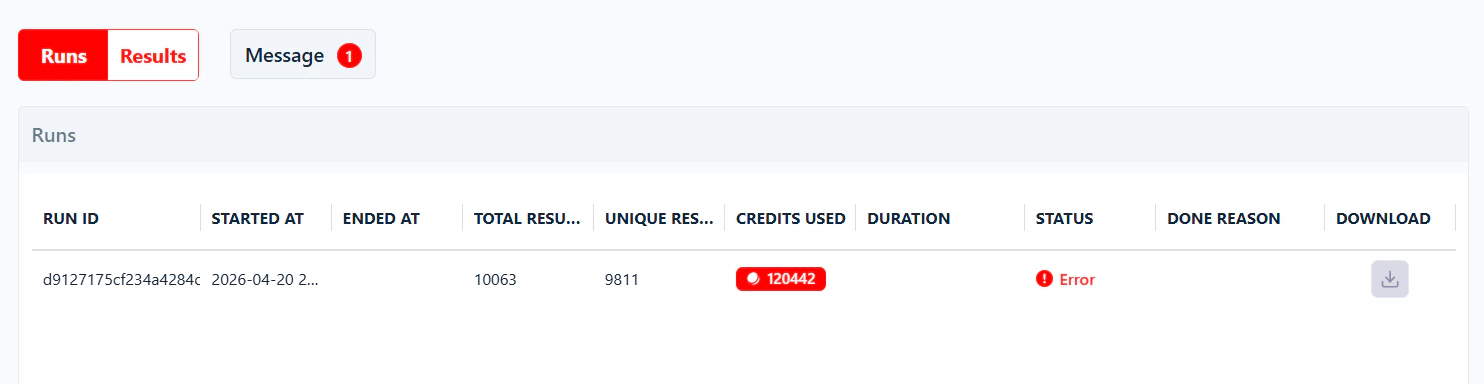
Done
Done
The run finished successfully. All collected data is available for download in the Runs table, or from the run detail page.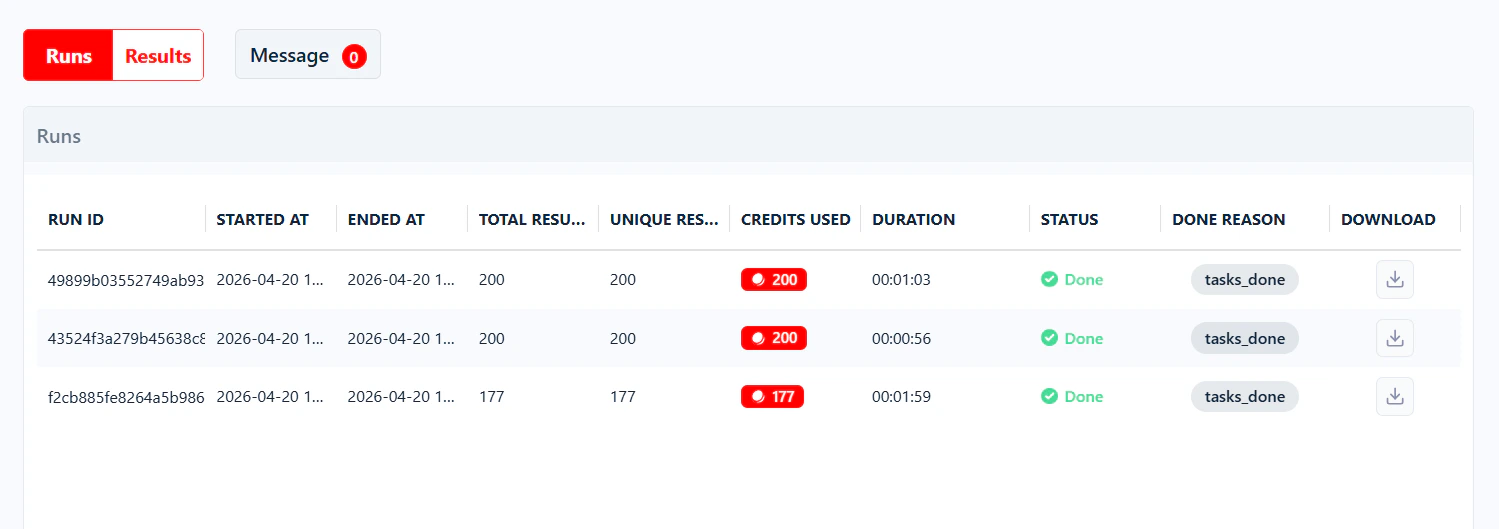
tasks_done (all tasks processed), cookies_expired (a synced account needs re-syncing), or no_credits_left (credits ran out). For the full list of values, whether each one resumes by itself, and what to do about it, see Run stop reasons.
When to end a run
A Squid’s Settings have a When to end run option that controls what a run does when it runs out of credits — finish and stop, or pause and wait. This decides the status the run ends in.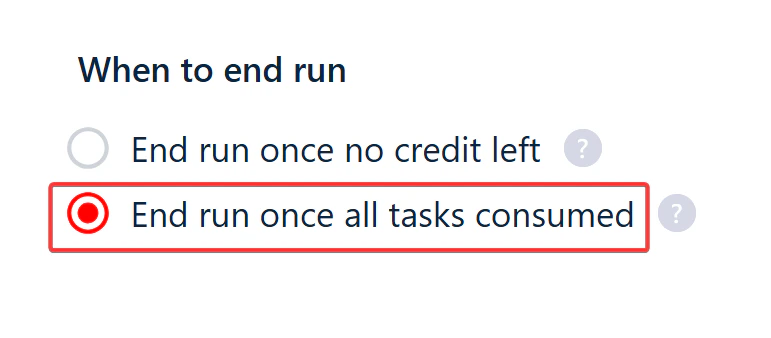
- End run once no credit left
- End run once all tasks consumed
The default. As soon as the credits available to the run run out, the run is marked Done and stops immediately. Re-launching the Squid starts a fresh run from the beginning — it doesn’t pick up where the last one left off.
Aborting a run
While a run is Running, an Abort button appears at the top of the Squid page next to the progress bar.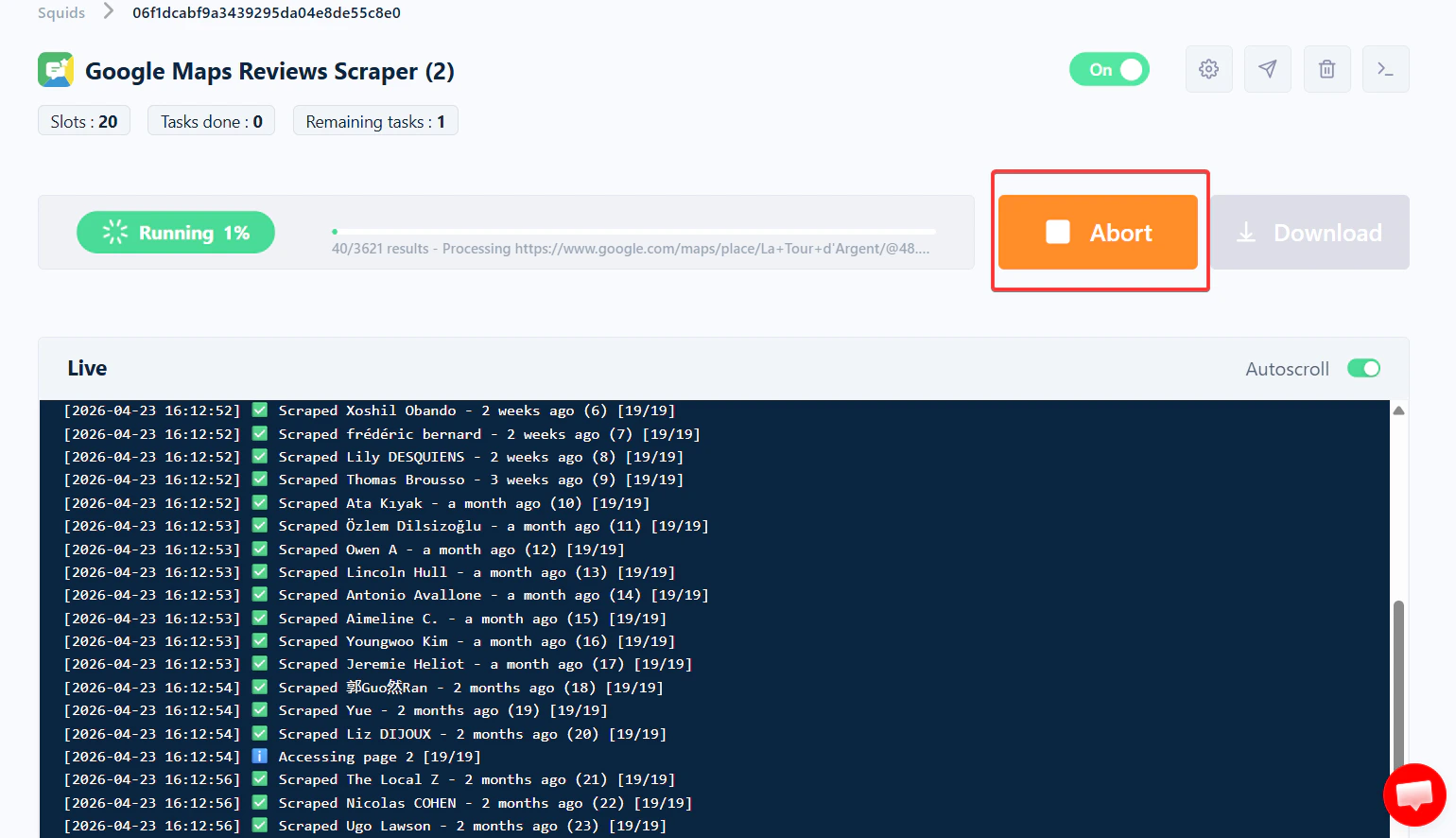
The run detail page
Clicking any row in the Runs table opens the run detail page for that specific execution. It shows four summary cards at the top — Status, Credits Used, Total Results, Started At — plus four tabs:Results
A paginated preview of the scraped data (50 rows per page). Use this to sanity-check output before downloading the full export.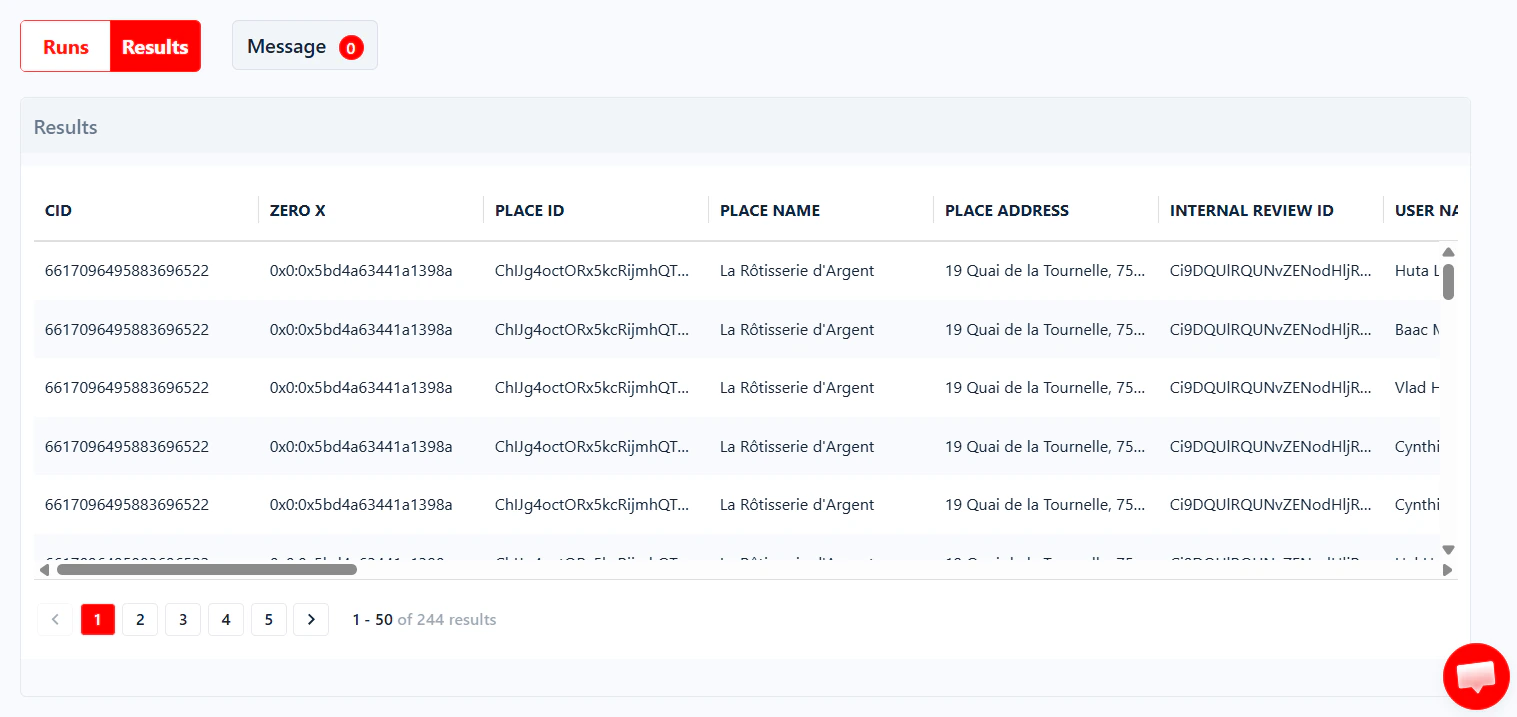
Tasks
The exact list of tasks this run processed — useful when you need to confirm which inputs were picked up, or to debug why a specific URL or query didn’t return data.Credits
A breakdown of where the run’s credits actually went — Avg. Cost / Result on top, then a Distribution donut, a Cost by function bar list (base scraping vs. each enrichment with credits and %), and a one-line Cost insight summary. This is the tab to open when a run cost more than expected. See Tracking your credit consumption for the full walkthrough.Logs
The full live console output for that run — every page processed, every pause, every error.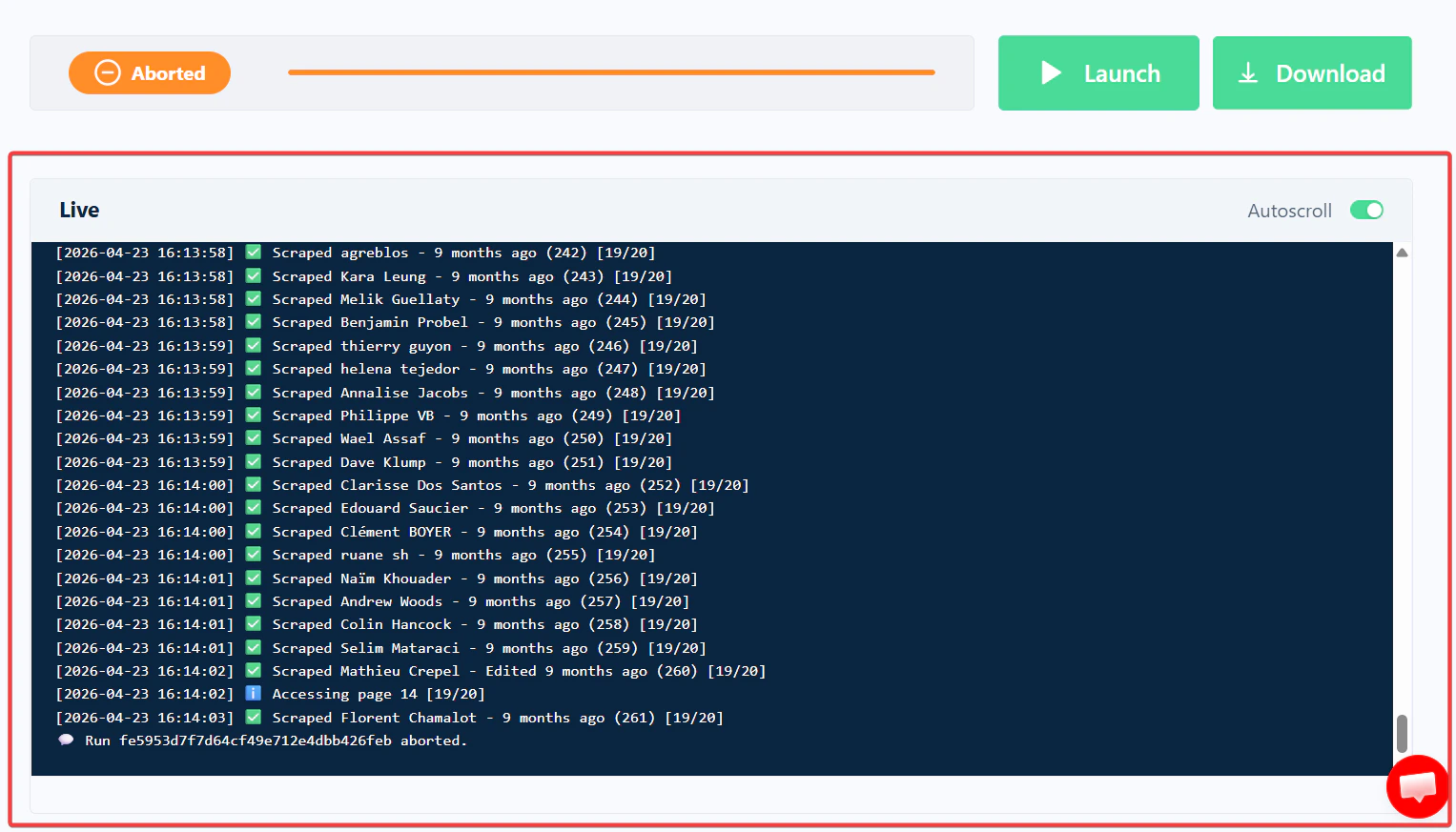
Slots and concurrency
A run executes at a given concurrency — the number of parallel instances working on your tasks at the same time. You’ll see this in the very first line of the live log:- They cap how many Squids you can create on your plan.
- They cap how many parallel instances a run can use as its concurrency.
Launching a run again
To re-run a Squid, simply press the Launch button on the Squid page — each press creates a new run entry in the Runs table, starting from the first task, using the Squid’s current settings. The one exception is an Aborted run, which you can resurrect instead. That continues the same run from the tasks it never got to, using the settings it was originally launched with.Because settings only take effect on the next launch, you can safely tweak a Squid while an existing run is mid-flight — your changes won’t disrupt the run that’s already going.