
1
Open Squid Settings
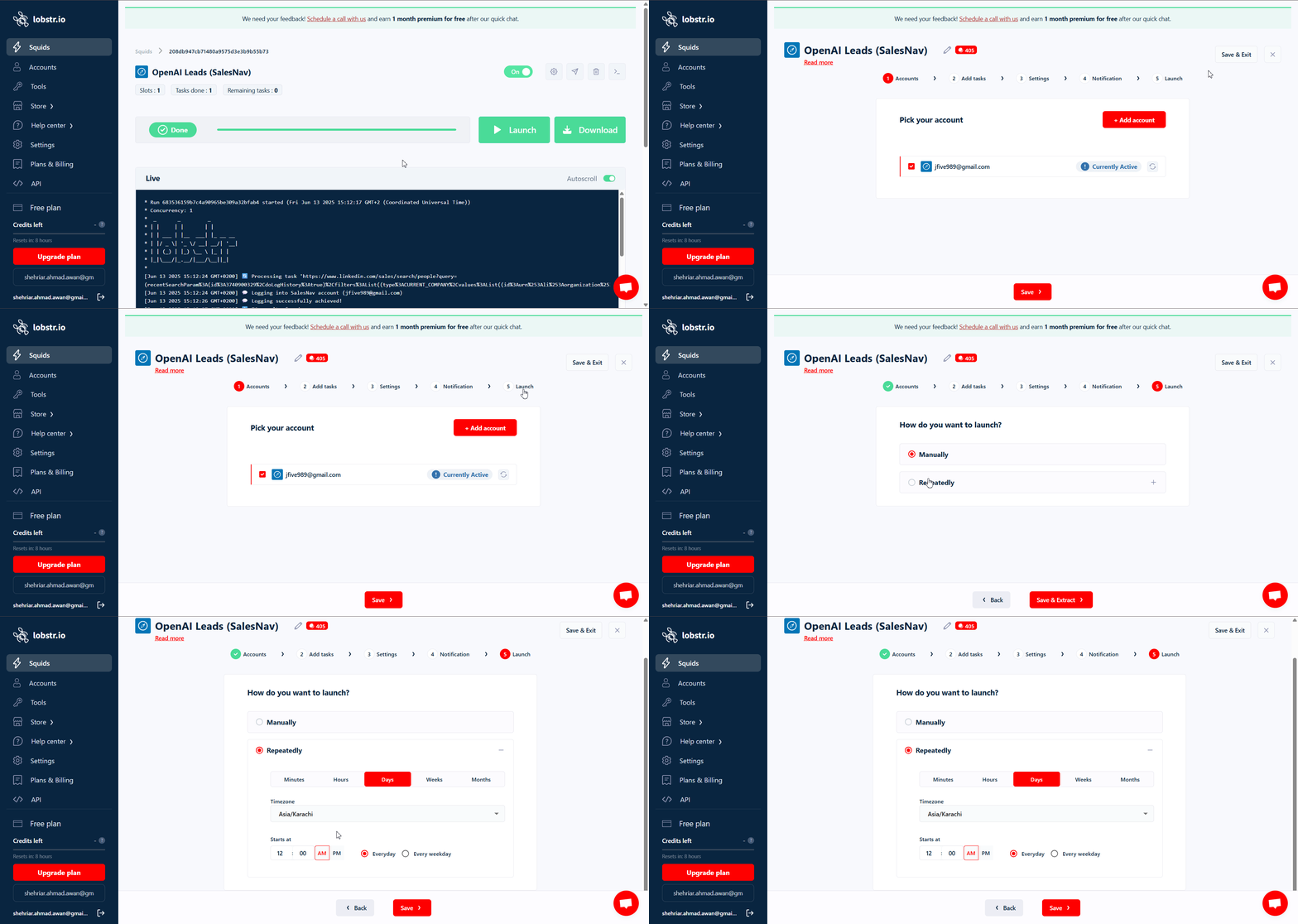
Navigate to your Squid and click Settings.
2
Select Repeatedly
Under the Launch section, click Repeatedly.
3
Choose a schedule type
Pick the recurrence that fits your workflow (minutes / hours / days / weeks / months).
4
Set timing and save
Configure your start time and any other options, then click Save.
Schedule types
Minutes — every 5 to 30 minutes
Minutes — every 5 to 30 minutes
Runs the Squid every X minutes (min 5, max 30).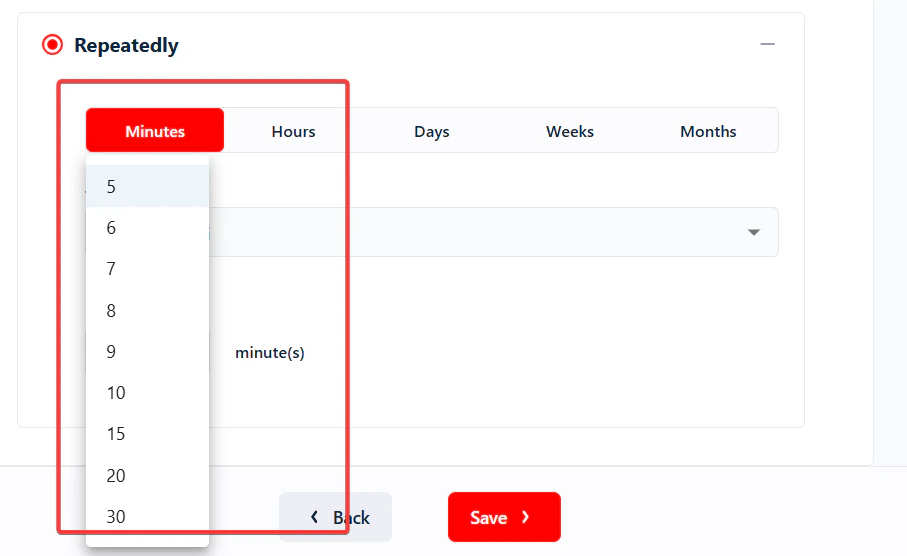
Hours — every 1 to 12 hours, with start time
Hours — every 1 to 12 hours, with start time
Runs every X hours starting at a specific time.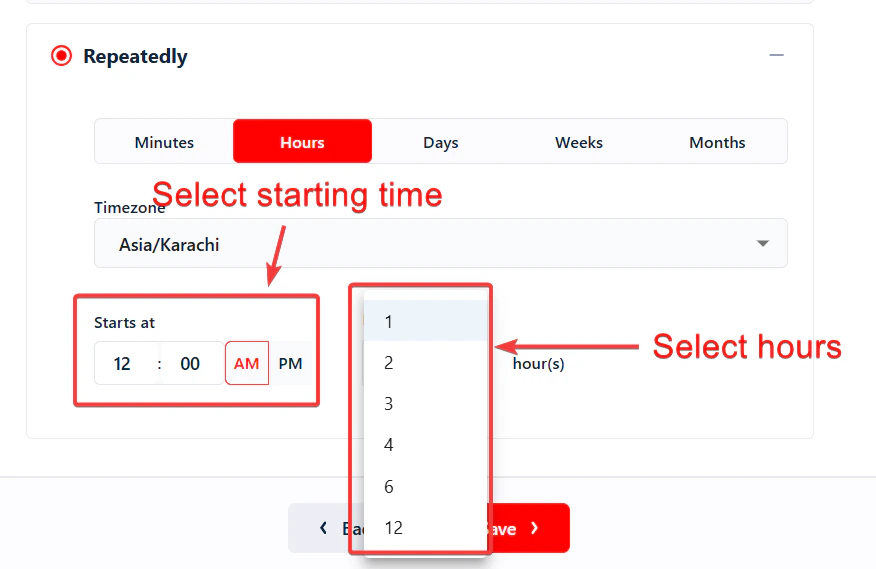
Days — daily or weekdays only, at a specific time
Days — daily or weekdays only, at a specific time
Daily or weekday-only runs at a specific time.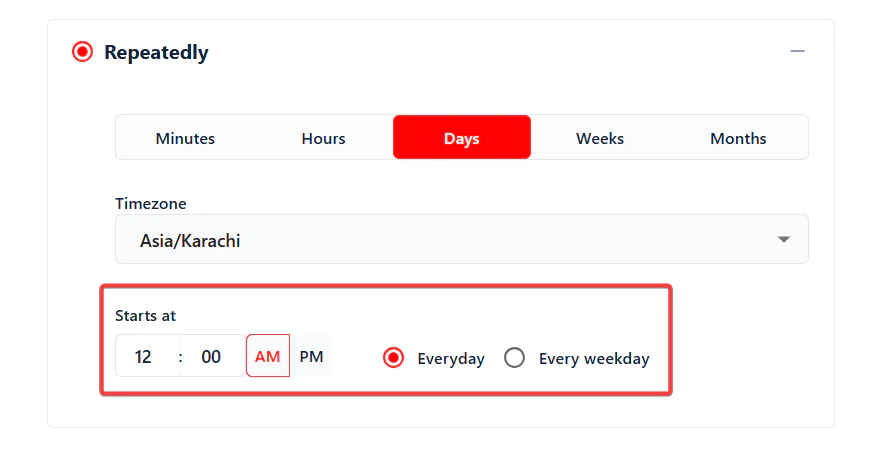
Weeks — specific days of the week
Weeks — specific days of the week
Runs on specific days each week at a chosen time.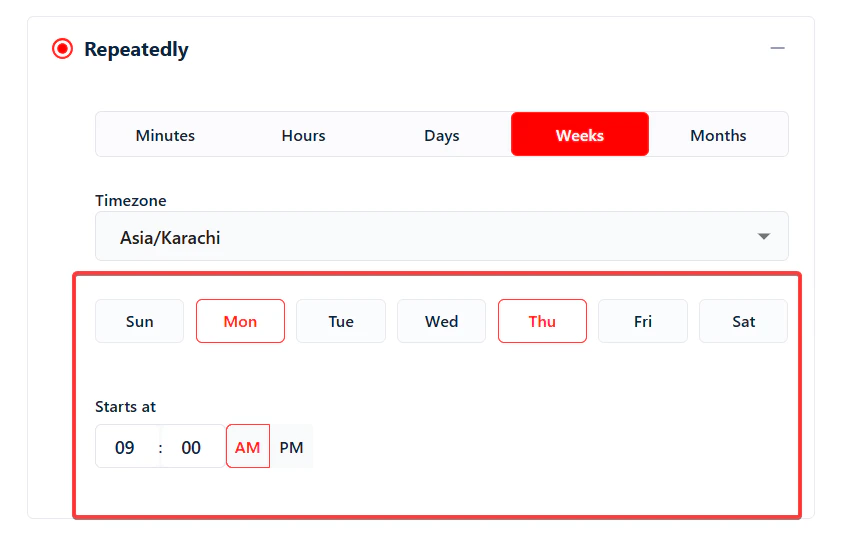
Months — specific date each month
Months — specific date each month
Runs on a specific date (1–30) each month at a set time.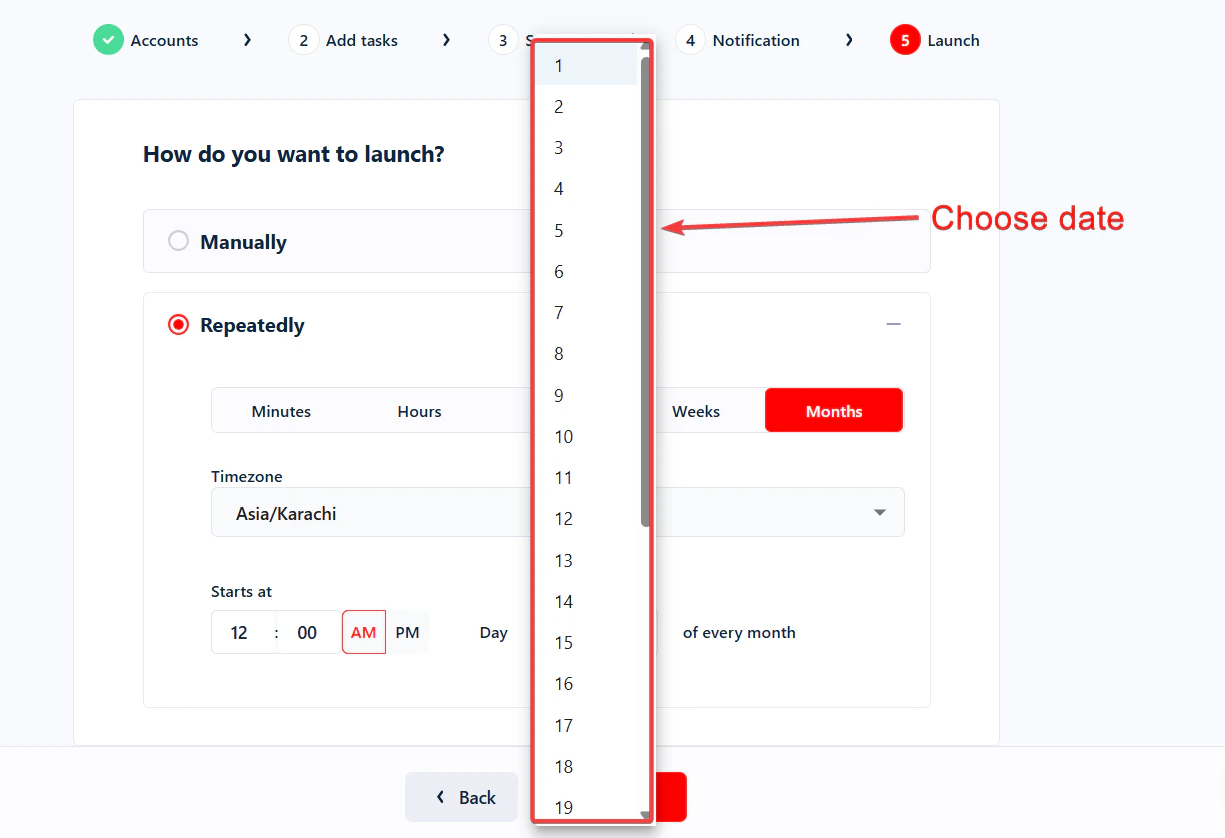
Timezone
By default, the schedule uses your browser’s timezone. To change it for a specific Squid, open its Settings and select a timezone from the Timezone dropdown, then click Save.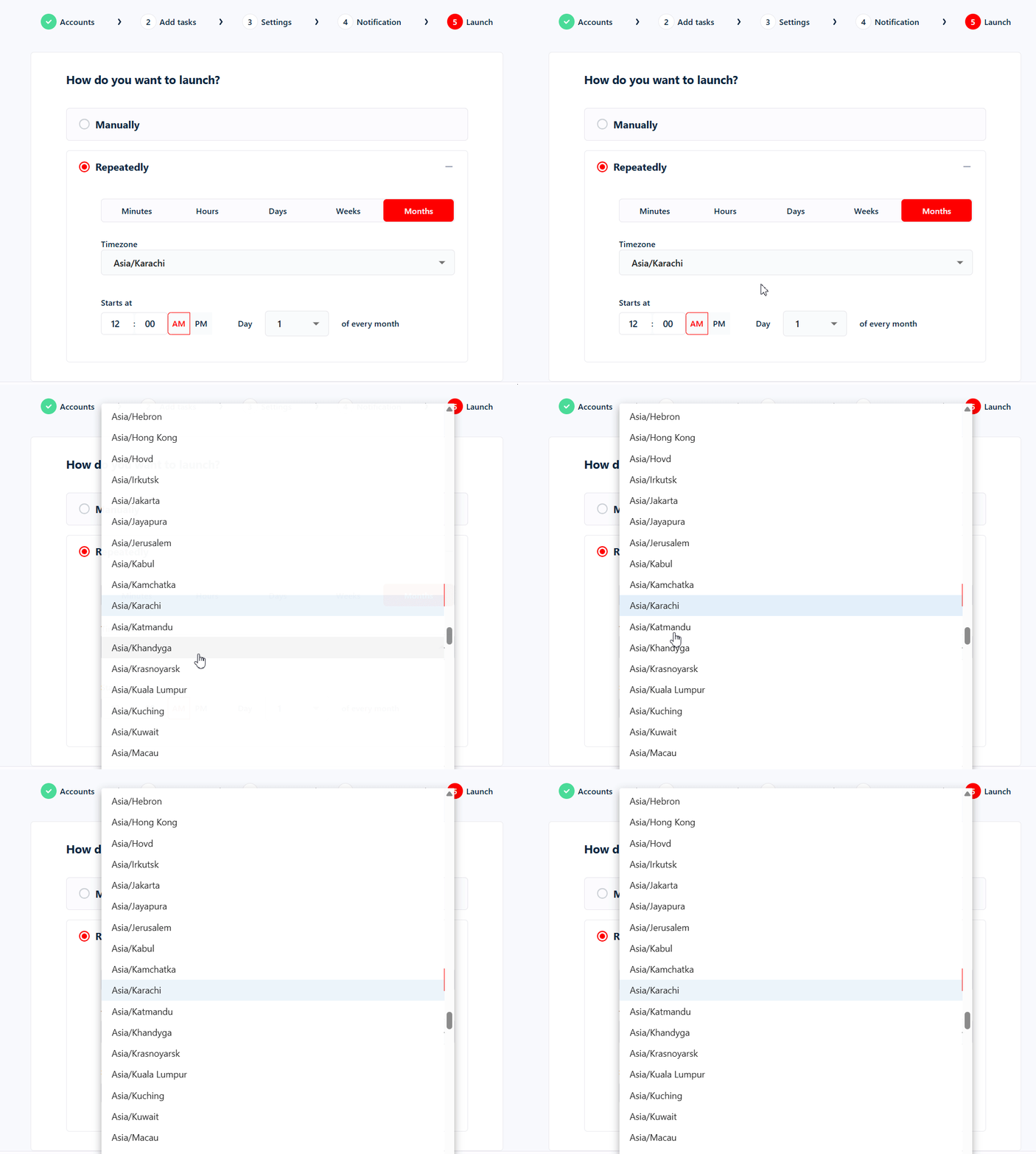
Avoid paying again for results you already have
Each scheduled run processes every task again, so results collected by earlier runs can come back and their base cost is billed again. To collect only new results, see Re-running a Squid: duplicates, Unique Results and credits.Scheduling multiple Squids at the same time
You can schedule as many Squids as you like to run at the same moment. Each Squid launches independently on its own schedule — as long as your account has enough credits and slots available.Pausing or disabling a schedule
To temporarily stop a scheduled Squid without deleting its configuration, deactivate the Squid. All scheduled runs stop immediately.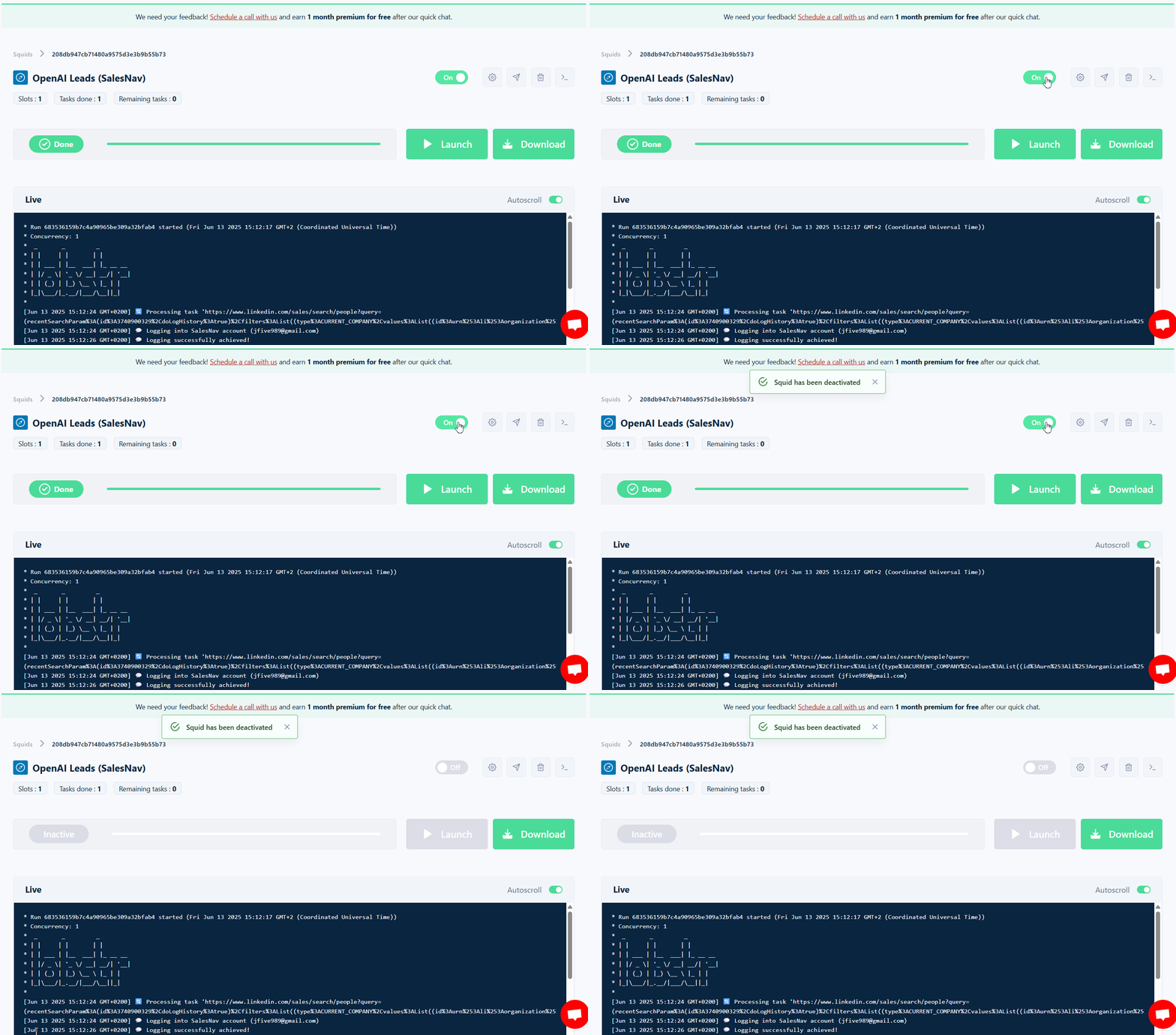
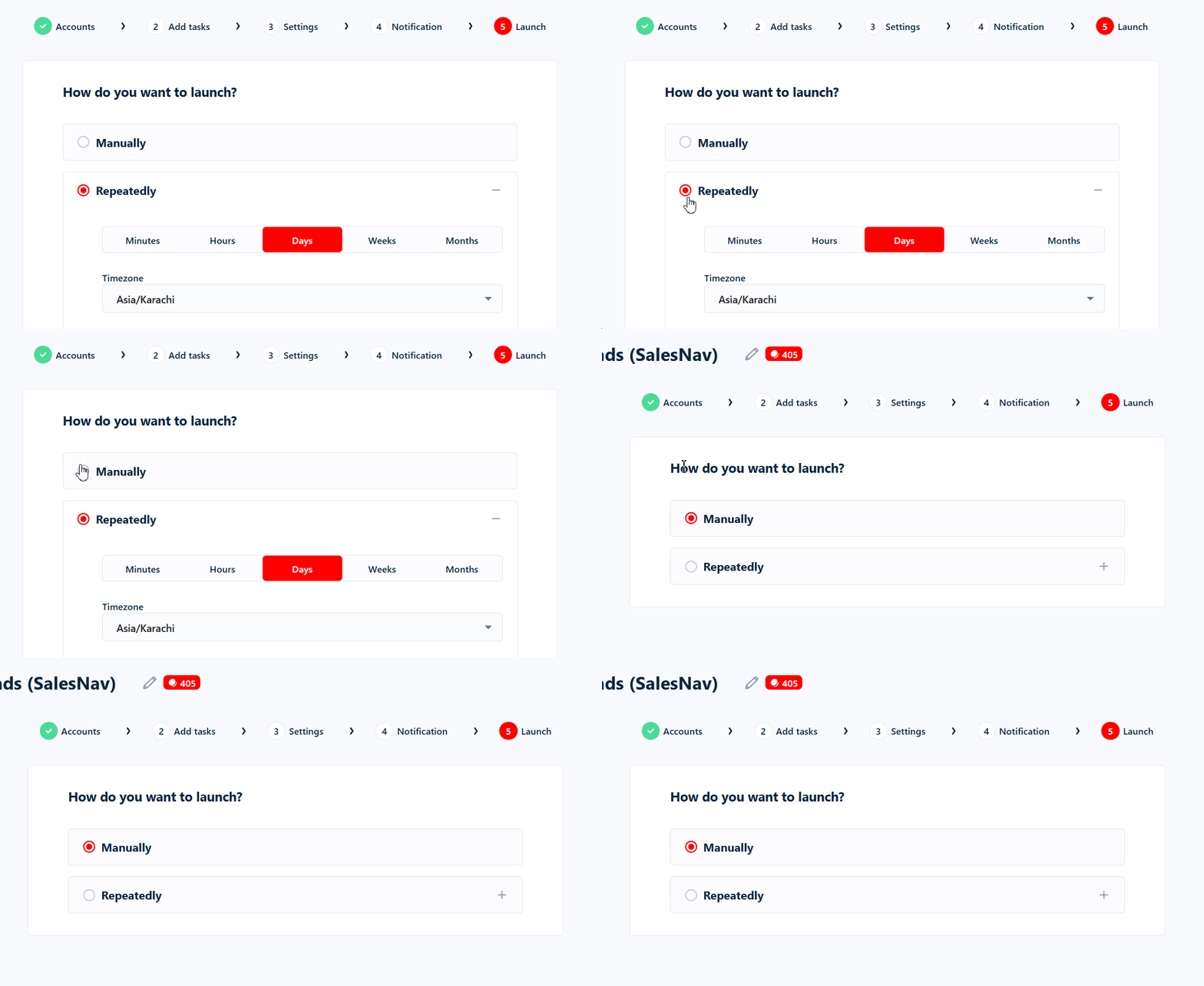
- Open the Squid’s Settings.
- Open the Launch section.
- Change the launch mode from Repeatedly to Manually.