
What a task looks like
The accepted input type depends on the Squid. Common shapes:- URL — a link to a page, list, or profile (e.g.
https://www.realtor.com/realestateandhomes-search/California/pg-5). - Plain text query — a search term (e.g.
restaurant). - Username — a handle or ID (e.g. a Twitter handle or YouTube channel).
- Structured parameters — fields like Category, Country, Region, District, City (used by Squids like Google Maps Leads Scraper).
How to add tasks
From the Squid’s Add tasks step, you have three ways to load tasks:1. Type or paste a single task
Paste a URL (or query / username) in the input field and click Add. The task appears in the list below. You can add many individual tasks this way — good for small, ad-hoc lists.
2. Upload a CSV
When you need to run a Squid against many URLs or keywords, adding them one at a time is impractical. Upload a CSV with one task per row instead — ideal when you have 100 or more tasks to process (up to the 10,000-task limit).1
Identify the column label
Each Squid expects a specific column header in your CSV file. To find it, open your Squid and click the settings icon.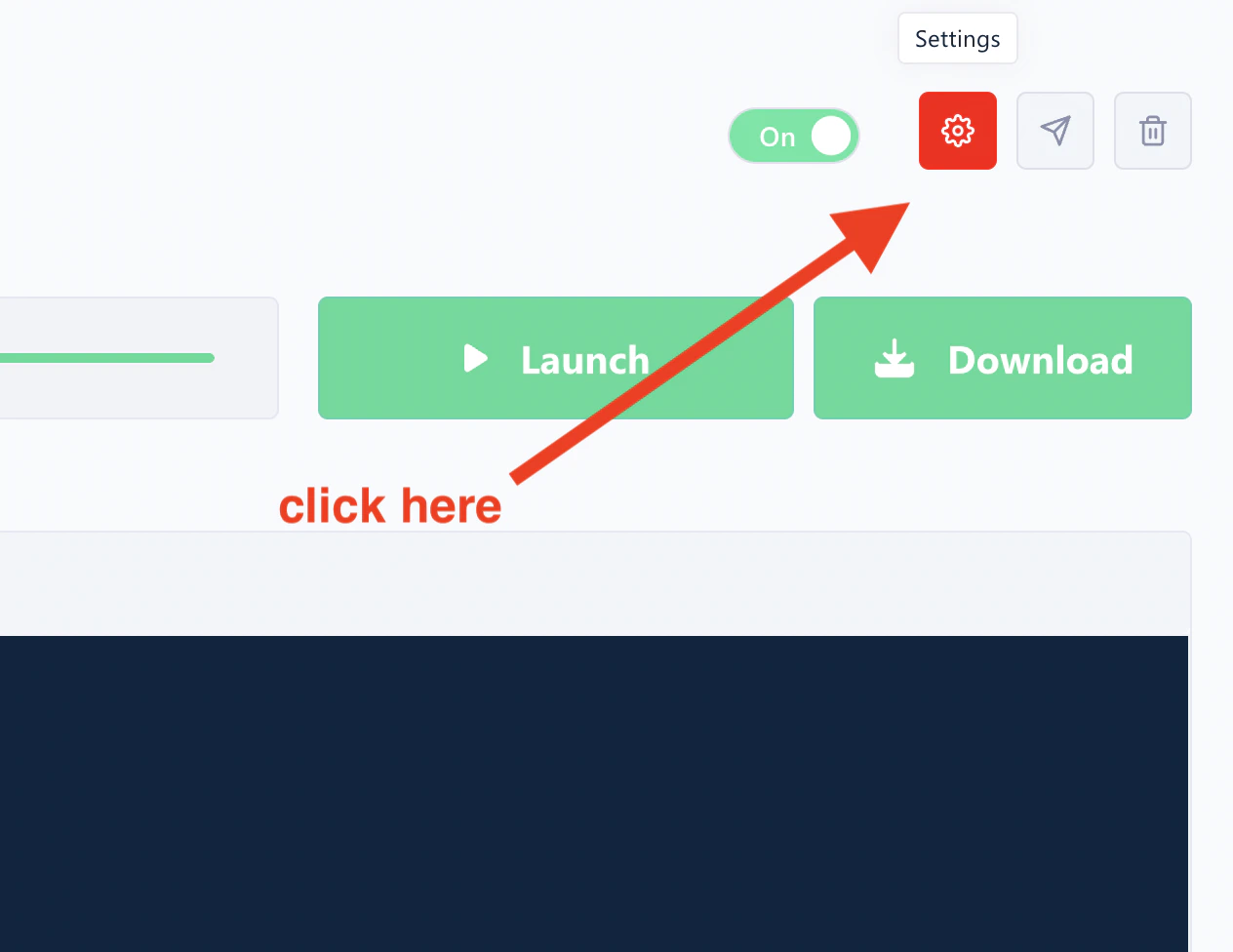
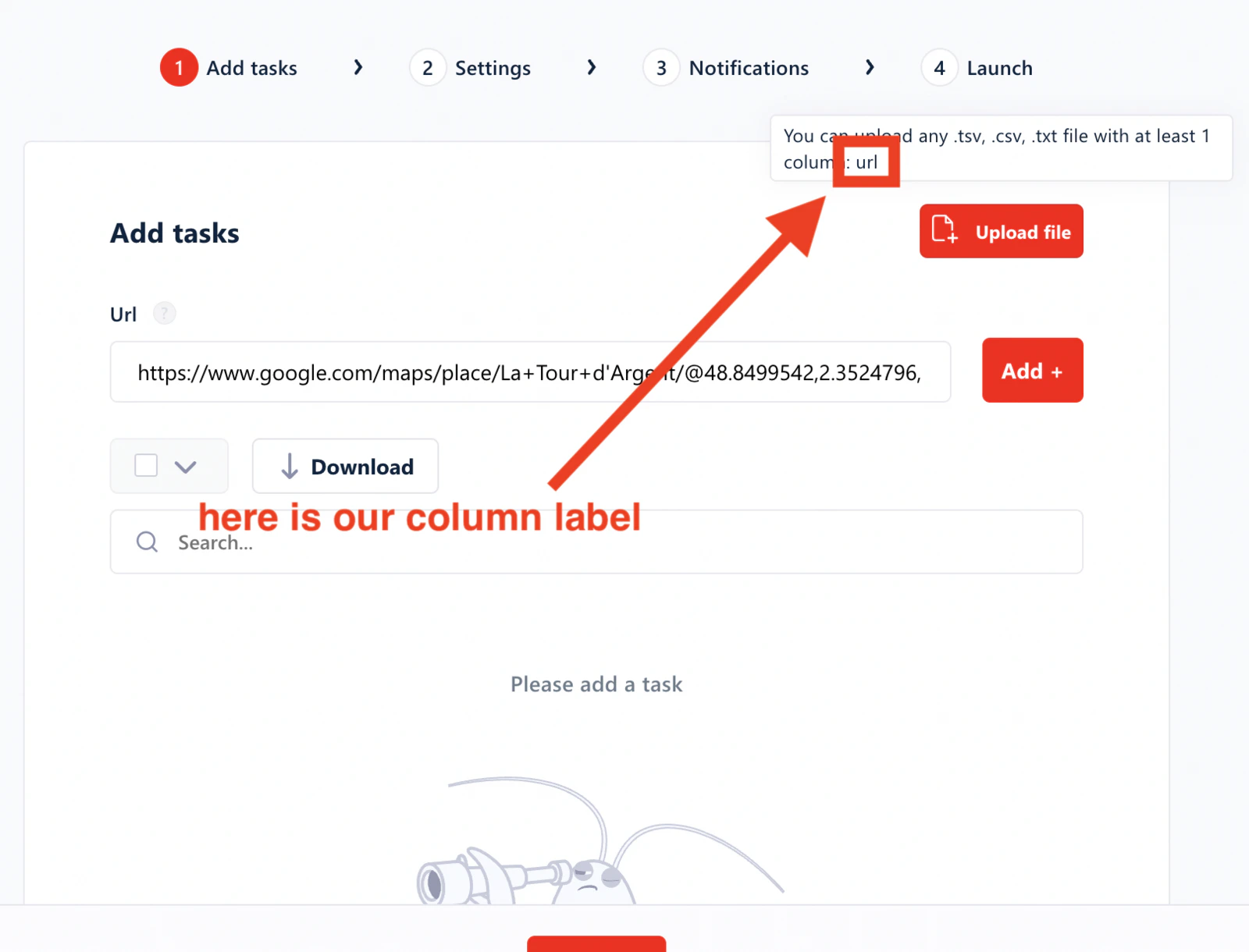
url. Note it down — you’ll need it for the next step.2
Build your CSV file
Create a CSV file with: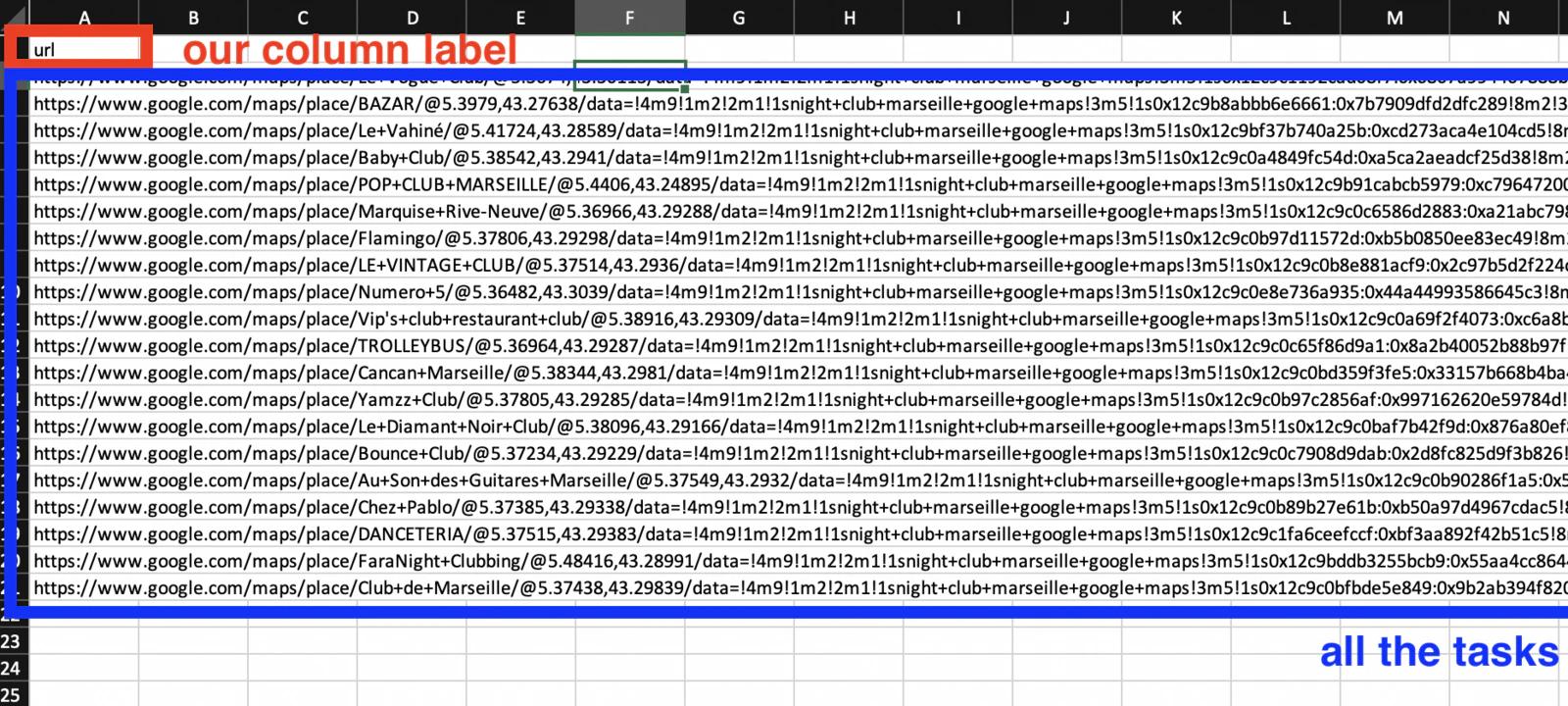
- The label from Step 1 in the first cell (e.g.
url). - One task per row below it.
.csv extension — for example, tasksDemo.csv.3
Upload the CSV
Click Upload file on your Squid page and select the file you just created.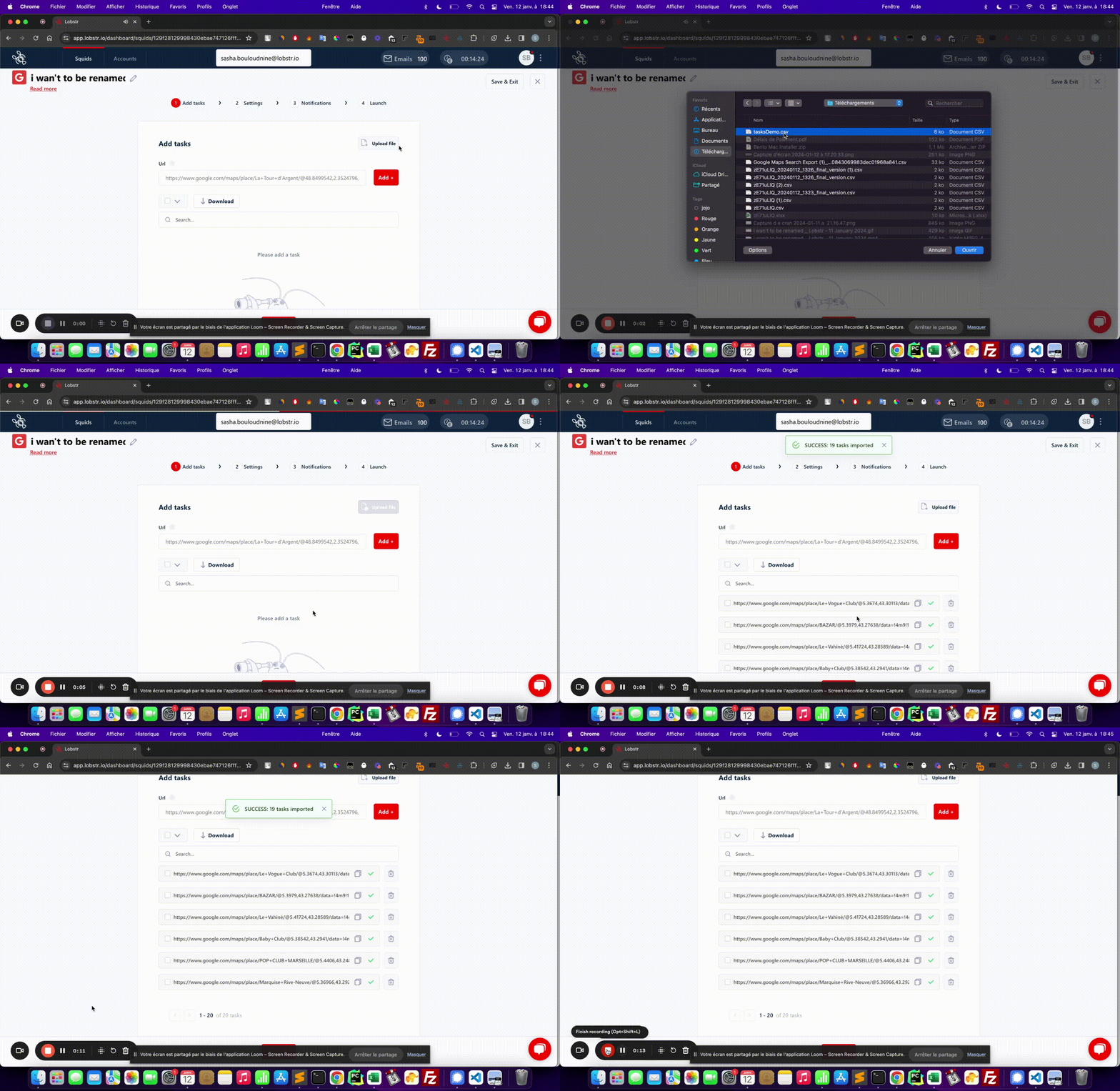
The column header in your CSV must exactly match what the Squid expects, including capitalization. If the header is wrong, no tasks will be imported — always verify the label in Step 1 before building your file.
3. Use params
For Squids that support structured input, toggle Use params to fill in fields like Category, Country, Region, District, and City. Every combination you submit becomes one task.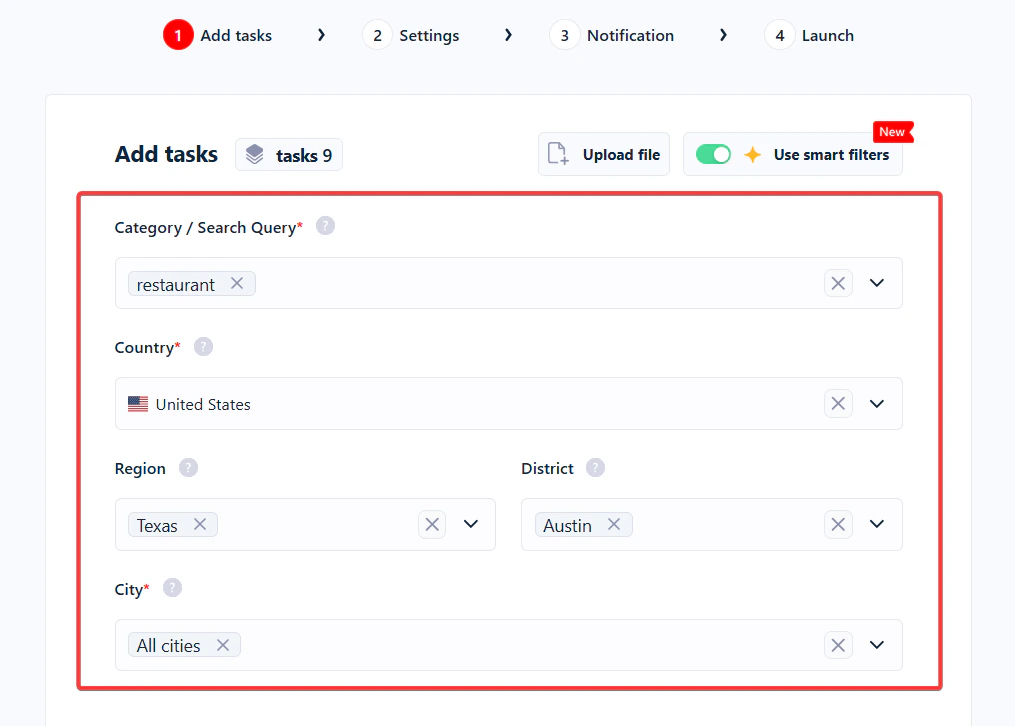
Deduplication and validation
Two things happen automatically when you add tasks:- Deduplication — if the same task is already in the list, it’s not added again. This prevents accidental double-processing when you upload overlapping CSVs.
- Validation — tasks that don’t match the Squid’s expected input format are skipped. If you paste a URL into a Squid that expects a username, that task won’t be added.
When tasks won’t add at all
Fewer tasks than expected is normal. Zero tasks added, or an upload that’s rejected outright, usually comes down to one of these:A run needs at least one task. Launching a Squid with an empty task list won’t start one — add tasks first, then launch.
The task list
Once added, tasks appear in a list with a task counter badge showing the current count. From the list toolbar you can:- Upload file — import a CSV of tasks.
- Download — export the current task list as a CSV.
- Search — find a specific task by keyword.
- Empty tasks — wipes the entire list.
Delete tasks or empty the task list
You have two ways to remove tasks:
- Delete selected tasks — tick the checkbox next to a task (or multiple tasks) and click Delete. Only the selected tasks are removed; the rest of the list stays intact.
- Empty the entire list — click Empty tasks to clear every task in the Squid in one action.
How tasks work with runs
This is the most important thing to understand about tasks:Every run re-processes every task in the list. There’s no queue that drains over time. If your Squid has 500 tasks, each launch scrapes all 500 — not only “new” ones.
- To scrape something new, add new tasks to the list before the next launch.
- To stop scraping certain tasks, remove them from the list (or click Empty tasks and start over).
- If you want every run to pull fresh data for the same inputs (e.g. a weekly Google Maps refresh), just leave the list alone and schedule the Squid.
- Tasks done — how many tasks the current run has finished.
- Remaining tasks — how many are still pending in the active run.
0 / total at the start of the next run.
Per-task results inside a run
Every run’s detail page has a Tasks tab showing what happened to each individual task: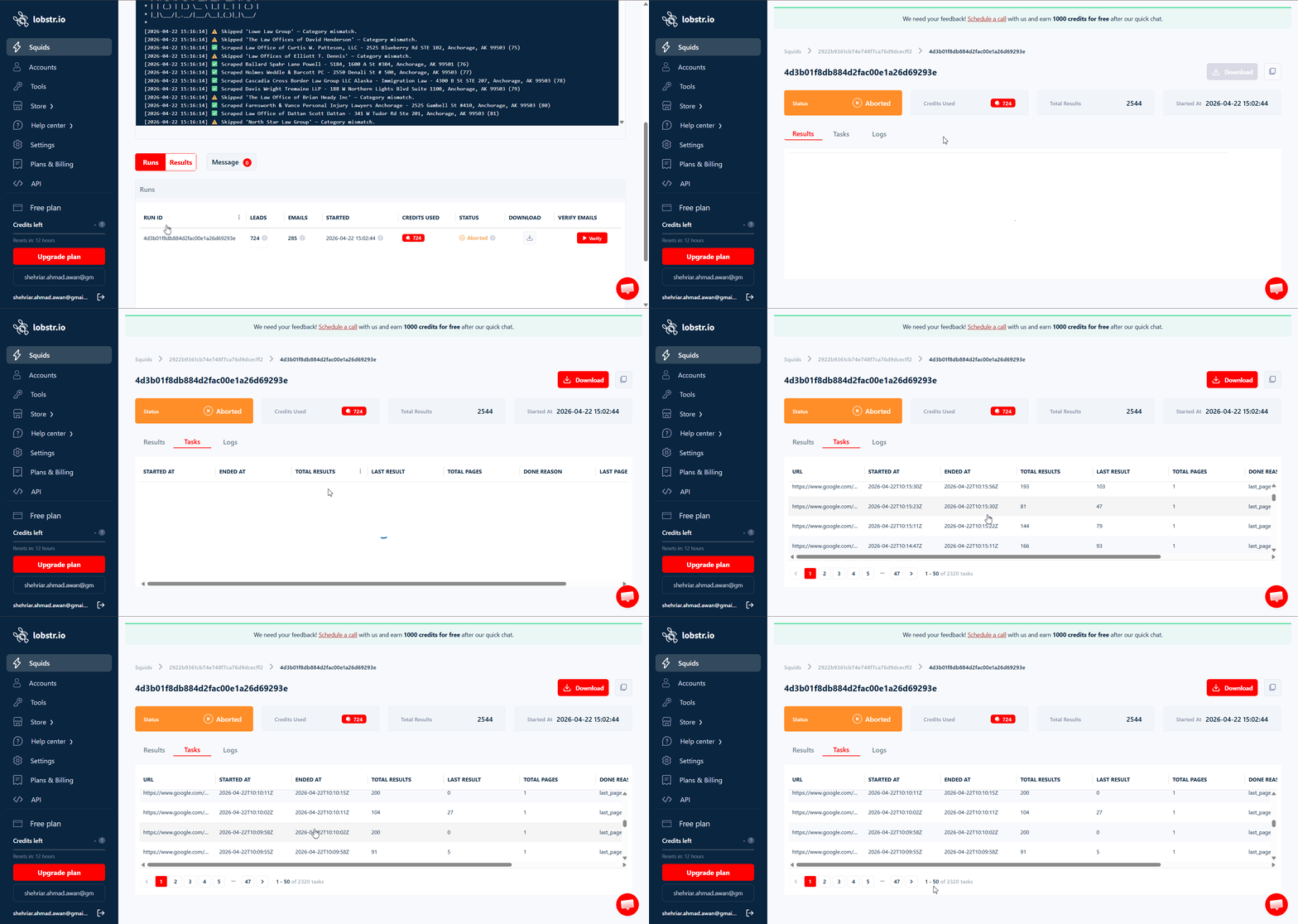
- URL (or query / username / params) — the task input.
- Started At / Ended At — when the scraper worked on this specific task.
- Total Results — rows collected for this task.
- Last Result — final item index written to the output for this task.
- Total Pages — how many paginated pages the scraper walked for this task.
- Done Reason — why processing of this task ended.