
Most filtering happens automatically during the run — you don’t need to clean your data by hand afterward.
Why Google Maps results can be inaccurate
When you search for businesses on Google Maps, the results don’t always match what you’re looking for. Search for plumbers in Alaska and you might get plumbing supply stores; search in one city and get results from another — sometimes another country.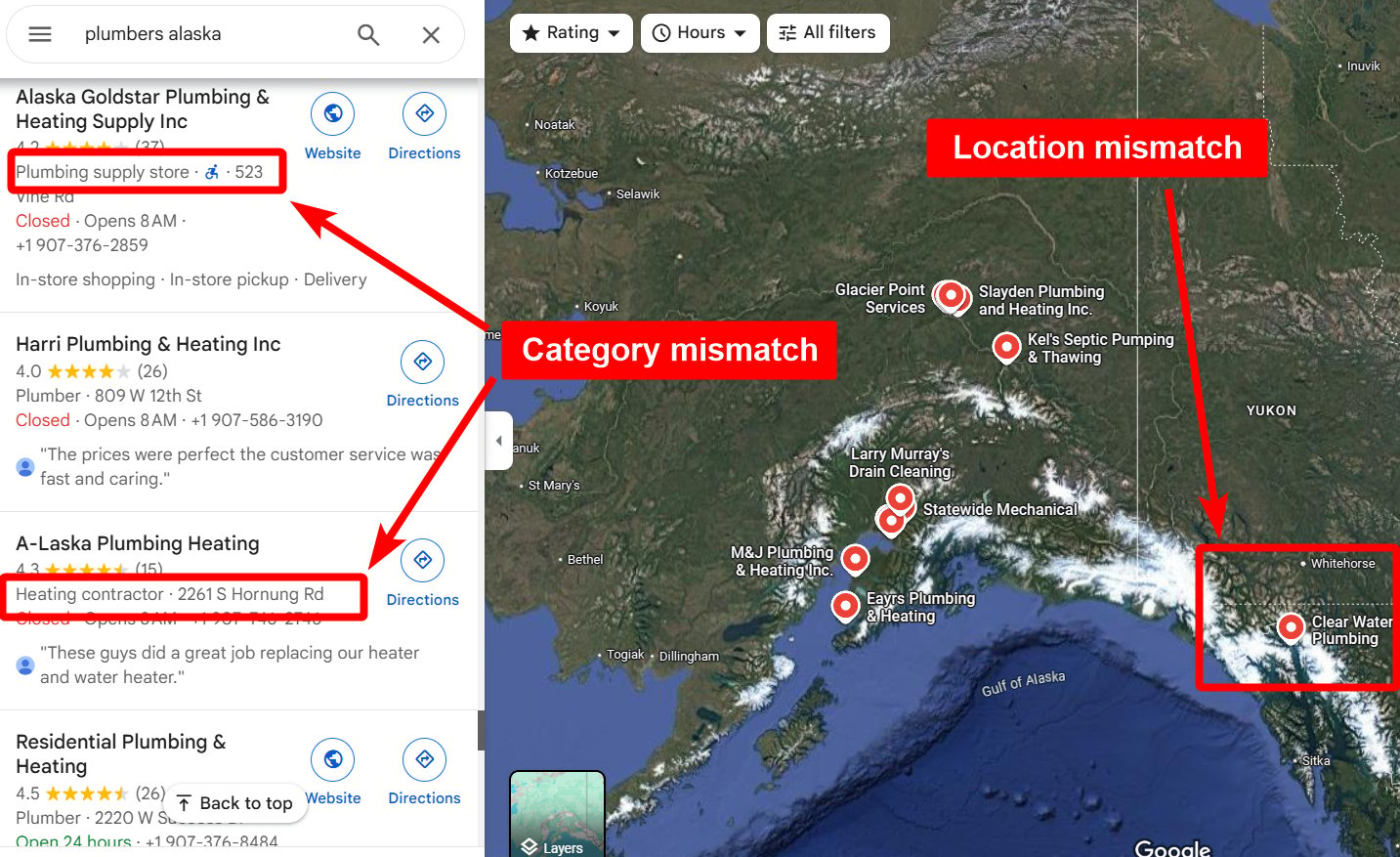
Two kinds of filter
The Google Maps filters fall into two groups:- Accuracy filters (free) — keep only results that match your search. They drop irrelevant listings before you’re billed, so you never pay for what they remove.
- Data filters (cost credits) — narrow your results by a business attribute (website, phone, email, open/closed, claimed status). They add a small per-row surcharge on the results you keep.
Accuracy filters (free)
Geo match
Keeps only businesses within 50 km of your chosen location.
Category match
Keeps only businesses that match your search keyword or category.
Exact name match
Keeps only businesses whose name contains your search query, anywhere in the name.
Data filters (cost credits)
Skip closed places
Drops businesses marked temporarily or permanently closed.
Website filter
Keeps businesses with — or without — a website.
Phone filter
Keeps businesses with — or without — a phone number.
Claimed status filter
Keeps owner-claimed or unclaimed listings.
Only leads with emails
Keeps only businesses where an email was found.
How to enable filters
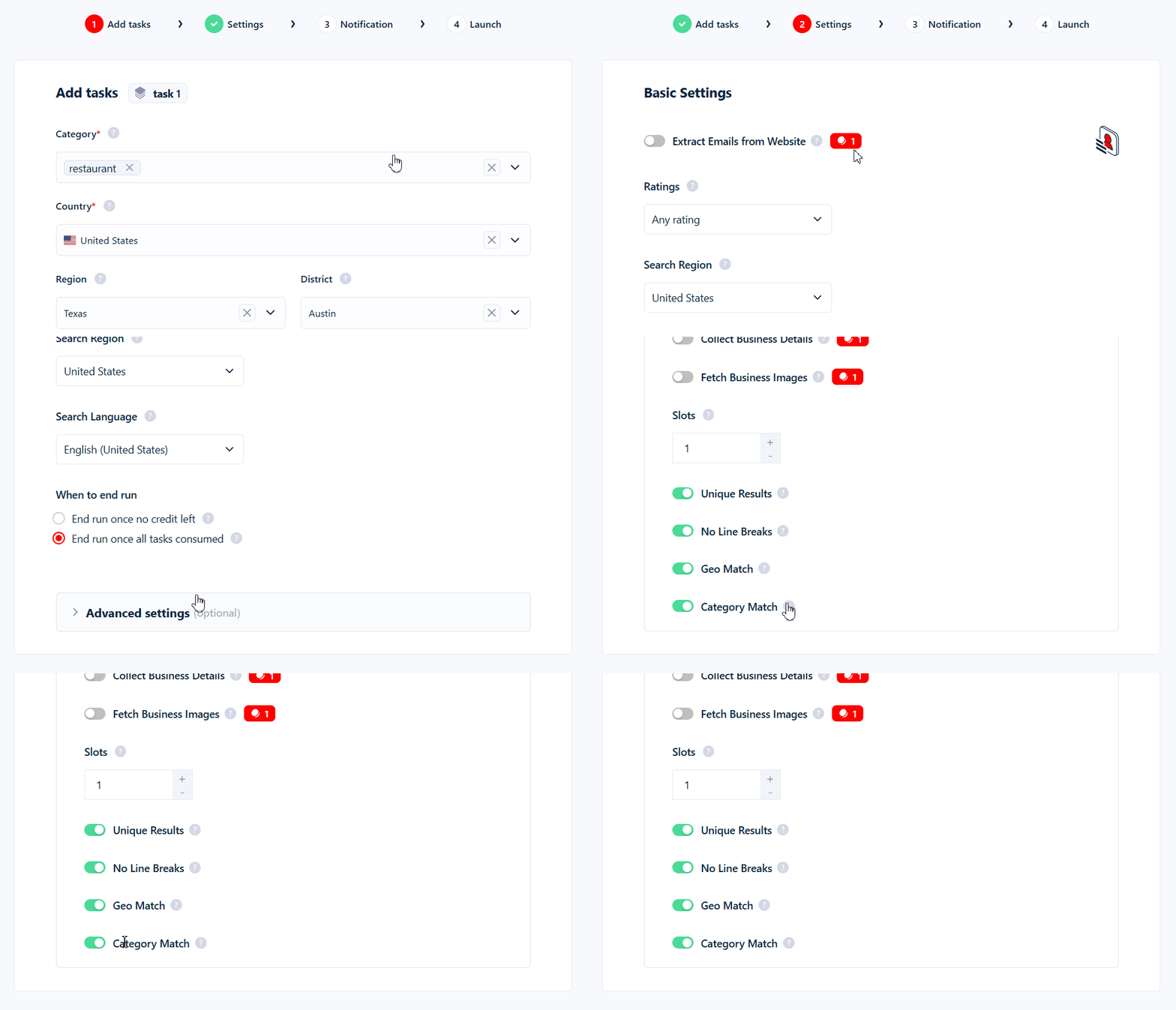
- Open your Squid and go to the Settings tab.
- Scroll to Advanced Settings for Geo Match, Category Match, Exact Name Match, Skip Closed Places, Website Filter, Phone Filter, and Claimed Status Filter.
- Only Leads with Emails is the exception — it sits in the main settings block, next to Extract Emails from Website, not in Advanced Settings.
What filtering costs
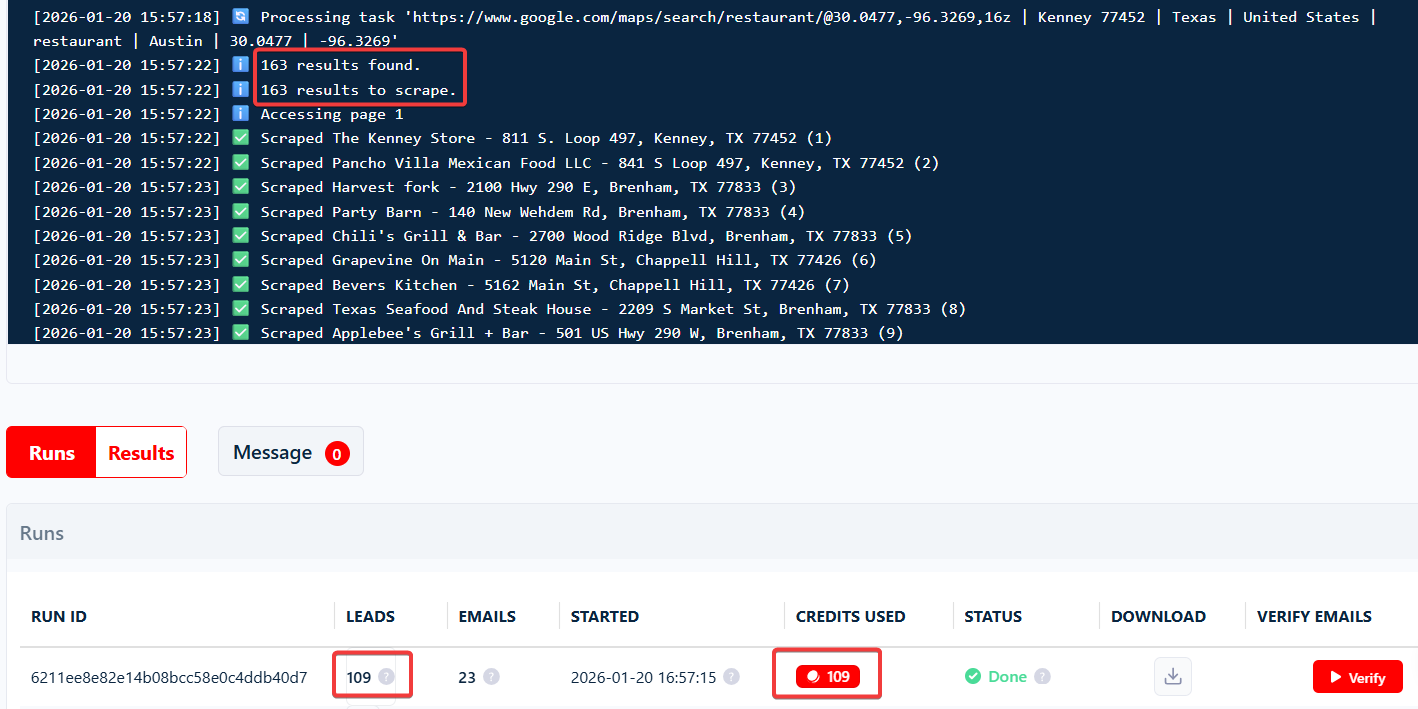
Every Google Maps row costs a base of 1 credit. Accuracy filters add nothing. Data filters add a per-row surcharge — but only on the rows you keep, and only when set to something other than their default:
Surcharges stack: three data filters on at once adds +0.6 per kept row. Rows dropped by any filter cost 0, and duplicate results aren’t billed twice. Email collection and verification are billed separately — see Credits.
The filter surcharges above are the same on every plan. Other costs (email collection and verification, business details, images) can differ on older plans — check the pricing calculator on the scraper’s store page for your exact rates.