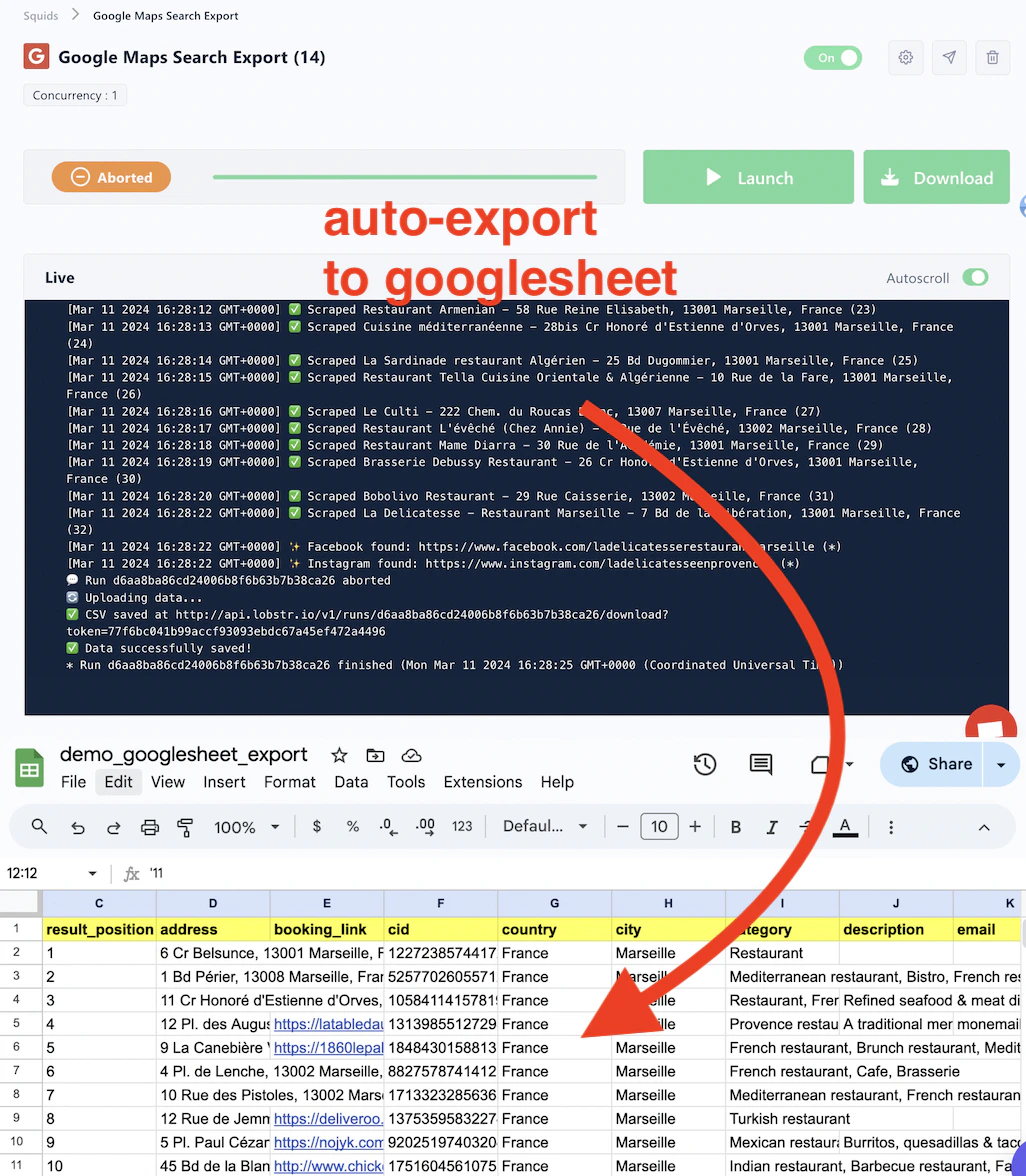
Instead of downloading a CSV after every run and re-uploading it manually, you can connect your Squid to a Google Sheet so results are pushed there automatically. This keeps your data in one place, makes it easy to share with teammates, and saves you the repetitive download-and-upload cycle.

Watch the full walkthrough

Step-by-step instructions

1

Create and configure your Google Sheet

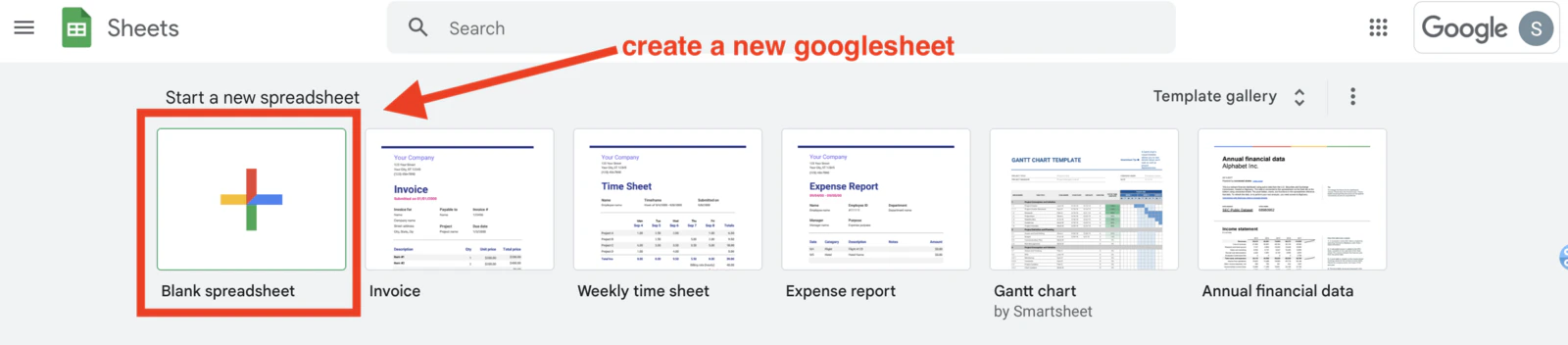
Go to Google Sheets and create a new spreadsheet.
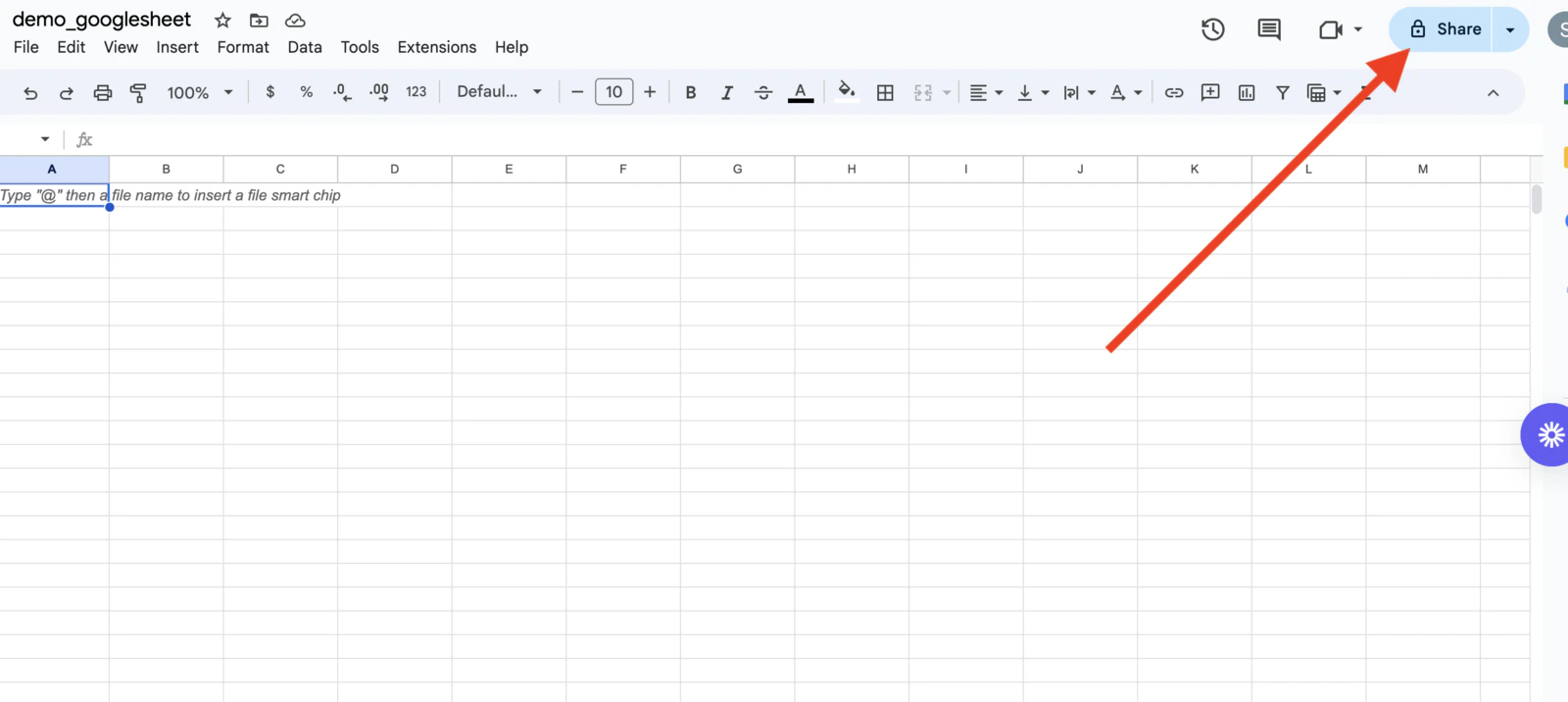
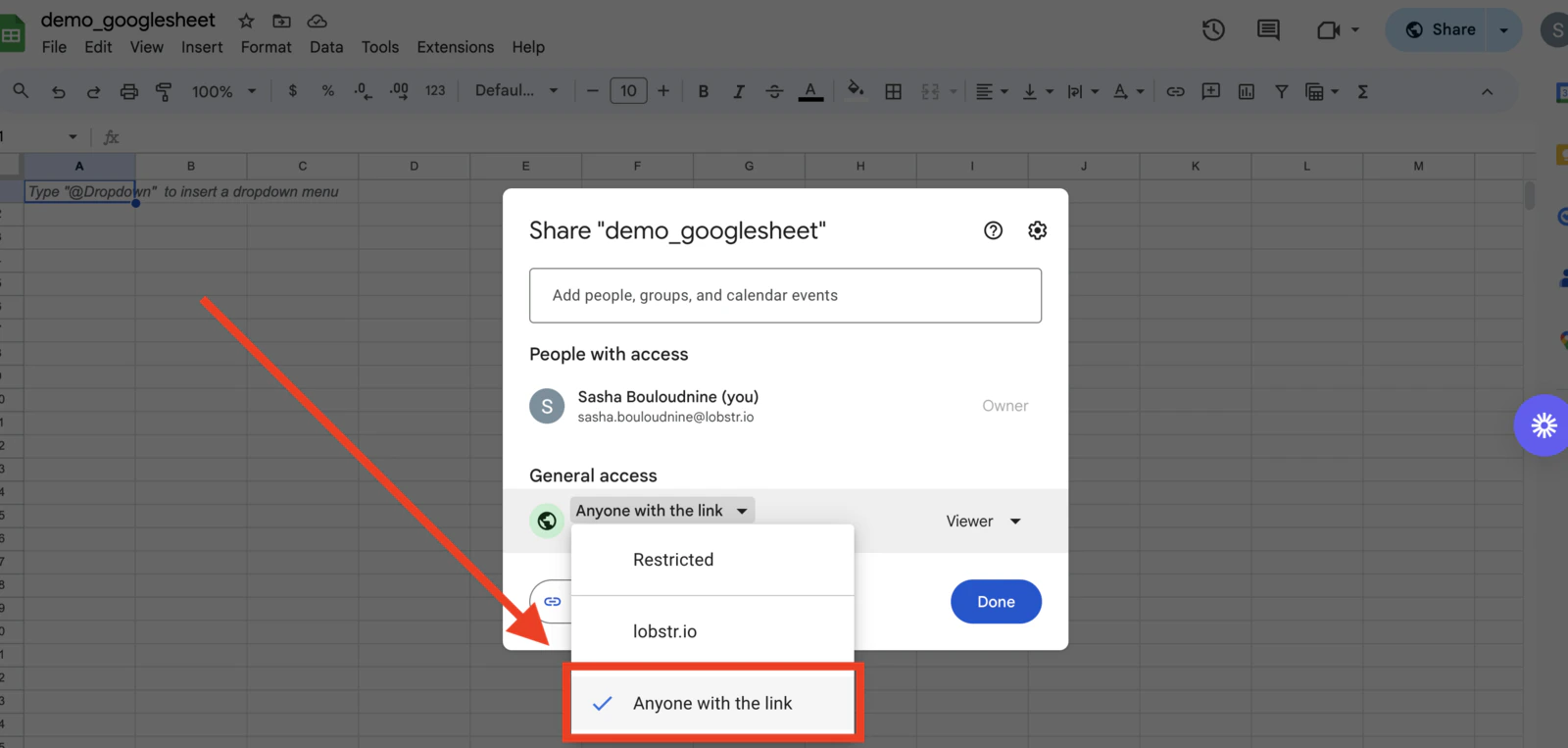
Next, make the sheet accessible to lobstr.io so its scrapers can write to it.Click Share.
Under General access, select Anyone with the link.
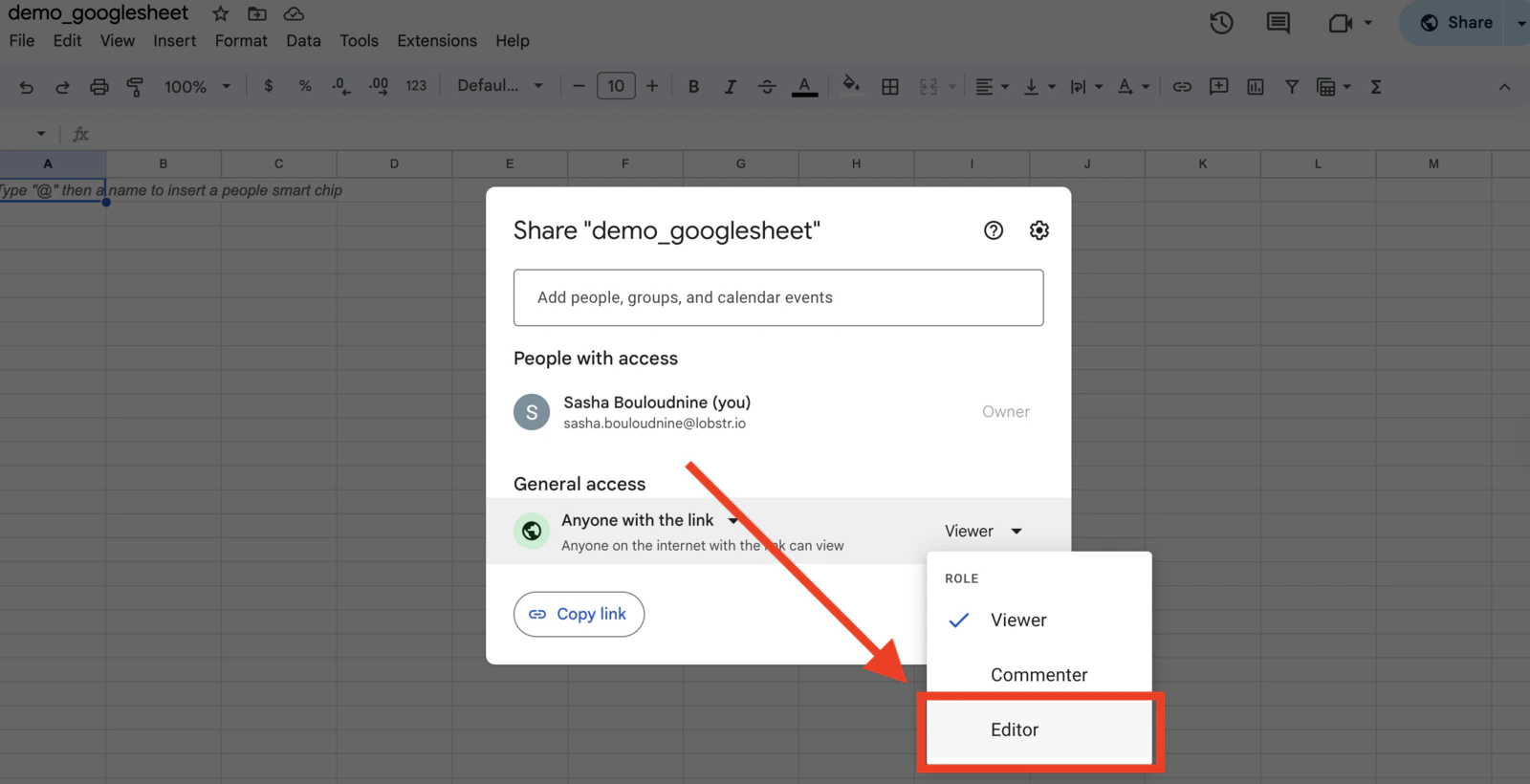
Then change the role to Editor.
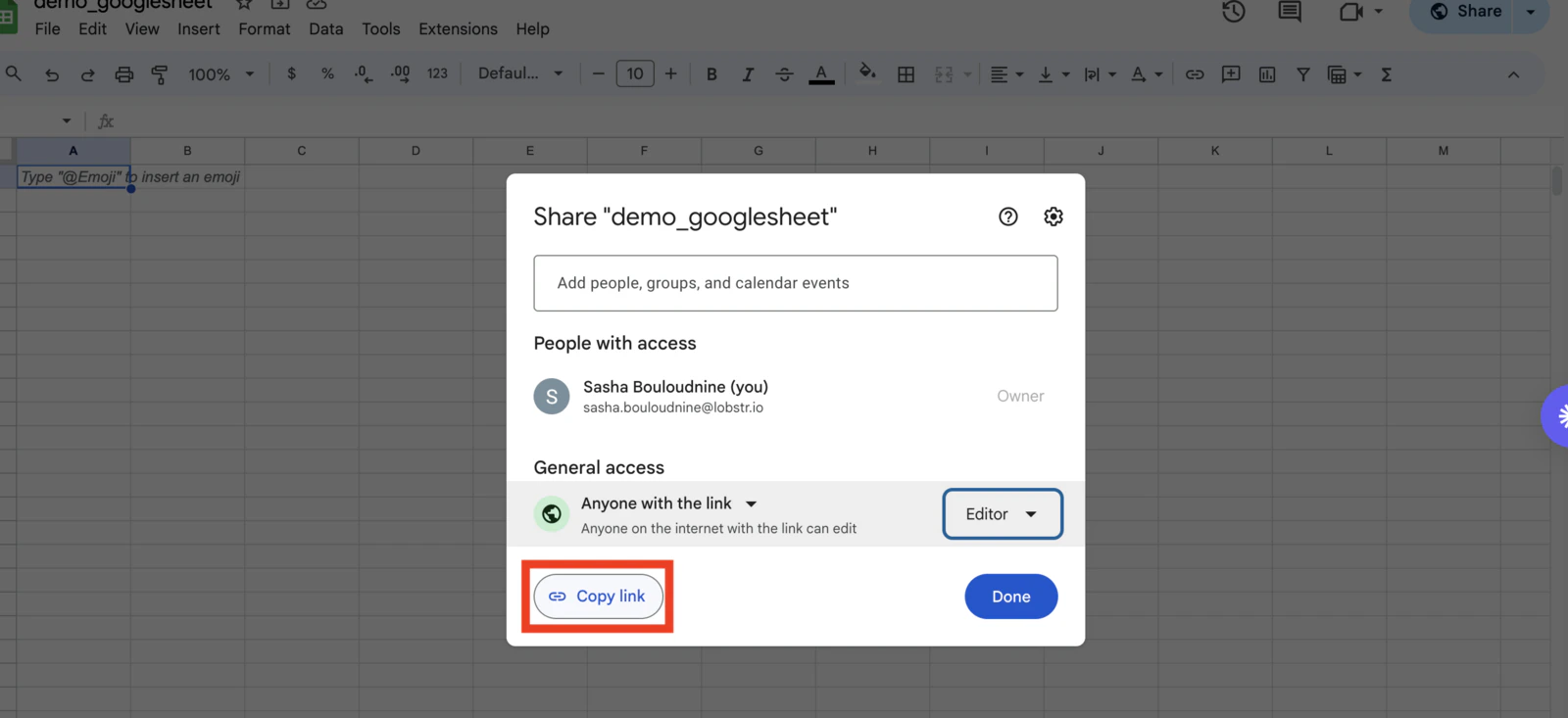
Finally, click Copy link — you’ll need this URL in the next step.
2

Attach the Google Sheet to your Squid

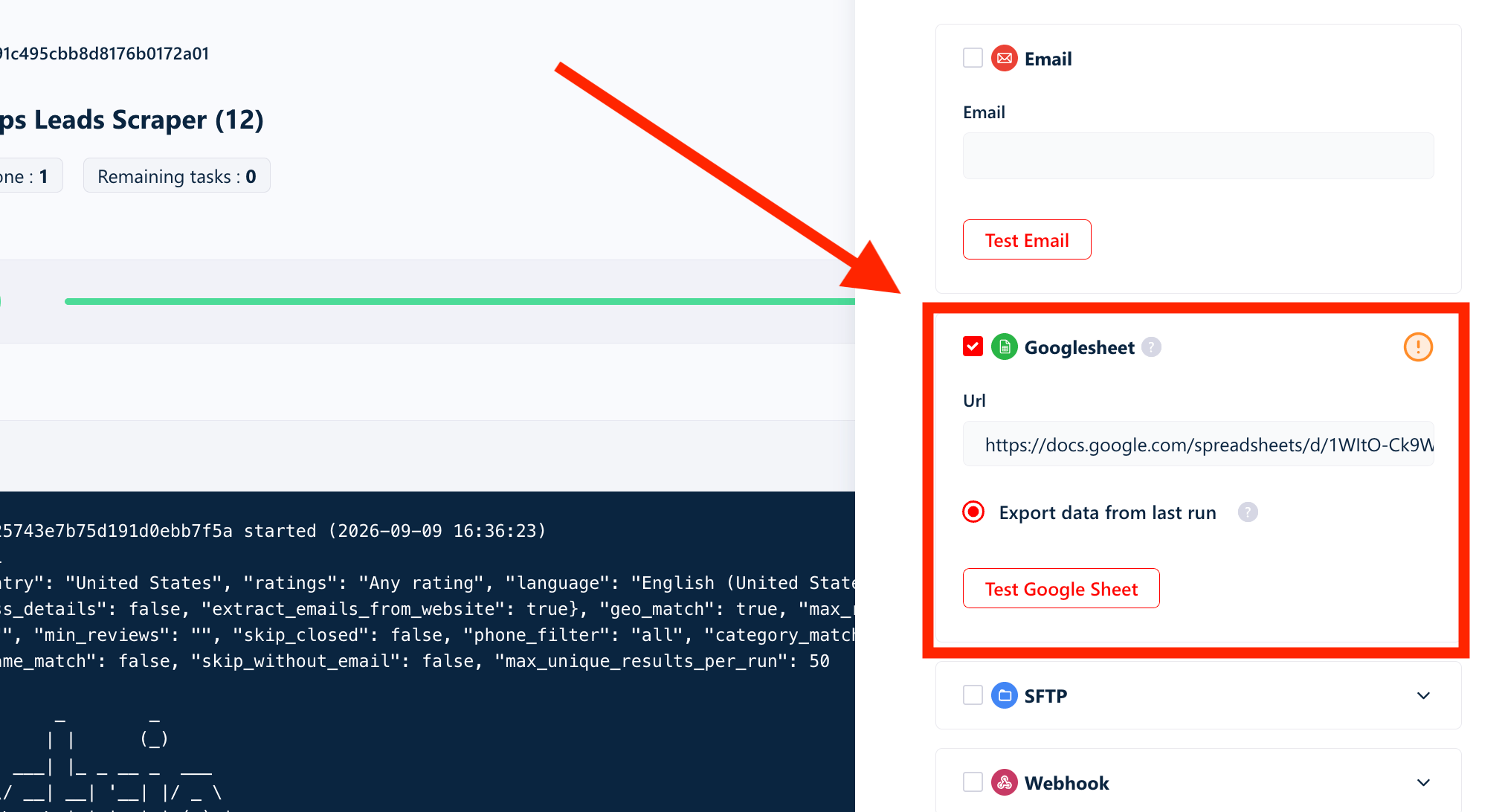
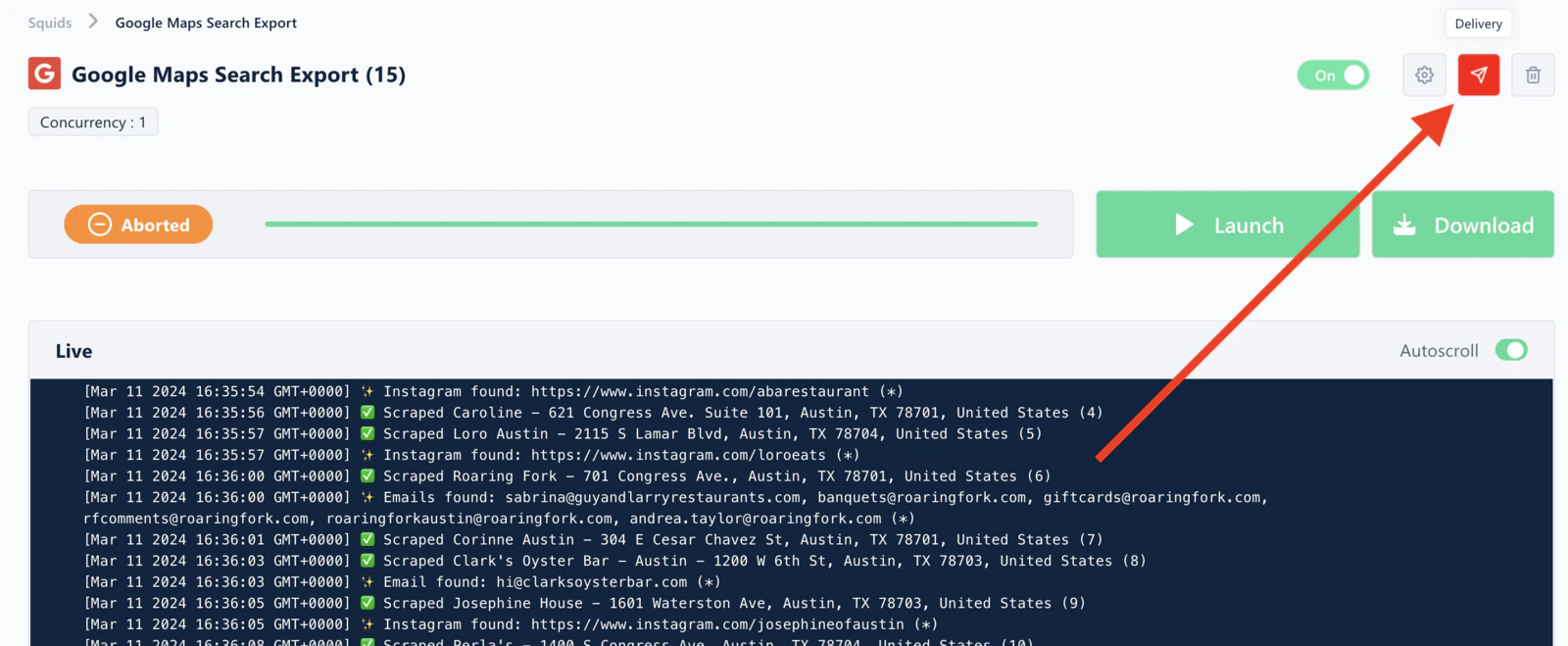
Go back to your Squid page in lobstr.io.Click the Delivery icon in the top-right of the Squid page.
Then:
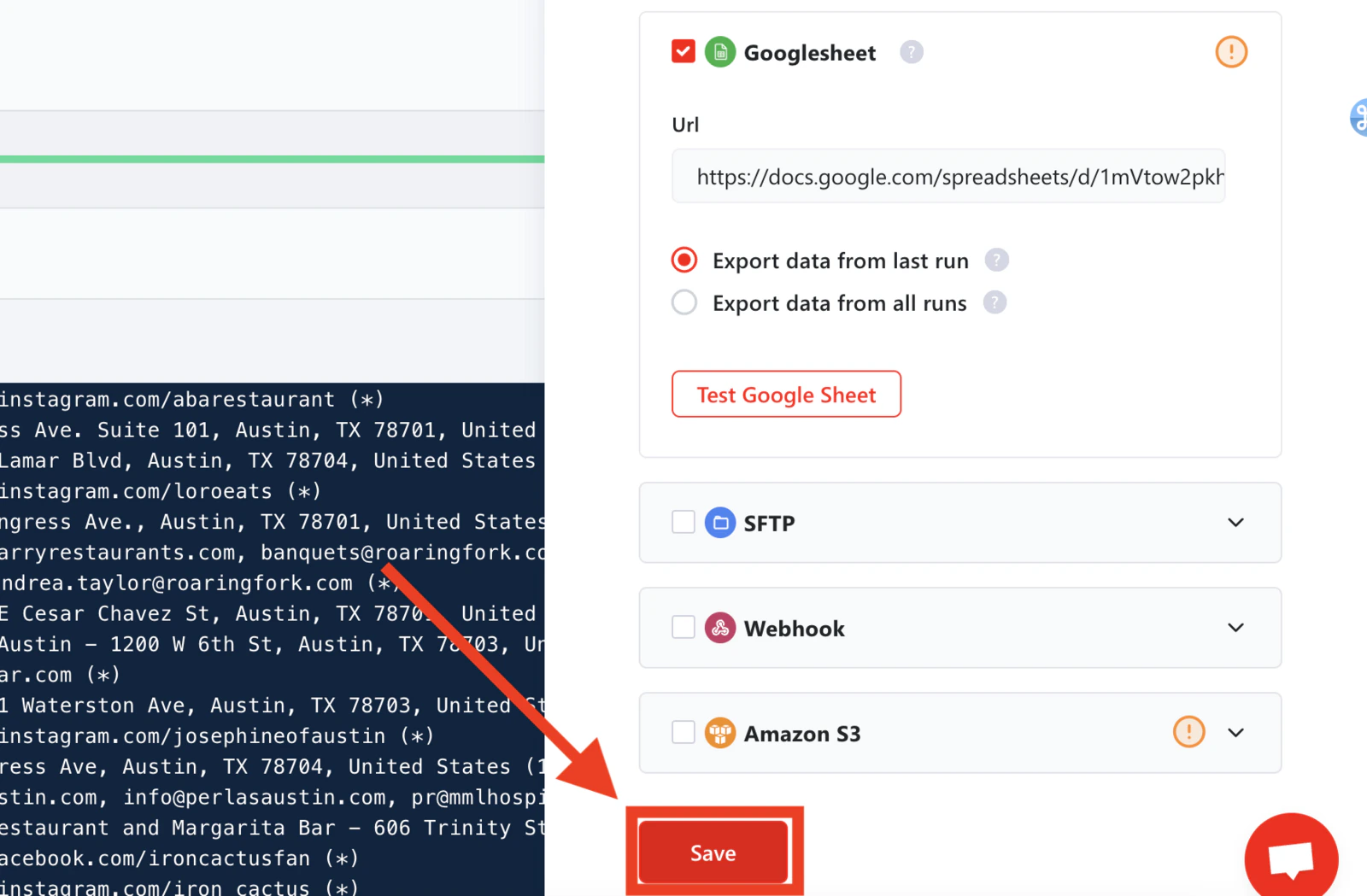
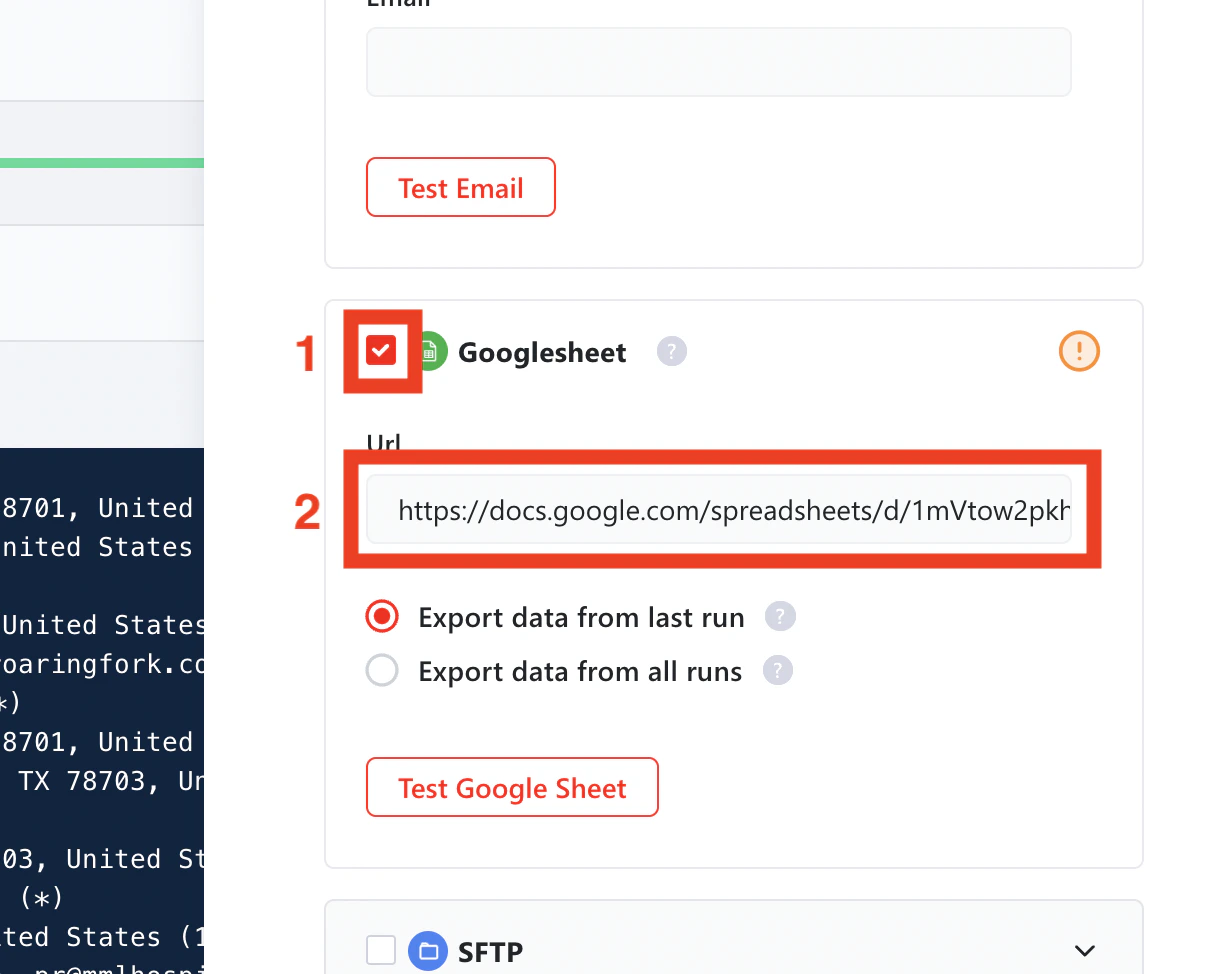
  1. Tick the Google Sheet checkbox.
  2. Paste the Google Sheet URL in the field.
You can click Test Google Sheet to confirm the sheet is correctly configured and attached to the Squid before saving.
3

Choose the export scope

There are two radio buttons:
  • Export data from last run — only the latest run’s data is written to the sheet. Each new run overwrites the previous export. Use this when you only need the freshest dataset.
  • Export data from all runs — every time a new run completes, its results are appended below the previous rows. Use this to build one continuously growing, consolidated dataset.
If you select Export data from last run, each new run overwrites the data from the previous one. Choose Export data from all runs if you want to preserve history.
Click Save.
4

Launch your Squid

Click Launch to start a run. Once it completes, lobstr.io automatically pushes the results to your Google Sheet.From this point on, every future run triggers an automatic export — no manual steps required.
Google Sheets export applies to future runs only. Data from runs that completed before you set up the integration will not be exported retroactively. To get historical data into your sheet, download the combined CSV with the green Download button and import it manually.