
Download the extension — version 1.2.1
Download the ZIP from app.lobstr.io, then follow the steps below.
Already using version 1.1.2? Remove it from Chrome before installing 1.2.1. Your lobstr.io accounts are kept, and their sessions keep working while valid. You need version 1.2.0 or later to add or sync an account.
Install in Chrome
1
Download and unzip the extension
Download lobstr-account-sync.zip, then double-click it to unzip it. You get a folder named dist. On Windows, right-click the ZIP and choose Extract All: dist is inside the extracted folder.Move dist to a place where it will stay, such as your Documents folder. Chrome runs the extension from this folder, so do not delete it after installation.
2
Turn on Developer mode
Copy 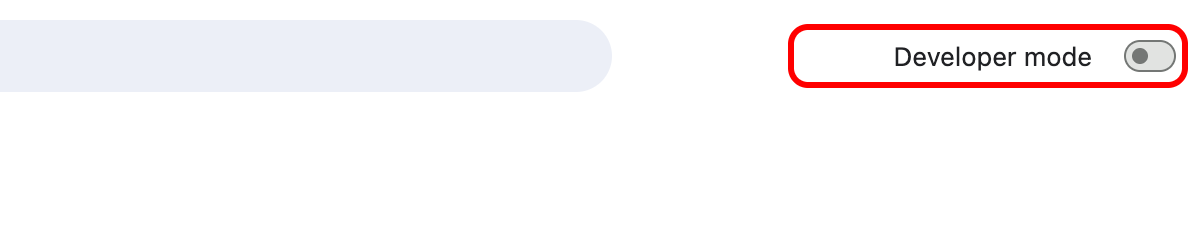
chrome://extensions into Chrome’s address bar and press Enter.Click the Developer mode switch in the top-right corner.3
Click Load unpacked
Three new buttons appear. Click Load unpacked.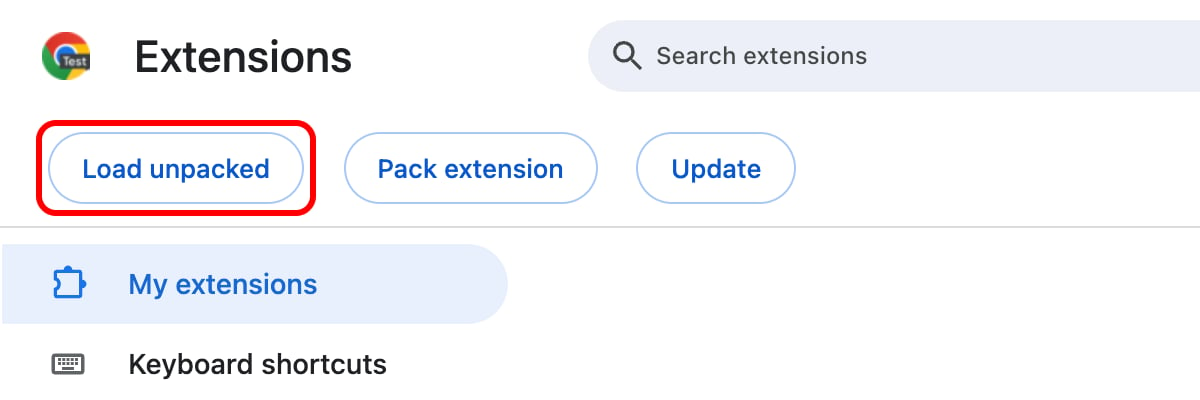
4
Select the dist folder
In the window that opens, go to the folder where you put dist. Click dist once to select it, then click Select.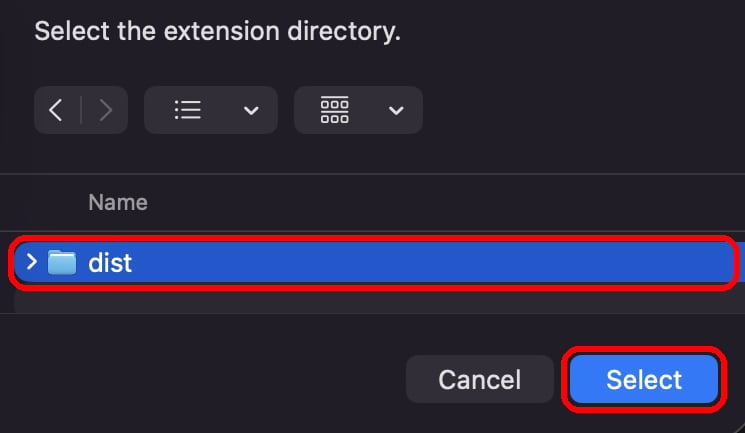
5
Check that the extension is on
The lobstr.io card appears. Check that it shows 1.2.1 and that its switch is blue.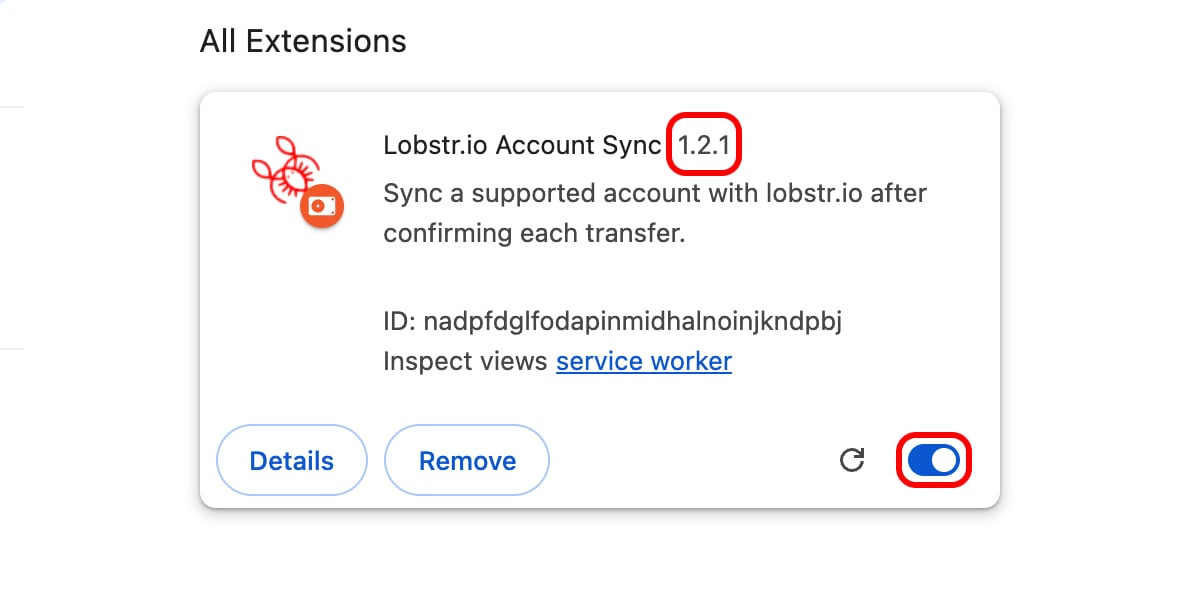
Sync your account
1
Sign in to the website
In the same Chrome window, sign in to the website you want to connect, as you normally do.For Sales Navigator, make sure you can open Sales Navigator with that account.
2
Open Accounts in lobstr.io
Open Accounts in lobstr.io. If the page was already open, reload it so it detects the extension.Click New account.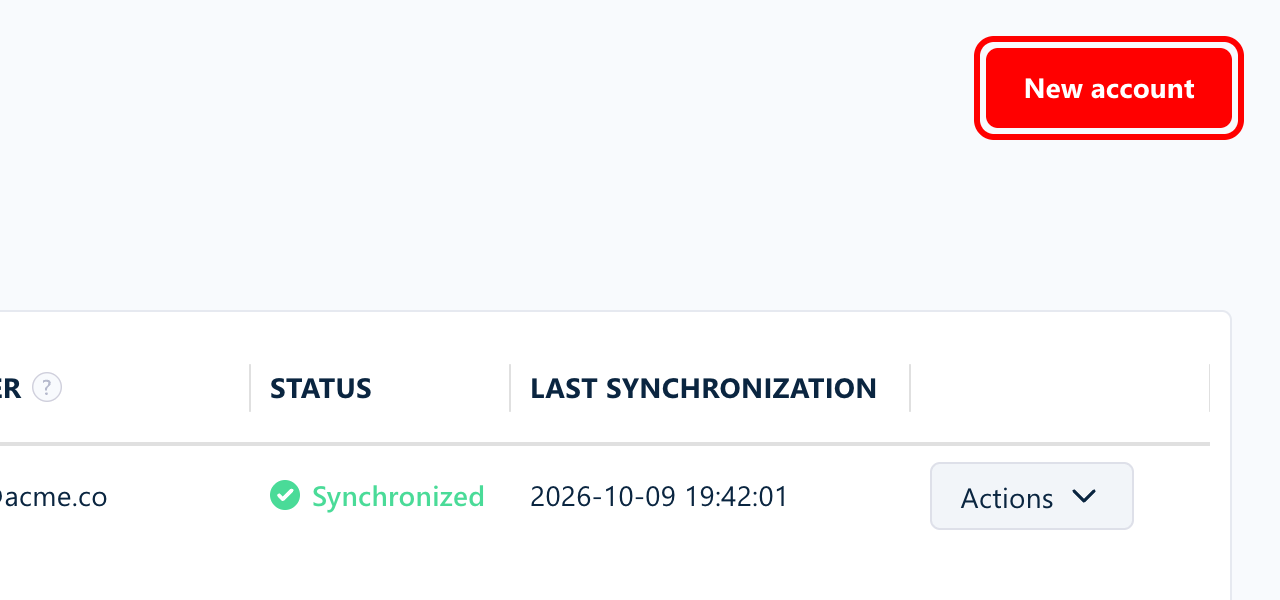
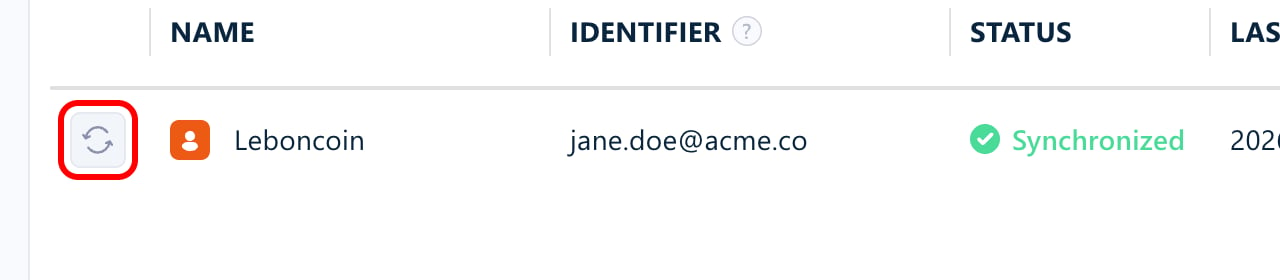
3
Choose the account type
Click Add account on the card of the website you want to connect.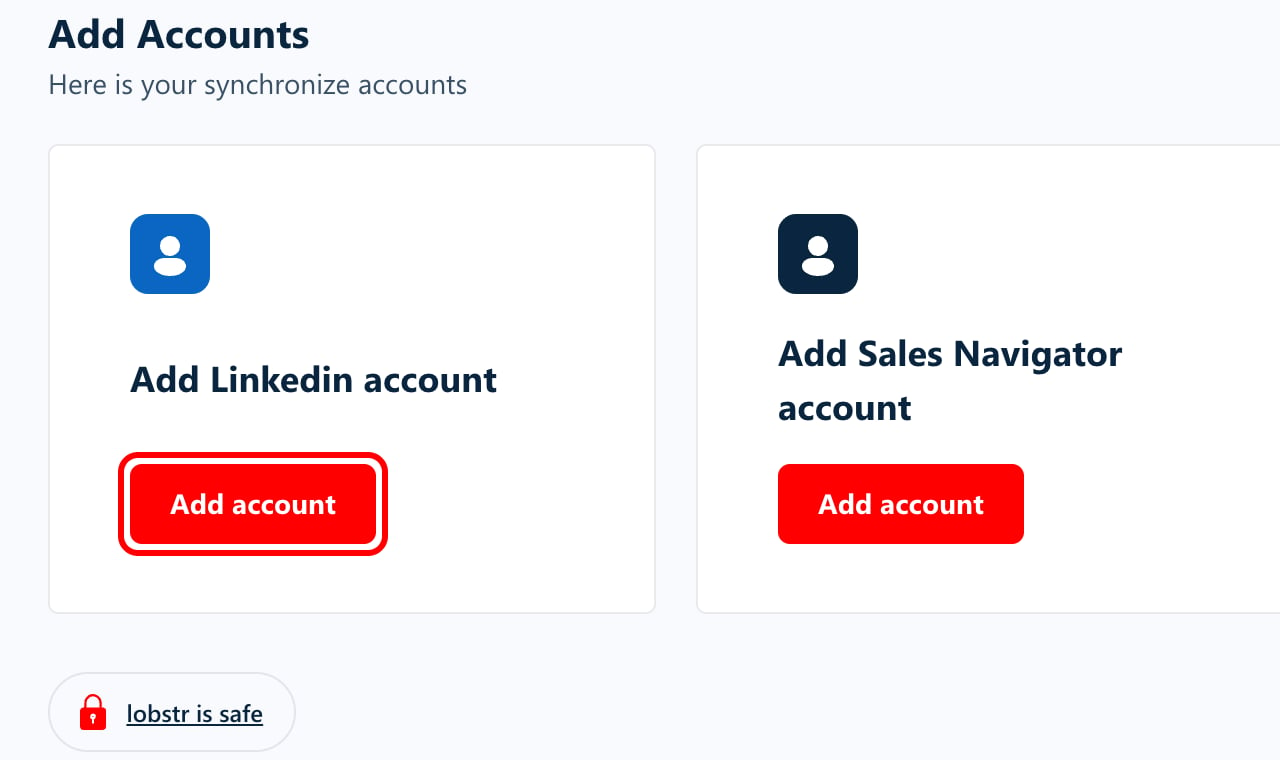
4
Click Continue to confirmation
Click Continue to confirmation. The extension then opens its own window to ask for your approval: lobstr.io cannot receive your session without it.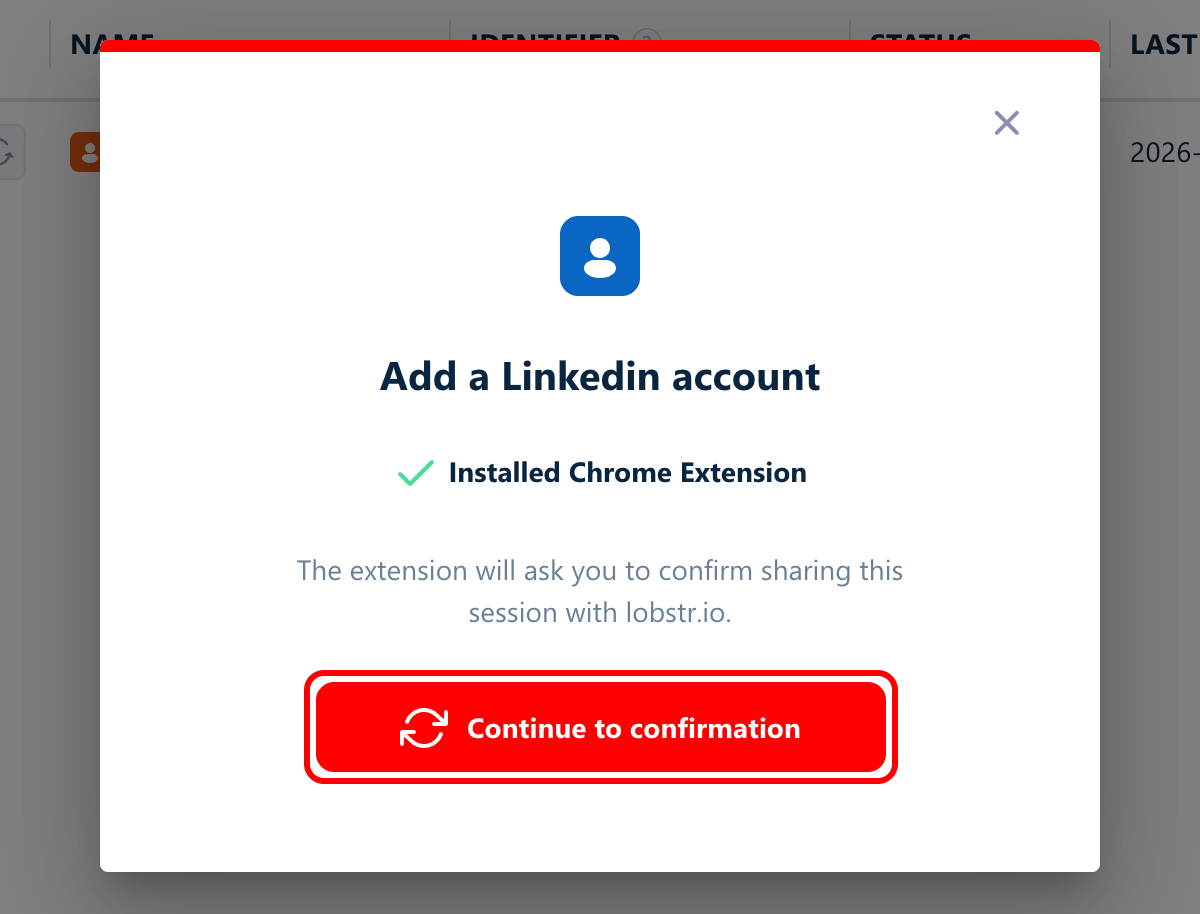
5
Approve in the extension window
Check the website shown in the window, then click Confirm sync. If Chrome asks to allow access to that website, click Allow.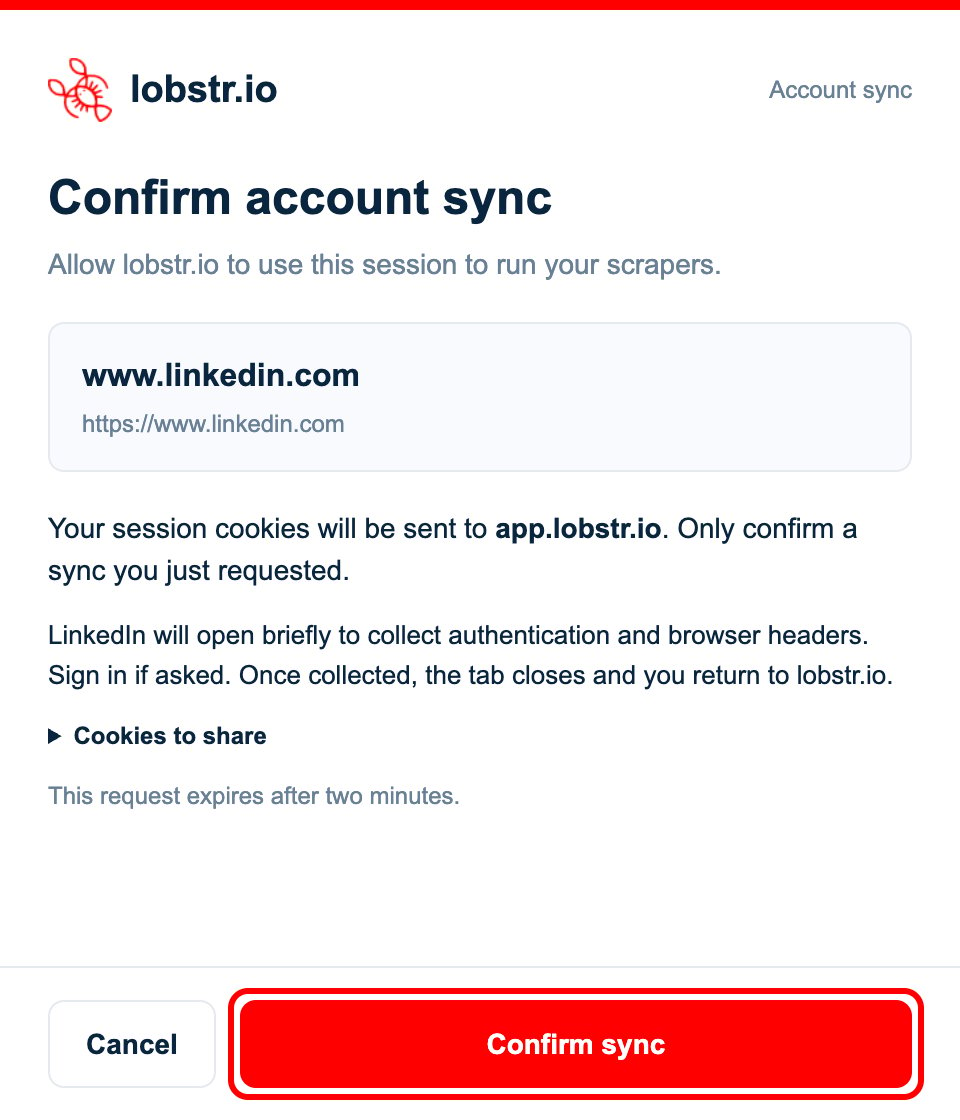
6
Check the result
The account shows Synchronized and today’s date under Last synchronization. If the date is old, the sync did not go through: start again.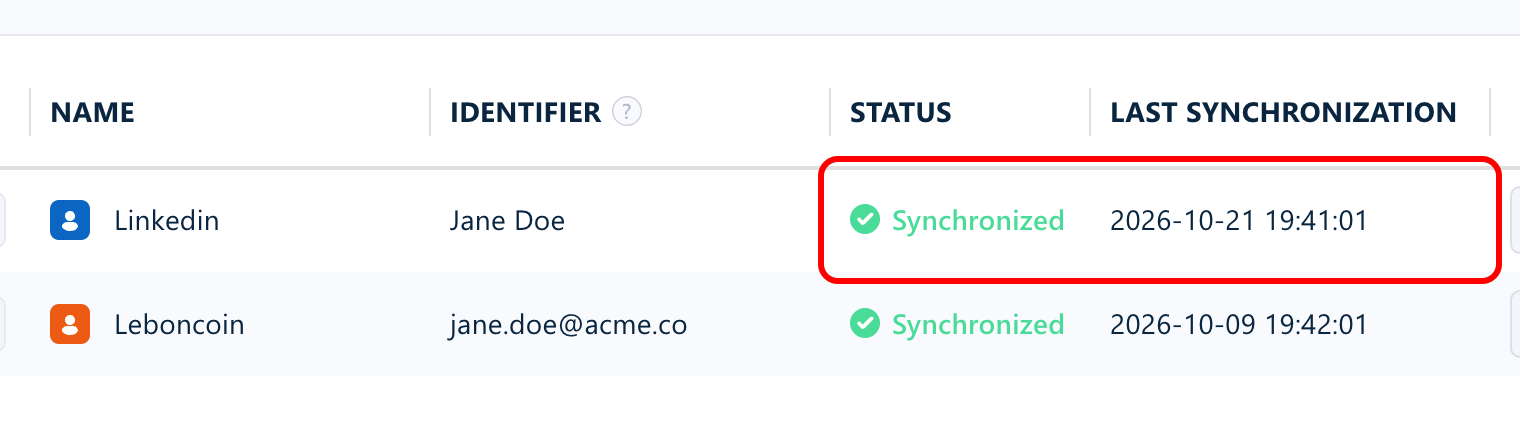
Update the extension
Extensions installed this way do not update by themselves. To install a new version:- Download the new ZIP and unzip it.
- Replace your old dist folder with the new one, in the same place.
- Open
chrome://extensionsand click the reload arrow on the lobstr.io card. - Reload lobstr.io.
Troubleshooting
Chrome says the extension contains malware
Chrome says the extension contains malware
Stop using the version Chrome blocked. Do not reinstall the old 1.1.2 ZIP.Developer mode does not guarantee that Chrome will accept an extension. If Chrome also blocks the current download, contact support. For Leboncoin, you can use the alternative below.
lobstr.io cannot find the extension
lobstr.io cannot find the extension
Check that version 1.2.1 is on in
chrome://extensions, then reload lobstr.io. The extension and lobstr.io must be open in the same Chrome profile.Remove older lobstr.io extensions. If you use an incognito window, switch to a regular Chrome window.The sync was cancelled or timed out
The sync was cancelled or timed out
Go back to Accounts and start a new sync. Approve the extension window and any Chrome access request. Leave the lobstr.io page and any LinkedIn tab opened by the extension in place until the sync finishes.If you need to sign in to the website first, sign in, then start a new sync.
Can I sync Leboncoin without this extension?
Can I sync Leboncoin without this extension?
Yes. For an existing account, use Edit cookies in lobstr.io. To add or sync an account through the API, follow the Sync Account API guide with type
leboncoin-sync.You can export your own Leboncoin session with Cookie-Editor. The API expects a cookie name/value object, not Cookie-Editor’s raw array. Include __Secure-Login and, when present, datadome, __Secure-Login-Lax, and __Secure-InstanceId. Request headers are optional for Leboncoin.Cookies grant access to your account. Submit them only through the lobstr.io app or API; do not send them in chat, email, or screenshots.